00196605_Install_SQLExpress2008_manual.pdf - 第9页
Installation of SQL 2008 Express 02/2011 Edition 3.2 Inst allation of SQL 2008 Express Edition Please follow the instructions below for t he manu al installation of SQL 2008 Express Edition. → Ensure you have installed t…
Installation of SQL 2008 Express 02/2011 Edition
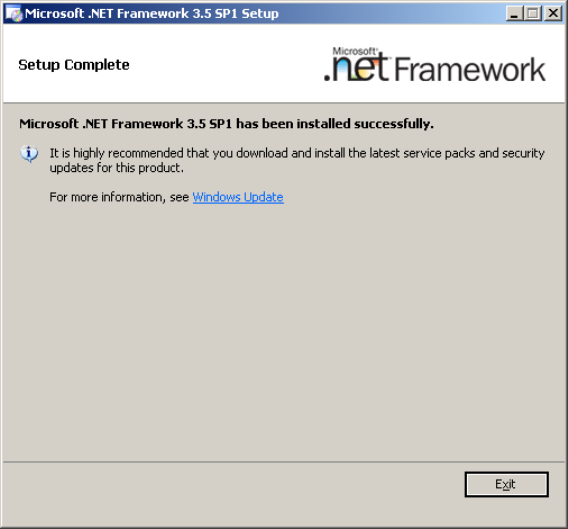
After successful installation, the window should look like this:
Fig. 3-3: .Net Framework 3.5 SP 1 after setup
→ Click Exit to finish the setup.
→ Restart your computer before proceeding!
3.1.3 PowerShell 1.0
SQL Server Express 2008 requires Microsoft PowerShell 1.0.
You have to install this package manually if it is missing before you start with the SQL Server installation.
It is provided on the SIPLACE Net Support Media in the directory
<DVD-Drive>\Tools\PowerShell\1.0.
8

Installation of SQL 2008 Express 02/2011 Edition
3.2 Installation of SQL 2008 Express Edition
Please follow the instructions below for the manual installation of SQL 2008 Express Edition.
→ Ensure you have installed the SQL 2008 Express Prerequisites Microsoft Windows Installer
4.5 or later and .Net Framework 3.5 SP 1 or later.
Note:
Close all other applications before you start with the installation of SQL 2008 Express.
→ Insert the SIPLACE Net Support Media into your drive.
9
Installation of SQL 2008 Express 02/2011 Edition
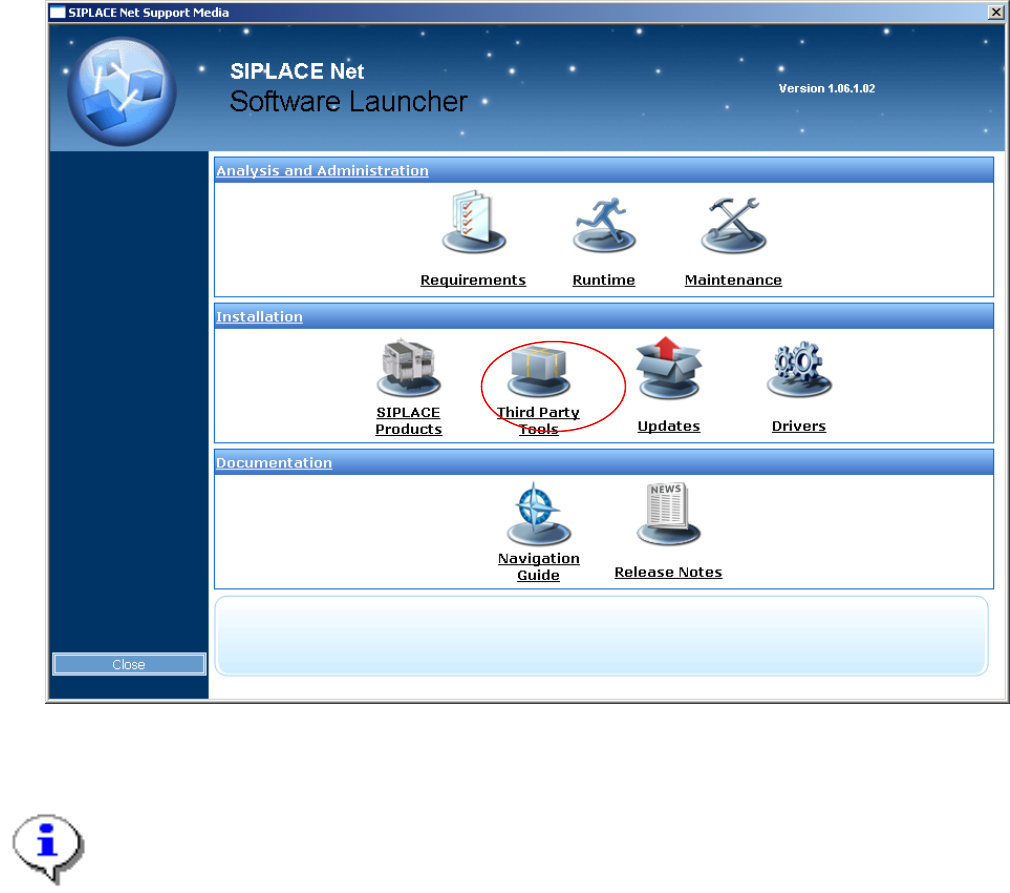
The following dialog appears:
Fig. 3-4: Support Media Software Launcher
Note:
If the dialog does not appear start your Windows Explorer, browse to the file autorun.cmd on
the DVD and double-click it.
→ Select “Third Party Tools”.
10