1022330_6 Edison Safety 3 Dec 2015.pdf - 第30页
SAFETY (EDISO N) Overview 30 Safety (Edison) Sample Lockout Following is a sample lockout configuration: B A
. . . . .
SAFETY (EDISON)
Overview
1022330_6 29
Section E:
. . . . . . . . . . . . . . . . . . . . . . . . . . . . . . . . . . .
Lockout/Tagout Recommendations
Overview
Introduction In order to ensure complete safety when maintaining and/or repairing the Edison
printer, Speedline strongly recommends adherence to approved lockout/tagout
practices. In addition to local procedures, Speedline recommends the following.
Pneumatics Pressing the Emergency Stop button automatically removes air from the printer (up to
the main air regulator).
Procedure Lockout your Edison printer as follows:
Step Action
1 Set the Main Circuit Breaker/Disconnect Switch to O (off).
2
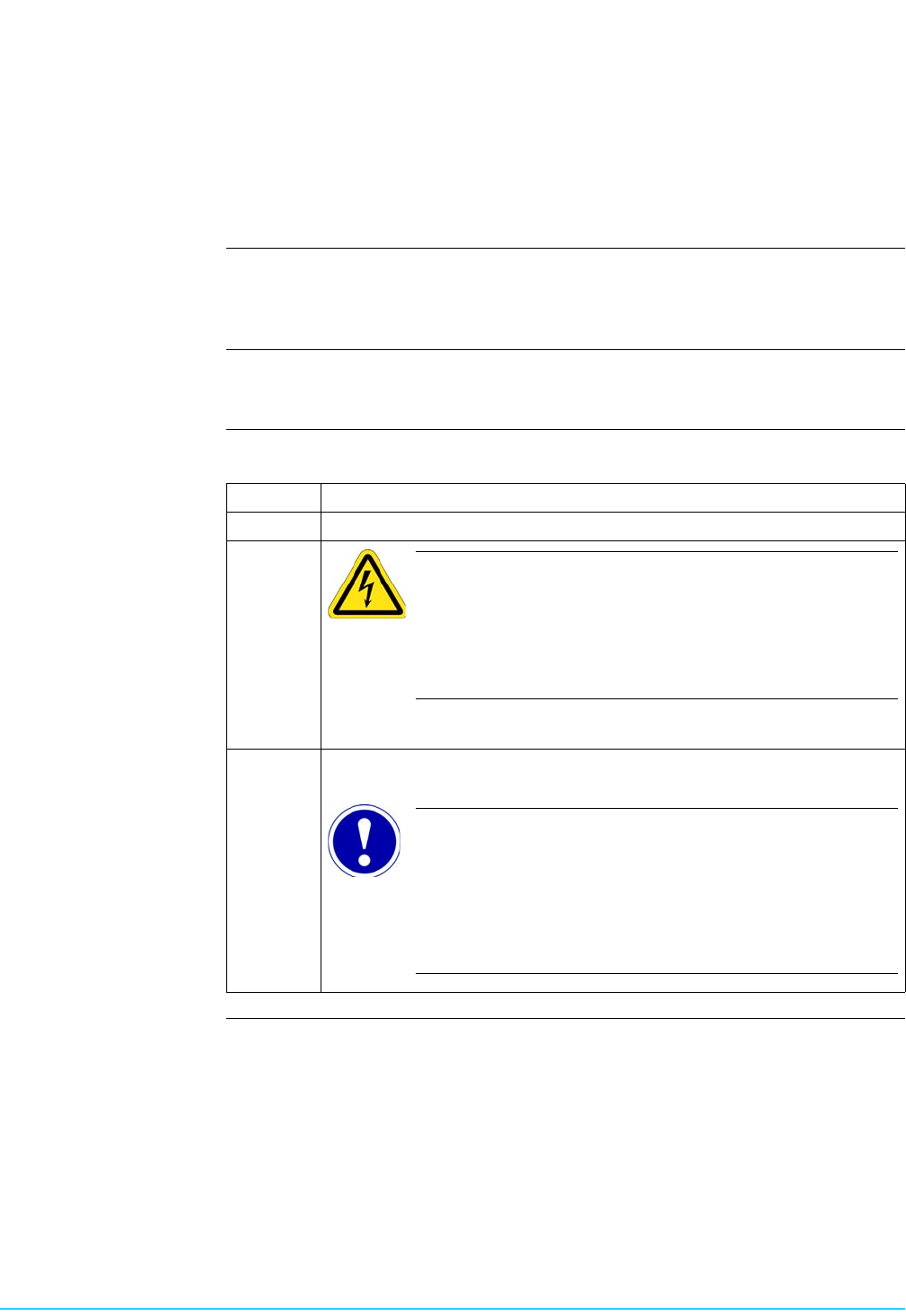
Electrical Hazard
WARNING. Main Disconnect terminals are live. Speedline
recommends that the printer’s power cord be unplugged
from its power source for added safety.
Unplug the power cord from its power source.
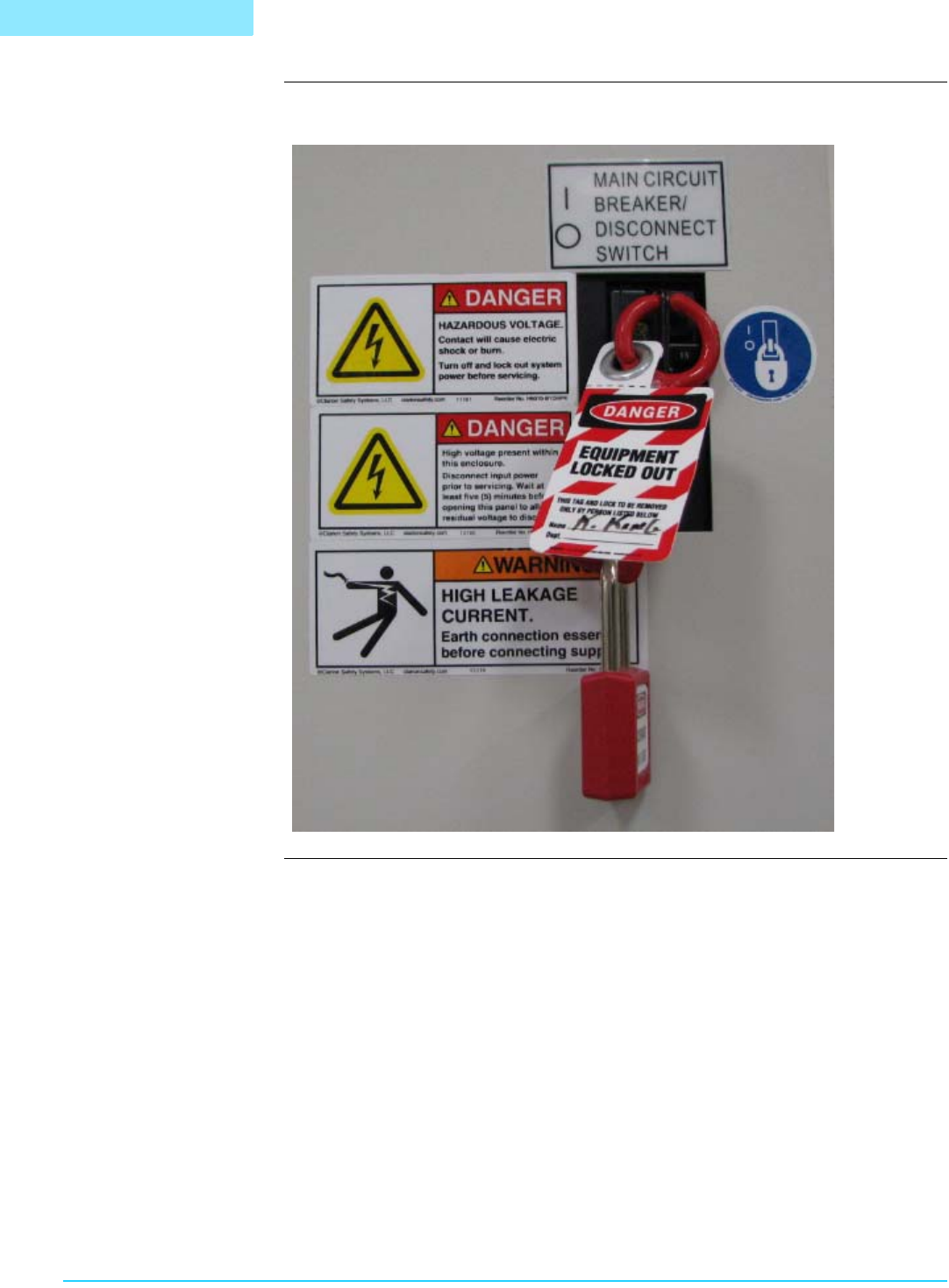
3 Apply locking device and tags to the Main Disconnect switch. See
“Sample Lockout” on page 30.
ATTENTION
The Edison printer is designed to effectively dissipate stored
energy when power is removed. Once power is removed and
the system is locked and tagged, there is no danger of
electrical shock due to stored energy.
SAFETY (EDISON)
Overview
30 Safety (Edison)
Sample Lockout Following is a sample lockout configuration:
B
A
. . . . .
SAFETY (EDISON)
Overview
1022330_6 31
Section F:
. . . . . . . . . . . . . . . . . . . . . . . . . . . . . . . . . . .
Safety Circuit and Interlocks
Introduction The Edison printer safety circuit and interlock system employs an interlock device on
the front hood to prevent access to specific printer hazards during printer motion. Do
not attempt to defeat this interlock through the use of spare interlock actuators or any
other means.
Motion Control Printer motion is available via the Motion Control screen. To access this screen, select
View > Diagnostics (from the menu bar at the top of the screen), then click the Motion
Control tab.
Hand Crush Hazard
Caution. Keep hands clear of printer while testing printer motion.
Interlock Bypass
and Printer Motion
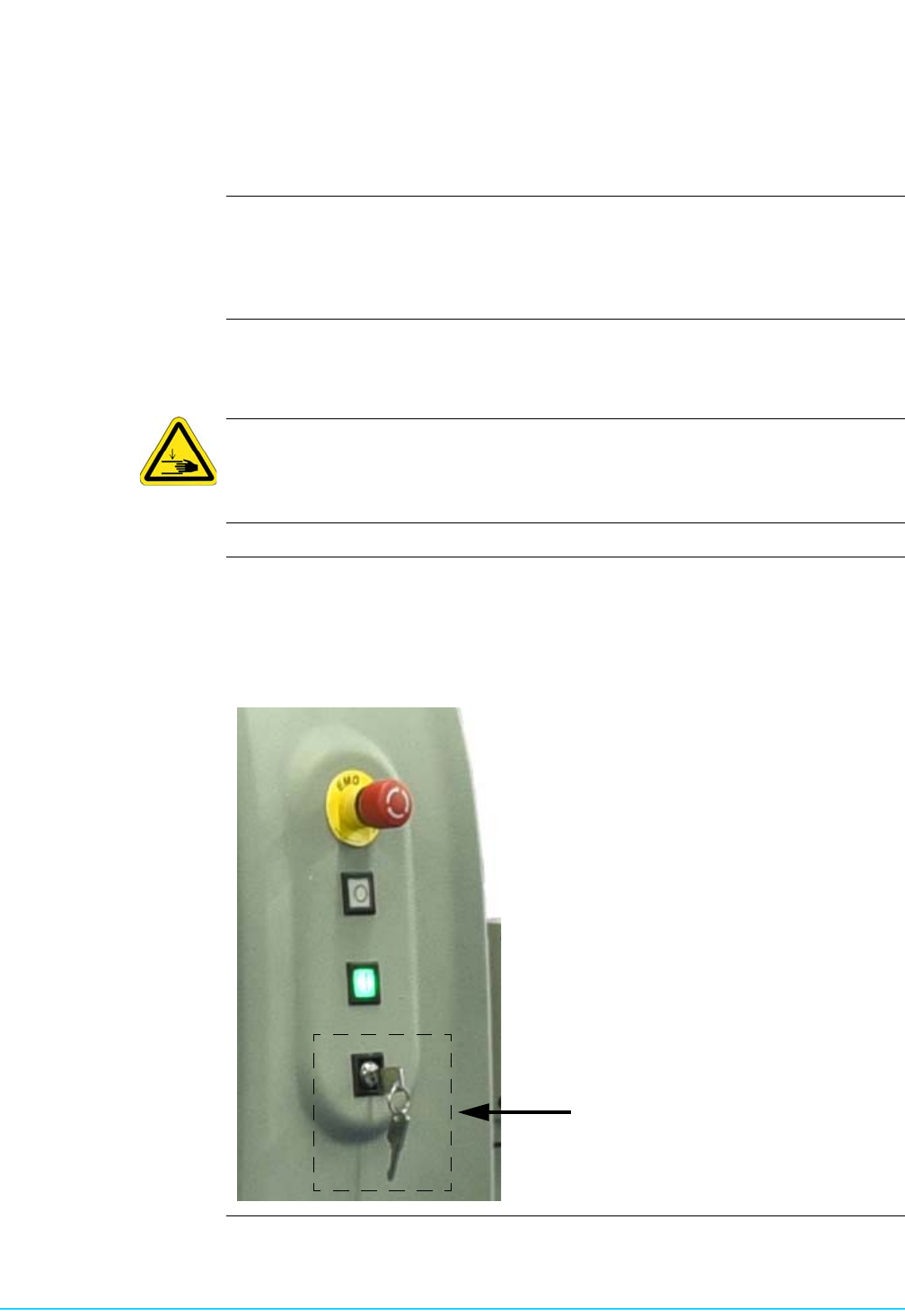
There is an Interlock Bypass key switch located at the front of the printer. When this
key switch is placed in the horizontal position, you can open the hood and jog axes,
but only when instructed to do so by the Intueri software. During these situations,
speed is reduced to 25% for all axes. Axes will travel at normal speed with the key set
to Bypass and the hood closed.
B
A