00196824_Install_SQL2008R2Server_manual.pdf - 第20页
Installation of SQL Server 2008 R2 02/2011 Edition Fig. 3-21: SQL Server Setup Database Engi ne Configuration – SIPLACE conform settings → Click the Next > button to continue. The following window will a ppear: Fig. 3…
Installation of SQL Server 2008 R2 02/2011 Edition
The following window will appear:
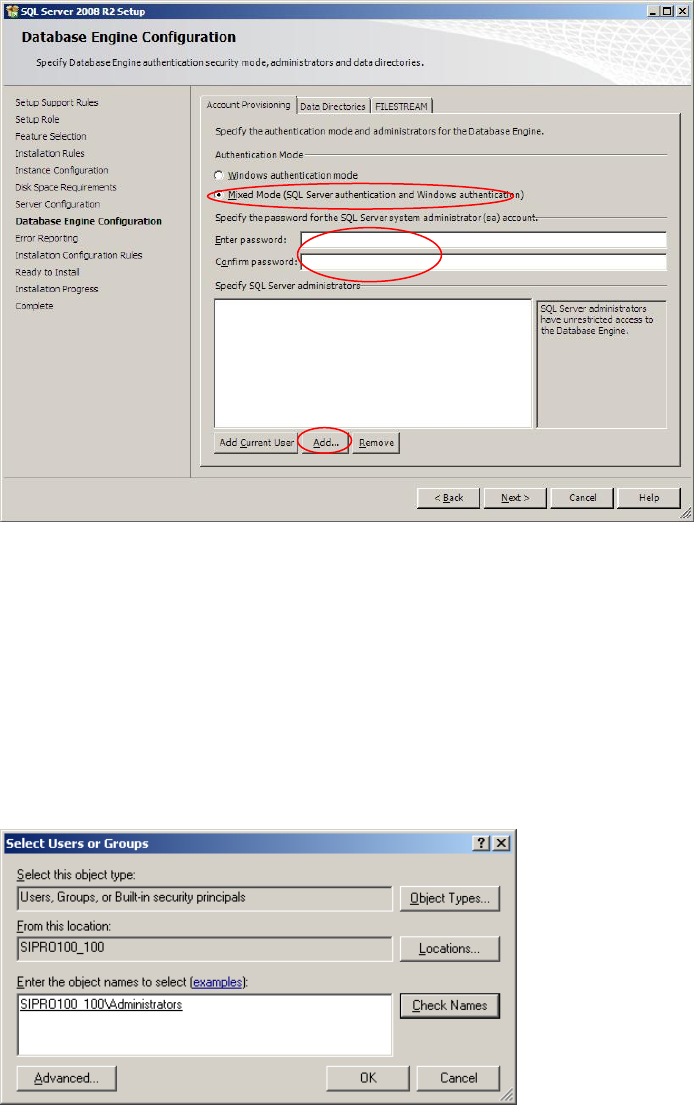
Fig. 3-19: SQL Server Setup Database Engine Configuration
→ Click the radio button Mixed Mode (SQL Server authentication and Windows
authentication).
→ Enter the password for the SQL user “sa”.
→ Click the button Add….
The following message box will appear:
Fig. 3-20: SQL Server Setup - specific SQL Server administrators – Select Users or Groups message box
→ Enter the local administrators group in the format <computername>\<groupname>.
→ Click the button Check Names to ensure you typed the correct name.
→ Click the OK button to close the message box and save the settings.
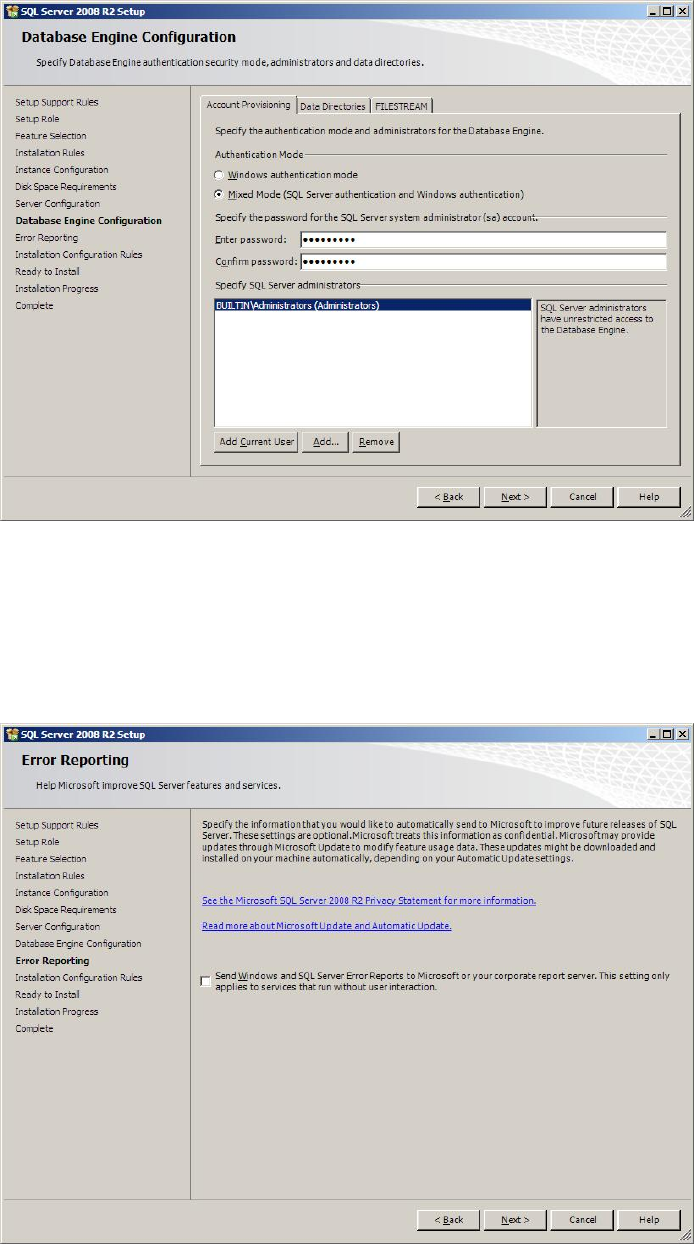
The window now should look like this:
19
Installation of SQL Server 2008 R2 02/2011 Edition
Fig. 3-21: SQL Server Setup Database Engine Configuration – SIPLACE conform settings
→ Click the Next > button to continue.
The following window will appear:
Fig. 3-22: SQL Server Setup Error and Usage Reporting
→ Click the Next > button to continue.
20
Installation of SQL Server 2008 R2 02/2011 Edition
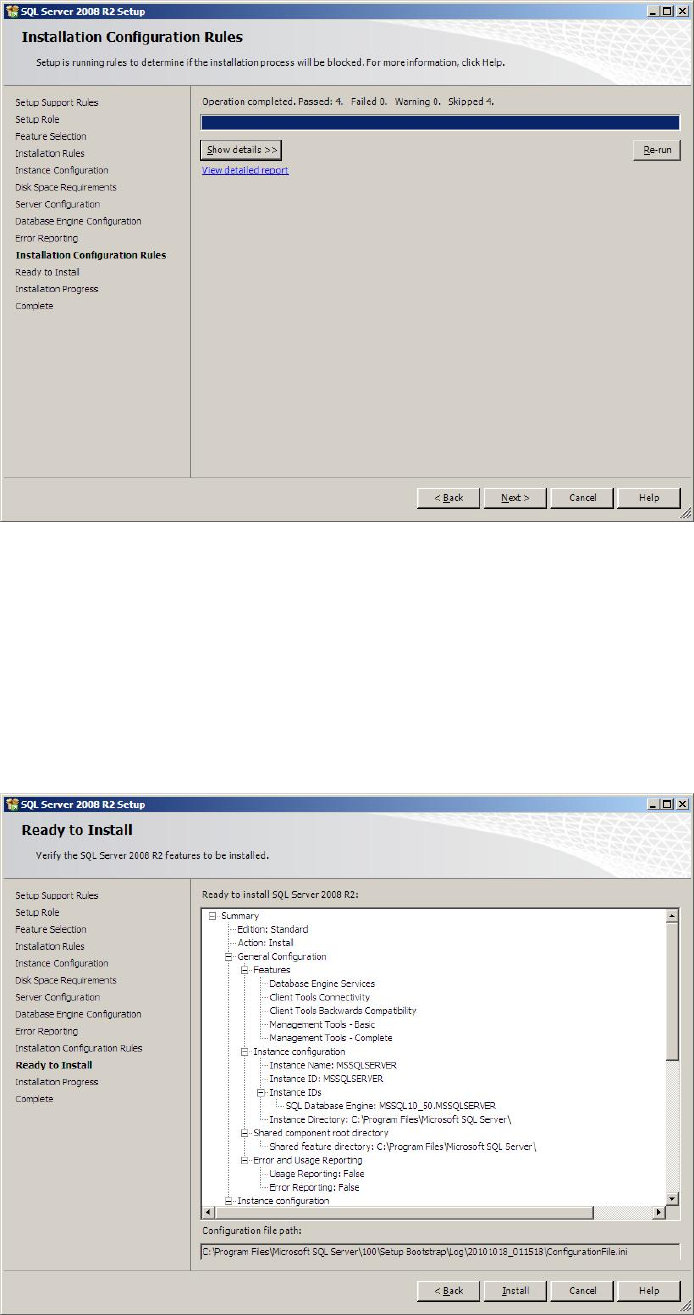
The following window will appear:
Fig. 3-23: SQL Server Setup Installation Configuration Rules
→ Click the button Show details >> to examine the rules and follow the rule instructions if
necessary.
→ Click the Next > button to continue.
The following window will appear:
Fig. 3-24: SQL Server Setup Ready to Install
21