00196824_Install_SQL2008R2Server_manual.pdf - 第9页
Installation of SQL Server 2008 R2 02/2011 Edition Note: On some Operating Systems, a .Net Fram ework version is alread y integrated. It might be required to activate the appropria te Windows Feature before installing .N…
Installation of SQL Server 2008 R2 02/2011 Edition
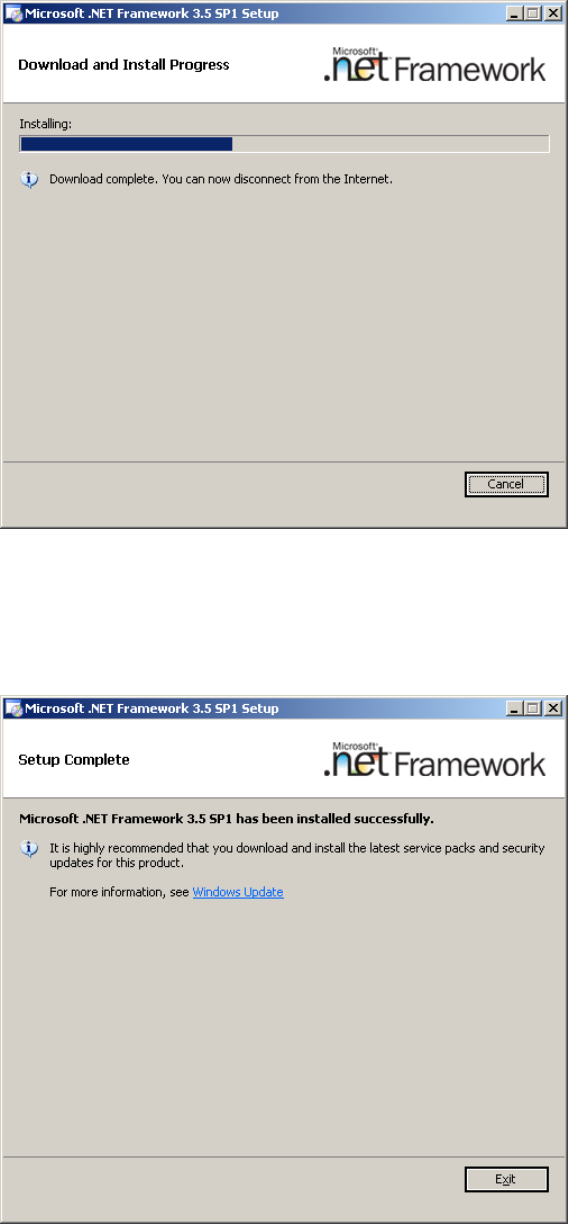
During the installation, the window might look like this:
Fig. 3-2: .Net Framework 3.5 SP 1 during setup
After successful installation, the window should look like this:
Fig. 3-3: .Net Framework 3.5 SP 1 after setup
→ Click Exit to finish the setup.
→ Restart your computer before proceeding!
8

Installation of SQL Server 2008 R2 02/2011 Edition
Note:
On some Operating Systems, a .Net Framework version is already integrated.
It might be required to activate the appropriate Windows Feature before installing .Net
Framework 3.5 SP 1.
To simplify installation, we recommend using the Profile “SIPLACE Net\.Net Framework 3.5 SP
1 stand- alone” provided on some newer versions of Prerequisite Analyzer on SIPLACE Net
Support Media DVD.
9
Installation of SQL Server 2008 R2 02/2011 Edition
3.2 Installation of SQL Server 2008 R2
Please follow the instructions below for the manual installation of SQL Server 2008 R2.
Note:
Close all other applications before you start with the installation of SQL Server 2008 R2.
You also need to have administrative privileges to proceed.
→ Insert the SQL Server 2008 R2 installation DVD into your drive.
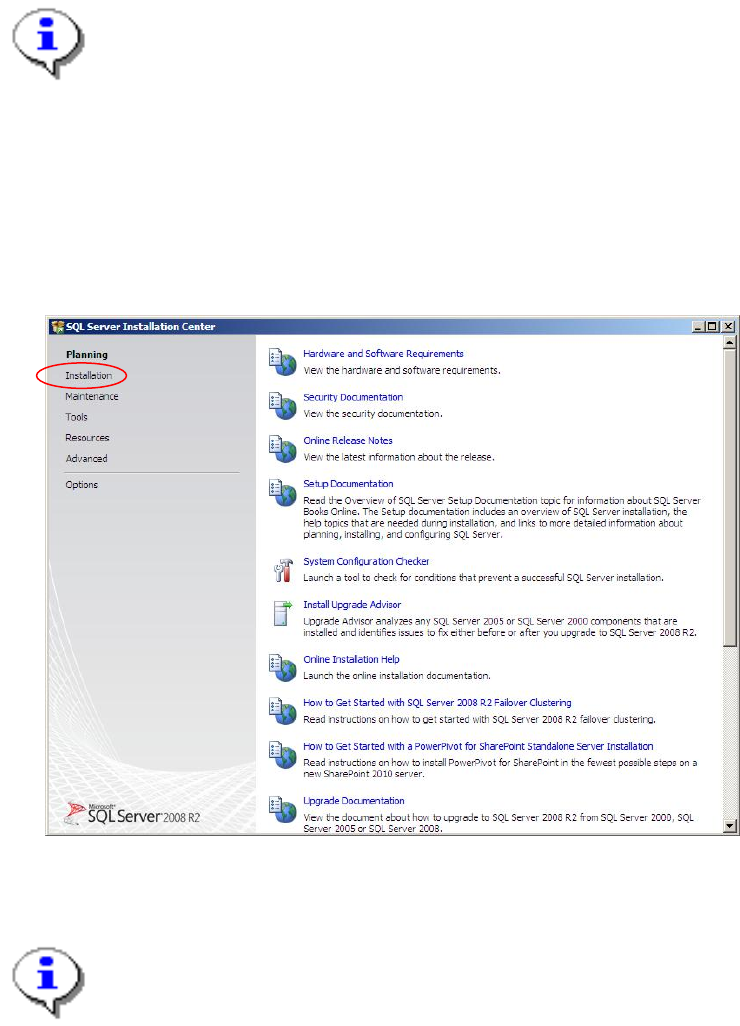
After some seconds, the following dialog is displayed:
Fig. 3-4: SQL Server Installation Center - Planning
Note:
If the dialog does not appear start your Windows Explorer, browse to the file setup.exe on the
SQL Server 2008 R2 installation DVD and double-click it .
→ Click on Installation on the left side
10