00196683-01 - IM Installation Manual Siplace Pro 8.0_en.pdf - 第59页
7 Troubleshooting Installation Manual Edition 03/2010 US SIPLACE Pro 8.0 57 7 Fig. 7 - 4 Conflicting Logins Cause: 7 When a databa se is restored but the re pair security script hasn’t completed successfully . 7
Installation Manual 7 Troubleshooting
SIPLACE Pro 8.0 Edition 03/2010 US
56
. 7
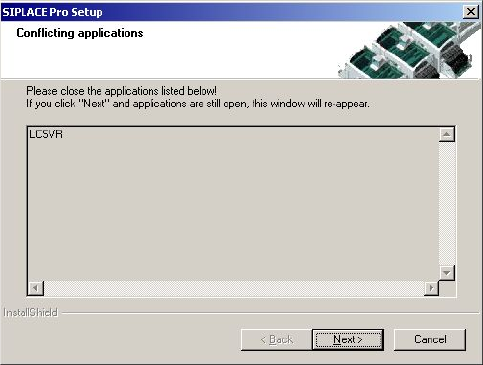
Fig. 7 - 3 Conflicting applications
Cause: 7
The service LineControlServer could not be stopped. 7
Solution: 7
Please proceed as follows: 7
Æ (1) Press the Next button several times. Sometimes the applications simply need time to close.
As soon as the application is terminated, the installation will continue.
Æ (2) Check if the LCGUI is running on another client. If yes, please stop it and try to continue
the installation by pressing the Next button again.
Æ (3) Open Services from the start menu (Start/Settings/System Control/Administration/Services.
Locate the line for the "LineControlServer". If the status is "started", try to stop the service by
context menu. After that try to continue the installation by pressing the button Next.
Æ (4) If the Service cannot be "stopped", the service could not be stopped as requested. Please
restart your computer.
7.1.6 Cannot add Logins
Error description: 7
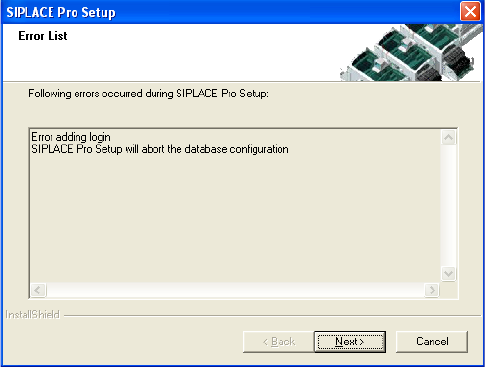
The installation displays in the dialog "Cannot add Logins, need to run Repair Security". 7
7 Troubleshooting Installation Manual
Edition 03/2010 US SIPLACE Pro 8.0
57
7
Fig. 7 - 4 Conflicting Logins
Cause: 7
When a database is restored but the repair security script hasn’t completed successfully. 7
Installation Manual 7 Troubleshooting
SIPLACE Pro 8.0 Edition 03/2010 US
58
Solution: 7
Click on Next. Setup will return the database to its state at the beginning of the Installation. The
database administrator should start the Query Analyser (or equivalent) and run the script
RepairSecurity.tsq, which can be found in the SIPLACE Pro Installation directory in the folder
DBSkripts. Now restart Setup.exe. The database should now be processed correctly. 7
7.1.7 Users connected to the database SIPLACEPro
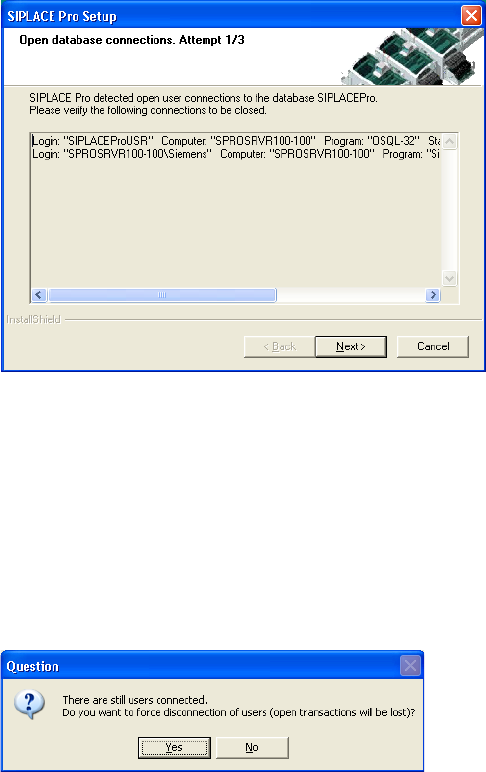
During upgrade, if users are connected to the database SIPLACEPro, a message similar to the
following will be displayed: 7
7
Fig. 7 - 5 Open Database Connections
In this case, you have to examine the list of connections,identify and close the appropriate appli-
cation(s) manually. Loginname, computername and program name will be displayed to help iden-
tification of the application(s) which need to be closed. 7
Æ Click Next to check for remaining connections, again.
If you have problems identifying and closing the connections to the database, SIPLACE Pro Setup
will assist you after three times of check, the following message will be displayed: 7
7
Fig. 7 - 6 Open Database Connections - Message
Æ Click Yes if you want to force a disconnection of all open user connections automatically.
If you click No, you will start over with the connection check. After three times of check the discon-
nection question will be displayed again, and so on. 7