00196683-01 - IM Installation Manual Siplace Pro 8.0_en.pdf - 第68页
Installation Manual 8 Uninstalling SIPLACE Pro 8.0 Edition 03/2010 US 66 8 Abb. 8 - 1 Saving options Æ Choose Files created by SIPLACE Pro to be removed if you want to free up disk sp ace on this computer . Choose Instal…

8 Uninstalling Installation Manual
Edition 03/2010 US SIPLACE Pro 8.0
65
8 Uninstalling
8.1 Uninstalling the software
Uninstalling SIPLACE Pro deletes all SIPLACE Pro software components from the system except
for the SIPLACE Pro Database. 8
The SIPLACE Pro Database is not automatically uninstalled in order to prevent possible data
loss. 8
Step 1
Uninstall SIPLACE Pro via the Control Panel. 8
You require the uninstall window in Windows for uninstalling. 8
Æ Click Start in the Windows start menu.
Æ Click Settings.
Æ Click Control Panel.
Æ Double-click Add / Remove Programs.
A list appears with the names of the software packages installed on the computer. 8
Æ Select SIPLACE Pro.
Æ Click the Change/Remove components button.
Æ Select Remove to remove all installed features.
Æ Click Next to continue.
Æ In the "Confirm File Deletion" dialog box, click OK if you wish to proceed or Cancel if you wish
to cancel the uninstall process.
Æ Click Next to continue.
Æ In the "Confirm Uninstall" dialog box, click OK if you wish to proceed or Cancel if you wish to
cancel the uninstall process.
Installation Manual 8 Uninstalling
SIPLACE Pro 8.0 Edition 03/2010 US
66
8
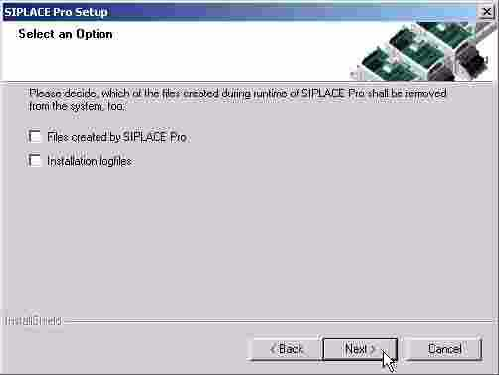
Abb. 8 - 1 Saving options
Æ Choose Files created by SIPLACE Pro to be removed if you want to free up disk space on
this computer.
Choose Installation logfiles to be removed if you never plan to install SIPLACE Pro again on
this computer. If you want to keep the installation logfiles including the log from the uninstalla-
tion, make sure to leave the option Installation logfiles unchecked.
If you do not plan to install SIPLACE Pro again on this computer, we recommend to choose all
options.
Æ Click Next and you get a summary of all components to be deleted.
Æ Click Next if you accept all the information entered so far.
Æ Click Finish
Step 2
Clean up the registry. 8
Æ Go to the "registry editor"
via Start - Run - then type in "regedit".
Æ Select HKEY_LOCAL_MACHINE\SOFTWARE\Siemens SIPLACE
Æ Delete the following entries:
Line Control GUI
LineControlServer
SIPLACE Pro
SIPLACE Pro SetupLog
SIPLACE Pro
SIPLACE Licensing
SIPLACE NET
8 Uninstalling Installation Manual
Edition 03/2010 US SIPLACE Pro 8.0
67
Step 3
Clean up the disk and make sure that there are no more program files. 8
Æ Check the path Program Files\Siemens SIPLACE\SIPLACE Pro.
Æ If you will find additional files, please delete them (except for the database).
8.2 Uninstalling the database
8.2.1 On installations of SQL Server 2000, 2005, 2005 Express
Warning
All data for SIPLACE Pro will be deleted. This step is only for database administrators. 8
Æ On SQL Server: Go to Enterprise Manager".
On SQL Server 2005: Go to SQL Server Management Studio.
Æ Select the database "SIPLACEPro".
Æ With the right-mouse button select "delete".
All database files of SIPLACE Pro will be deleted. 8
8.2.2 On MSDE installations
Æ Uninstall the MSDE instance used for SIPLACE Pro.
Æ Remove the database files
Note
This applies to SQL 2005 Express without SQL Server Management too. 8
8