Vista Networking.pdf - 第11页
NETWORKING CONNECTION TO A NETWORK SERV ICE Chapter Issue 1 Sep 02 22.11 IP Address Conf iguration Figure 22-5 Selecting the Pr otocol T ype TCP/IP Driver ( G EM and NET_FILES) Windows NT Network Conf iguration option ca…
NETWORKING
CONNECTION TO A NETWORK SERVICE
22.10 Chapter Issue 1 Sep 02
Editing NET_FILE
Comms Options
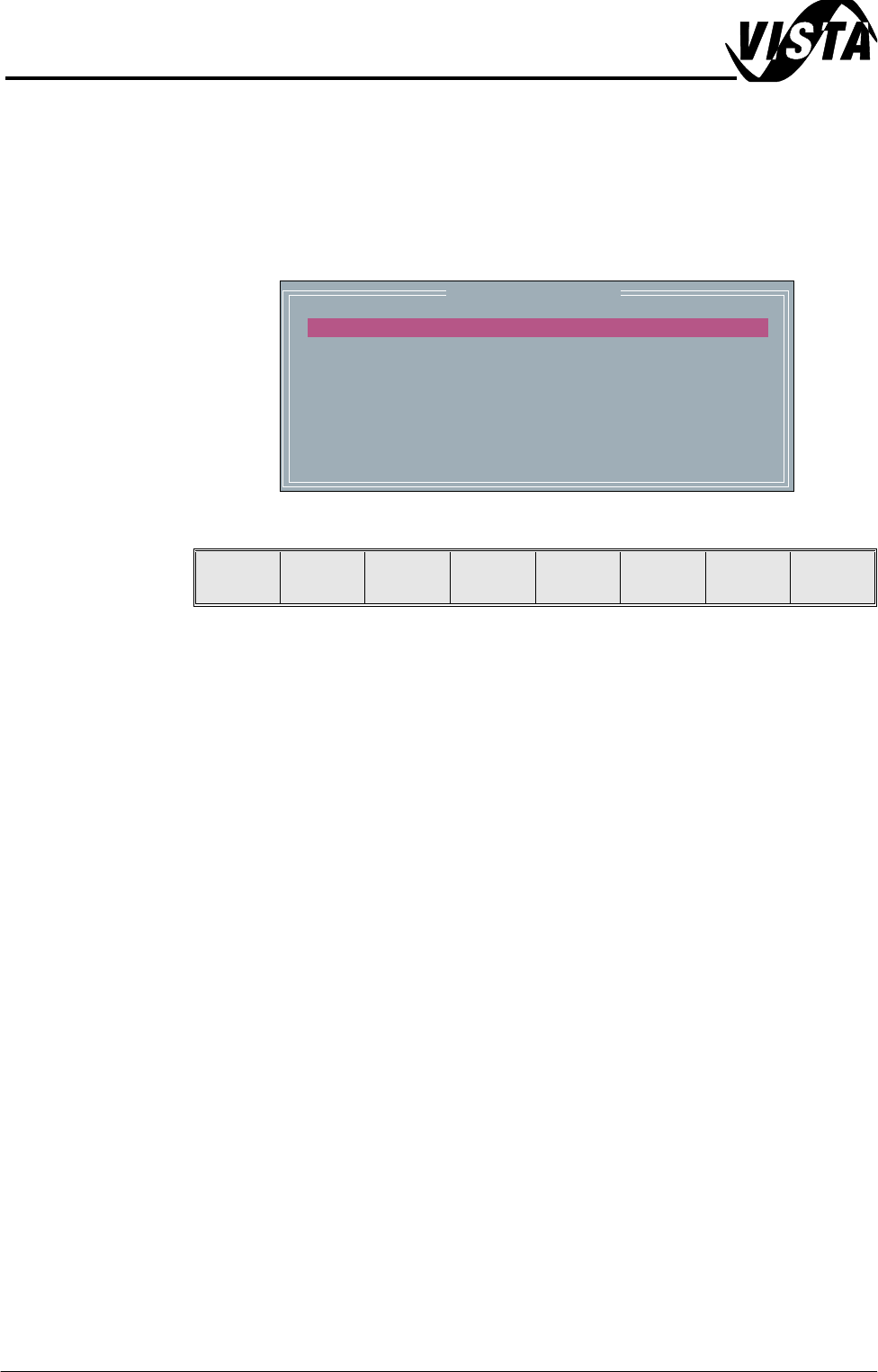
The NET_FILE comms editing window allows the user to change IP addresses,
user ID and file paths.
To enter the Edit Comms window from the set preferences window, select
NET_FILE from the comms protocol, set preference and press the Edit Comms
menu bar option.
The Edit Comms window is displayed as follows:
To edit the Edit Comms window the following menu bar appears:
The Next and Previous keys move the highlight bar up and down the list of
network parameters.
With any of the following highlighted:
• Remote Drive
• User ID
• Products Path
• Data Path
On selecting Incr. the message ‘Please type in the text, then press Return’
is displayed. The menu softkeys are blanked out.
With any of the following highlighted:
• Local Copies
• Reconnect Period
• Timeout
The Incr. and Decr. keys change the value of the highlighted parameter.
The Exit key is used to leave the Edit Comms window.
Network Parameters
REMOTE DRIVE
USER ID
PRODUCTS PATH
DATA PATH
LOCAL COPIES
RECONNECT PERIOD
TIMEOUT
c:
typhoon
product
data
ENABLED
60
30
Next Previous Incr. Decr. Exit
NETWORKING
CONNECTION TO A NETWORK SERVICE
Chapter Issue 1 Sep 02 22.11
IP Address Configuration
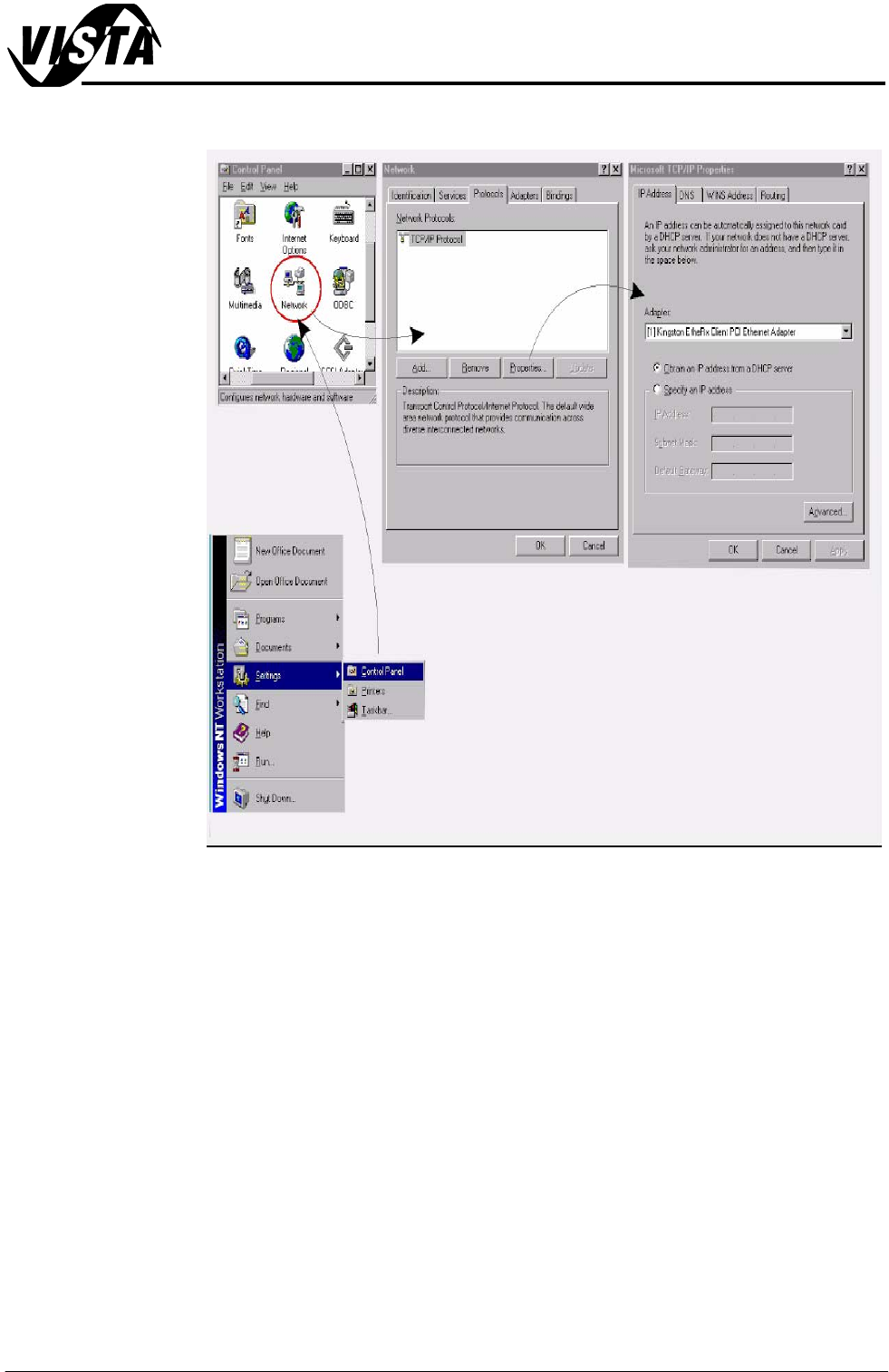
Figure 22-5 Selecting the Protocol Type
TCP/IP
Driver (GEM
and NET_FILES)
Windows NT Network Configuration option can be set up using the Network icon
in Control Panel. Select Protocols and highlight TCP/IP Protocol. From Proper-
ties choose the appropriate adapter and either obtain or specify a fixed IP
Address for the printer in Protocols - Properties.
NOTE
The network administrator should be instructed to create two working directo-
ries for the product and data fields to be stored. these directories must have
read/write capabilities.
SDR Driver (GEM
Only)
The GEM - IP Address for the machine must be set up in the SDR driver, this
can be checked and edited if necessary in the configuration file D:\ Program
files\DEK\Machine Control\Printer\sdrconf.cfg
Set the PASSIVE ENTITY IP ADDRESS to the printers’ ‘IP Address’.
If there is more than one printer communicating with the GEM Host, set the
DEVICEID differently for each printer. The default value is 0x109 (265). Alter-
native DEVICEID values should be chosen within the range 0x0000 - 0x7FFF
(0 - 32767).
NETWORKING
CONNECTION TO A NETWORK SERVICE
22.12 Chapter Issue 1 Sep 02
Quick
Reference Table
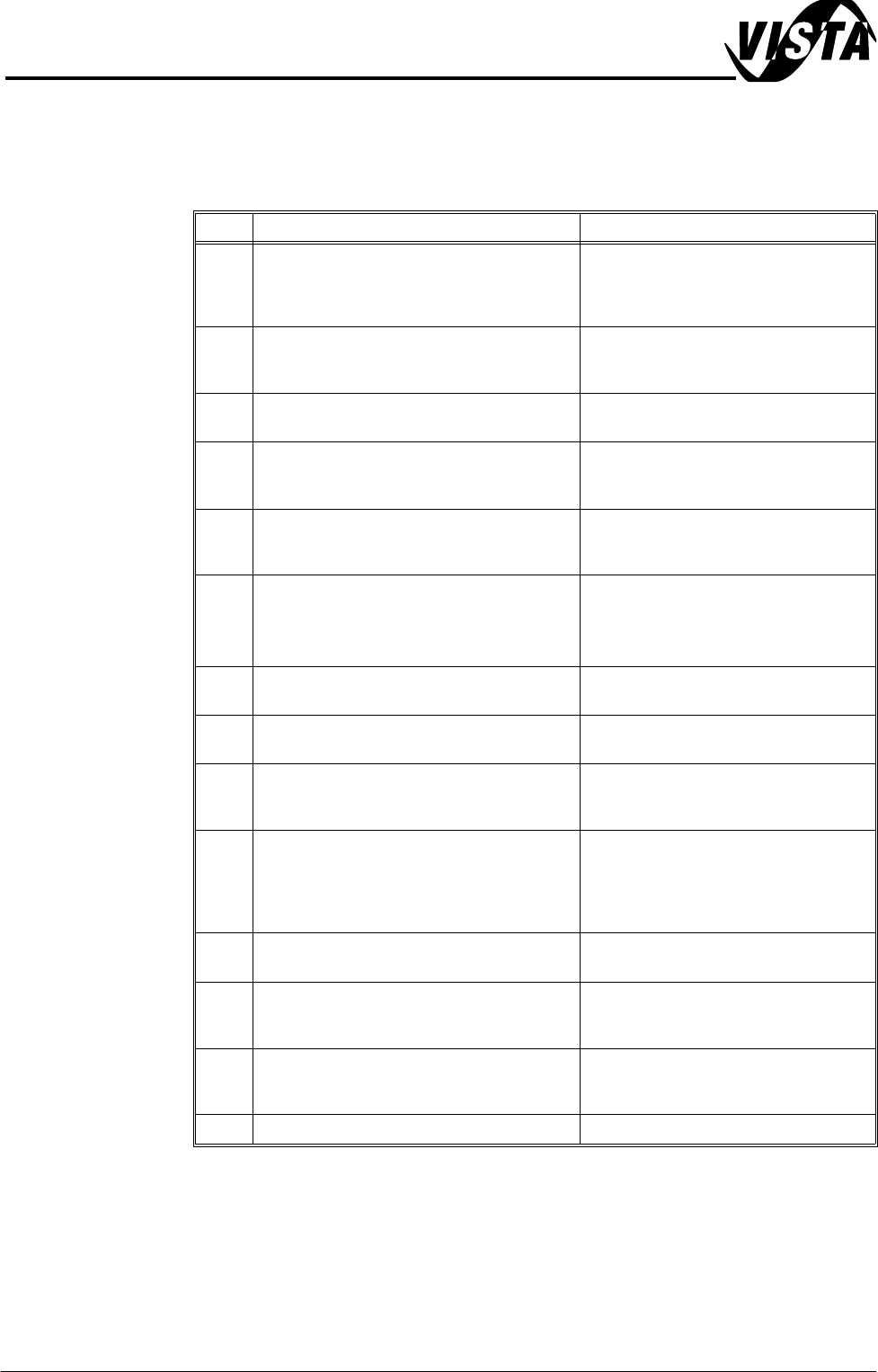
The table below is provided for an engineer who needs a quick reference to the
actions required to install a machine onto a network. The engineer may have
previously installed a machine, be re-installing a machine onto another server
or be installing several machines at once.
NOTE
The system requires that the correct enabling security key device driver is fitted
to the port on the rear of the machine before software applications can be
installed
No. Action Required Information
1 In Windows, select the Network icon from
Control Panel and the Identification tab,
register the printer on the correct domain or
workgroup
The network administrator shall supply
domain or workgroup information,
select the Change button to change the
detail
2 Select the Protocols tab, select TCP/IP
protocol and the Properties button
Check that the adaptor is correct for the
connection (as fitted in the PC) There
may be more than one device fitted
3 If DHCP is specified:- Select: Obtain an IP Address from the
DHCP Server
4 If an IP Address is to be specified:- Obtain the IP Address, and the Subnet
Mask details from the system adminis-
trator
5 Tell the network administrator that you
require two working directories where the
product and data files are to be stored
Files must have full administrative rights
(read/write)
6 For GEM, set up the IP address in the SDR
driver
D:\Program Files\DEK\Machine Con-
trol\Printer\sdrconf.cfg
Set the
Passive IP Address to
the Printers’ IP Address
7 If more than one printer is to communicate
using the GEM Host:
Set a different DEVICEID for each
printer.
8 At the printer in Set Prefs, select Comms
Protocol to ON
For serial GEM only
9Select Auto Login option Set to disabled if the operator is to log in
every session or enabled if the login is
to occur automatically at start up
10 Select Local Copies option Decide if it is desired that the printer
copies remote product files to the local
drive after loading it from the remote
product directory. If disabled, modifica-
tions to the file are not saved
11 Check the physical connection to the net-
work
Ethernet 10BaseT is supported by DEK
12 Ask the network administrator if there are
any intermediate routers between the server
and the printing machine
Supply the correct IP Address, check
the IP forwarding option in Protocols
Properties, Routing
13 Using Network Neighborhood in Windows,
check that the printer can be ‘seen’ by the
host PC
Look for a computer icon with the printer
serial number next to it
14 Test the network connection See section ‘Pinging the Network’