Vista Networking.pdf - 第14页
NETWORKING TESTING THE CONNECTION 22.14 Chapter Issue 1 Sep 02 TESTING THE CONNECTION Pinging t he Network To ‘ Ping ’ the network, open the Command Pr ompt (DOS) pane and Neighbour - hood Network. 1. Select fr om the de…

NETWORKING
CONNECTION TO A NETWORK SERVICE
Chapter Issue 1 Sep 02 22.13
At the printer use housekeeping to transfer product files (.pr1) from local disk to
the remote disk. Load a product file from the remote disk back to the printer and
check that the transaction is complete.
NETWORKING
TESTING THE CONNECTION
22.14 Chapter Issue 1 Sep 02
TESTING THE CONNECTION
Pinging the
Network
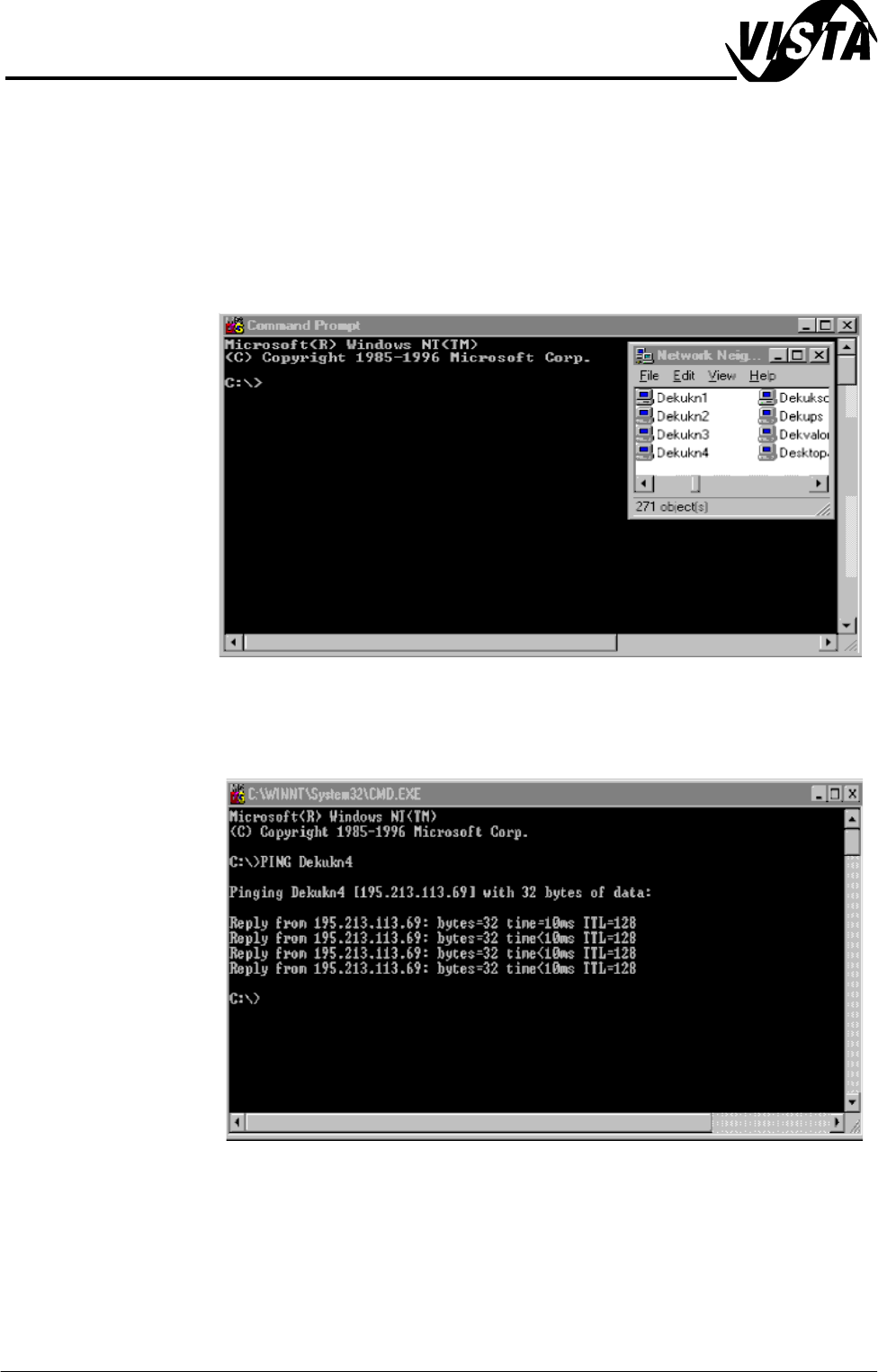
To ‘Ping’ the network, open the Command Prompt (DOS) pane and Neighbour-
hood Network.
1. Select from the desktop, Start, Run and CMD.EXE
NOTE
The network administrator can supply an IP Address to ping or use Neigh-
bourhood Network to select a computer name.
2. Type Ping <Server IP Address or Computer Name>.
3. If the ping is successful the reply shall contain information of the form: Reply
from 127.0.0.1: bytes=32 time<10ms TTL=128.
The installation of the printer to the company network has been successful.

NETWORKING
TESTING THE CONNECTION
Chapter Issue 1 Sep 02 22.15
Using a Laptop If ‘Pinging’ the network fails, a laptop computer can be attached to the printing
machine to test the local network is working correctly.
NOTE
Before commencing testing, make a note of the original configurations of both
the laptop and the printer so that they can be reset on completion.
1. Identify the laptop name by selecting Control Panel, Network.
2. Under the Protocols tab select TCP/IP and Properties, select Specify an
IP Address.
3. Enter IP Address 195.100.100.2 and a subnet mask of 255.255.255.0.
Select OK. Close the network dialog and the control panel and re-boot the
laptop.
4. Connect the laptop to the printer using a cross-over network cable.
5. On the laptop log in locally as ‘Yourself’ in the laptop name domain.
6. Create a directory called Test, change its properties so that it is shared.
7. Create two sub-directories of Test for ‘data’ and ‘products’.
8. At the printer, check that the printer’s IP Address is 195.100.100.1
NOTE
If the IP Address is changed the printer shall need to be rebooted.
9. On the desk top double click My Computer.
10.Right click on C:Drive.
11. Select Sharing, Select New Share. Type C Drive in the shared name box.
12.Select User Limit and allow user = 1.
13.Repeat these steps for D Drive.
14.From the Start Menu, select Programs and then Windows NT Explorer.