00198766-01_IM_713.0_R19-2_EN.pdf - 第48页
Station Software Version 7 13.0 (R19-2) / Installation Manual 11/2019 Edition 48 5.6.2 Prerequisites The following software packag e is prerequisite to be able to install the Language Pack: SIPLACE station softwar e SIPL…
Station Software Version 713.0 (R19-2) / Installation Manual 11/2019 Edition
47
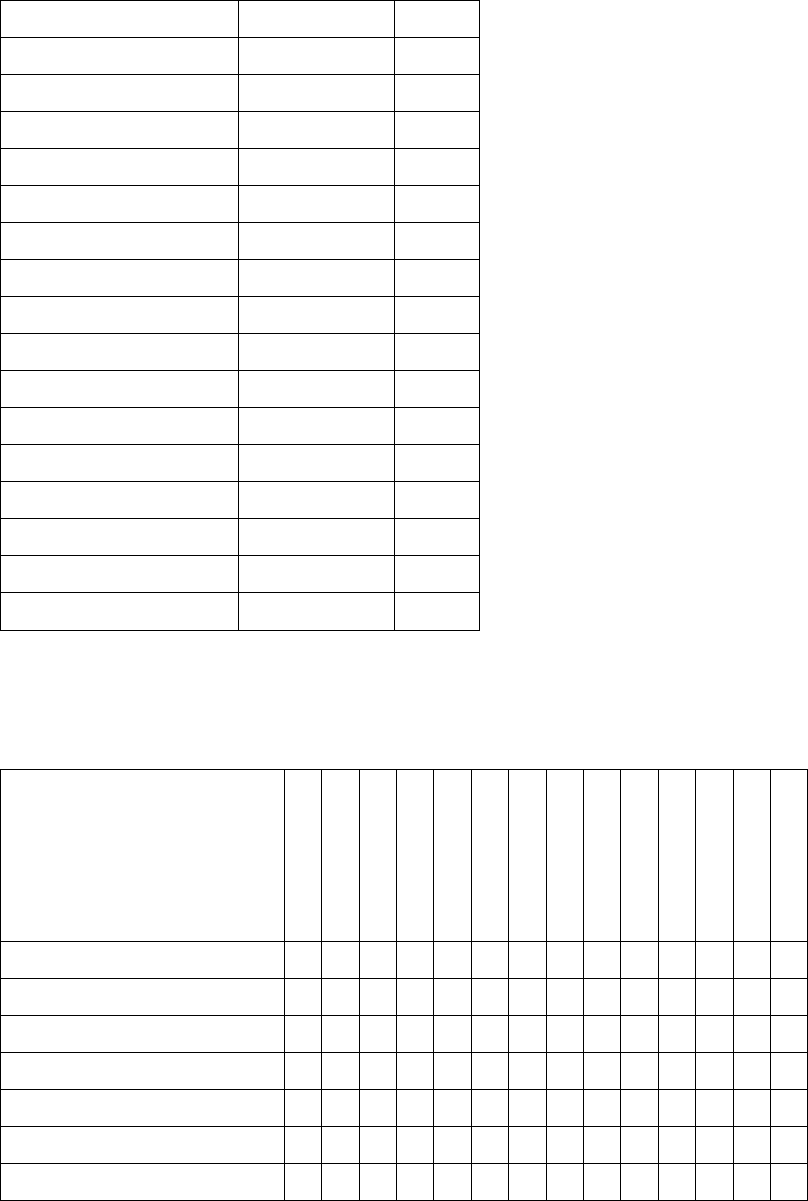
The following national languages are available for the user interface. At delivery, only the national
language is installed.
Language
Abbreviation
Code
German
ger
1031
English
eng
1033
French
fra
1036
Italian
ita
1040
Spanish (Mexican)
esm
2058
Portuguese (Brazilian)
ptb
1046
Bulgarian
bgr
1026
Czech
csy
1029
Hungarian
hun
1038
Romanian
rom
1048
Polish
plk
1045
Russian
rus
1049
Chinese (Simplified)
chs
2052
Japanese
jpn
1041
Korean
kor
1042
Vietnamese
vit
1066
Table 5-1: Available languages
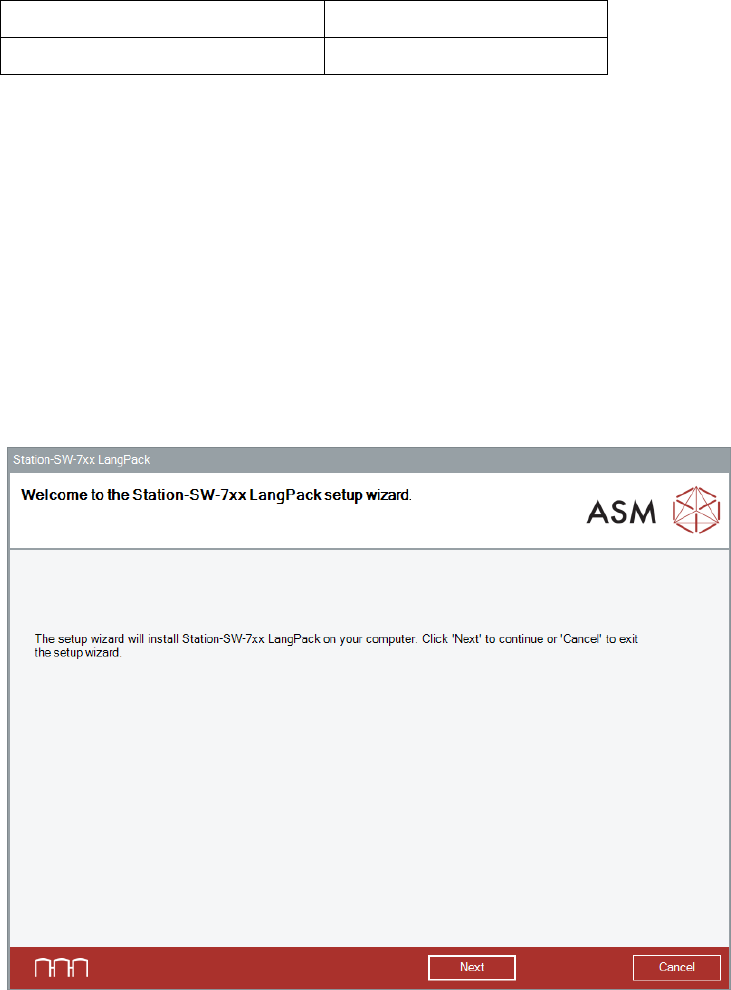
The following files and directories are contained:
French
Italian
Spanish
Portuguese
Bulgarian
Czech
Hungarian
Romanian
Polish
Russian
Simpl. Chinese
Japanese
Korean
Vietnamese
GUI
siplacestationgui_xxx.qm
X
X
X
X
X
X
X
X
X
X
X
X
X
X
Vision_yyyy.dll
X
X
X
X
X
X
X
X
X
X
X
X
X
X
Online Help
xxx\stationgui
X
X
X
X
X
X
X
X
xxx\SIPLACEVision
X
X
X
X
X
X
X
X
Table 5-2: Files and directories on DVD
The already existing German and English files are not included.
Station Software Version 713.0 (R19-2) / Installation Manual 11/2019 Edition
48
5.6.2 Prerequisites
The following software package is prerequisite to be able to install the Language Pack:
SIPLACE station software
SIPLACE Vision
Version 713.0
Version 5.7.1
If this software package is not available or if an incorrect version is installed, an error message
occurs, and the installation is aborted.
5.6.3 Installing Language Pack
Follow the instructions listed below to install the Language Pack successfully.
► Log in under the ASM_Admin user account on the station computer.
► Download the *.iso file to the computer and mount it.
► Open Windows Explorer.
► Double-click the BundleInstaller.exe file to start installing the Language Pack.
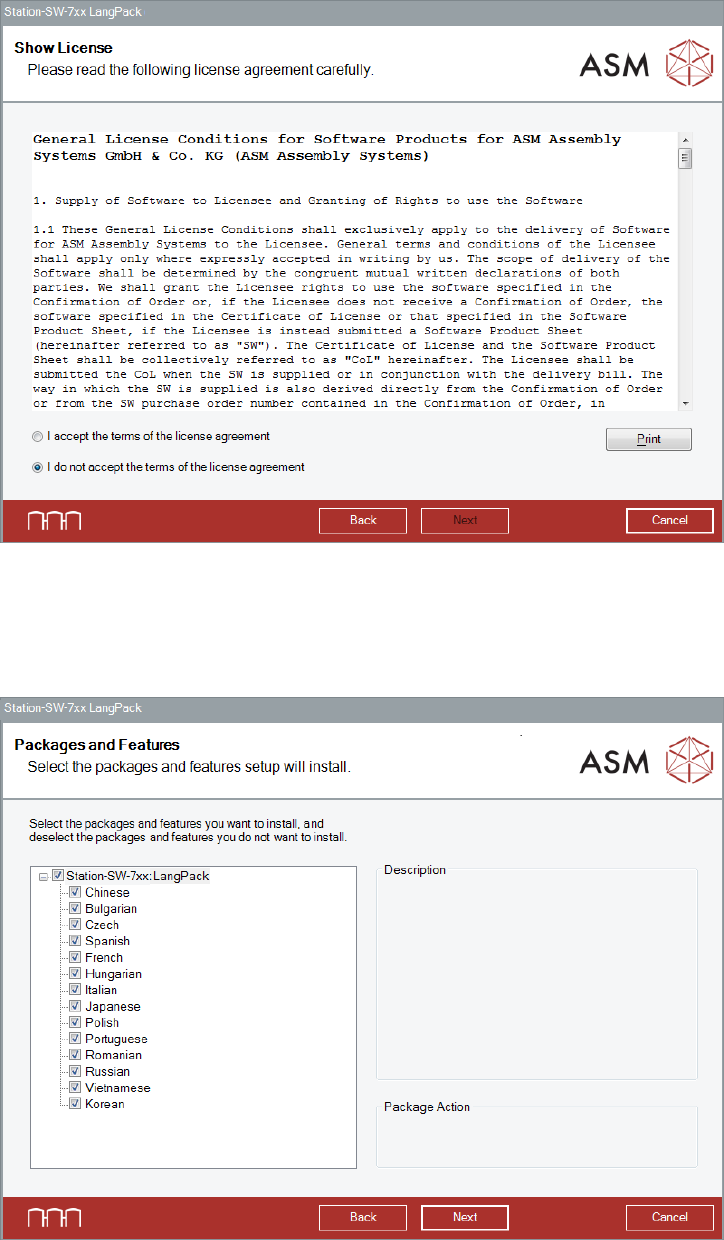
The Welcome dialog box of the Language Pack setup wizard is displayed.
Figure 5-36: Welcome dialog box
► Click the Next button.
Station Software Version 713.0 (R19-2) / Installation Manual 11/2019 Edition
49
The Show License dialog box is displayed.
Figure 5-37: Accepting license
► Select I accept the terms of the license agreement to accept the license conditions.
► Click the Next button.
The Packages and Features dialog box is displayed.
Figure 5-38: Packages and Features
All available languages are enabled by default.
► If desired, unselect languages you do not want to install.
► Click the Next button.