TK32279_Signal light lighting condition editing.pdf - 第3页
2nd SMT En gineering Division Software Group IM Operation s Y AMAHA MOTOR CO., L TD MDOC-SOFT50453 3/8 Fig.1 [Set up] - [Softwar e Se tting] - [View] tab Fig.2 “Si gnal Light Editor” screen
2nd SMT Engineering Division Software Group
IM Operations
YAMAHA MOTOR CO., LTD
MDOC-SOFT50453
2/8
1. Target models and supported versions
Target models and supported versions for this function are as the following table.
Table1 Target models and software, supported version
Target models, software Supported version Remarks
YS series mounter/printer,
YG300, YG12 series mounter
V3.47STD R1.000 or
later version
YSM40, YSM20, YSD, YCP10 V4.52STD R1.000 or
later version
2. Overview
This function enables you to change the lighting condition of signal lights and the sound
condition of buzzers on the screen.
You can change simultaneously the lighting condition for plural machines by saving a
signal light lighting condition file in server.
< Remarks >
(1) It is not allowed to use this function with some other special functions which can change
the lighting condition of signal lights. When these special functions are enabled, this
function becomes disabled.
(2) When you use the existing signal light lighting condition file (SignalTower.sts), disable
this function (Uncheck the ”Edit lighting condition of signal light” check box on the
“Signal Light Editor” screen). It is not allowed to edit the lighting condition on the
screen.
3. Function Details
3.1 The editing screen for signal light lighting condition
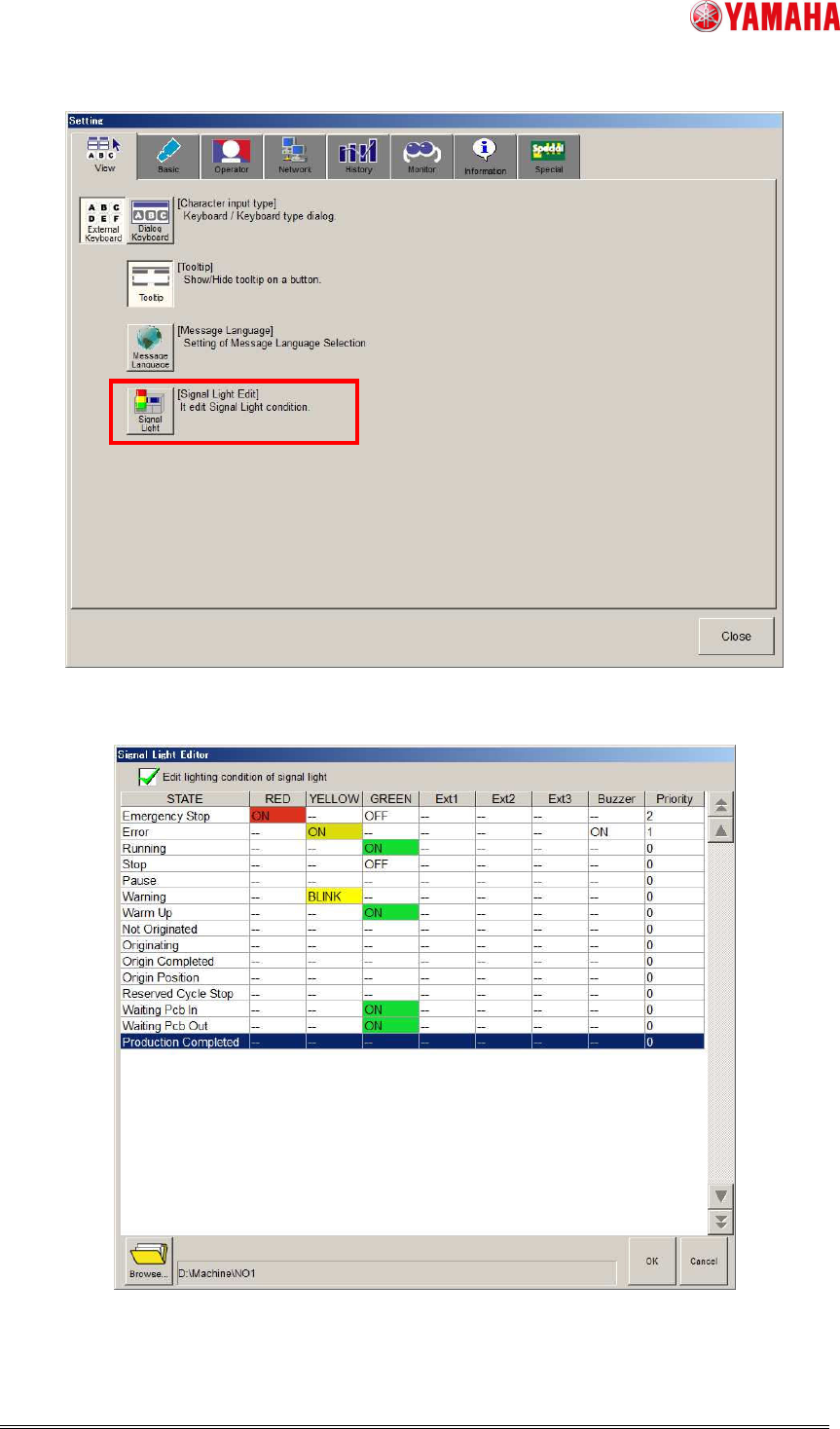
You can change signal light lighting condition on [Setup] - [Software Setting] - [View] -
[Signal Light Edit] - [Signal Light Editor] screen.
2nd SMT Engineering Division Software Group
IM Operations
YAMAHA MOTOR CO., LTD
MDOC-SOFT50453
3/8
Fig.1 [Setup] - [Software Setting] - [View] tab
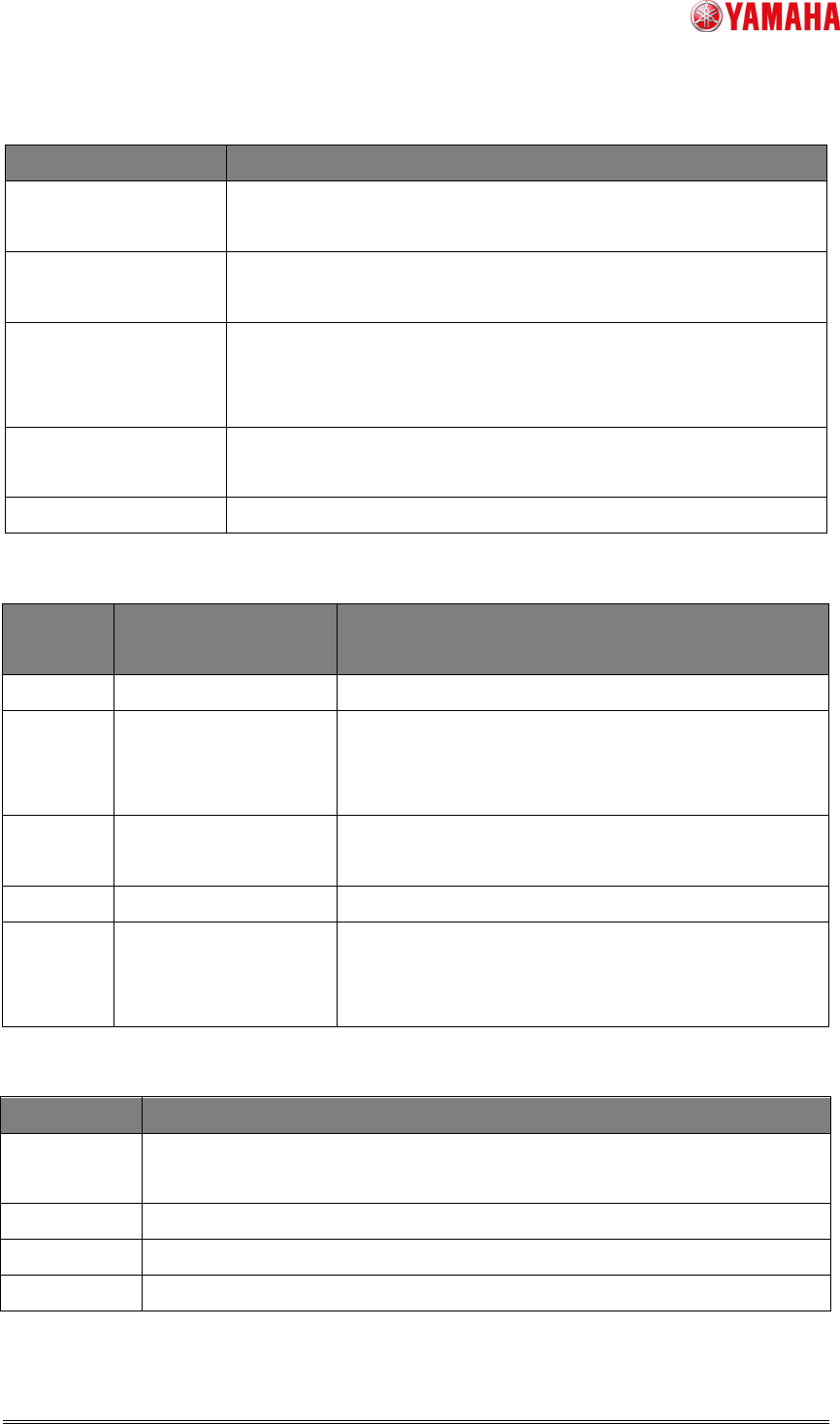
Fig.2 “Signal Light Editor” screen
2nd SMT Engineering Division Software Group
IM Operations
YAMAHA MOTOR CO., LTD
MDOC-SOFT50453
4/8
Table 2 Items displayed on the “Signal Light Editor” screen
Items Function
Edit lighting condition
of signal light
Switches the function to enable or disable.
Lighting condition
editing grid
Sets the lighting condition for each state. (For more details, refer
to the table 3 - 5)
Browse… Changes a save folder for the signal light lighting condition file
(SignalTowerOption.sts).
(The default:D:\Machine\No1)
OK Saves and updates the changed contents and closes the
window.
Cancel Cancels the changed contents and closes the window.
Table 3 The line for lighting condition editing grid
Line
name
Choices / range Contents
STATE
-
The state name to edit the lighting condition.
RED/
YELLOW/
GREEN
-- / ON / OFF / BLINK Set a color for the signal light.
Ext1/2/3 -- / ON / OFF / BLINK Not allowed to use.
Available for special function only.
Buzzer -- / ON / OFF / BLINK Set the sound condition for buzzers.
Priority 0~99 Set the priority when the states overlaps.
The priority becomes higher with larger value.
(Refer to the contents of [Priority] in the table 5)
Table 4 The choices in combo box for the lighting condition editing grid.
Items Contents
--
Takes over the lighting (sound) condition from the state just before.
*Sets OFF when the machine stops.
ON
Signal light turns on /Buzzer is set ON
OFF
Signal light turns off /Buzzer is set OFF
BLINK
Signal light is blinking /Buzzer makes sound intermittently.