TK32279_Signal light lighting condition editing.pdf - 第7页
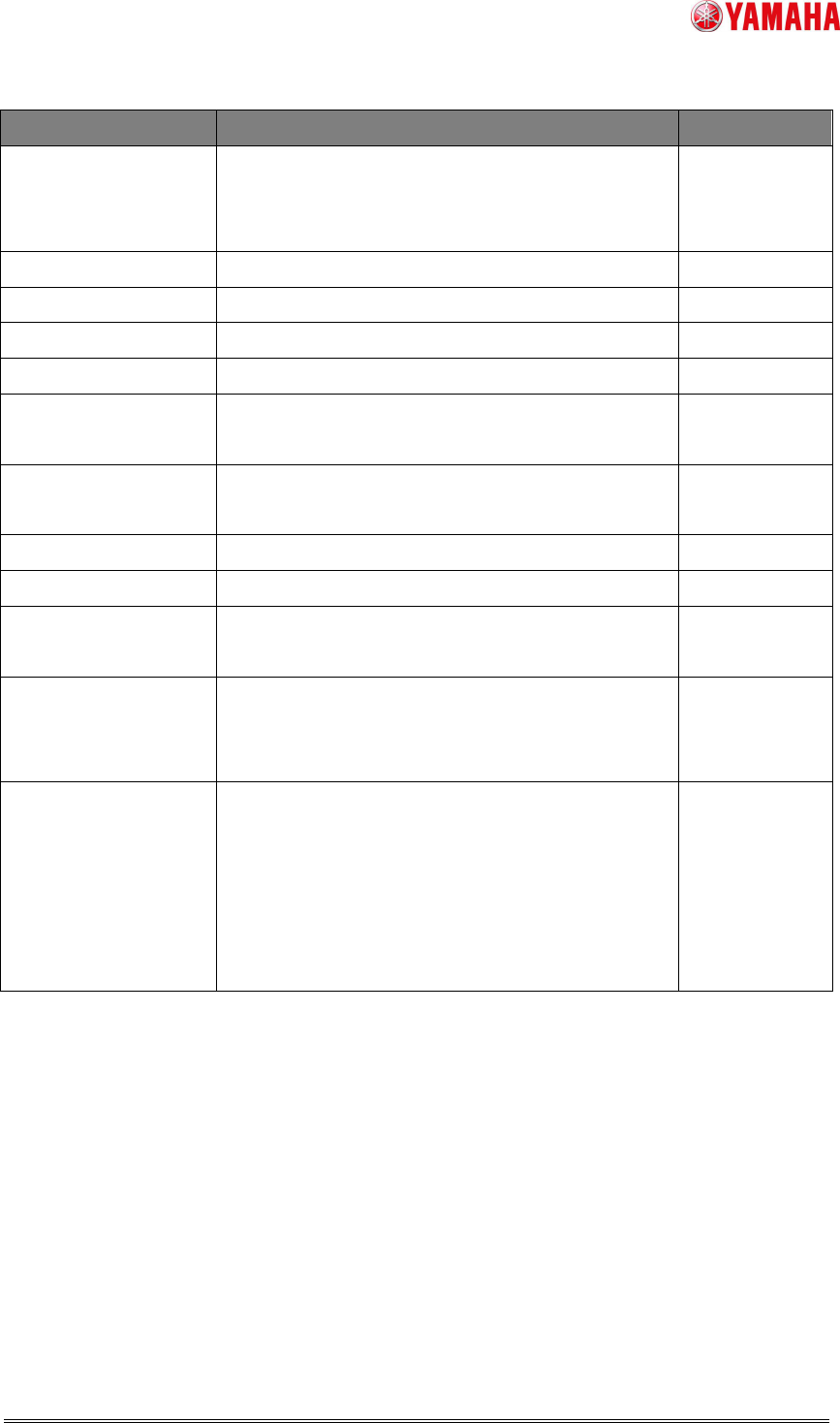
2nd SMT En gineering Division Software Group IM Operation s Y AMAHA MOTOR CO., L TD MDOC-SOFT50453 7/8 T abl e 6 T iming of re ading and writing th e signal light lighting c ondition file Folder setting T iming Operati…
2nd SMT Engineering Division Software Group
IM Operations
YAMAHA MOTOR CO., LTD
MDOC-SOFT50453
6/8
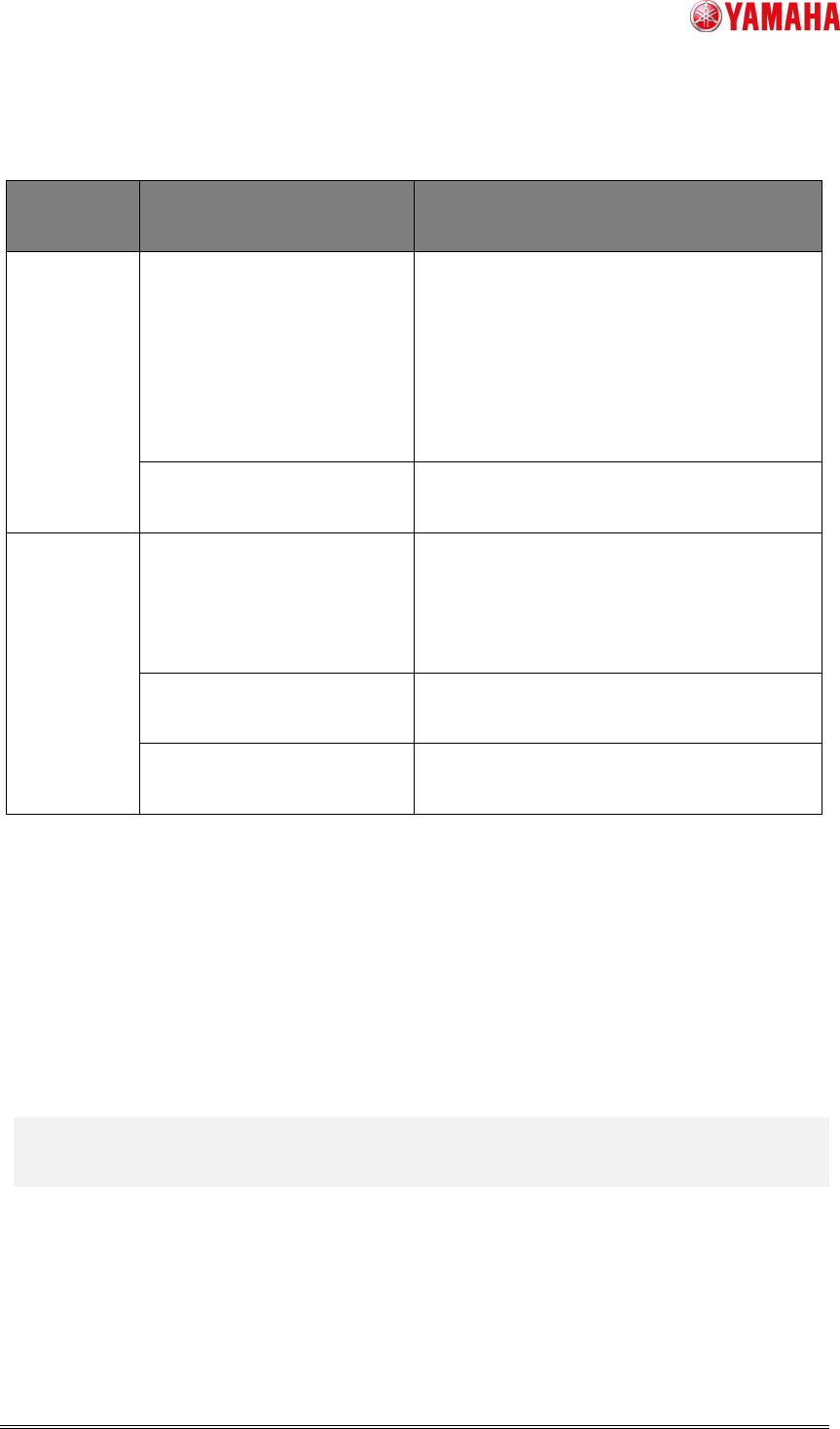
State Contents Priority
Setup
Operators are setting up mounters.
(Available only when the “Op002:
Setup
Verification” is enabled.)
Verify Failed
Warm Up
Warm-up driving. -
Not Originated
Return-to-origin is not completed. Stop
Originating
Return-to-origin is now performed. -
Origin Completed
Return-to-origin is completed. Stop
Origin Position
The head is at the original position after
return-to-origin.(For mounters only.)
Stop
Reserved Cycle
Stop
Stop after mounting. Stop
Error
Waiting Pcb In
The machine is waiting for a board carried in. -
Waiting Pcb Out
The machine is waiting for a board carried out. -
Production
Completed
Production schedule of board is completed. Error
Camera First/Final
Board Check
The camera is inspecting the first/final
product.(Available only when the “Op003:
Auto
Program Change-Over” function is enabled.)
Error
Verify Failed
Setup Verification is failed.
(Available only when any of the following function
is enabled;)
“Op001:
Parts Remain Counter”
“Op002:
Setup Verification”
“Op015:
Material Time Limit Management”
Stop
< Remarks >
* “Priority” is the state which is given higher priority to the lighting condition when several
states overlaps.
Example: When you want to give higher priority to the lighting condition for “Material Error”
than to that for “Error”, set “Priority” to 2 for “Material Error”, to 1 for “Error”.
3.2 Timing of reading and writing the signal light lighting condition file
The following table shows the timing of reading and writing the signal light lighting
condition file(SignalTowerOption.sts).
2nd SMT Engineering Division Software Group
IM Operations
YAMAHA MOTOR CO., LTD
MDOC-SOFT50453
7/8
Table 6 Timing of reading and writing the signal light lighting condition file
Folder
setting
Timing Operation
For
D:\Machine
\No1
・Machine is booted up
・A board data is read.
・The editing screen is
opened.
・A folder on the editing
screen is set.
The setting file of D:\Machine\No1 is read.
The OK button on the
editing screen is pressed.
The setting file of D:\Machine\No1 is
updated.
For other
than
D:\Machine
\No1
・Machine is booted up
・A board data is read.
・The editing screen is
opened.
The setting file in the specified folder is
copied to D:\Machine\No1 and read.
・A folder on the editing
screen is set.
The setting file in the specified folder is
read.
The OK button on the
editing screen is pressed.
The setting file in the specified folder is
updated and copied to D:\Machine\No1.
< Reference >
* When a signal light lighting condition file doesn’t exist with this function enabled,
“Ea21509: Signal light setting file was not found” is exported to the error log. When the
machine fails to write a file, “Ea21375: Signal light setting file writing error” is displayed.
When the machine fails to read a file, “Ea21376: Signal light setting file reading error” is
displayed.
4. Setting methods
4.1
For the case that this function is already used (SignalTowerOption.sts file exists)
Upgrade the machine software. Additional setting is not necessary.(After upgrading the
software, the “Signal light lighting condition editing” function becomes enabled automatically.
This function takes over the lighting condition and the save folder so far.)

2nd SMT Engineering Division Software Group
IM Operations
YAMAHA MOTOR CO., LTD
MDOC-SOFT50453
8/8
< Remarks >
* When a machine runs out of parts or solder, except for some models, the signal light in old
version doesn’t blink in yellow. After upgrading the software, the signal light blinks in yellow
at above mentioned state since the state is considered as “Warning”.
4.2
For the case that this function is not used (SignalTowerOption.sts file doesn’t exist)
Change the signal light lighting condition with the following procedures.
(1) Select [Setup] - [Software Setting] - [View] - [Signal Light Edit] to open the “Signal Light
Editor” screen.
(2) Check the ”Edit lighting condition of signal light” check box.
(3) When you want to share a lighting condition among plural machines, press
the ”Browse…” button and specify a shared folder in server to save (or already saved)
the signal light lighting condition setting file (SignalTowerOption.sts). When you don’t
want to share a lighting condition, keep a save folder as initial setting
(D:¥Machine¥No1).
(4) Change the lighting condition. (The lighting condition is not changed with initial setting.)
(5) Press the “OK” button.
(6) Execute (1) – (5) procedures among all machines that you want to share the lighting
condition.
< Remarks >
* When you share a lighting condition among plural machines, changing the lighting
condition in a machine is reflected to other machines at rereading the board data.
* It is not allowed to edit the lighting condition simultaneously on the “Signal Light Editor”
screen in plural machines. The specified value is not saved accurately.
* You can share the same signal light lighting condition setting file (SignalTowerOption.sts)
between a mounter and a printer.