00198503-02_IM_SIPLACE_Pro_15.1_R18-1_EN.pdf - 第27页
SIPLACE Pro 15.1 (R18 - 1) / Installat ion Manual 05/2018 Edition 27 The Select Serv er dialog is displ ayed. Figure 6-22: Selecting SIP LACE Pro Server ► Enter the serv er name of the remote co mputer on which SI PLACE …
SIPLACE Pro 15.1 (R18-1) / Installation Manual 05/2018 Edition
26
NOTICE
After installation, the remote server must be running. Otherwise, required configuration
steps cannot be done and, as a consequence, the product will not work!
6.2.2 Installation without Local SIPLACE Pro Server
If SIPLACE Pro Server has already been installed on a remote computer this software component
has to be disabled during the SIPLACE Pro installation.
► Ensure that the remote computer is connected to the network and available.
► Start installing SIPLACE Pro as described in section 6.2.
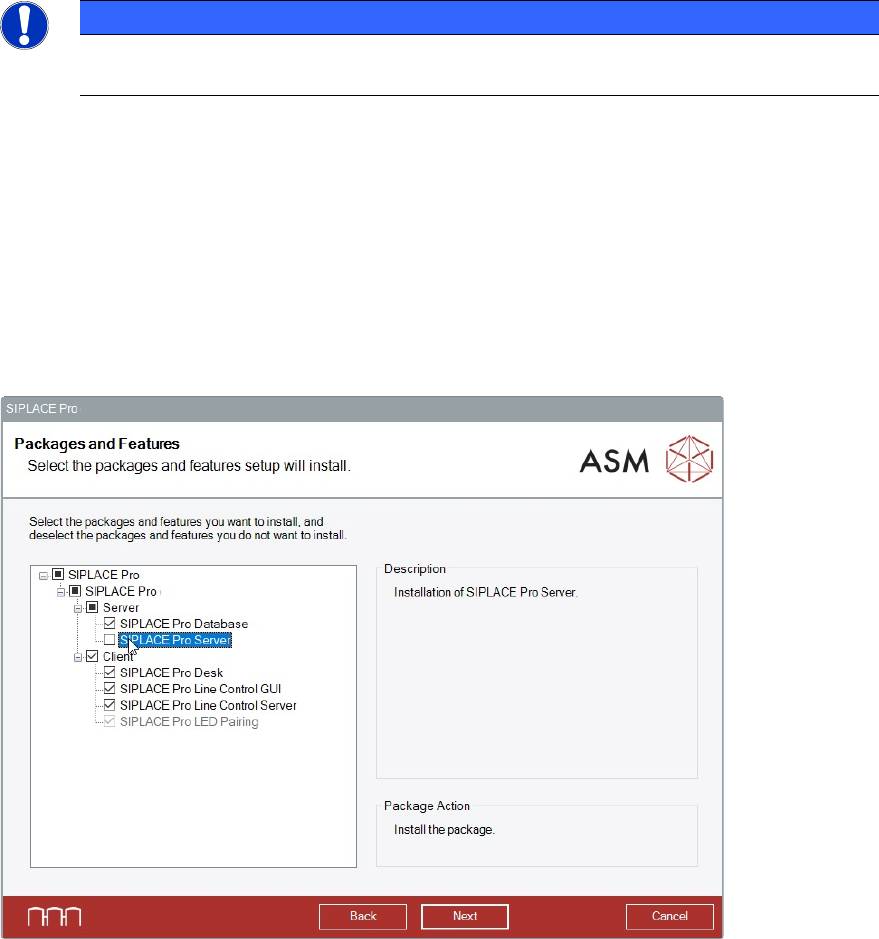
► Proceed as follows when the Packages and Features dialog is displayed.
Figure 6-21: Disabling SIPLACE Pro Server
► Disable the SIPLACE Pro Server software feature.
► Click the Next button.
SIPLACE Pro 15.1 (R18-1) / Installation Manual 05/2018 Edition
27
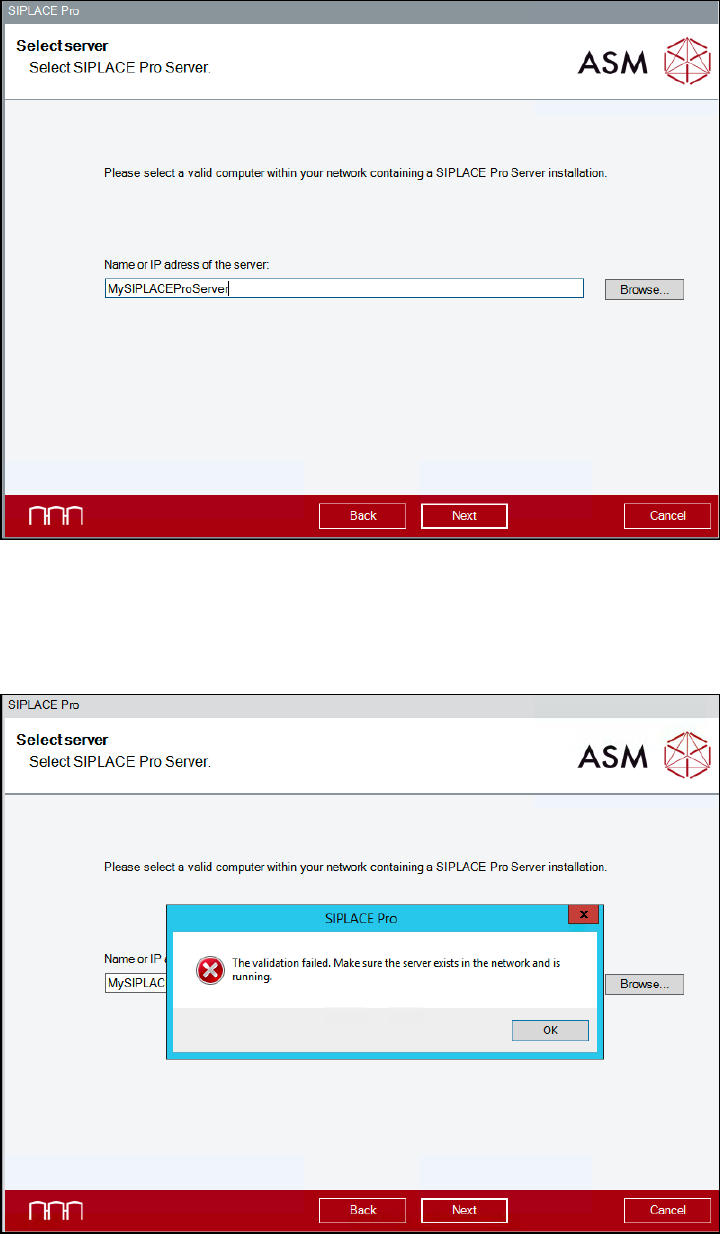
The Select Server dialog is displayed.
Figure 6-22: Selecting SIPLACE Pro Server
► Enter the server name of the remote computer on which SIPLACE Pro Server is installed.
► Click the Next button.
The following message is displayed if the remote computer is unavailable.
Figure 6-23: Validation failed
► In this case, click the OK button and solve the problem.
► Click the Next button.
SIPLACE Pro 15.1 (R18-1) / Installation Manual 05/2018 Edition
28
The installation continues with the configuration of SIPLACE Pro Server as described in
Figure 6-6ff.
NOTICE
After installation, the remote server must be running. Otherwise, the required
configuration steps cannot be done and, as a consequence, the product will not work!
6.2.3 Changing Default Database Settings
The default database settings can be changed in the SQL Server Login dialog.
If you have selected the Show dialogs to change the default database settings option, the
following dialogs will be displayed.
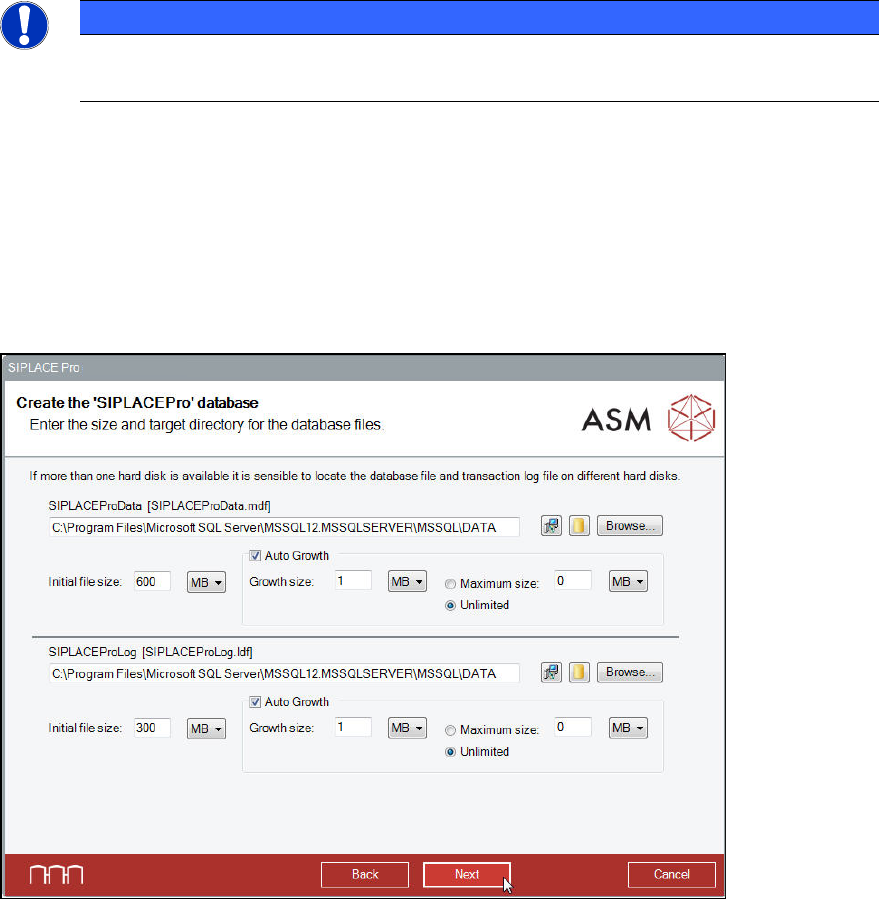
If the setup needs to create a new database for SIPLACE Pro, the following dialog will be
displayed.
Figure 6-24: Creating new database
In this dialog you can specify the location of the database files, and their initial size, growth size
and maximum size.
► Modify the default settings for database creation as required.
You may switch between different suggestions for the directories of the database files by
clicking one of the two buttons between the text field and the Browse... button. The left button
suggests the default directory as given by the setup. The right button suggests the default
directory for databases as defined in your SQL installation.
You may also click the Browse... button to select an already existing local folder.
► After you have modified the settings as required, click the Next button to continue.
The setup will now ask for the passwords for the SQL users.