00197191-02_IM_SIPLACE_Pro_10.1_EN.pdf - 第28页
Installation Manual 4 Installation of SIPLACE Pro and possible Setup Types SIPLACE Pro 10.1 Edition 09/2012 26 Ste p 6 4 Fig. 4.2 - 10 "Choose Destination Location" dialog box The "Choose Destination Locat…
4 Installation of SIPLACE Pro and possible Setup Types Installation Manual
Edition 09/2012 SIPLACE Pro 10.1
25
4
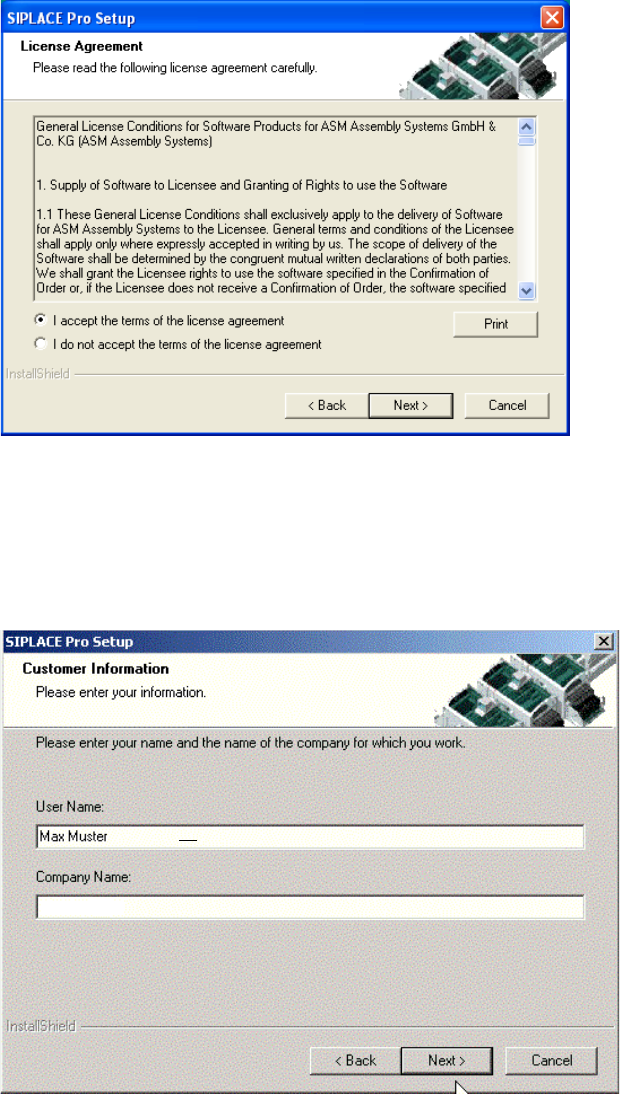
Fig. 4.2 - 8 "Software License Agreement" dialog box
Please make sure to accept the licence agreement.
Then click the Next button to continue with the installation routine.
Step 5
4
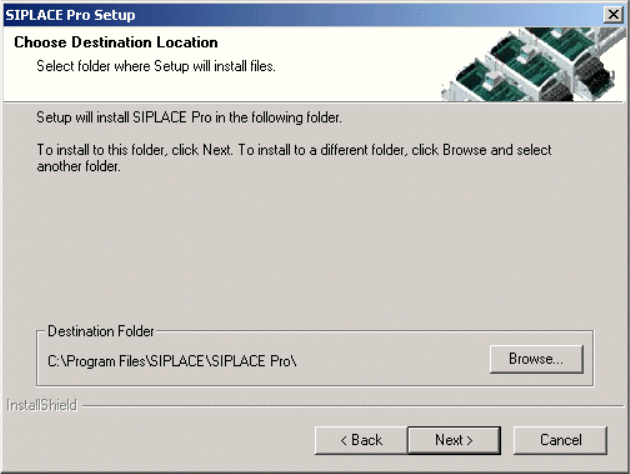
Fig. 4.2 - 9 "Customer Information" dialog box
Enter your User Name and Company Name in the "Customer Information" dialog box.
Both boxes must be filled in before the installation process can be continued.
Click Next.
Installation Manual 4 Installation of SIPLACE Pro and possible Setup Types
SIPLACE Pro 10.1 Edition 09/2012
26
Step 6
4
Fig. 4.2 - 10 "Choose Destination Location" dialog box
The "Choose Destination Location" dialog box prompts you to enter the name of the folder in
which SIPLACE Pro should be installed. The system suggests a default destination folder for you.
However, you can click the Browse button to open a dialog box in which you can enter or select
the path you want to use. If the folder you specify does not exist, it is created after having accepted
a confirmation dialog.
Click Next.
Step 7
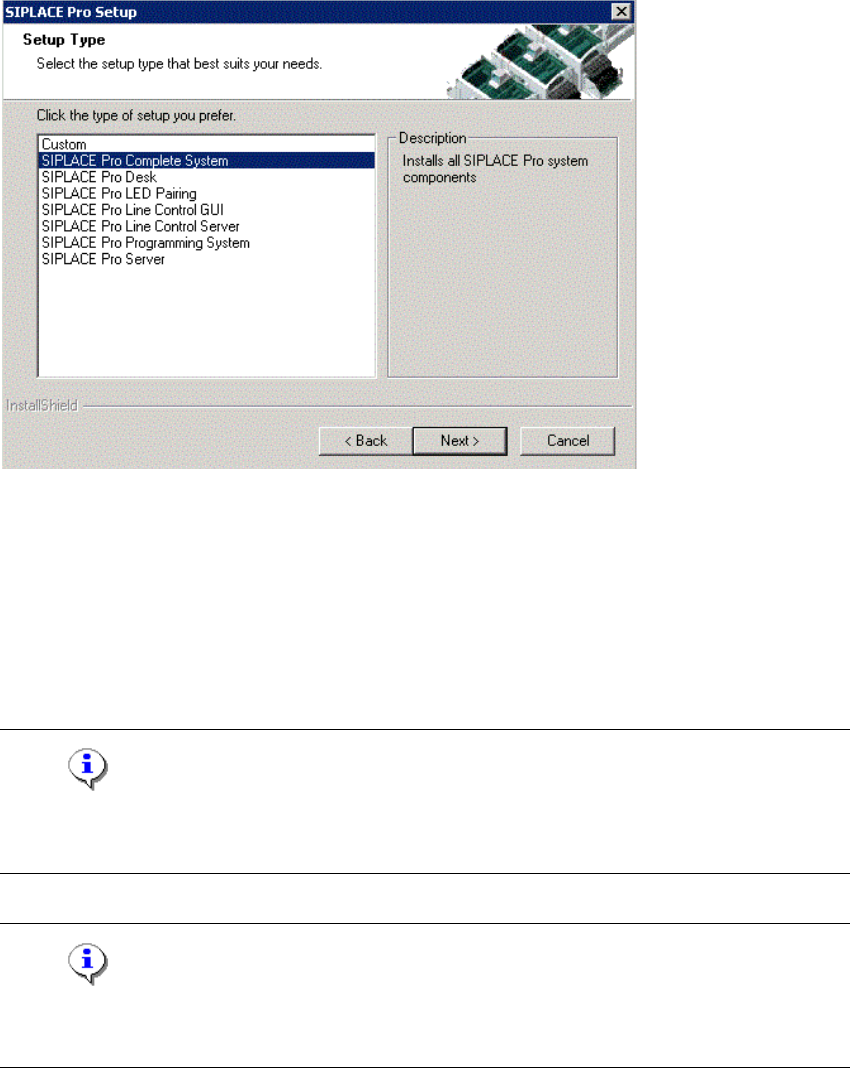
The Setup Type dialog box displays the SIPLACE Pro components you can choose for installa-
tion.
4 Installation of SIPLACE Pro and possible Setup Types Installation Manual
Edition 09/2012 SIPLACE Pro 10.1
27
4
Fig. 4.2 - 11 "Setup Type" dialog box
In the "Setup Type" dialog box,
Select the setup type you want to install.
Click Next.
A short description of the setup type in question appears in the Description box when you select
a type.
Note
After choosing a setup type which includes a database installation, the setup program immediately
checks if SQL server and the proper Service Pack are installed on the computer. 4
Note
If a database already exists, setup performs an Integrity Check. If the Integrity Check fails, you
might need to cancel Setup. More information in Chapter 6. 4