00194798-01.pdf - 第20页
Installation Manual, Station Software Version 602.01 Edition 06/2006 20 of 60 4.2.5 Creating a setup CD for the MC on a CPU420 (Microbox) and making the BIOS settings on the MC → Insert an empty CD-R in the CD-RW drive. …
Installation Manual, Station Software Version 602.01 Edition 06/2006
19 of 60
4.2.3 Creating a setup floppy for the MC on a CPU076 and making the BIOS settings
on the MC
→ Insert the CD for version 602.01 of the software in the CD ROM drive.
→ Insert a formatted floppy (3.5", 1.44MB) into the floppy drive.
→ In the Windows Explorer, open the "BIOS-Images" folder on the CD.
→ Double-click the self-extracting EXE file "CPU076_MC_BIOS_Settings.exe" and follow the instructions
on screen.
→ Once the floppy has been written, remove the floppy and the CD from the drives.
→ Insert the floppy you have created in the floppy drive of the machine controller and boot from the
floppy by switching the machine on. The BIOS settings are now performed automatically.
→ After the settings have been made, remove the floppy from the drive and switch the machine off again.
4.2.4 Creating a setup CD for the MC on a CPU086 and making the BIOS settings on
the MC
→ Insert an empty CD-R in the CD-RW drive.
→ Insert the CD for version 602.01 of the software in the CD ROM drive.
→ In the Windows Explorer, open the "BIOS-Images" folder on the CD.
→ Open the image file "CPU086_MC_BIOS_Settings.iso" using the installed CD writing program and
follow the instructions on screen.
→ Once the CD has been written, remove the CDs from the drives.
→ Insert the CD you have created in the CD ROM drive of the machine controller and boot from the CD
by switching the machine on. The BIOS settings are now performed automatically.
→ After the settings have been made, remove the CD from the drive and switch the machine off again.
Installation Manual, Station Software Version 602.01 Edition 06/2006
20 of 60
4.2.5 Creating a setup CD for the MC on a CPU420 (Microbox) and making the BIOS
settings on the MC
→ Insert an empty CD-R in the CD-RW drive.
→ Insert the CD for version 602.01 of the software in the CD ROM drive.
→ In the Windows Explorer, open the "BIOS-Images" folder on the CD.
→ Open the image file "CPU420_MC_BIOS_Settings.iso" using the installed CD writing program and
follow the instructions on screen.
→ Once the CD has been written, remove the CDs from the drives.
→ Insert the CD you have created in the CD ROM drive of the machine controller and boot from the CD
by switching the machine on. The BIOS settings are now performed automatically.
→ After the settings have been made, remove the CD from the drive and switch the machine off again.
Installation Manual, Station Software Version 602.01 Edition 06/2006
4.3 Installing the SIPLACE software
4.3.1 Requirements
You must have installed the Windows XP Professional operating system with service pack 2 before
installing the station computer version 602 (see section
3).
Caution:
When installing the RMOS operating system (see section
4.6.1 for the CPU076, section
4.8.1 for the CPU086 and section 4.9.1 for the CPU420) it is imperative that the Version
602.01 installation CDs are used. The machine will not boot if this is not done.
The default Windows display settings must be changed and the touchscreen must be calibrated. You
must be logged on as the
Administrator in order to be able to carry out this work.
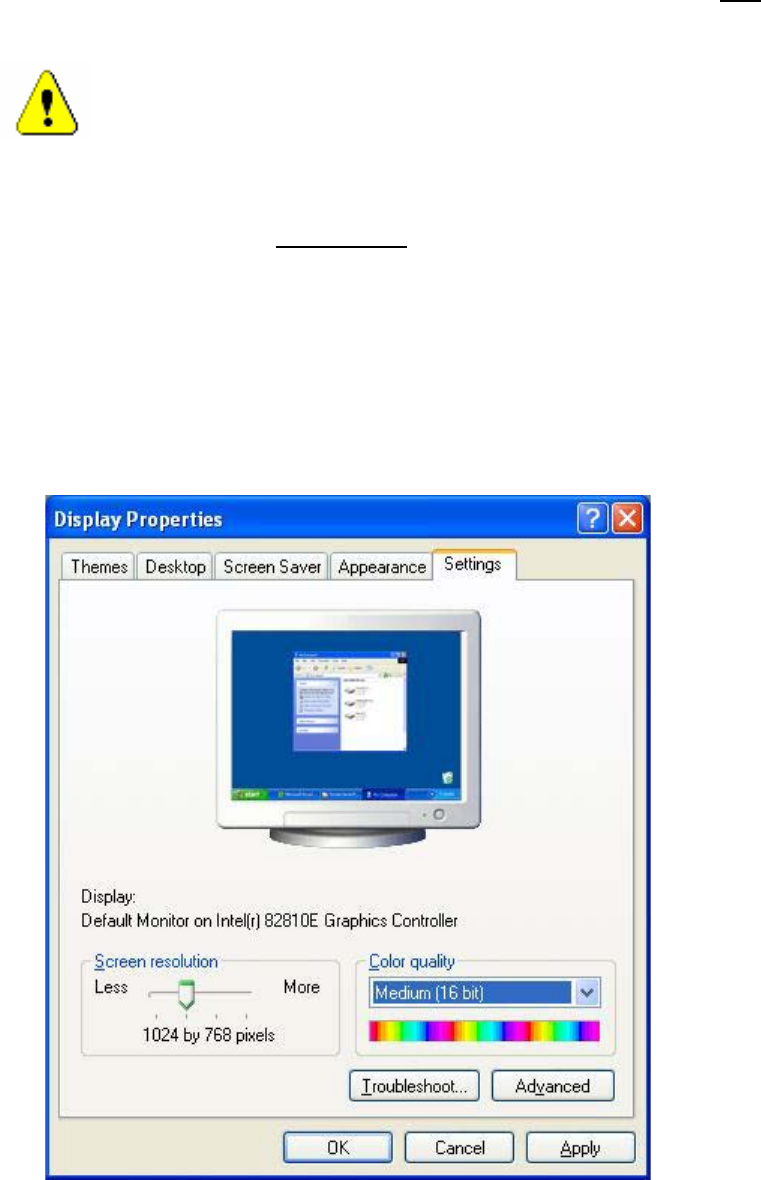
4.3.1.1 Changing the display settings
→ Select Start Æ Settings Æ Control Panel Æ Display.
→ Click the Settings tab.
→ Make the following settings here:
Fig. 4-1: Screen settings
21 of 60