Galaxy EX Blue Under Screen Cleaner Module.pdf - 第12页
BLUE UNDE R SCREEN C LEANER M ODULE CALIBRATIONS 18. 12 Tech nical Refere nc e Manu al Ch apte r Iss ue 5, May 15 CALIBRA TIONS W ARNING SOL VENT SPRA Y . THE UNDER STENCIL CLEANER SPRA Y S A FINE JET OF SOL VENT SOLUTI …

BLUE UNDER SCREEN CLEANER MODULE
REPLACEMENT PROCEDURES
Chapter Issue 5, May 15 Technical Reference Manual 18.11
17. Select Home Camera X Axis and select Home Camera Y Axis to home
the camera axes.
18. Select Exit.
19. Select the Screen Cleaner module page.
20. Ensure that all functions within screen cleaner diagnostics operate cor-
rectly and that there are no leaks from the feed tubing.
21. Select Exit.
22. Select Exit.
BLUE UNDER SCREEN CLEANER MODULE
CALIBRATIONS
18.12 Technical Reference Manual Chapter Issue 5, May 15
CALIBRATIONS
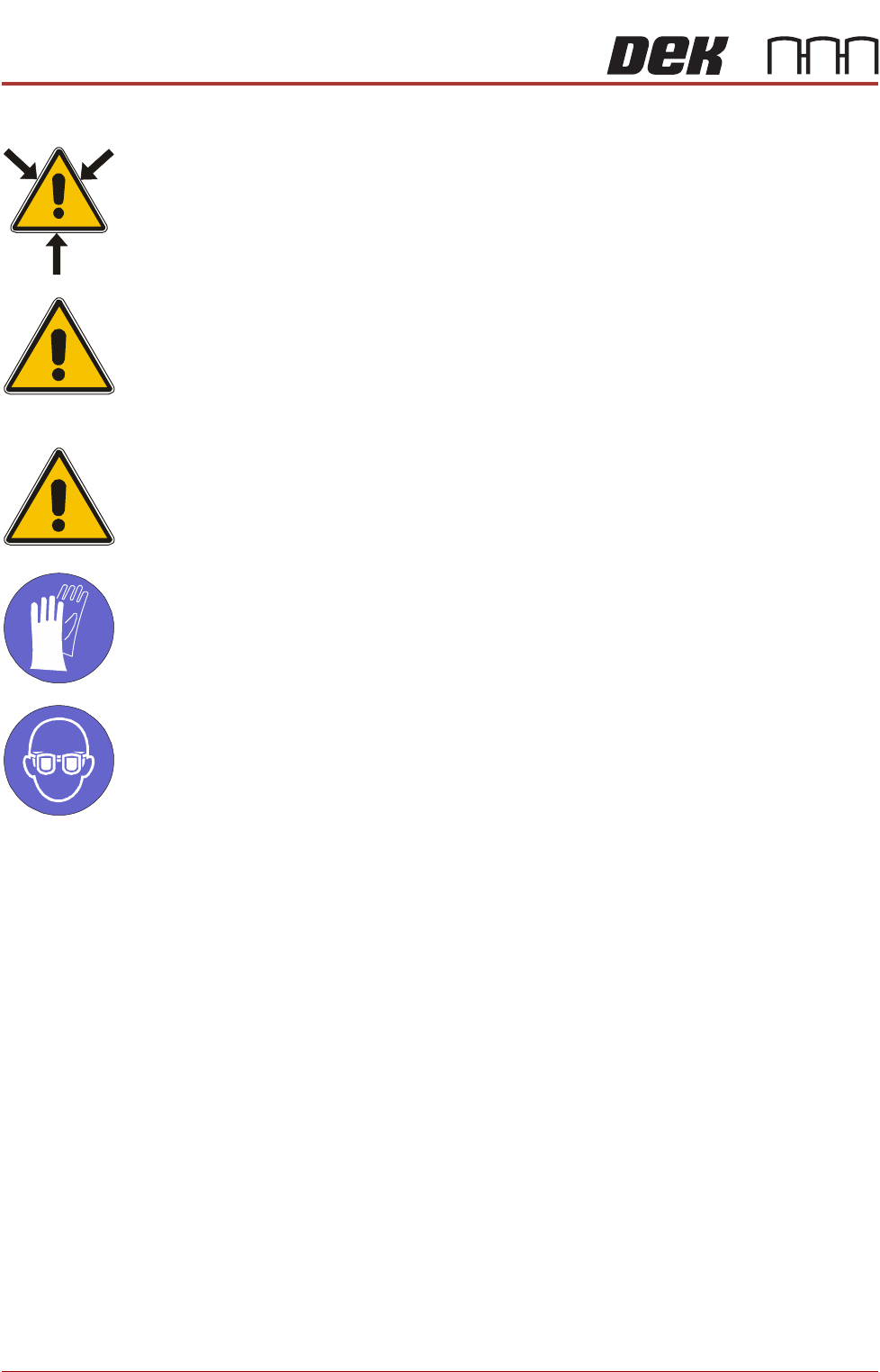
WARNING
SOLVENT SPRAY. THE UNDER STENCIL CLEANER SPRAYS A FINE JET OF
SOLVENT SOLUTION ON TO THE CLEANER. APPROVED PROTECTIVE
CLOTHING SHOULD BE WORN.
CAUTION
RECOMMENDED SOLVENTS. ANY SOLVENTS USED MUST COMPLY WITH
LOCAL ENVIRONMENTAL GUIDELINES. ASM RECOMMEND USING SOLVENTS
THAT ARE ENVIRONMENTALLY FRIENDLY, IE CFC FREE AND WATER BASED.
SOLVENTS USED MUST HAVE FAST EVAPORATION RATES AND FLASHPOINT
SPECIFICATIONS GREATER THAN 39ºC.
CAUTION
SOLDER PASTE AND SOLVENTS. WHEN USING OR HANDLING ANY SOLDER
PASTE OR SOLVENT FORMULATION THE MANUFACTURERS’ SAFETY DATA
SHEETS MUST BE STRICTLY ADHERED TO.
MANDATORY
TOXIC CHEMICALS MAY BE PRESENT. SAFETY GLOVES MUST BE WORN.
MANDATORY
TOXIC CHEMICALS MAY BE PRESENT. EYE PROTECTION MUST BE WORN.
External Solvent
Tank
The software needs to know the weight of the external solvent tank when fitted
with an empty container and when fitted with a full container of the solvent to
be used.
NOTE
Due to solvents having different gravities, the weight must be re-calibrated
when changing solvents.
To calibrate the software carry out the following procedure:
1. Ensure that the external solvent tank is fitted with an empty 5 litre con-
tainer.
2. Select Maintenance.
3. Select Calibrations.
4. Select Solvent.
5. Select Set Solv Empty.
6. Confirm by selecting Yes.

BLUE UNDER SCREEN CLEANER MODULE
CALIBRATIONS
Chapter Issue 5, May 15 Technical Reference Manual 18.13
7. Replace the empty 5 litre container with a 5 litre container full of the sol-
vent to be used.
8. Select Set Solv Full.
9. Confirm by selecting Yes.
10. Select Exit.
11. Select Exit.
12. Select Back.
Paper If paper counting is enabled, the software needs to know the paper roll length
when first fitted to the under screen cleaner.
NOTE
The length of the paper roll is printed on the paper roll wrapping.
To calibrate the software carry out the following procedure:
1. Select Open Cover Commands.
2. Select Unload Screen.
3. Open the front printhead cover.
4. Remove the screen from the machine.
5. Change the paper roll as detailed in the consumable replenishment.
6. Select Change Paper.
7. Ensure the paper length parameter matches that stated on the paper roll
wrapper.
8. Select Continue.
9. Select Prime Paper and when prompted press the two button control
switches simultaneously ensuring that the paper feeds correctly.
10. Select Back.
11. Refit the screen.
12. Close the front printhead cover and press the System button when
prompted.
13. Select Load Screen.
14. Select Back.