TM4754.TM5102.PickupMACS.pdf - 第12页
SMT Software Engineering Group IM Ope ration s Y A MAHA MOTOR CO ., L TD. MDOC-SOFT50 177 12 /25 4.2.3. Nozzle MACS dat a If yo u upgrade your m ach ine to the later versi on i ncludi ng this func tion, you n eed to r …

SMT Software Engineering Group
IM Operations YAMAHA MOTOR CO., LTD.
MDOC-SOFT50177
11/25
position with calculated correction by Feeder MACS.
Feeder MACS works every time the [Trace] button pressed. This correction value is not
reflected during auto-running.
* This pickup position here is reflected only by Feeder MACS. The pickup position during
auto-running differs according to the calculated values of the simultaneous pickup range, and
results of the “Pickup Position Correct” function.
* If you want to confirm the pick up position without Feeder MACS correction, please set
[Position Definition] to “Teaching or “Relative”
4.2. Nozzle MACS
4.2.1. Execution Conditions
To work Nozzle MACS, it is necessary to satisfy the following conditions.
- Satisfy the setting described at “3. Setting”
- The nozzle and the head are used in the loaded board data.
4.2.2. Execution Timing
When a Nozzle MACS correction value has not been calculated at the following timing, Nozzle
MACS is executed.
- Before picking the parts that satisfy the execution condition during auto-running.
- After clicking the [Part Adj] - [Pick] button for the parts that satisfy the execution conditions.
* When nozzles in the nozzle station have not acquired a Nozzle MACS correction, Nozzle
MACS is executed just before the next pick up action after the nozzle changed.
* Nozzle MACS correction is not reflected by the action of the nozzles stored or taken out.
After the following operations are executed, Nozzle MACS is executed again. At this time,
existing correction values of all the nozzles are cleared. Then, Nozzle MACS works for the
nozzles used in board data and also checked at Figure 3.2.
- Load board data (ON/OFF can be selected in Machine setting)
- Stops with a pickup error (ON/OFF can be selected in Machine setting)
- Emergency stop works (ON/OFF can be selected in Machine setting)
* In a machine with Nozzle Station, [Opening Nozzle Station Sutter] and
[Emergency Stop] work.

SMT Software Engineering Group
IM Operations YAMAHA MOTOR CO., LTD.
MDOC-SOFT50177
12/25
4.2.3. Nozzle MACS data
If you upgrade your machine to the later version including this function, you need to register
the special mark data for Feeder MACS. It is in board data enclosed in the installation CD.
In machines shipped with the later version the mark data is originally registered in the mark
database.
Board data for Feeder MACS is below.
[PCBDATA] - [(Each machine folder)] - [No1] - [PickUpMACS_DATA.ygx]
Refer to [6. Appendix] about setup.
Load of the parts data is performed at the machine start up, or at loading board data.
4.2.4. Case of Nozzle MACS failure
When the Nozzle MACS is failed, pickup action without Feeder MACS correction is
executed. In that case, Nozzle MACS is not retried. If you want to execute Nozzle MACS again,
please refer to “4.2.2. Execution Timing”.
Even If you fail to execute Nozzle MACS, pick up action continues without any error
message. Instead, “Ea7998: “ or “Ea7999 “ is recorded in [MIS] - [Error log]. Refer to “4.3
Error Message” for more details. When you want to stop and display error message at a
Feeder MACS failure, set [Nozzle MACS] – [Error Stop] to “Use” (Refer to “3.1. Machine
Setting”).
4.2.5. Simultaneous Pickup
Simultaneous pickup is executed for the parts which are larger than that specified in
[Machine] - [Setting] - [Machine Data] - [Precision] - [Pickup MACS] - [Sim Pick Parts Size Limit
X (Y)].
It is the individual pickup just after Nozzle MACS execution. (*1)
4.2.6. Using with Pick Position Correct
Nozzle MACS is possible to use with [Pick Position Correct].
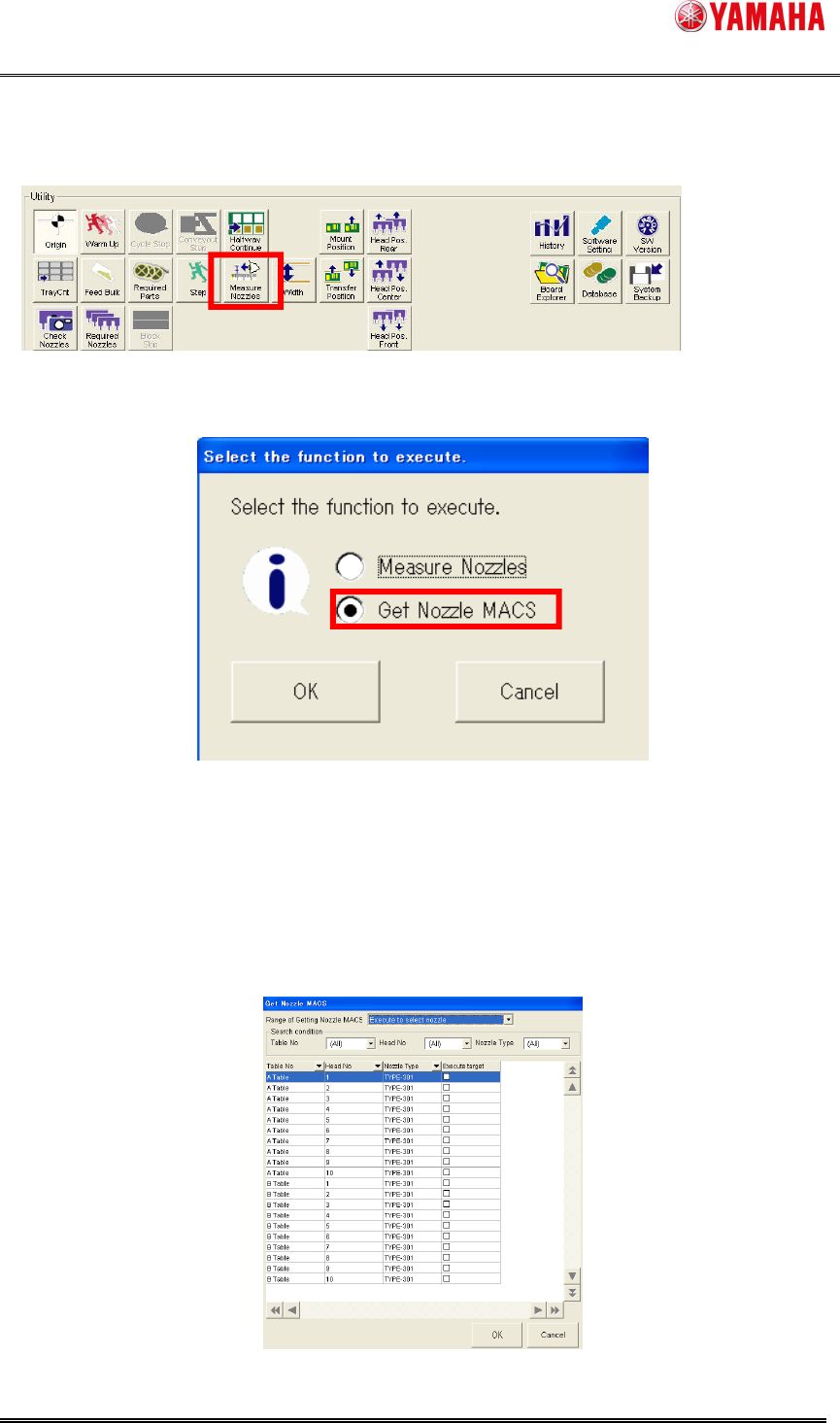
4.2.7. Nozzle MACS by manual operation
When nozzles are exchanged by manually (Ex. Nozzle maintenance), it is necessary to get
Nozzle MACS correction value again. In this case, you need to execute Nozzle MACS manually.
How to execute Nozzle MACS manually is as below.
SMT Software Engineering Group
IM Operations YAMAHA MOTOR CO., LTD.
MDOC-SOFT50177
13/25
1). Press the [Measure Nozzle] button on the [Setup] screen.
The [Measure Nozzles] button is displayed when [Measure Nozzles] or [Nozzle MACS] is
enabled.
Fig.4.3. [Setup] - [Utility] window
2). The following dialog is displayed. Check [Get Nozzle MACS] and press the [OK] button.
Fig.4.4 Select function window
This dialog is displayed only when both [Measure Nozzles] and [Nozzle MACS] are enabled.
When only either one is disabled, this dialog doesn’t appear. This dialog shows a screen of each
function directly.
3). [Get Nozzle MACS] window opens.
Fig.4.5. [Get Nozzle MACS] window