03253524-01 KPO 2 Closed Loop.pdf - 第17页
3 USER INFORMATION 3.3 GETTING STARTED Standalone Manual Interface To Koh Young KPO 2 08/2021 17 Within the Maintenance\Machine Setup\Options\Plug-Ins menu the following status conditions of the KPO plug-in are displayed…
3 USER INFORMATION
3.3 GETTING STARTED
16 Standalone Manual Interface To Koh Young KPO 2 08/2021
3.3 GETTING STARTED
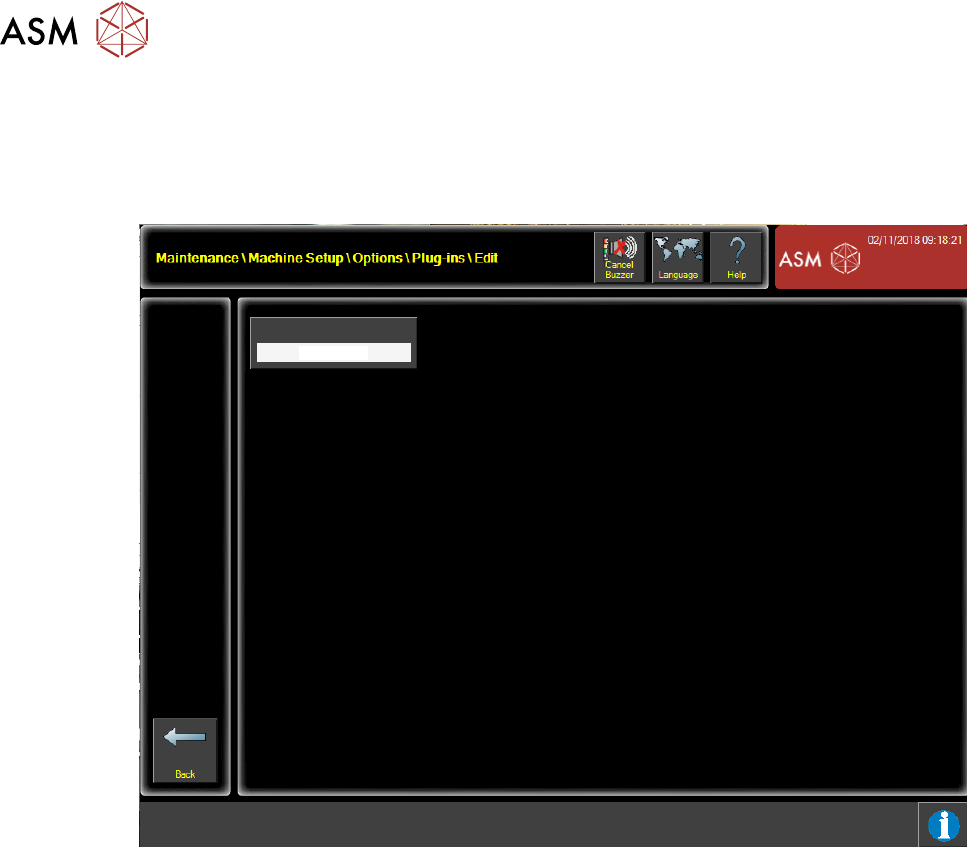
Once the DEK printer software that includes the KPO interface has been installed and the network
connection between the printer and the SPI has been established, the KPO interface can be en-
abled or disabled through the Maintenance\Machine Setup\Options\Plug-Ins\Edit menu.
Enabled
KPO Interface Enabled
Plug-Ins Edit Page
Usually there is no reason to disable the KPO plug-in, unless there is a loss of communications
between the printer and the SPI during a DOE. The plug-in may need to be disabled to allow nor-
mal production to resume.
3 USER INFORMATION
3.3 GETTING STARTED
Standalone Manual Interface To Koh Young KPO 2 08/2021 17
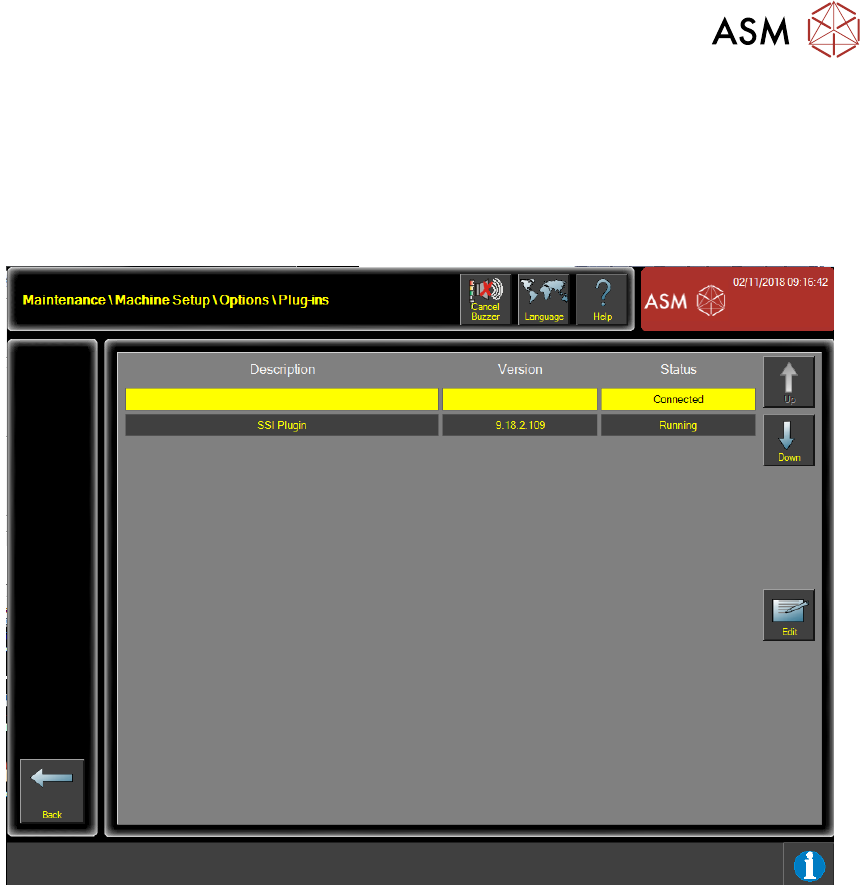
Within the Maintenance\Machine Setup\Options\Plug-Ins menu the following status conditions of
the KPO plug-in are displayed:
●
Connecting - The plug-in is enabled and waiting for the SPI to connect
●
Connected - The plug-in is communicating with the SPI
●
Disabled - The plug-in has been disabled
KPO Plugin
9.17.2.1590
Plug-Ins Page
3.3.1 Running A KPO DOE
Before a KPO DOE is run, the printer should be prepared for a print run and left in the Ready page.
The checklist in Appendix A may assist in preparing the printer. The tables in Appendix B are
provided to assist in monitoring the print performance before and after KPO optimisation. These
may also help with any troubleshooting activities.
The KPO system takes control of the printer and runs the printer for the duration of the test. Whilst
in KPO mode, boards are only printed when the SPI is ready.
During the DOE, the SPI changes print parameters for pressure, speed and separation and can
also instigate under stencil cleans.
When the DOE has been completed the printer returns to normal operation ready to resume pro-
duction. It is recommended that the correct recipe/product file is loaded before production resumes.
3 USER INFORMATION
3.3 GETTING STARTED
18 Standalone Manual Interface To Koh Young KPO 2 08/2021
3.3.2 KPO Monitor
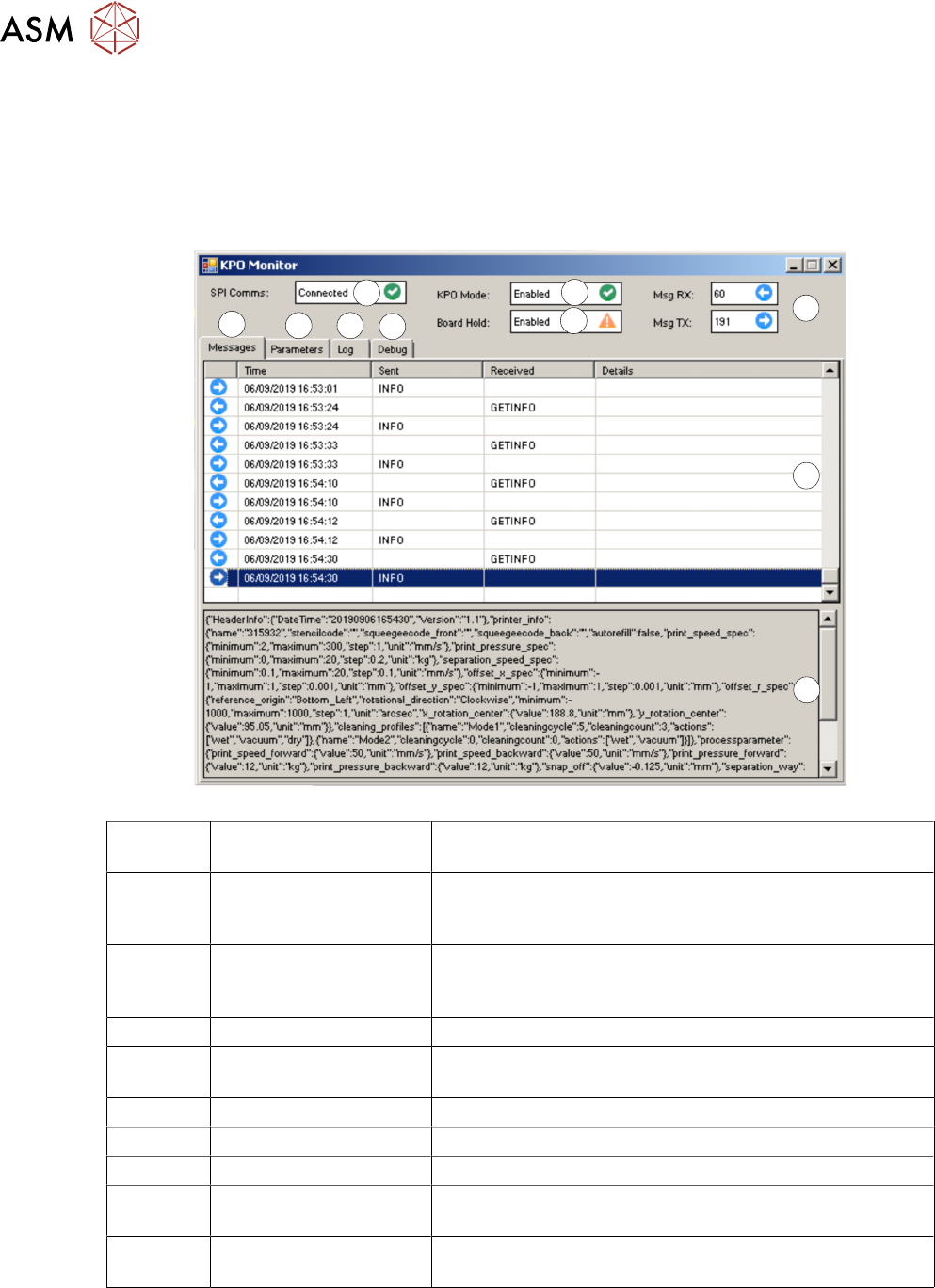
The KPO Monitor app is a separate application that can be used to monitor the status of the KPO
interface. It is a useful application for monitoring and testing any KPO operation.
The app is available via the Start menu.
The Monitor app window displays the following User information:
1
2
3
4
5
6 7
8
9
10
}
1 SPI Comms Communication status between the printer and the SPI.
Options – Connected/Not Connected
2 KPO Mode Enables print and USC clean data being sent to the SPI.
Also, the SPI can control the print cycle.
Options – Enabled/Disabled
3 Board Hold Enable the blocking of the next board by the SPI if it is not
ready. Typically, only used during a PAM DOE
Options – Enabled/Disabled
4 Msg RX/Msg TX Message counts between the printer and SPI
5 Messages Tab Displays the summary of KPO messages sent and re-
ceived by the printer.
6 Parameters Tab Not implemented
7 Log Tab Not implemented
8 Debug Tab Not implemented
9 Message List Pane Displays the last 100 messages. The time and date, mes-
sage sent/received are shown.
10 Message Pane Displays the full message details for the highlighted mes-
sage in the Message List (9)