Infinity Machine Performance.pdf - 第9页
INFINITY 0$&+,1 (3(5)250$1 &( 0$&+,1 (&$3$%,/,7< Chapter Issue 5 May 03 Instal lation M anual 8.9 12. Select New Share . 13. Inse rt C Drive in the Share Name box. Click on the Allow radio butto n an…
INFINITY
0$&+,1(3(5)250$1&(
0$&+,1(&$3$%,/,7<
8.8 Installation Manual Chapter Issue 5 May 03
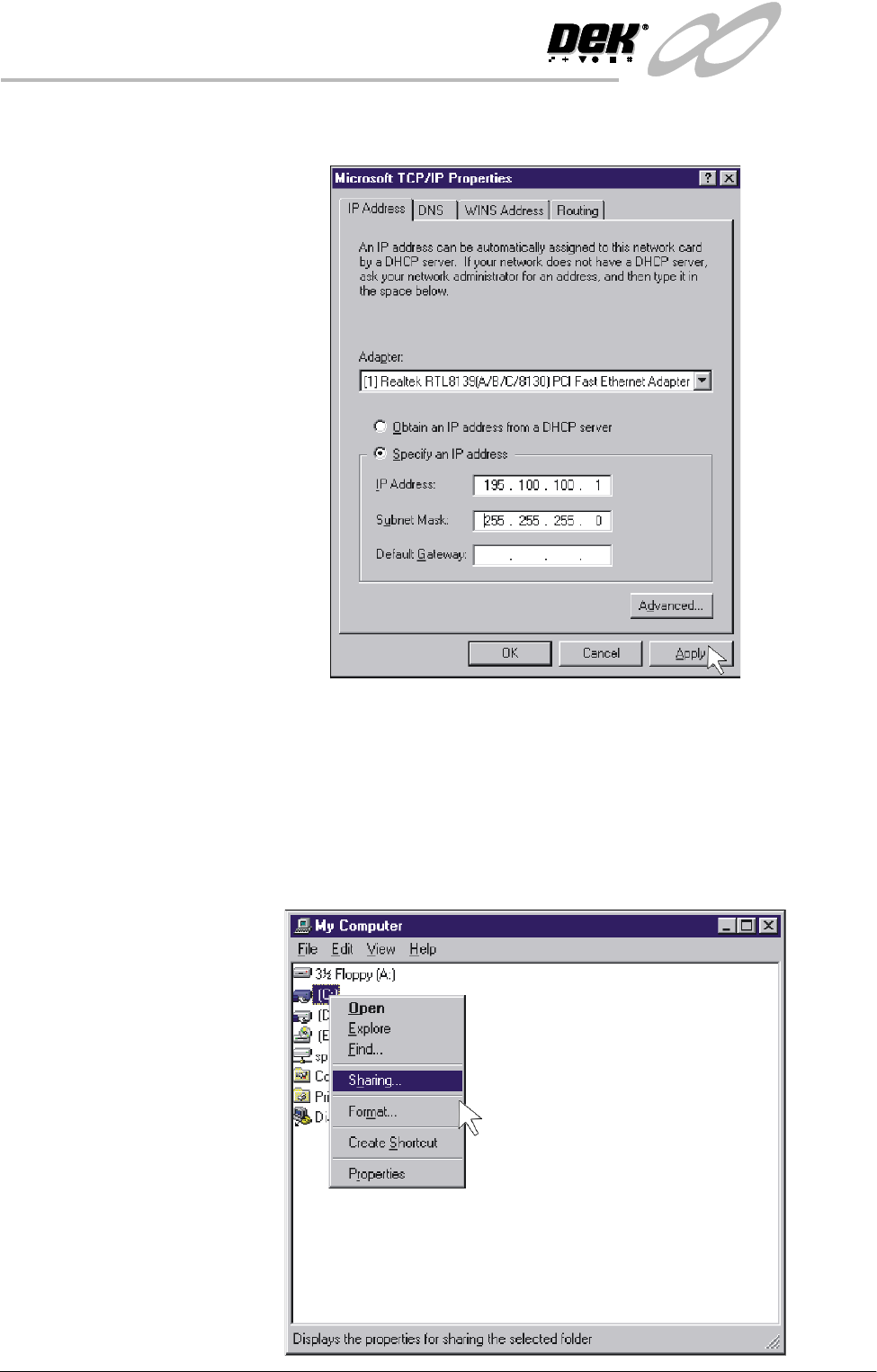
8. Click on Specify an IP address radio button. Set the IP address to
195.100.100.1 and a Subnet Mask of 255.255.255.0. Click on Apply.
9. Using the procedure above, ensure the laptop computer IP address is set to
195.100.100.10.
NOTE
Record the original settings on the laptop before changing the IP address.
10. On the DEK machine, double click on the My Computer icon on the
desktop.
11. Right mouse click on C Drive and left mouse click on Sharing.
INFINITY
0$&+,1(3(5)250$1&(
0$&+,1(&$3$%,/,7<
Chapter Issue 5 May 03 Installation Manual 8.9
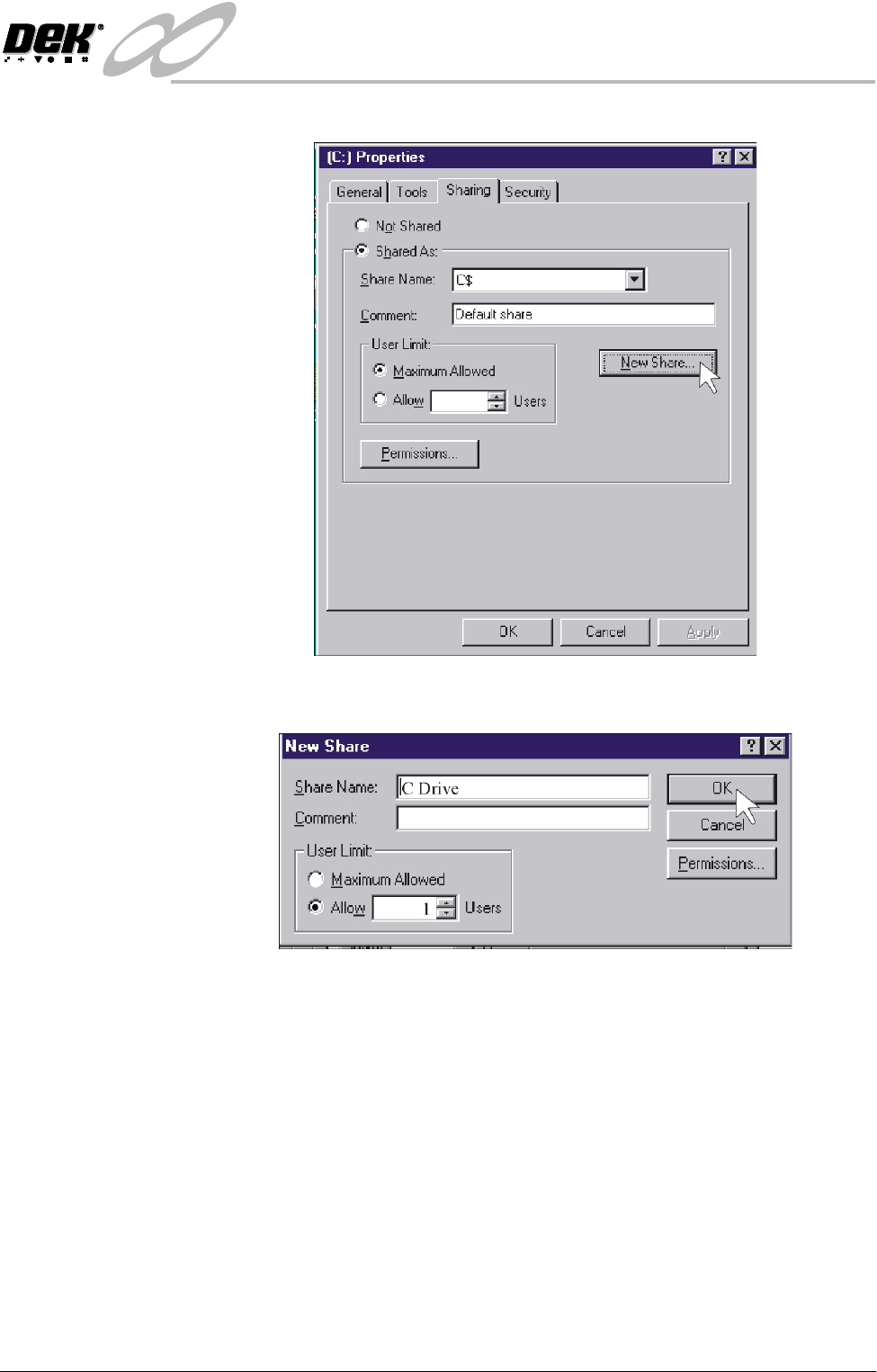
12. Select New Share.
13. Insert C Drive in the Share Name box. Click on the Allow radio button and
set the number of users to 1.
14. Repeat Steps 11 - 13 for D drive.
15. Shutdown and restart the DEK machine and terminate the DEK program.
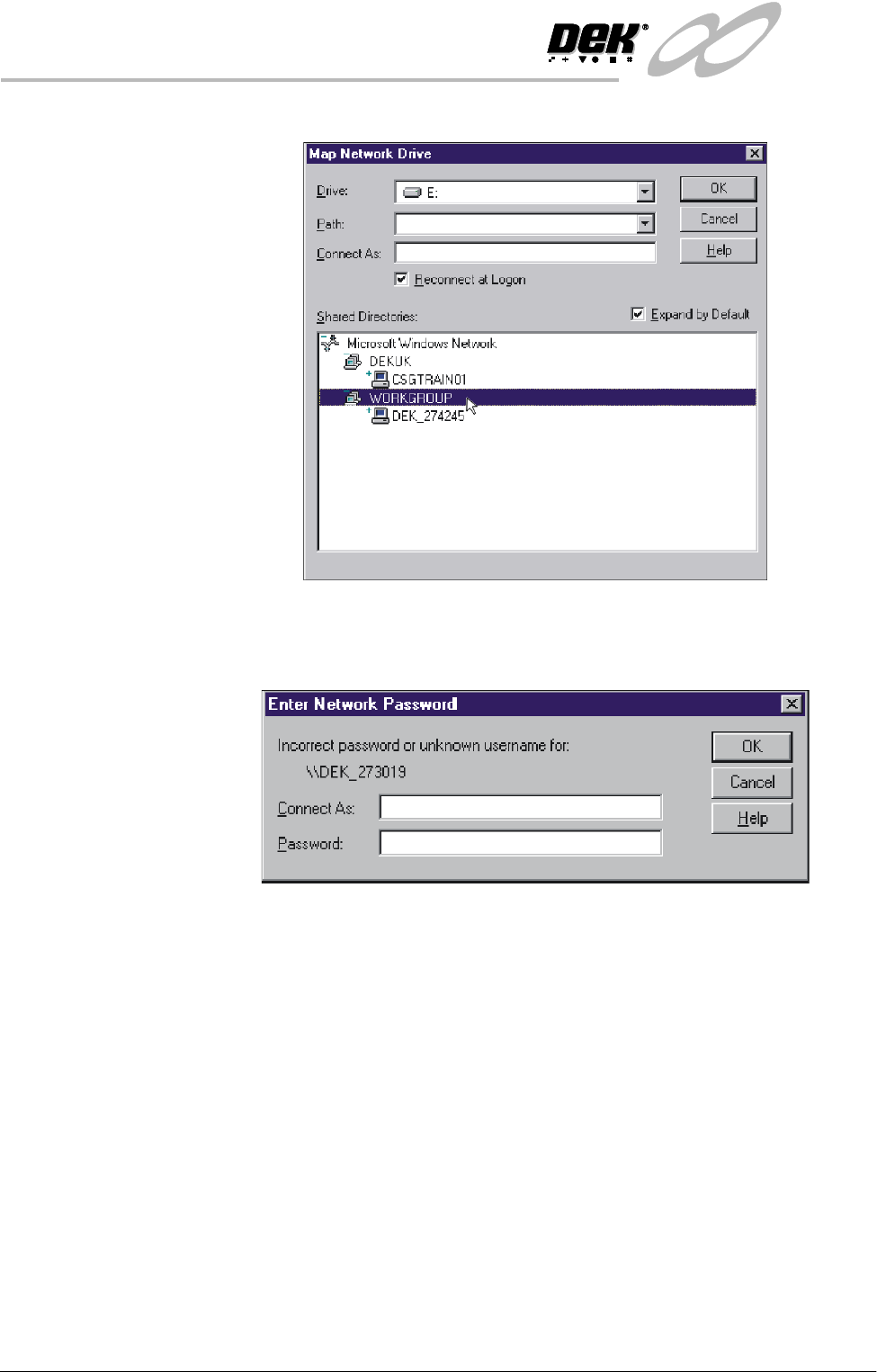
16. On the laptop computer, right mouse click on the Network Neighbourhood
icon on the desktop.
17. Select Map Network Drive.
INFINITY
0$&+,1(3(5)250$1&(
0$&+,1(&$3$%,/,7<
8.10 Installation Manual Chapter Issue 5 May 03
18. Scroll down Shared Directories and double click on Workgroup.
19. Double click on the relevant DEK machine serial number.
20. Enter user name and password (use administrator for both) and select
O.K.
21. Map the C drive on the DEK machine to a spare drive letter on the laptop.
Highlight C drive and select O.K. A window will open showing what is in the