00195044-16_UM_VisionTeachStation_DE_EN.pdf - 第151页
Vision Teach Station User Manual 7 Software 05/2016 Edition 7.3 Installing for the first time 151 T roubleshooting: 7 Open the Device Manager . Search for a deactivated device under "Display adapters". Ac…
7 Software Vision Teach Station User Manual
7.3 Installing for the first time 05/2016 Edition
150
When the installation is completed, the computer restarts. 7
After restarting, log on as Administrator once more.
Wait until the installation scripts have run.
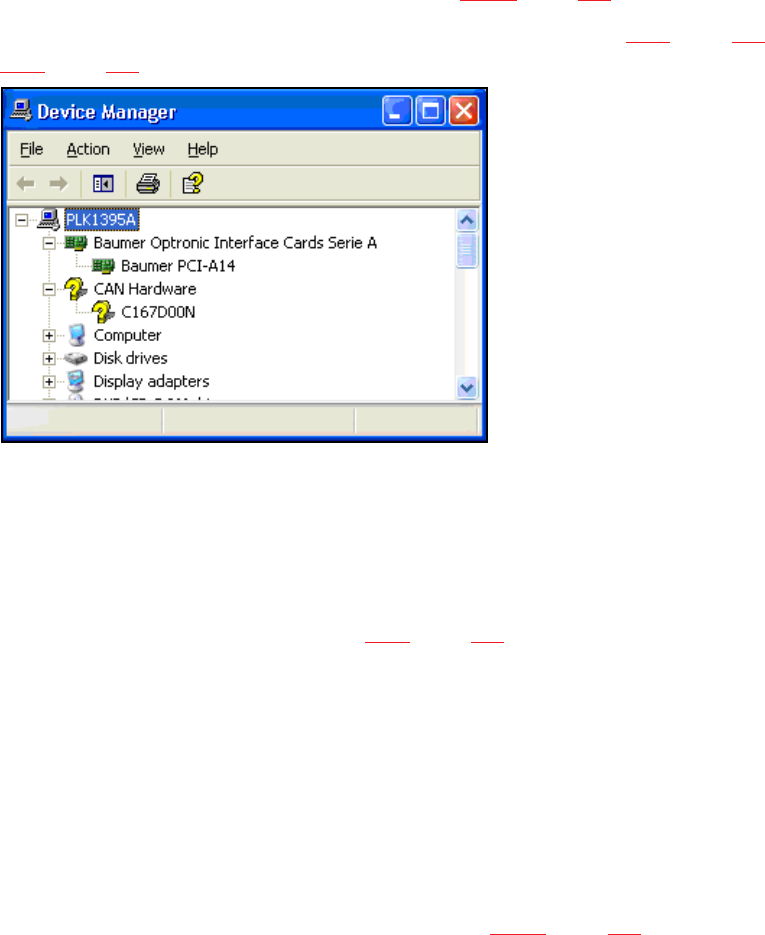
In the Device Manager, check that the drivers for the "Baumer PCI-A14" camera interface card
and the "C167D00N" CAN card were found (see Fig. 7.3 - 5, page 150).
If one of the drivers was not detected, follow the instructions in section 8.3.5, page 160 or
8.3.6, page 162. 7
7
Fig. 7.3 - 5Entries for the camera interface card and CAN card in Device Manager
(the question mark beside the CAN card is correct)
Log on as the user plr using password: plr.
Wait until the installation scripts have run.
Log back on as Administrator:
Then follow the steps described in section 7.2.4, page 145.
7.3.2 Installing with "Recovery Media - Celsius W380", item no. 03085500-xx
From the beginning of 2011 the Celsius W380 computer is delivered with recovery DVDs. Three
DVDs are enclosed with the package (WinXP 32bit, Win7 32bit and Win7 64bit). The VTS 4.3.1
version only supports WinXP 32bit and Win7 32bit. 7
Start the recovery DVD and follow the instructions on the screen.
Create an account with administrator privileges.
Configure the network parameters as described in Table 7.3 - 4, page 149.
The drivers for the hot link and CAN cards will be installed together with the VTS software. 7
Known problem: 7
The recovery installation does not always install the graphic driver. You will recognize this error, if
you try to move windows on the screen (slow performance). 7

Vision Teach Station User Manual 7 Software
05/2016 Edition 7.3 Installing for the first time
151
Troubleshooting: 7
Open the Device Manager.
Search for a deactivated device under "Display adapters".
Activate the adapter.
Select "no Internet access" and then "Automatical installation".
Restart the computer after the installation has been completed.
7.3.3 Installing with "Recovery Media" as of Celsius W510 computer
As of April 2012 the VTS is delivered with the Celsius W510 computer. The Recovery Media for
Windows 7, 32-bit and 64-bit are delivered ex works for this computer .
Celsius W510 is equipped with the new PowerCAN-PCI-II CAN card that supports the 32-bit and
64-bit operating systems.
The VTS software supports Windows 7, 32-bit and 64-bit as of the 5.0.1 version.
Start the Recovery DVD and follow the instructions on the screen.
Create a user account with administrator authorization.
Configure the network parameters as described in Tab. 7.3 - 4, page 149.
The drivers for the Hotlink and CAN cards get installed together with the VTS software.
7 Software Vision Teach Station User Manual
7.4 Licensing 05/2016 Edition
152
7.4 Licensing
As of the 5.0.2 version, the SIPLACE Vision Teach Station is available as a pure licensed software
product. 7
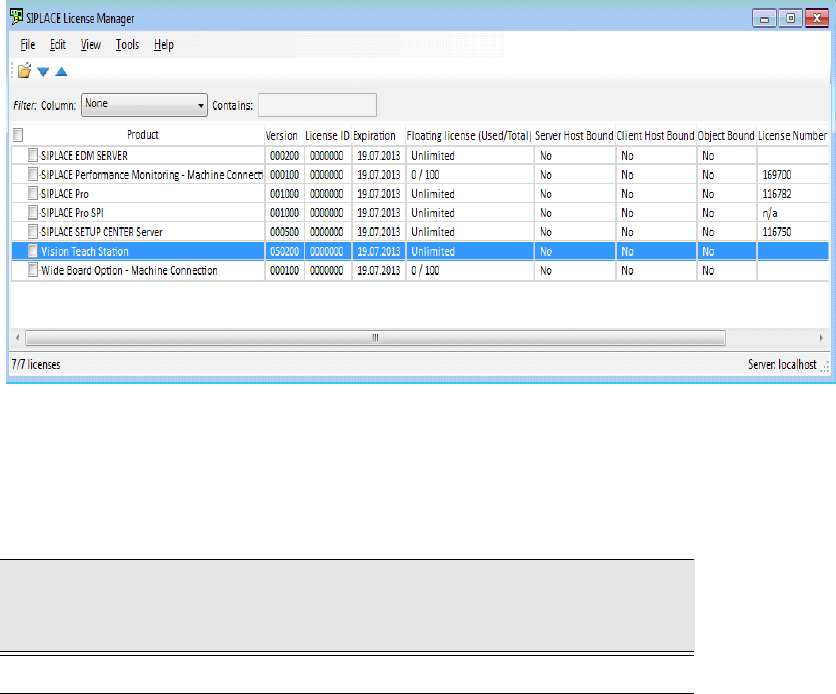
A "Vision Teach Station" license is required in the SIPLACE License Manager for operation. The
SIPLACE License Manager has to run on the same computer as the SIPLACE Vision Teach
Station software. 7
Fig. 7.4 - 6 License entry for the SIPLACE Vision Teach Station in the SIPLACE License Manager
The SIPLACE Vision Teach Station can be ordered as a licensed software product with the
following data:
Software
Vision Teach Station
with software license
Software package required
V5.3.2
SIPLACE Vision Teach Suite V5.x, item no. 00117253-xx
Tab. 7.4 - 5 Vision Teach Station with software license