3OM-1345-006_w.pdf - 第181页
4-14 AKHEDT -ID Reference Refer to "Component Library for GXH Series" for the description of the component library data items. Note The standard component library data prepared by us cannot be edited. Before ed…
4-13
AKHEDT-ID
2. Editing of Component Library Data
2.1 "Component Library" Edit Window
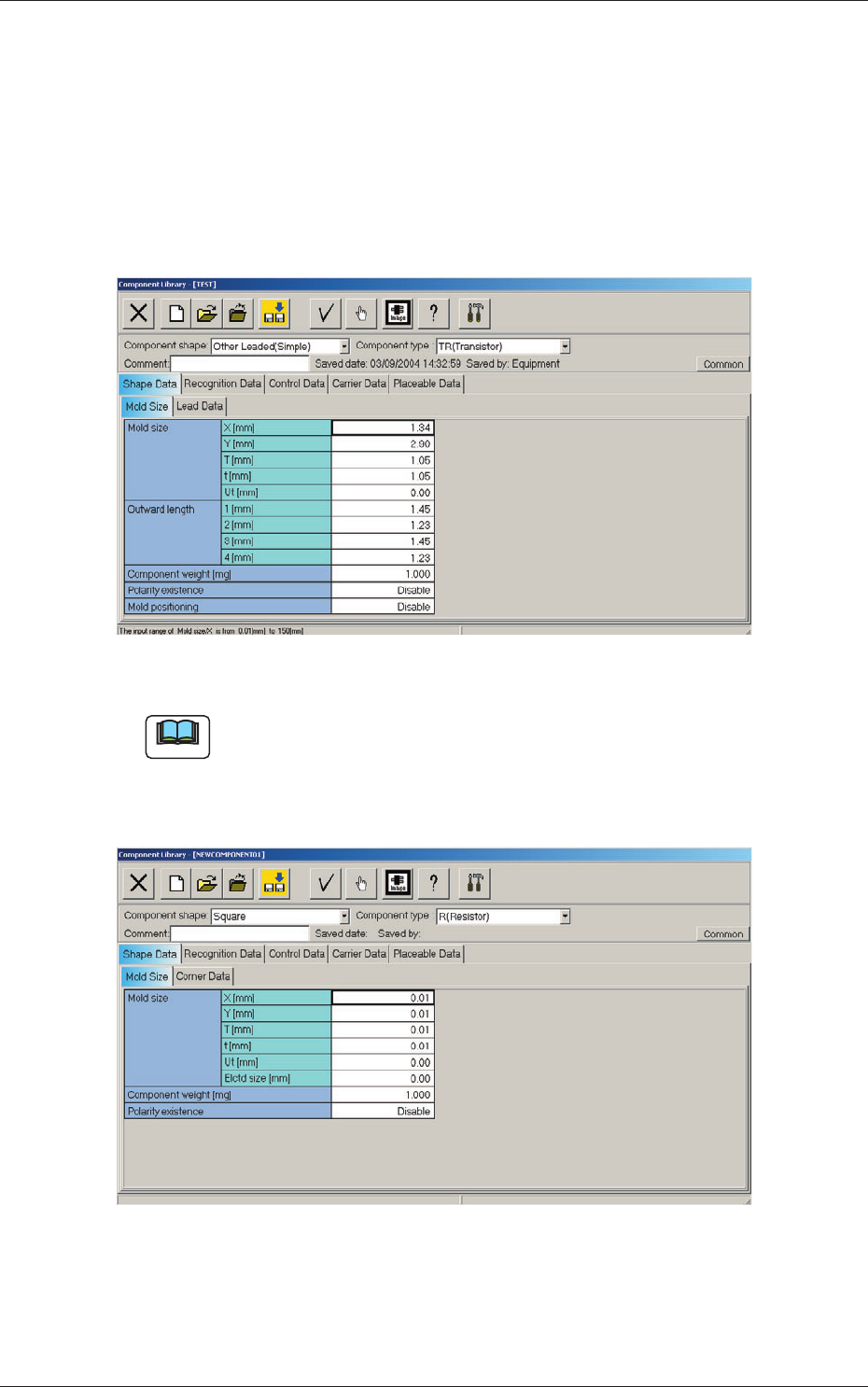
Select the desired component ID in the "Selection of component ID" window
and press the [Open] button.
The "Component Library" edit window opens.
Fig. 3D9 "Component Library" Edit Window
Note
(a) When the "New" icon is pressed, a new window opens. Default
parameters are set in the new window.
(b) The displayed contents change according to the selected component
shape.
Fig. 3D10 "Component Library" Edit Window (New Data Creation)
Edit the component library data in each tab sheet.
0609-002
2. Editing of Component Library Data
4-14
AKHEDT-ID
Reference
Refer to "Component Library for GXH Series" for the description of the
component library data items.
Note
The standard component library data prepared by us cannot be edited.
Before editing the data in a fi le, give another name to the fi le and save it,
using the (
) icon.
0602-001
2.1 "Component Library" Edit Window
4-15
AKHEDT-ID
2.2 Saving of Component IDs
The following describes how to save a newly created fi le (component ID) or
the edited parameters of the component ID.
Note
Before saving the component ID, select the " " icon in the "Component
Library" window. The "Confi guration" dialog box opens. Select the
[Enable] button in the "Check data before saving" group box.
The [Enable] button opens a "Confi rmation" window when an error is
found in the data to be saved.
(1) Press the [Save] or the [Save As] icon on the toolbar.
: Saving active fi le
When pressed, this saves the edited component ID (fi le),
replacing the original component ID (fi le) with the current one.
: Save As
When pressed, this saves a newly created fi le (data of a new
component ID) or the edited fi le with another name (component
ID).
(2) When the [Saving active fi le] icon is pressed, the active component
library data is saved with the current component ID name, replacing the
original program with the active one.
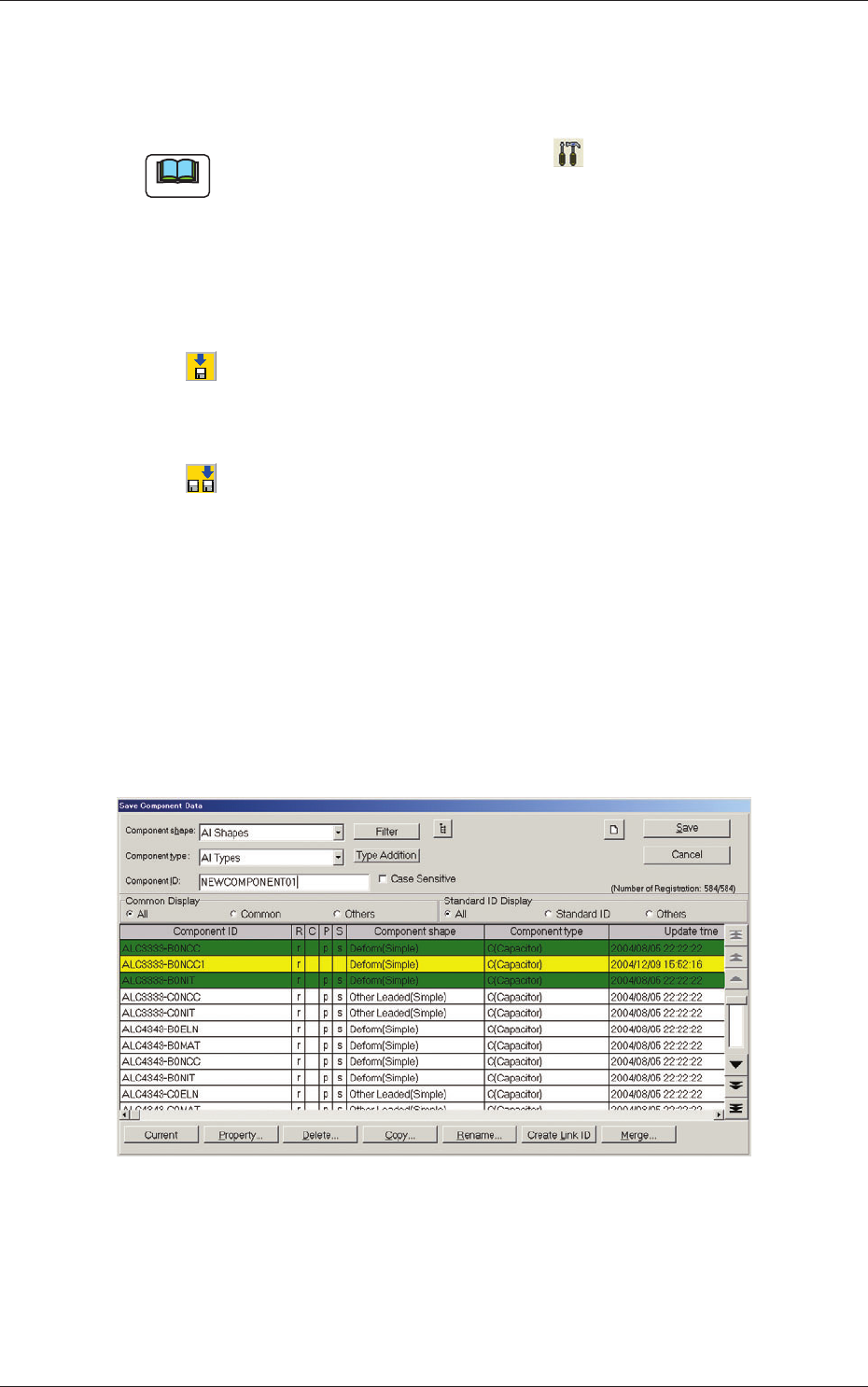
(3) When the [Save As] icon is pressed, the following "Save Component
Data" window opens.
Fig. 3D11 "Save Component Data" Window
0609-002
2.2 Saving of Component IDs