SOM-1732-001.pdf - 第11页
8. Operation 8 . 1 "Opn. Mode" T ab Sheet This tab sheet enables the operator to specify the operation mode for the ACV system. T o use the ACV function, it is required to specify "Enable" for the ACV…

7. Scope of Actions
• At Start of Automatic Operation
When the [START] button on the operation panel is pressed, the ACV
data for all feeders used in the current program is checked. When no
error is detected, the operation continues.
When the feeders are checked in advance at the "ACV Check
Status" tab sheet, no checking operation is performed at
starting time of the machine.
• When a feeder is not installed correctly on the feeder carriage or a
feeder is short of components, an error message is issued and
the machine stops running.
• When an error is detected after all feeders are checked, the ma-
chine stops immediately in an error condition and an error mes-
sage is issued.
• All feeders are checked when the machine is restarted ([START]
Button "ON") after the data check is completed without any error
detection for all feeders and the automatic operation is stopped.
When the [FEEDER READY] button is turned OFF and
the door of a feeder carriage is opened or closed, all feed-
ers on the feeder carriage are checked.
• When a feeder is installed incorrectly and the machine stops in an
error condition, re-set it correctly. The machine is set ready to be
operated.
• At Re-Starting after Component Shortage or Pickup Error
The ACV data is checked for all feeders in the same manner as taken
when the automatic operation is started.
• At Program Change
The ACV data is checked for all feeders in the same manner as taken
when the automatic operation is started.
7. Scope of Actions
Note
Note
0310-001 9 AIP01EGP
8. Operation
8.1 "Opn. Mode" Tab Sheet
This tab sheet enables the operator to specify the operation mode for
the ACV system.
To use the ACV function, it is required to specify "Enable" for the ACV
function.
• Sheet Layout
When the "Opn. Mode" tab is pressed in the "OPN. MODE" window
(submenu), the corresponding tab sheet appears. Press the [Next]
button. The following tab sheet appears.
Fig. 3
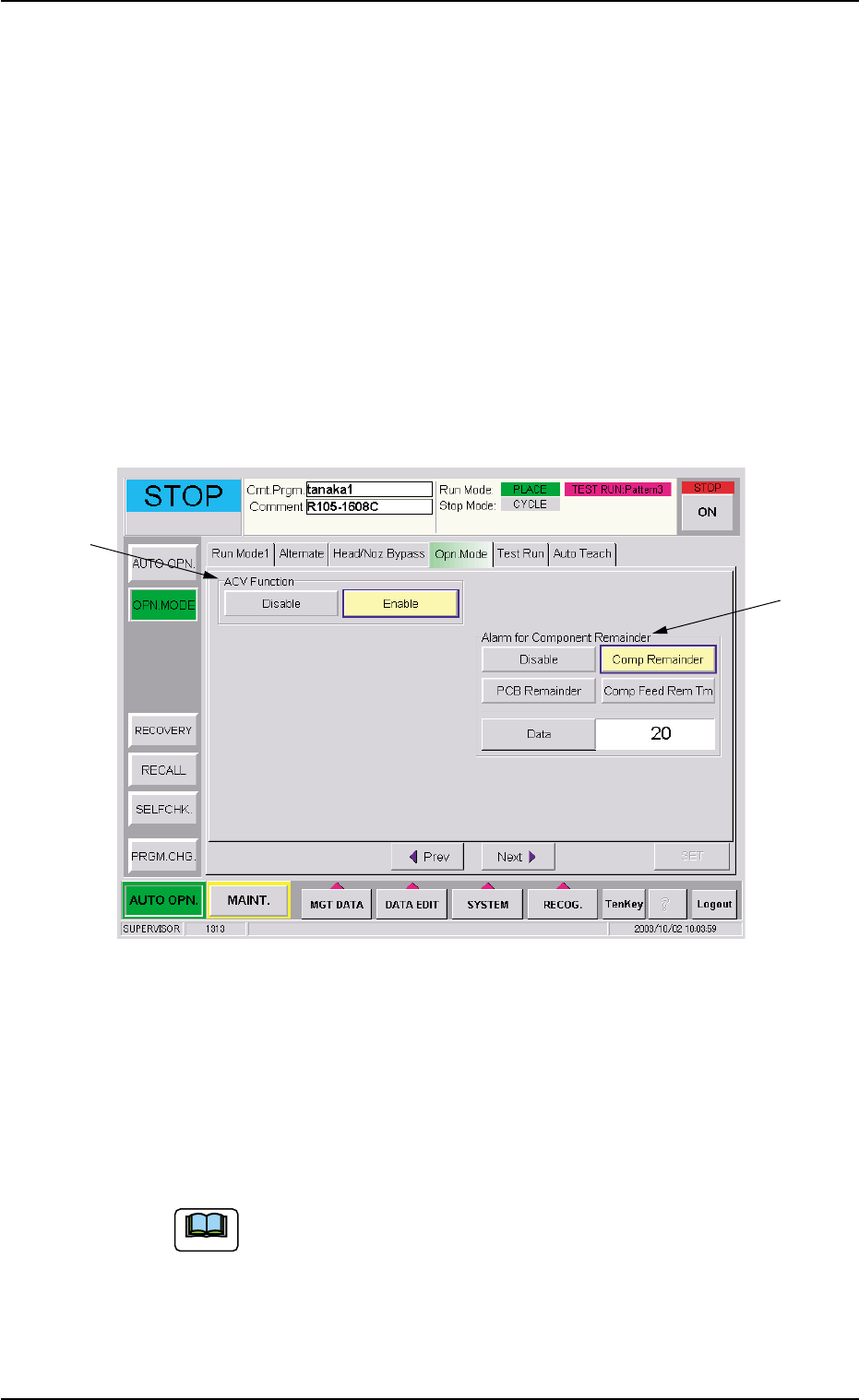
*1 "ACV Function" Group Box
[Enable] Button
The ACV function becomes available.
[Disable] Button
The ACV function becomes unavailable.
When "Enable" is set for the ACV function and the ACV
checking is started, "ACV Check Mode" appears in the "Op-
erator Message" pane of the "AUTO OPN." window.
8. Operation
*2
*1
Note
0310-001 10 AIP01EGP
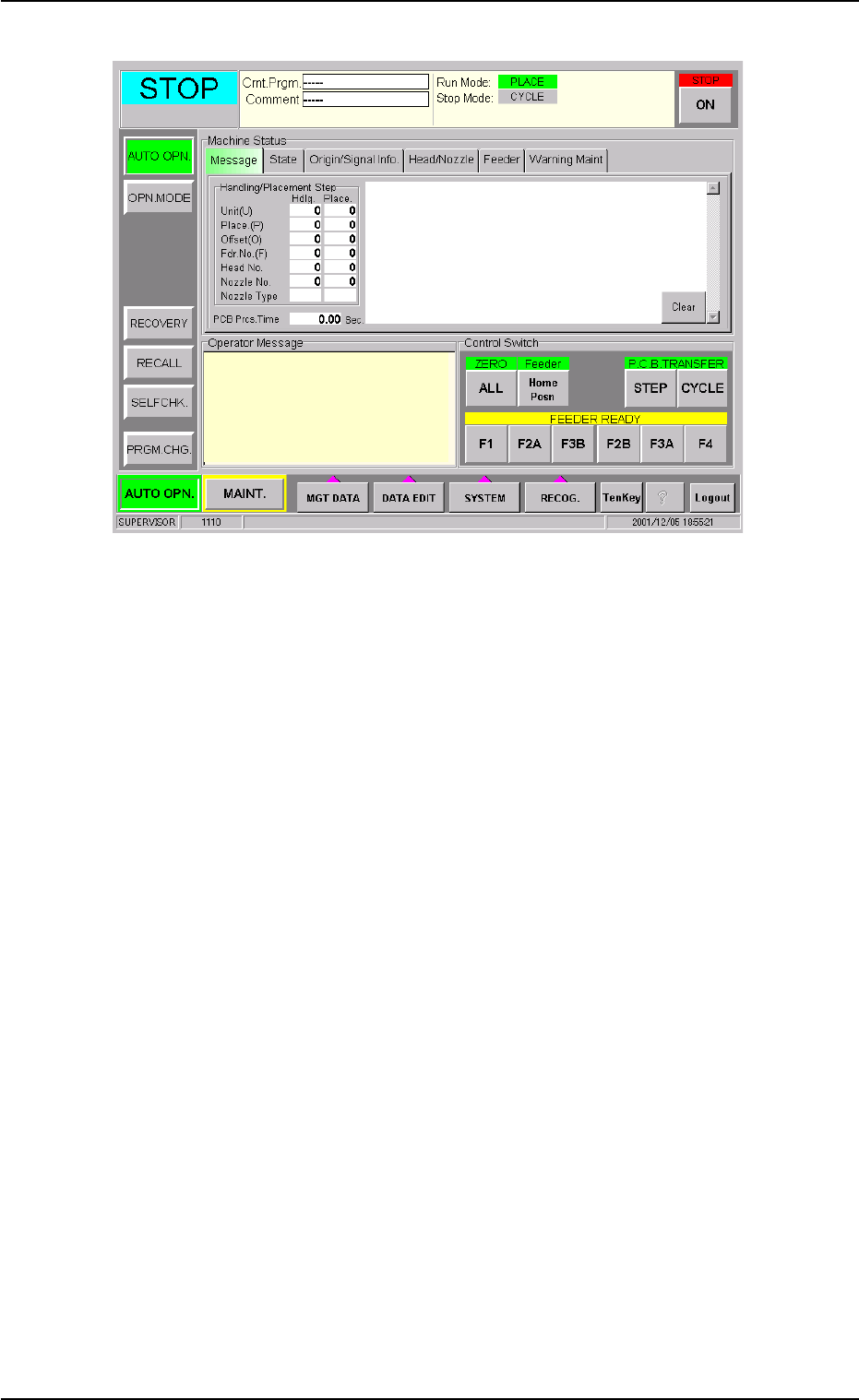
Fig. 4
*2 "Alarm for Component Remainder" Group Box
An alarm for component remainder can be issued according to the
component remainder data which is read for each feeder.
The alarm message "Alarm for Component Remainder" appears in
the "Operator Message" pane and the feeder No. related to the alarm
can be checked in the "ACV Check Status" tab sheet.
[Comp Remainder] Button
When the value under "Comp Rem" becomes smaller than the
specified one in the "ACV Check Status" tab sheet, an alarm for
component remainder is issued.
[P.C.B. Remainder] Button
When the value under "PCB Rem" (the estimated number of P.C.B.'s
which can be produced using the loaded components) becomes
smaller than the specified one in the "ACV Check Status" tab sheet,
an alarm for P.C.B. remainder is issued.
[Comp Feed Rem Tm] Button
When the value under "Feed Rem Tm" (the period of time during
which the loaded components can be supplied, that is, the time in
which the components are used up) becomes smaller than the speci-
fied one in the "ACV Check Status" tab sheet, an alarm for remain-
ing feed time is issued.
The time to be specified must be expressed in minutes.
As the time is calculated based on the time required to finish one
P.C.B., it may differ from the time in which all components are actu-
ally used up.
0310-001 11
AIP01EGP
8.1 "Opn. Mode" Tab Sheet
ACV Check Mode