00196799-03_IM_Explorer_2.10_DE.pdf - 第44页
3 In st alla tio n de s SIPL ACE Expl ore r Inst al lat ions - und Konf i gura tio ns anle itun g S IPLA CE Ex plo rer 3. 7 K on fig ur ati on v on T o mca t Au s gabe 02 /2 01 2 D E 44 3.7 Kon figu ra tion von T omca t …
Installations- und Konfigurationsanleitung SIPLACE Explorer 3 Installation des SIPLACE Explorer
Ausgabe 02/2012 DE 3.6 Konfiguration von MS SQL Server
43
3
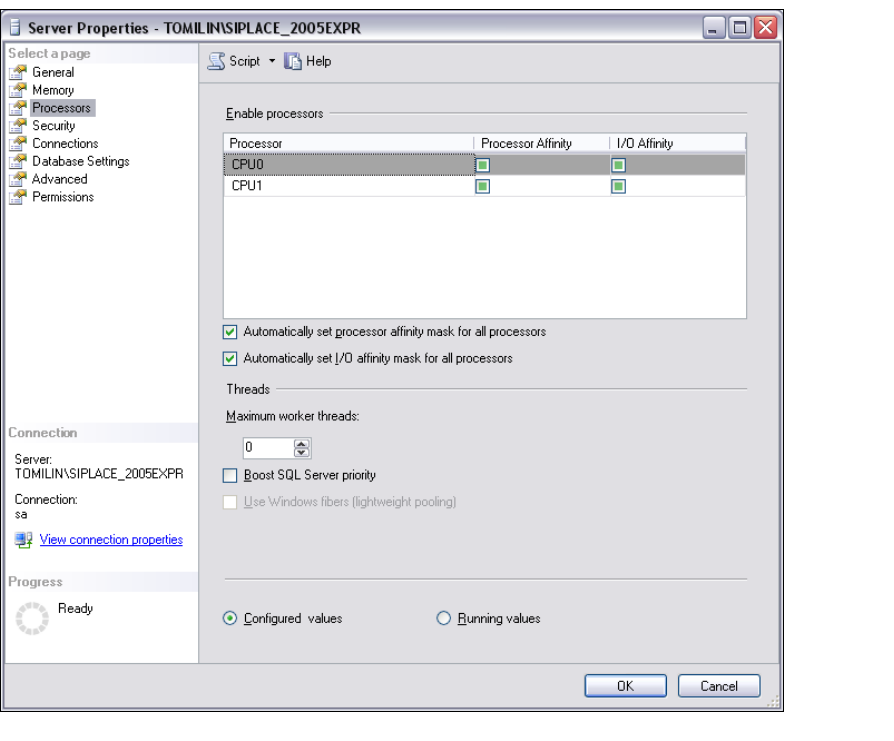
Abb. 3 - 19 MS SQL Server Properties
Wählen Sie Processors.
Aktivieren Sie folgende Checkboxen:
– Automatically set processor affinity mask for all processors
– Automatically set I/O affinity mask for all processors
Bestätigen Sie Ihre Eingaben mit OK.
Starten Sie den MS SQLServer erneut.
3 Installation des SIPLACE Explorer Installations- und Konfigurationsanleitung SIPLACE Explorer
3.7 Konfiguration von Tomcat Ausgabe 02/2012 DE
44
3.7 Konfiguration von Tomcat
3.7.1 Verwendung von Windows 2003 Server
Haben Sie als Betriebssystem Windows 2003 Server installiert, müssen Sie für die Verwendung
von SIPLACE Explorer V2.10 den Webserver (Tomcat) nachkonfigurieren. Diese Konfiguration
nehmen Sie im Internet Explorer vor. 3
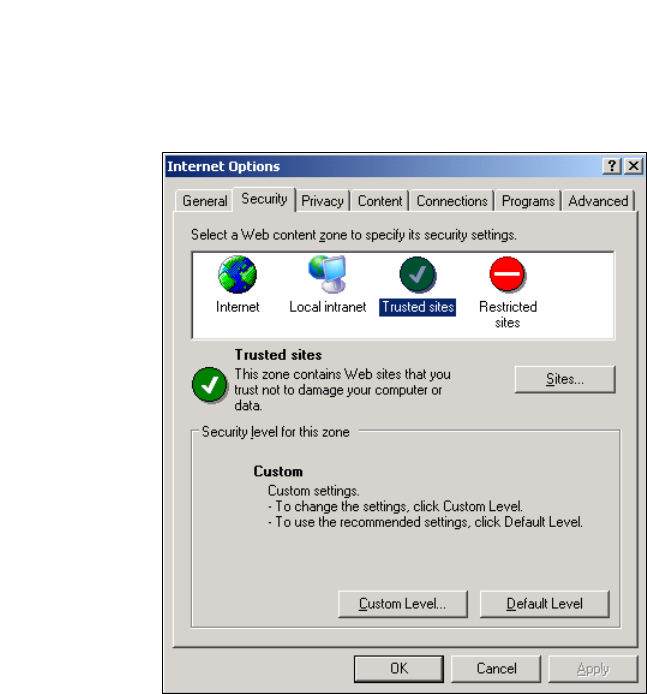
Wählen Sie das Menü Tools Options aus.
Das Dialogfenster Internet Options öffnet sich:
3
Abb. 3 - 20 Internet Options
Wählen Sie das Register Security aus.
Klicken Sie auf das Symbol für Trusted Sites und betätigen Sie die Schaltfläche Sites.
Installations- und Konfigurationsanleitung SIPLACE Explorer 3 Installation des SIPLACE Explorer
Ausgabe 02/2012 DE 3.7 Konfiguration von Tomcat
45
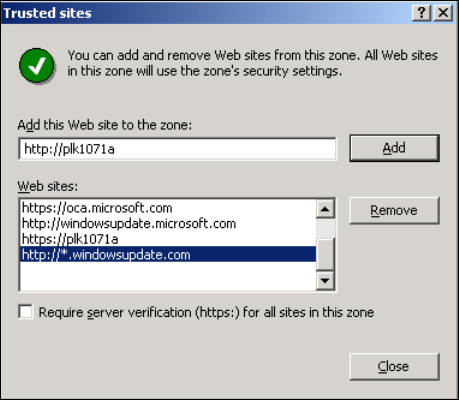
Das Dialogfenster Trusted Sites öffnet sich:
3
Abb. 3 - 21 Internet Options
Geben Sie die URL oder den Namen des Webserver (Tomcat) an. Bestätigen Sie Ihre Angabe
mit Add.
Schließen Sie das Dialogfenster Trusted Sites mit Close.