00195044-14_UM_VisionTeachStation_DE EN.pdf - 第145页
Vision Teach Station User Manual 7 Software 05/2015 Edition 7.2 Software upgrade 145 7.2.4 Installing the new version 7.2.4.1 Installing the CD "SIPLACE NET Support Media" CD Insert the "SIPLACE NET Supp…
7 Software Vision Teach Station User Manual
7.2 Software upgrade 05/2015 Edition
144
7
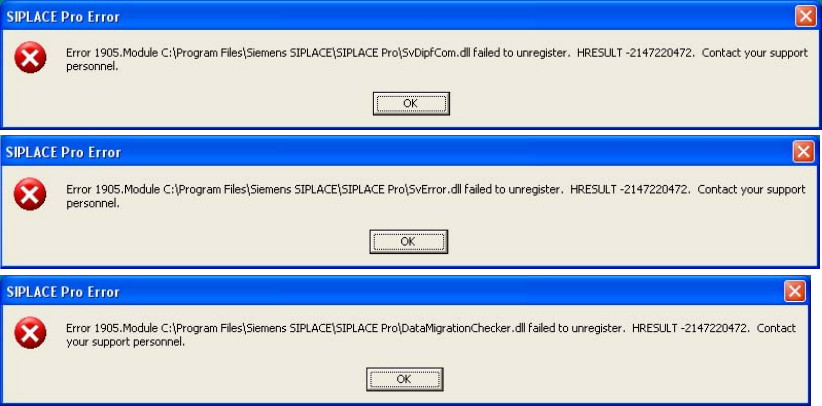
Fig. 7.2 - 1 Error messages when uninstalling SIPLACE Pro
Ignore the three error messages that appear while you are uninstalling SIPLACE Pro. These
relate to files that SIPLACE Pro and the SIPLACE vision teach station software use together.
Click on OK for each message.
Uninstall the vision teach station software by running the "UninstallAll.bat" file in
"C:\ Program Files\Siemens AG\Teach Station".
From Vision Teach Station version 3.51 onwards, you can also uninstall from the
Start menu > Programs > Teach Station > Teach Station "Uninstall All". 7
Vision Teach Station User Manual 7 Software
05/2015 Edition 7.2 Software upgrade
145
7.2.4 Installing the new version
7.2.4.1 Installing the CD "SIPLACE NET Support Media" CD
Insert the "SIPLACE NET Support Media" CD. If it does not start automatically, run the
AUTORUN.CMD file.
Select the "Requirements" button under "Analysis and Administration" and follow the instruc-
tions.
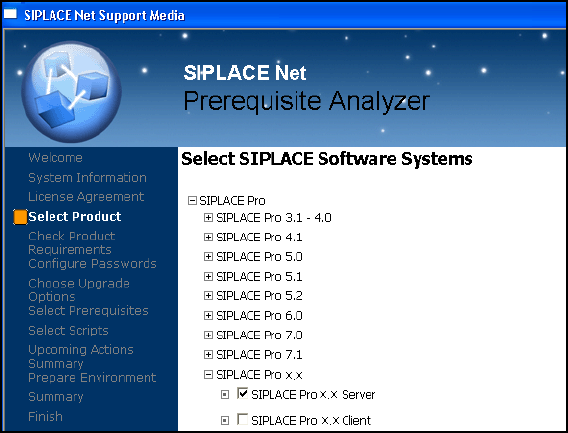
In the "Select SIPLACE Software Systems" window, select the
"Siplace Pro > Siplace Pro x.x > SIPLACE Pro x.x Server" product.
Fig. 7.2 - 2 Product choice für SIPLACE Pro x.x
7
If an SQL database already exists, the "Choose Upgrade Options" dialog box will be opened.
Select the update to the existing SQL version.
Let the "Server" option be selected in the "License Manager" window and click on "OK".
7 Software Vision Teach Station User Manual
7.2 Software upgrade 05/2015 Edition
146
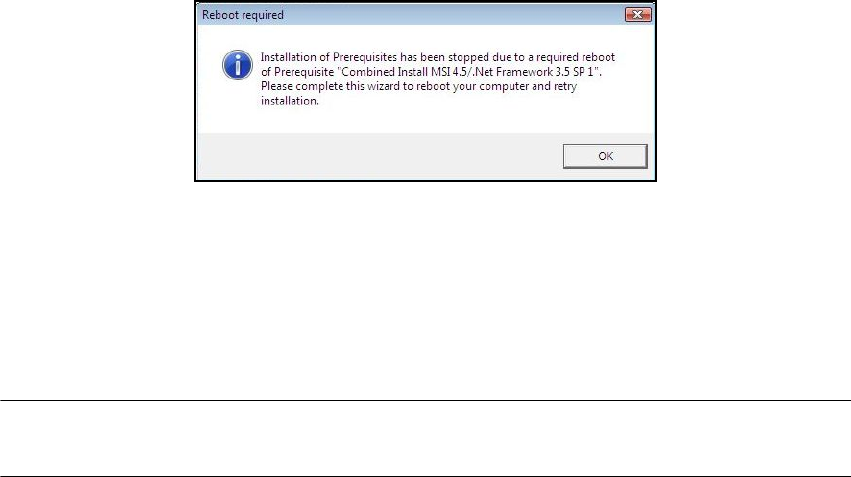
The updates of .NET-Framework 3.5 and Windows Installer 4.5 may need a restart. This will
NOT be automatically performed by the Suppot Media DVD. If displayed, confirm the
following message with "OK".
7
Click on "Next" several times until the wizard exits. In the last step the wizard performs the re-
start. After the subsequent run-up, the wizard continues installing.
Permit a restart after installation.
7.2.4.2 Installing the "SIPLACE Pro Application1" CD
PLEASE NOTE: Please ensure that you have a valid license key at your fingertips. During the
installation you will be prompted to enter this key. 7
Install SIPLACE Pro as described in the "SiplaceProInstall_eng.pdf" document ("SIPLACE Pro
Application" setup CD in the "Documentation" directory).
Select the "SIPLACE Pro programming system" type from the "Setup Type" window.