TS570R-USER-GUIDE.pdf - 第12页
12 5.2.7 To run in Continous Mode The controller can be setup to repeat the run continuously. 1. Touch the Setup icon to enter the setup screen 2. Touch the “Run Method” icon 3. Enter the delay time (ex. 5000 ms) 4. Touc…
26
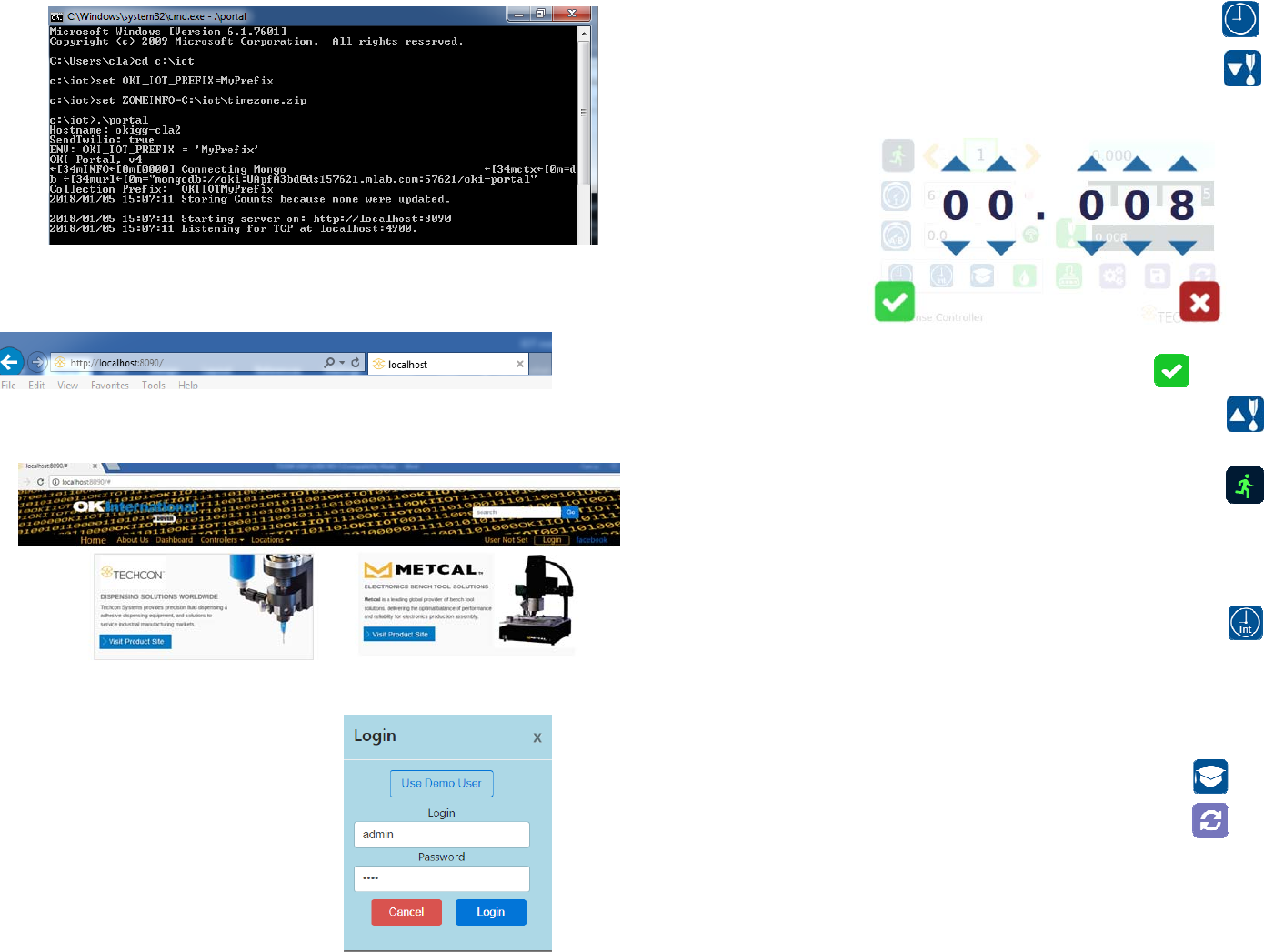
13. Go to any computer and open any web browser
14. Type in:
http://localhost:8090/ then touch the enter button
You are now in the webserver site. The below screen will be displayed:
15. Click the “Login” button
16. Enter “admin” in the Login box
17. Enter “1001” in the Password box
11
5.2.5 Automatic Dispense Cycle Setting:
1. Touch the “Timed” mode icon to set the dispense time.
The icon will turn to green color.
2. Touch the “Dispense” icon to enter the setup screen
3. Touch the Up and Down arrows to set the desired dispense time
4. Touch the Check Mark icon to save and exit
Note: if suck back is needed, touch the “Reverse” icon to
setup motor reverse time
5. Press the foot switch to activate the “Timed” dispense
cycle. Alternately, touch the Run icon to activate the
“Timed” dispense cycle.
Note: The unit has an “Interrupt” mode feature. In this mode, the
“Timed” dispense cycle can be disrupted if the foot switch is released and
resumed when the foot switch is depressed again.
6. Touch the “Interrupt” icon to activate “Interrupt” mode.
The icon will turn to green color.
5.2.6 Teach Mode Setting
In the teach mode, the dispense time will be accumulated as long as the
foot switch is depressed. This is helpful in determining the required
dispense time when dispense output is known.
1. Touch the “Teach” icon to enter the teach mode
2. Touch the “Time Reset” icon to set timer to zero
3. Press and hold down the foot switch, the dispense time will be
accumulated
4. Release the foot switch when the desired amount of fluid has dispensed
5. Touch the “Timed” icon to transfer the dispense time to “Timed” mode
6. The unit is now set to repeat this “Timed” cycle
12
5.2.7 To run in Continous Mode
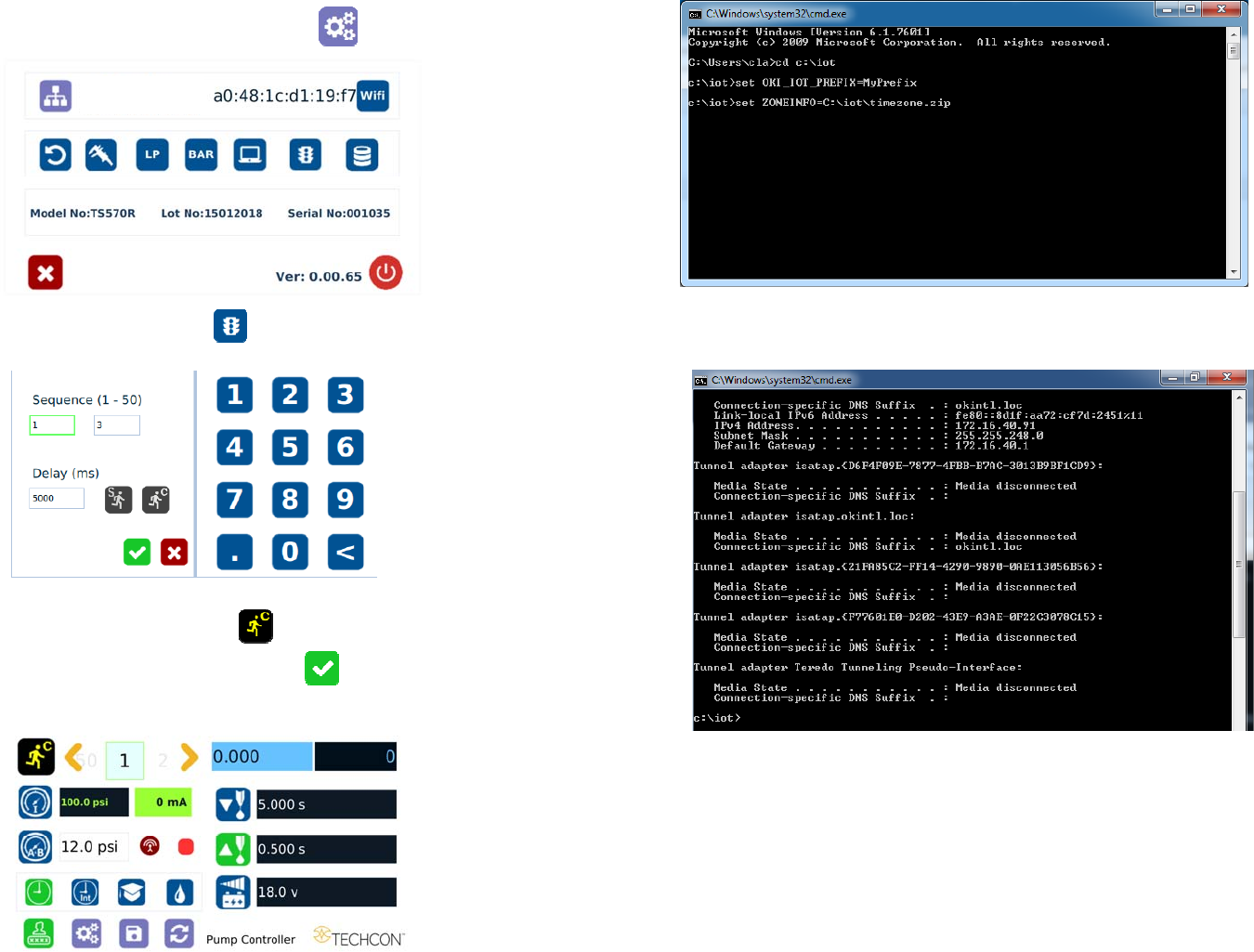
The controller can be setup to repeat the run continuously.
1. Touch the Setup icon to enter the setup screen
2. Touch the “Run Method” icon
3. Enter the delay time (ex. 5000 ms)
4. Touch the “Countinous Run” icon
5. Touch the Check Mark icon to save and exit
The screen will look similarly to the screen below:
25
9. Type: “set ZONEINFO=C:\iot\timezone.zip” then touch the “Enter” button
10. Type: “ipconfig” then touch the “Enter” button
11. Record the Server IPv4 address show in the “IPv4 Address” line on the above
screen; For this example, the Server IP address is: 172.16.40.91
This address will be entered in the controller screen later.
12. Type: “.\portal” then touch the Enter button
24
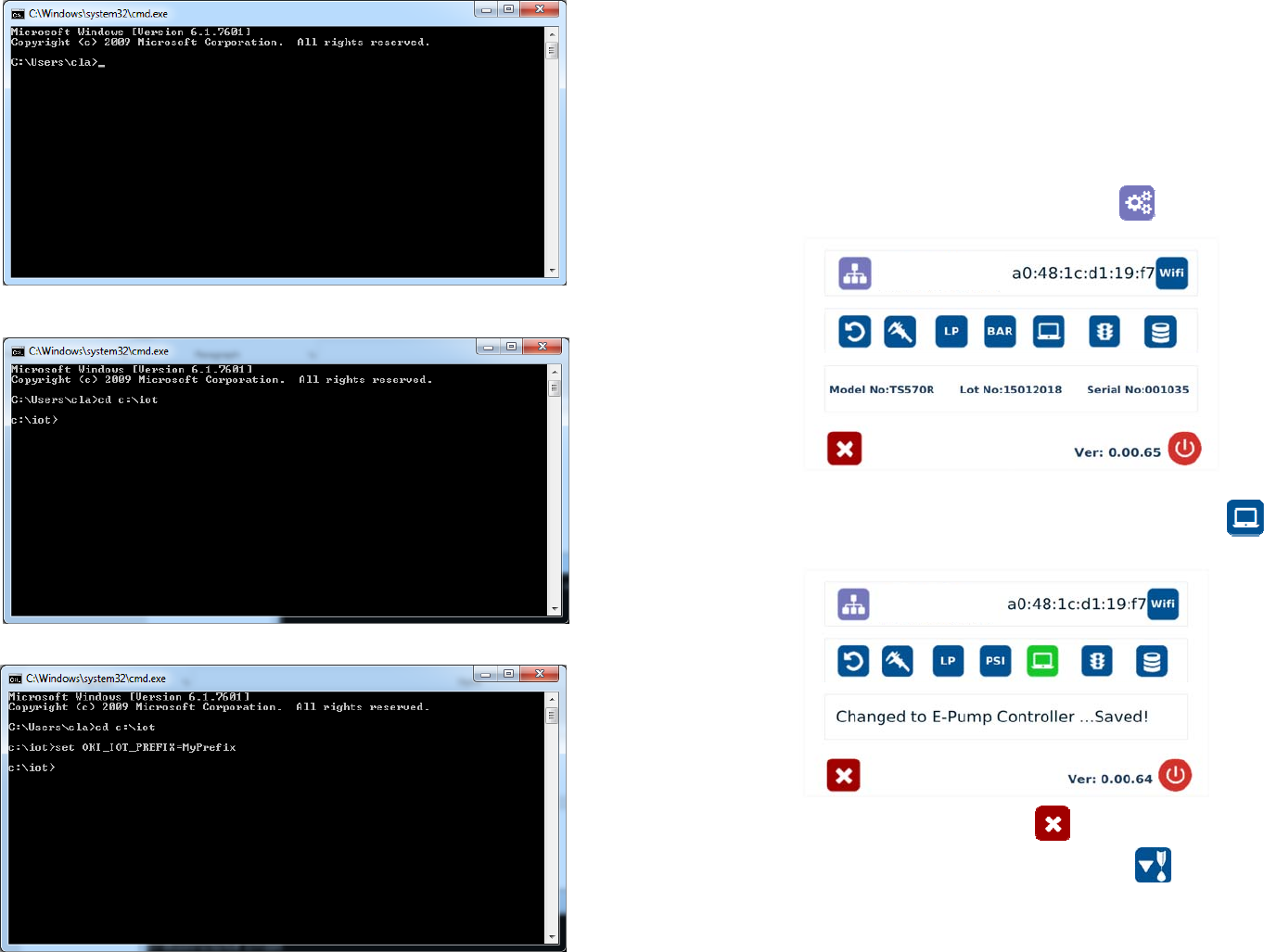
7. Type: “cd :\iot” then touch the “Enter” button
8. Type: “set OKI_IOT_PREFIX=MyPrefix” then touch the “Enter” button
13
Note: If the controller is set to activate memory cell 1 and the delay time is
set at 5000 ms, the controller will activate memory 1 contiuously with 5000
ms delay between each activation.
5.3 Setup for Auger Valve with Encoder Motor
Procedure to control encoder motor valve is very similar to non-encoder valve.
The dispense cycle of encoder motor valve is controlled mainly through
encoder counts.
1. Touch the Setup icon to enter the setup screen
2. Touch the Controller type icon to switch to Encoder controller
“E-Pump Controller”
3. Touch the X icon to save and exit
4. Touch the Dispense icon to enter the setup screen