00195051-01.pdf - 第61页
Installation manual SIPLACE Pro 8 Connecting SIPLACE Pro to the Unix Line Computer Edition 06/2006 US 59 Note If you want to create a conne ction with a line co mputer , running operating system SCO ODT 3.0, you have to …
8 Connecting SIPLACE Pro to the Unix Line Computer Installation manual SIPLACE Pro
Edition 06/2006 US
58
8.2.3 Line Computer with Operating System SuSE Linux 7.3
The installation media (disk, CD-ROM) for installing »Samba« on SCO 5.0.x may also be used
with operating system SuSE Linux 7.3! 8
Using the disk version of »Samba« on the operating system SuSE Linux 7.3, you don’t install any
new software but only activate the preinstalled »Samba« version 2.2.1a and define the user »plr«8
Using the CD-ROM, also on the operating system SuSE Linux 7.3, the latest released »Samba«
version (2.2.8a) will be installed. 8
The installation process is basically the same as described above in 8.2.2 Line Computer with Op-
erating System UNIX SCO 5.0.x. 8
8.3 Setting up the connection on the Windows computer
For the purposes of this description, it is assumed that the operating system and the network ca-
pability have been installed on the line computer and they are functioning correctly. 8
The following steps can then be performed: 8
Æ Start Windows Explorer
Æ Use the mouse to select the Tools menu command from the main menu.
Æ Then select Map Network Drive.
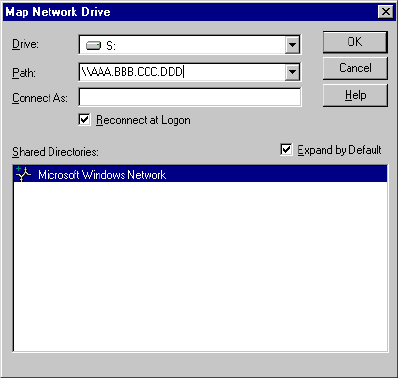
The following dialog is displayed: 8
Fig. 8 - 3 "Map Network Drive" dialog box
Æ Enter the TCP/IP address of the UNIX line computer in the Path field.
(here: \\AAA.BBB.CCC.DDD).
Æ Confirm by clicking on OK.
Installation manual SIPLACE Pro 8 Connecting SIPLACE Pro to the Unix Line Computer
Edition 06/2006 US
59
Note
If you want to create a connection with a line computer, running operating system SCO ODT 3.0,
you have to build the following registry entry (as administrator): [HKEY_LOCAL_MACHINE\SYS-
TEM\CurrentControlSet\Services\Rdr\Parameters] "EnablePlainTextPass-
word"=dword:00000001 8
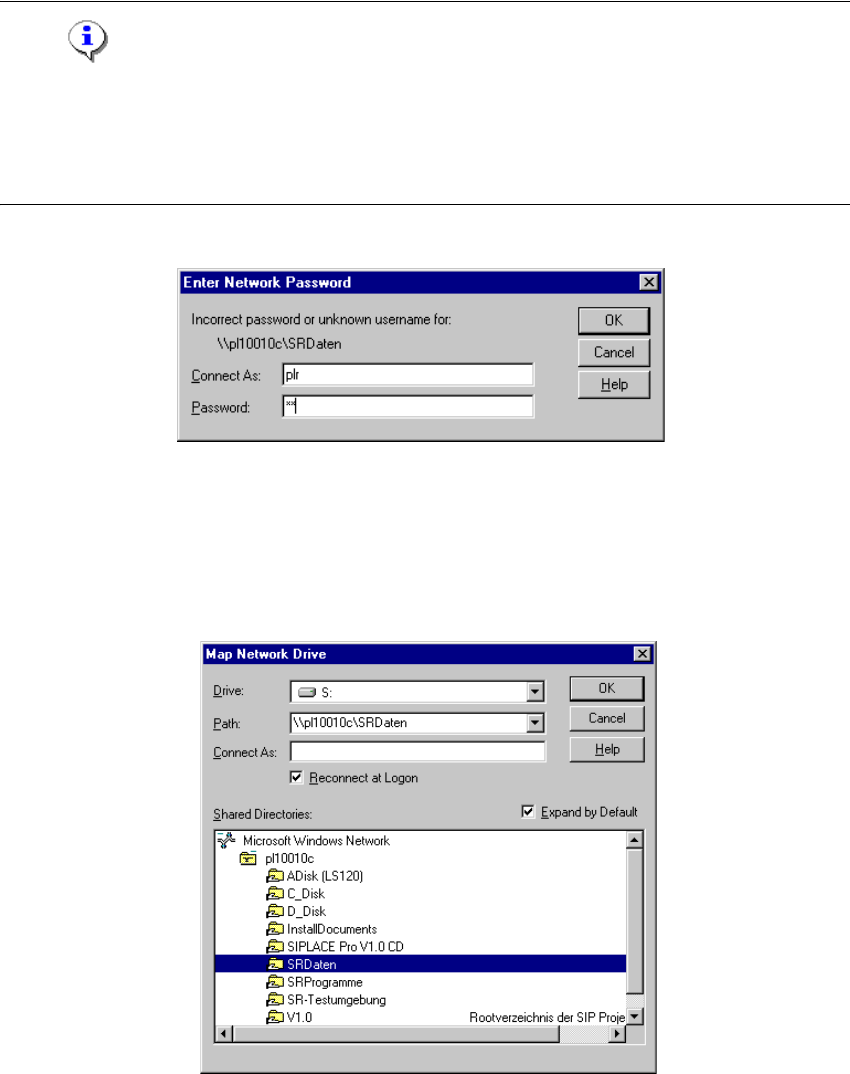
The following dialog is displayed: 8
Fig. 8 - 4 "Enter Network Password" dialog box
Æ Enter the user name (usually »plr«) in the field Connect As.
Æ Enter the password Password field.
Æ Confirm by clicking on OK.
The following dialog is displayed: 8
Fig. 8 - 5 "Map Network Drive" dialog box
Æ Select the connection you want (e.g.: master data).
Æ Confirm by clicking on OK.
A new network drive with the drive letter (e.g. S:) has been set up.
8 Connecting SIPLACE Pro to the Unix Line Computer Installation manual SIPLACE Pro
Edition 06/2006 US
60