00198233-01_VD_SIPLACE_Studio_2.1_EN.pdf - 第8页
Version Des cription SIPLACE Studio 2 .1 0 5/2016 Edition 8 5 Inst allation of SIPL A CE S tudio 5.1 Inst allation of SIPLA CE Stud io man ually Caution: Please install the insta llation requirem ents with the Re quireme…

Version Description
SIPLACE Studio 2.1 05/2016 Edition
7
3 Requirements
3.1 System requirements
The Support Media DVD included in the installation package checks the necessary system requirements of your
system and installs the needed components like Microsoft .NET Framework, the License Manager and the Error
Reporting tool when installing the SIPLACE Studio.
The use of the Support Media V 2.3 is mandatory.
The system requirements (supported operating systems and database variants) and an overview of the
interoperable products can be found in the SIPLACE Support Media Installation Manual,
item no. [00197214-xx].
Required System components are
.NET 2.0
.NET 4.0
3.2 Required SIPLACE Software
3.2.1 SIPLACE Studio
The required SIPLACE Software will be installed by the Support Media DVD 2.3 or higher
• SIPLACE Error Reporter 1.6 or higher
Caution:
Prerequisites will be installed with the Support Media and are not part of the SIPLACE Studio
2.1 Installer.
4 Features
4.1 Changes from the Previous Version
Process isolation: Each module is now running its own process, providing a better overall performance
for Studio and each module.
Added User Management: It is now possible to log in as different users to gain access to different
functionalities of a module, and even getting the rights to start the module.
4.2 Discontinued Features
A modules message is only seen in the Studios output window as long as the module is running. When
the module gets closed, the modules messages are removed from the message window.
Version Description
SIPLACE Studio 2.1 05/2016 Edition
8
5 Installation of SIPLACE Studio
5.1 Installation of SIPLACE Studio manually
Caution:
Please install the installation requirements with the Requirements Analyzer from the SIPLACE
Support Media first.
Note: The SIPLACE Studio will be installed by the SIPLACE Support Media.
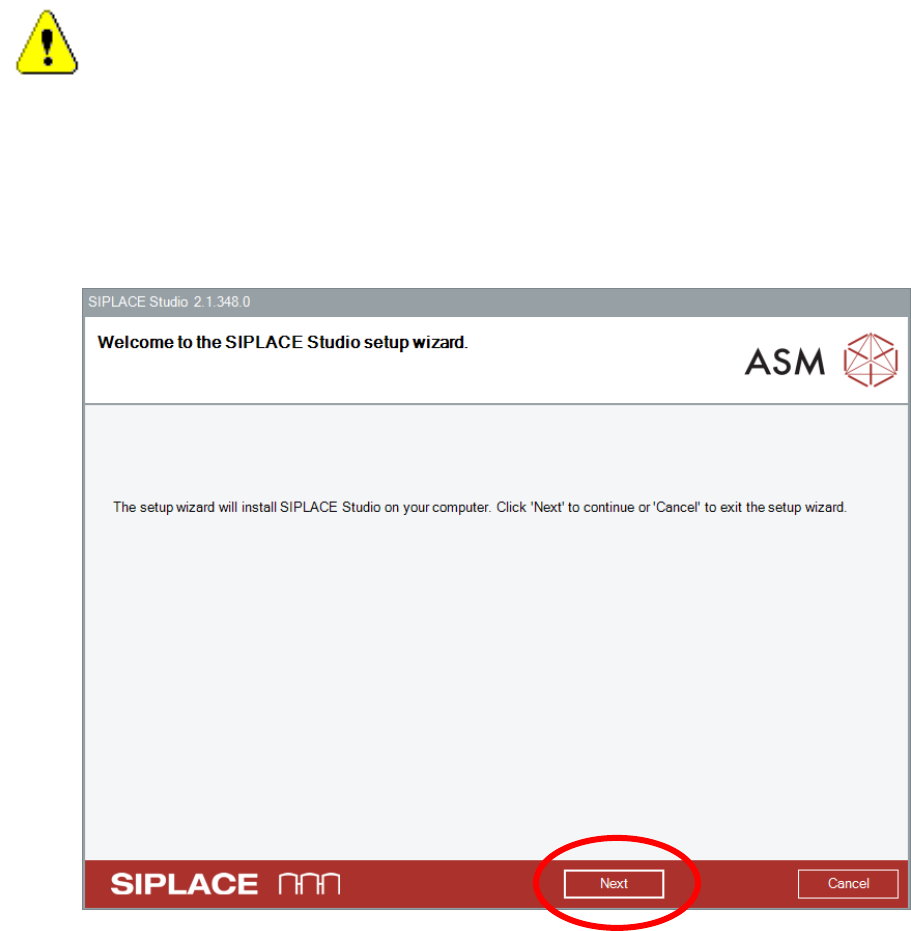
Start the installer package BundleInstaller.exe in the folder SIPLACE INSTALLATION\SIPLACE
STUDIO\V2.1\INSTALLER on the SIPLACE Support Media.
Click the Next button.
Version Description
SIPLACE Studio 2.1 05/2016 Edition
9
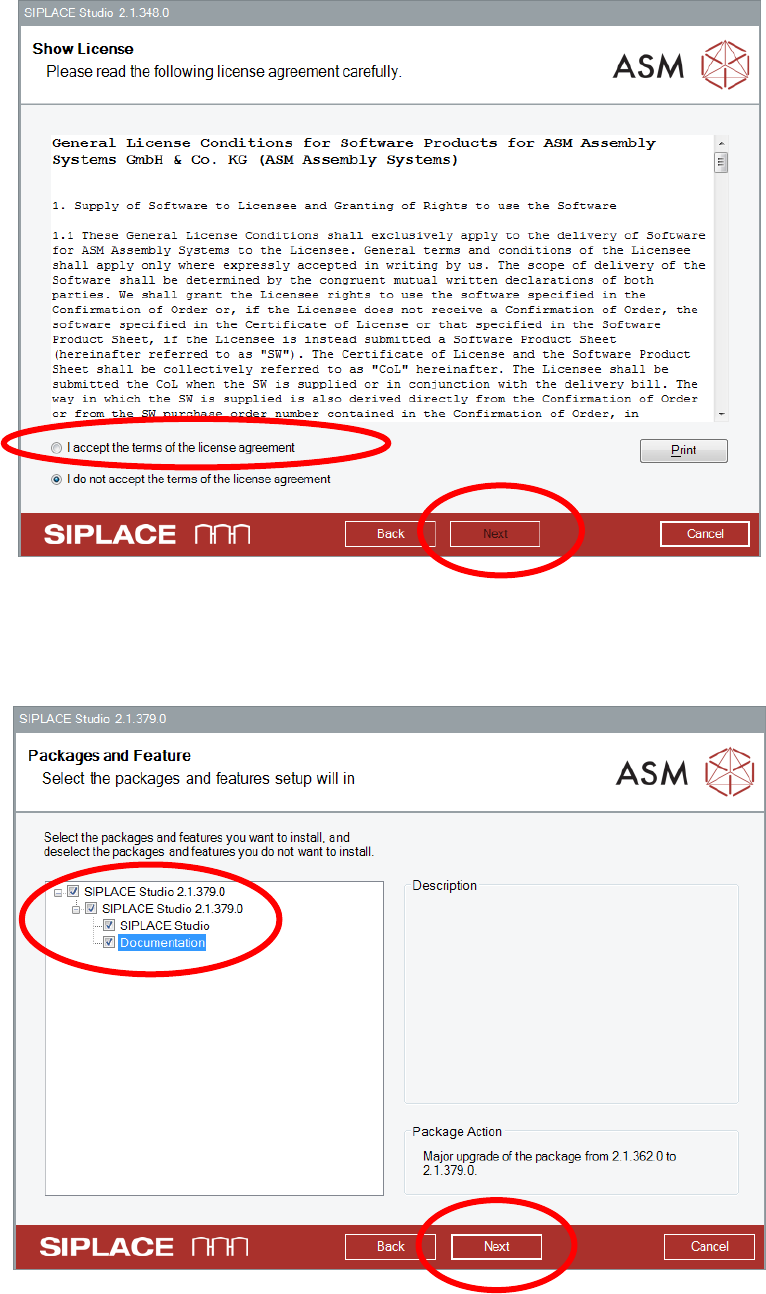
Read the license agreement.
Accept the license agreement.
Click the Next button.
This dialog specifies the packages being installed. Select or deselected the packages you want to be
installed.
Click the Next button.