How to Read a Long Barcode with CAM Barcode_ENG_ Ver.1.0.pdf - 第3页
How to Read a Long Barcode with CAM Barcode T echnical Note Page | 3 K OH Y OUNG T ECHNOLOGY I NC . 3.Set up the CAM Barcode (1) Double-click the KYConfig( ) icon on the PC. The Kohyoung GUI Parameter Setting dialog box …
How to Read a Long Barcode with CAM Barcode Technical Note Page | 2
KOH YOUNG TECHNOLOGY INC.
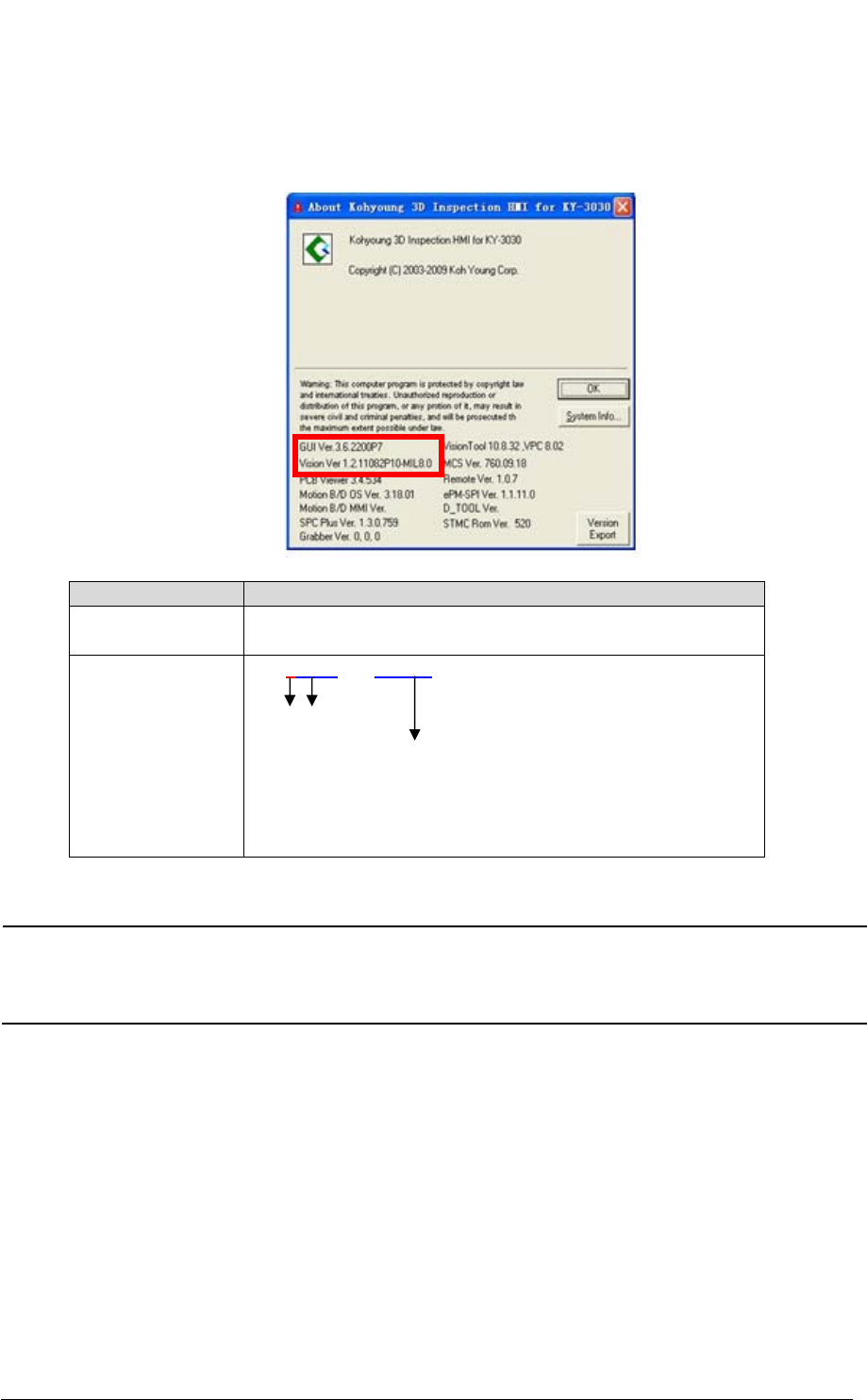
(2) Check if the software (e.g. GUI & Vision) versions shown on the window below are
same as the versions shown in the [Table 1] below. If they are not same, you have to
install software that has a correct version as shown in the [Table 1] below.
Software Version
GUI 3.5.2133 or later
3.6.2200 or later
Vision x.x.xxxxxxxx.xxxx.x
1 1078 or later
MIL8.0
e.g) 1.2.11078P10.MIL8.0 -> OK
1.2.11079P10.MIL8.0 -> OK
1.2.1082P10 -> NO
Table 1. Software Version
NOTE If you do not install software (e.g. GUI & Vision) with the version shown in the
[Table 1] above, the long barcode function does not work.
Contact your local sales representatives to install the correct software
version.
How to Read a Long Barcode with CAM Barcode Technical Note Page | 3
KOH YOUNG TECHNOLOGY INC.
3.Set up the CAM Barcode
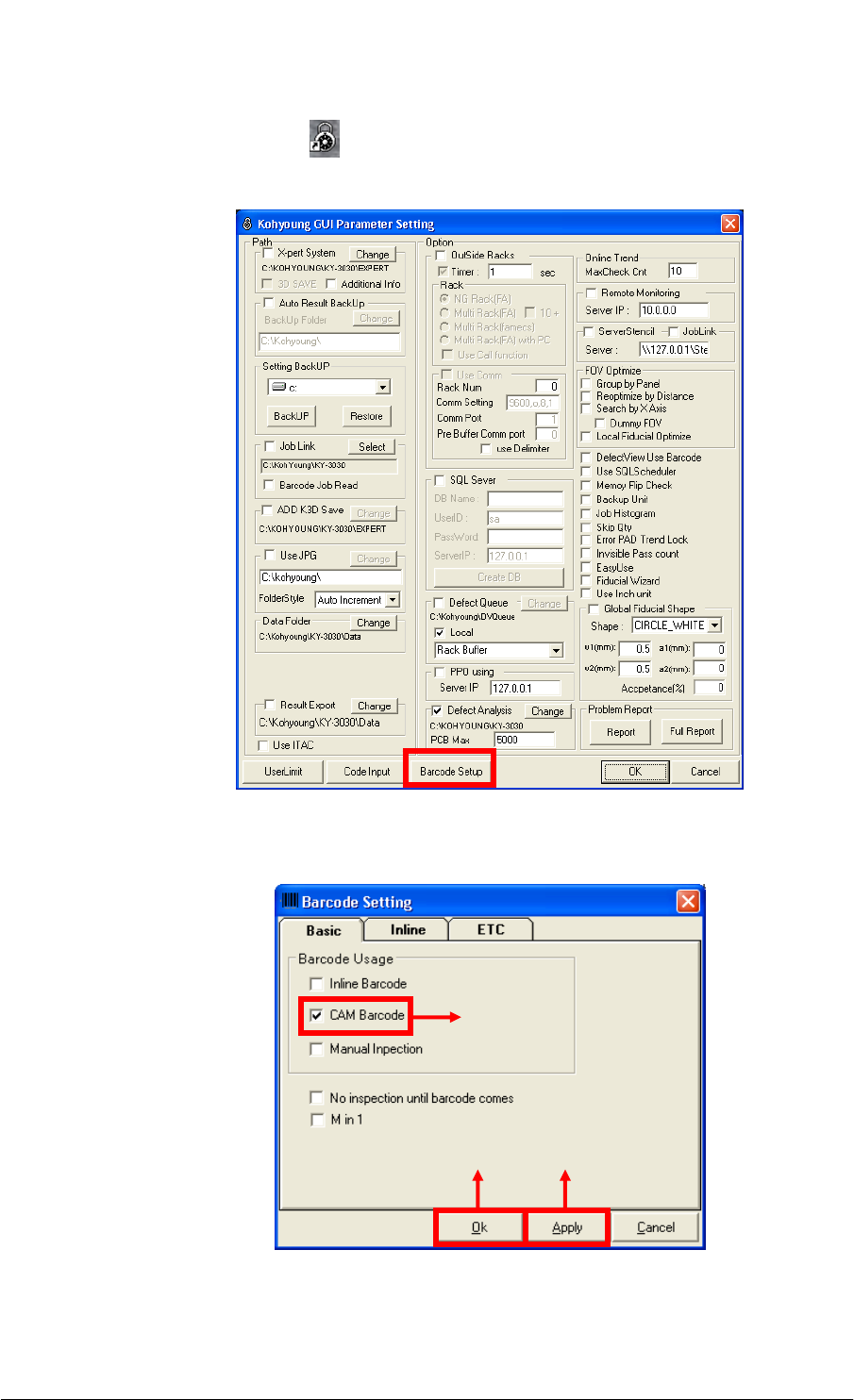
(1) Double-click the KYConfig(
) icon on the PC. The Kohyoung GUI Parameter Setting
dialog box opens. Click on the Barcode Setup button.
(2) Click on the Apply button after selecting the CAM Barcode check box. Click on the
OK button.
①
③ ②
How to Read a Long Barcode with CAM Barcode Technical Note Page | 4
KOH YOUNG TECHNOLOGY INC.
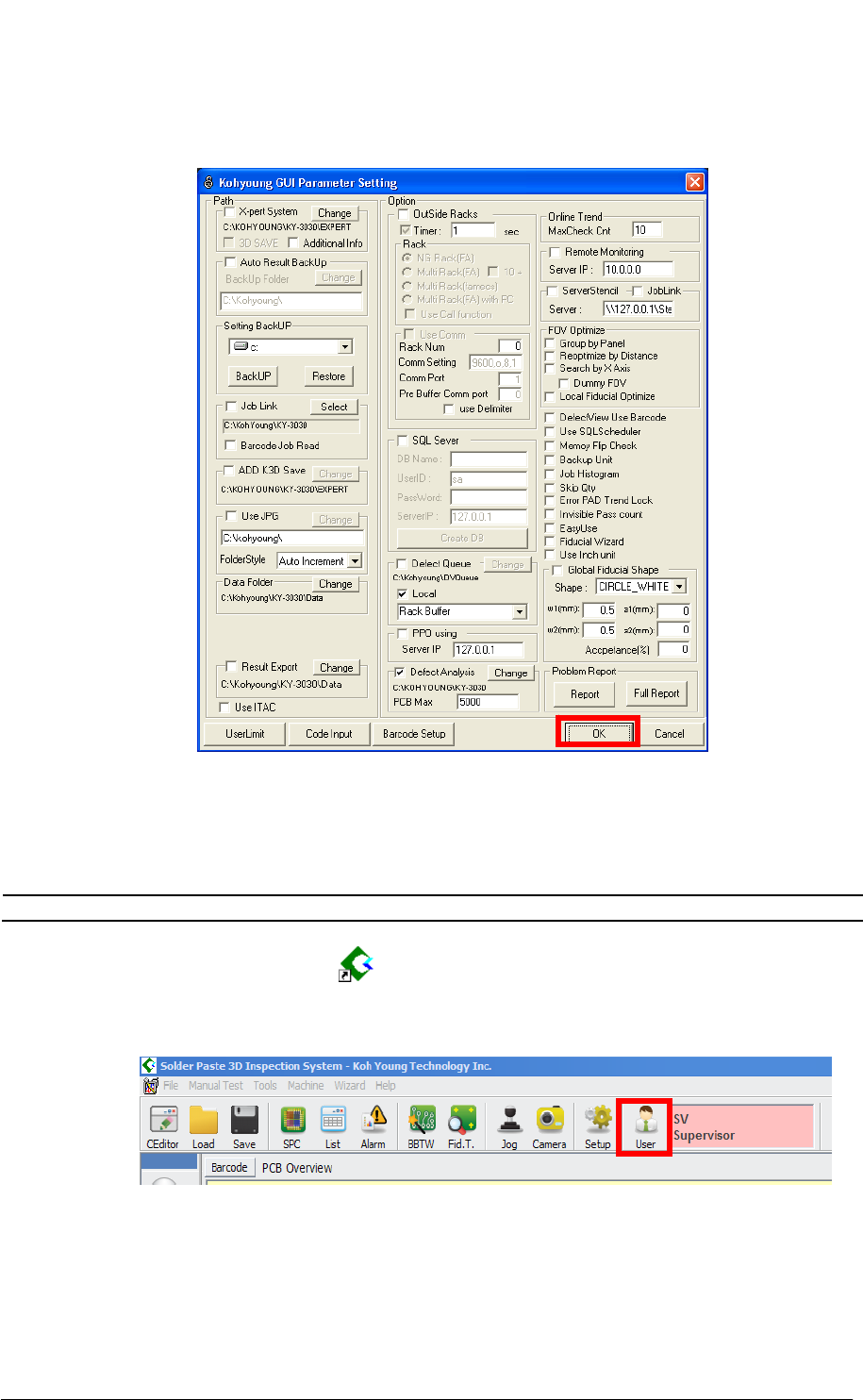
(3) Click on the OK button on the Kohyoung GUI Parameter Setting dialog box to save
the setting.
3.Read a long barcode
Before reading a long barcode, make sure you use the machine equipped with a CAM
barcode dongle key, software versions (GUI & Vision) and set up CAM Barcode.
NOTE For more detailed information, see the “Step 1, 2, 3” above.
(1) Double-click the 3D Inspector (
) icon to run the 3D Inspector software.
(2) Select the User from the tool bar as shown in the figure below.