How to Read a Long Barcode with CAM Barcode_ENG_ Ver.1.0.pdf - 第9页
How to Read a Long Barcode with CAM Barcode T echnical Note Page | 9 K OH Y OUNG T ECHNOLOGY I NC . Field Name Description Direction The direction that a barcode is read. Selecting Right enables a system (machine) to rea…
How to Read a Long Barcode with CAM Barcode Technical Note Page | 8
KOH YOUNG TECHNOLOGY INC.
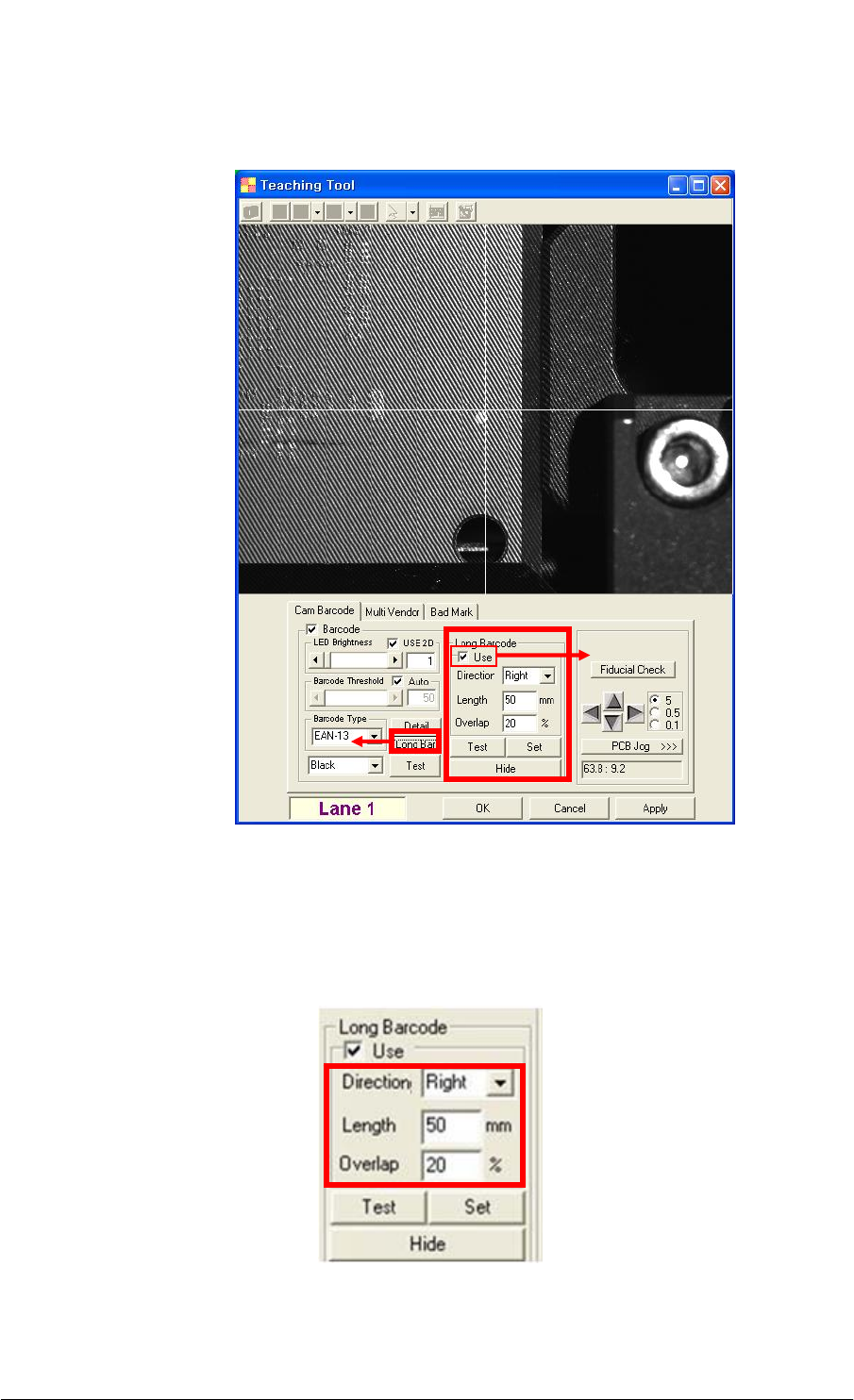
(7) Click on the Long Bar button to show the Long Barcode section. Select the Use check
box to enable the Direction, Length and Overlap fields.
(8) Select the direction (e.g. Right & Down) that a barcode is read from the Direction drop-
down list box. Enter the length of a barcode into the Length text box and also enter the
number into the Overlap text box.
For detailed field information, see the [Table 2].
①
②
How to Read a Long Barcode with CAM Barcode Technical Note Page | 9
KOH YOUNG TECHNOLOGY INC.
Field Name Description
Direction The direction that a barcode is read.
Selecting Right enables a system (machine) to read
from the selected position of the barcode to the right
side of it.
Selecting Down enables a system (machine) to read
from the selected position of the barcode to the
downside of it.
Length The length of a barcode.
Overlap Increasing a number enables a system(machine) to
read a long barcode more accurately. However, the
speed of reading a long barcode is slow.
Table 2. Field Description
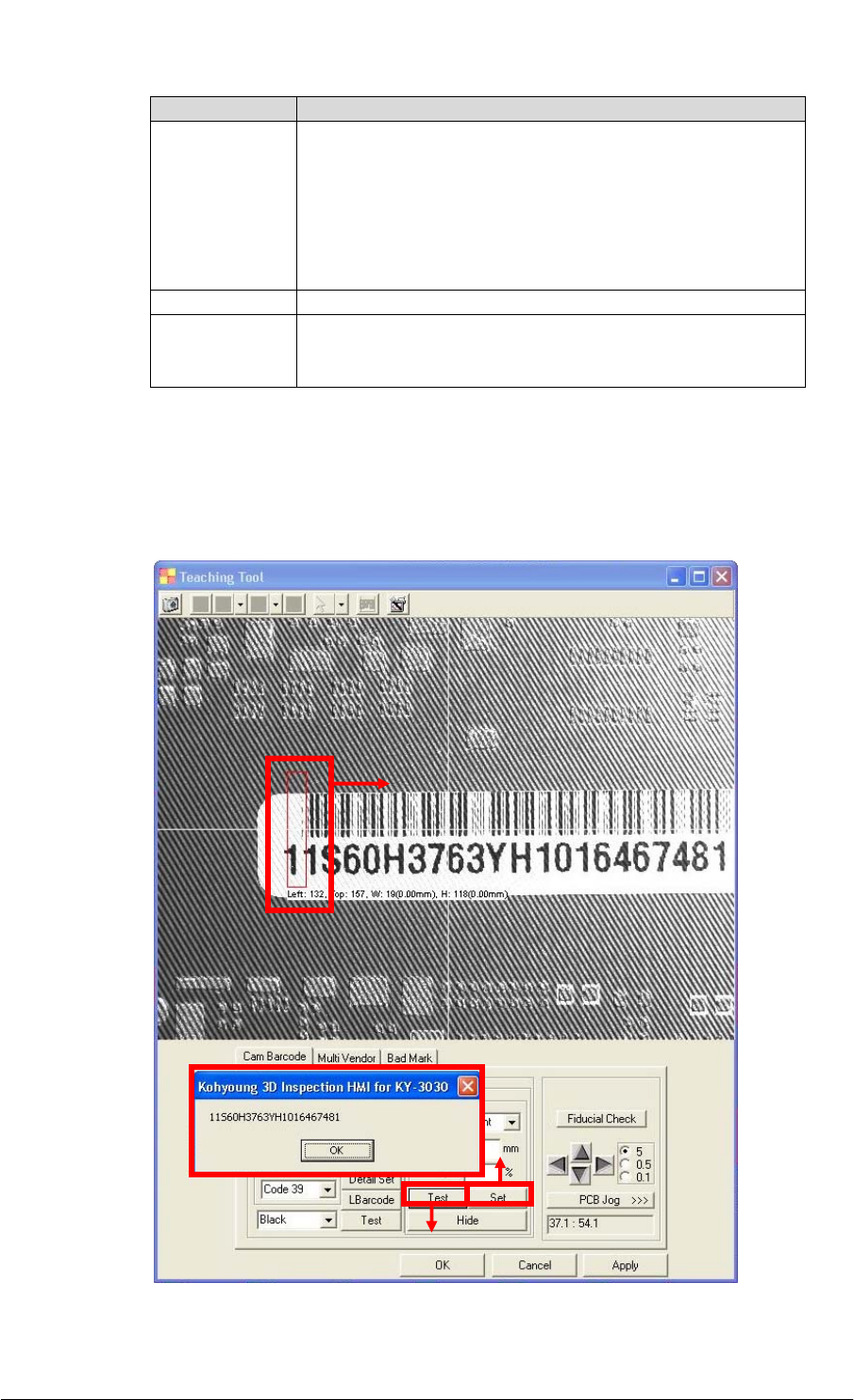
(9) Select the position of a barcode by dragging a mouse as shown in ① below.
Click on the Set button and then click on the Test button. The Kohyoung 3D
Inspection HMI for KY-3030 dialog box below displays the long barcode number read
by a system (machine) successfully.
③
②
①
How to Read a Long Barcode with CAM Barcode Technical Note Page | 10
KOH YOUNG TECHNOLOGY INC.
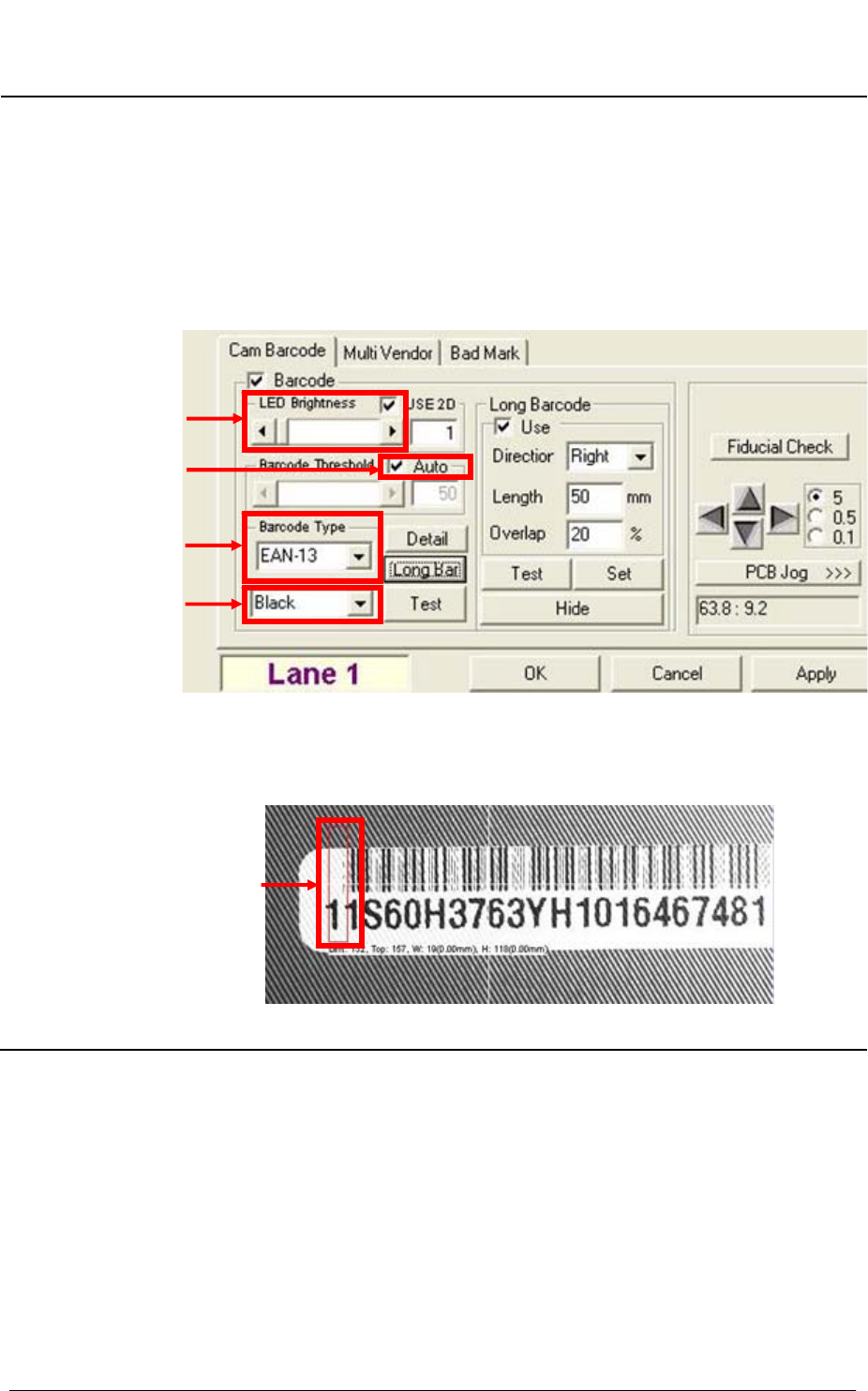
NOTE When a system (machine) fails to read a long barcode, make sure if you
correctly set the following field. See the [Figure 1].
①LED Brightness: Make sure if you correctly set the LED brightness.
②Barcode Threshold: Make sure if you select the Auto check box.
③Barcode Type: Make sure if you correctly select the barcode type
corresponding to the barcode you want to read.
④Barcode color: Make sure if you correctly set up the barcode color
corresponding to the barcode you want to read.
Figure 1. Teaching Tool window
⑤Selecting the position of a barcode: Make sure if you correctly select the
position of a barcode by dragging a mouse. See the [Figure 2].
Figure 2. Selecting the Position of a Barcode
①
②
③
④
⑤