00194591_02.pdf - 第17页
Installation Manual SIPLACE Setup Center RF 2.1 3 Installation Edition 09/2005 EN 3.3 Installation of SIPLACE Setup Center and Possible Setup Types 17 3.3.1.4 Step 4 → Enter your User Name and Company Name in the Custome…
3 Installation Installation Manual SIPLACE Setup Center RF 2.1
3.3 Installation of SIPLACE Setup Center and Possible Setup Types Edition 09/2005 EN
16
3.3.1.3 Step 3
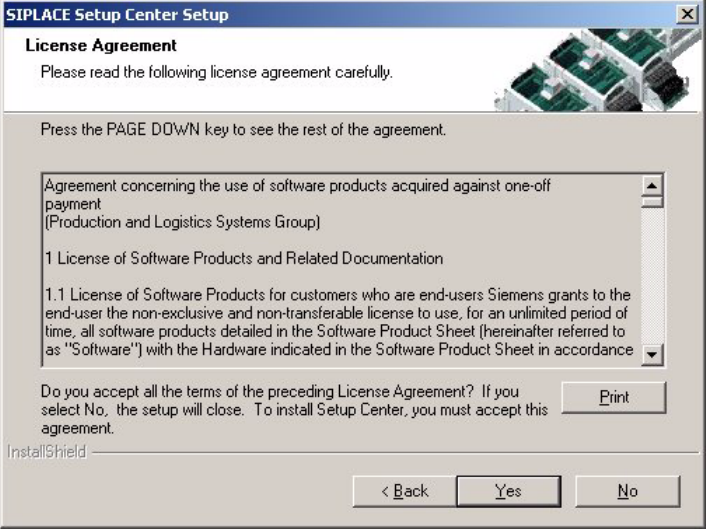
→ Read the license agreement of Siemens AG relating to use of this software.
3
Fig. 3.3 - 3 "Software License Agreement" dialog box
→ The installation routine continues if you click the Yes to accept the license agreement.
→ Clicking No cancels the installation.
→ Clicking Print will print the License Agreement on the default printer of the PC.
Installation Manual SIPLACE Setup Center RF 2.1 3 Installation
Edition 09/2005 EN 3.3 Installation of SIPLACE Setup Center and Possible Setup Types
17
3.3.1.4 Step 4
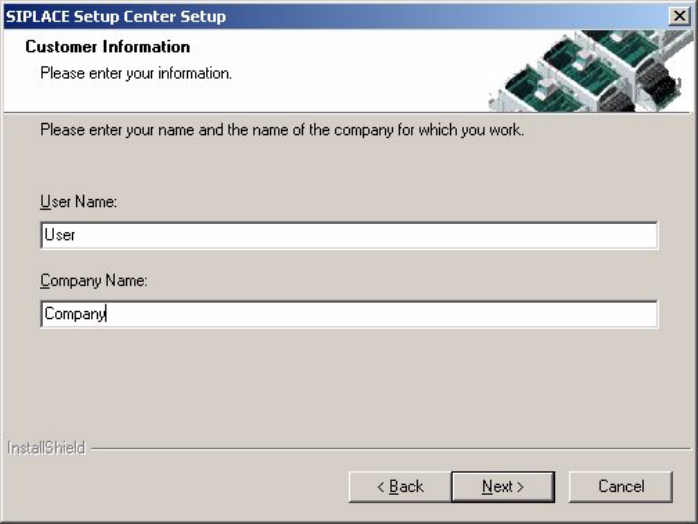
→ Enter your User Name and Company Name in the Customer Information dialog box. Both
boxes must be filled in before the installation process can be continued.
3
Fig. 3.3 - 4 "Customer Information" dialog box
→ Click Next.
3 Installation Installation Manual SIPLACE Setup Center RF 2.1
3.3 Installation of SIPLACE Setup Center and Possible Setup Types Edition 09/2005 EN
18
3.3.1.5 Step 5
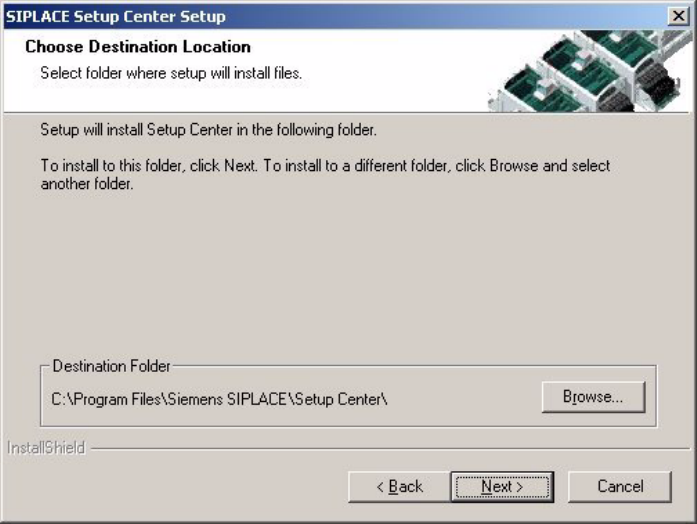
→ The Choose Destination Location dialog box prompts you to enter the name of the folder in
which SIPLACE Setup Center should be installed. The system suggests a default destination
folder for you.
→ However, you can click the Browse button to open a dialog box in which you can enter or select
the path you want to use. If the folder you specify does not exist, it is created after having ac-
cepted a confirmation dialog.
3
Fig. 3.3 - 5 "Choose Destination Location" dialog box
→ Click Next.