00194591_02.pdf - 第24页
3 Instal lation Installation Manual SIPLACE Setup Center RF 2.1 3.3 Installation of SIPLACE Setup Center and Possible Setup Types Edition 09/2005 EN 24 Step 5 → The installation routine is now st arted. The Inst allation…
Installation Manual SIPLACE Setup Center RF 2.1 3 Installation
Edition 09/2005 EN 3.3 Installation of SIPLACE Setup Center and Possible Setup Types
23
Step 4
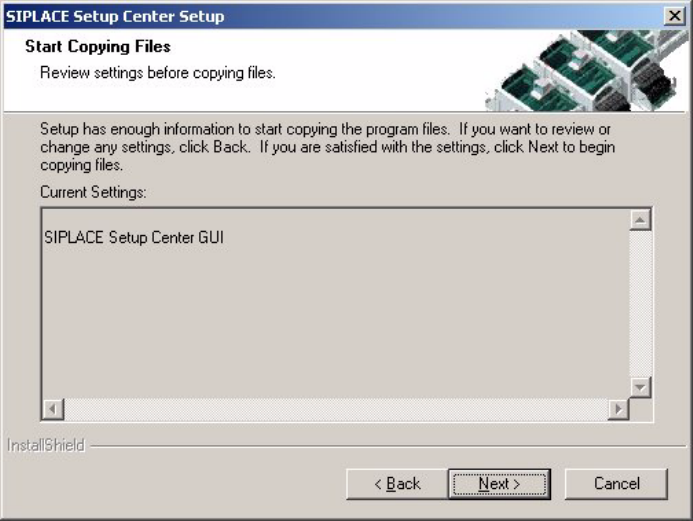
→ The Start Copying Files dialog box gives you a last chance to check the information you have
entered during the previous steps.
3
Fig. 3.3 - 11 "Start Copying Files" dialog box
→ Click Next if you accept all the information entered so far.
→ If you want to alter one or more details, click the Back button until you get back to the dialog
box in question.
→ There, enter your changes and click Next to continue as usual.
3 Installation Installation Manual SIPLACE Setup Center RF 2.1
3.3 Installation of SIPLACE Setup Center and Possible Setup Types Edition 09/2005 EN
24
Step 5
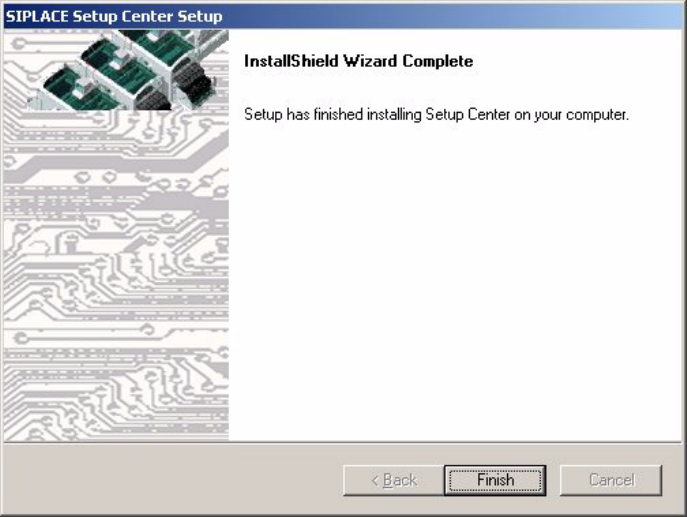
→ The installation routine is now started.
The Installation Complete dialog box confirms that the installation has been completed suc-
cessfully. 3
3
Fig. 3.3 - 12 "InstallShield Wizard Complete" dialog box
→ Click Finish.
Installation Manual SIPLACE Setup Center RF 2.1 3 Installation
Edition 09/2005 EN 3.3 Installation of SIPLACE Setup Center and Possible Setup Types
25
3.3.2.2 Setup Type - SIPLACE Setup Center Database
This setup type contains the database components of the SIPLACE Setup Center. Setup detects
if SQL Server or MSDE (Microsoft Data Desktop Engine) has already been installed. Select this
type to install the SIPLACE Setup Center database to a SQL Server. 3
Step 1
→ Run through the steps in “Starting Installation - First Steps” on page 14.
3
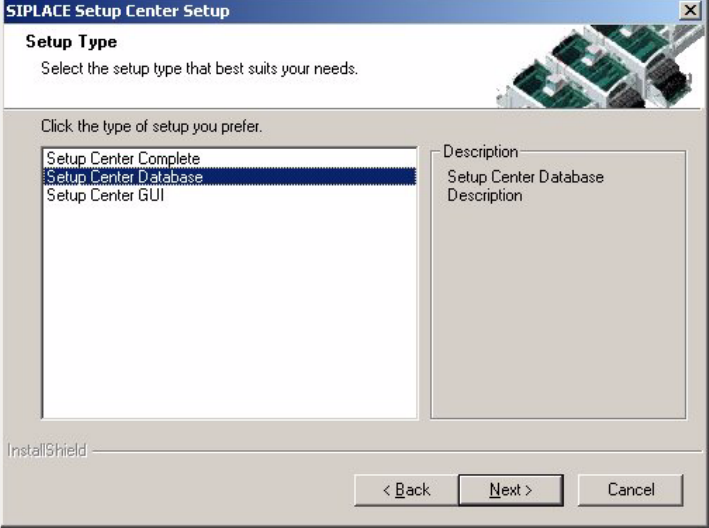
Fig. 3.3 - 13 "Setup Type" dialog box
→ Select the Setup Center Database setup type.
→ Click Next.
3