TS577R-UserGuide.pdf - 第28页
28 6.2 Mak ing Paramet ers Adjustment from the webs ever Go back to the webserver site and click on the “Controllers” me nu Click on the active controller li nk The controller screen will be displayed in the webserver as…
27
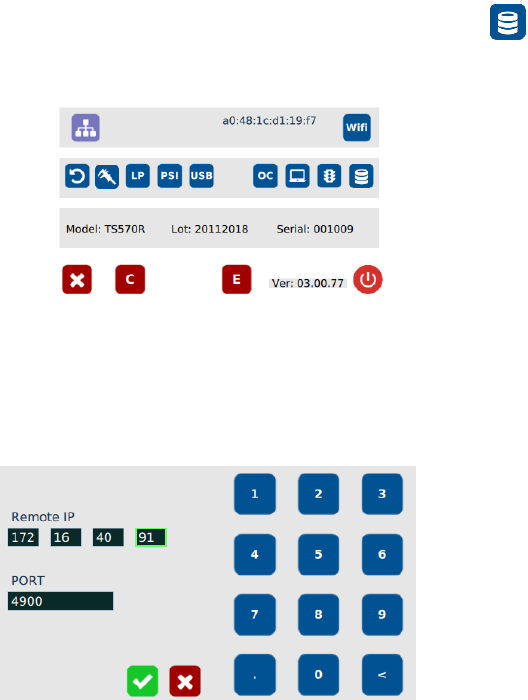
15. Connect the ethernet cable to the ethernet port of the controller
16. Go to the setup screen of the controller and touch the “Remote
Server” icon
17. Enter the IPv4 address recorded in step #14 into Remote IP address box
18. Touch the green check mark icon to save
19. The controller is now registered on the web-based application.
28
6.2 Making Parameters Adjustment from the websever
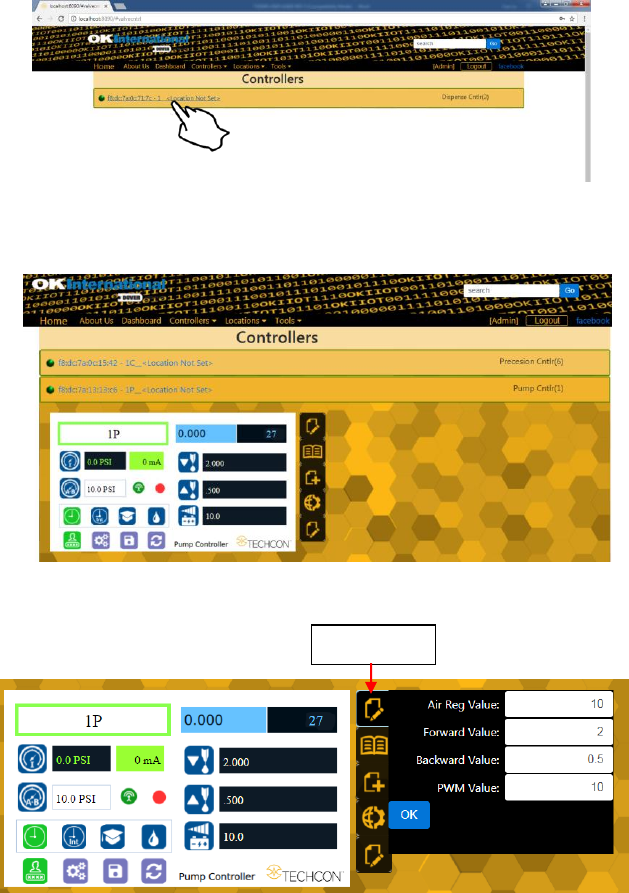
Go back to the webserver site and click on the “Controllers” menu
Click on the active controller link
The controller screen will be displayed in the webserver as shown below.
The controller parameters such as pressure and dispense time can be adjusted
from the webserver.
Click on the “Edit” icon
The parameter screen will appear as shown below:
Proceed to make changes
Click “OK” button to save
The new parameter will be displayed on the controller.
“Edit” Icon
29
6.3 Receive Notification From The Controller
The web-base application enables user to set notification when the following
event occur from the controller:
• Low pressure alarm
When the output pressure dropped below the set pressure, the unit will
send out notification by phone text message or by email to the user.
• “Over current” protection alarm
When the motor of the valve/pump is drawing excessive current the
controller will send out notification by phone text message or by email to
the user.
• Flow Rate Feedback
When the flow rate of the PC Pump is less than 10% of the set flow rate,
the controller will send out notification by phone text message or by email
to the user.
6.3.1 Setup Notification
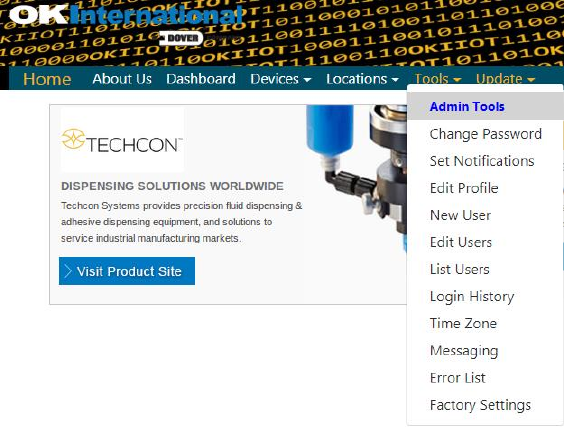
1. Click on the Tool menu
2. Select New User, fhe new user form will appear as shown
below