00195447-02_Installation_604_01_SP1_EN_DE.pdf - 第22页
Installation Manual, Station Software Version 604.01 SP1 Issue 12/2007 5.2 Automatic BIOS up date on the st ation computer Note: If the BIOS version is ≤ 1.50, you must update the BIOS at first. A setup CD must first be …
Installation Manual, Station Software Version 604.01 SP1 Issue 12/2007
5 Installation Manual
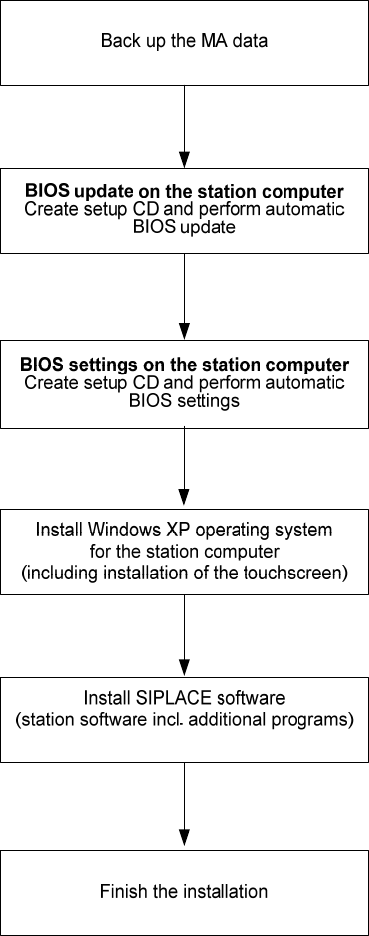
5.1 Installation sequence
See section
5.2
See section
5.3
See the separate installation manual for installing the “Windows
XP operating system” (item no. 00194575-xx)
For calibrating the touchscreen, see sections
5.4.3.
See sections
5.4 and 5.5
See section
5.6
21 of 47
Installation Manual, Station Software Version 604.01 SP1 Issue 12/2007
5.2 Automatic BIOS update on the station computer
Note:
If the BIOS version is ≤ 1.50, you must update the BIOS at first.
A setup CD must first be created to automatically make the BIOS update on the station computer. To do
this, you require a computer running Windows XP that is fitted with a CD-RW drive.
The image files necessary for creating the CD (see table below) are in the "BIOS-Images" folder of the CD
for version 604.01 SP1 of the software.
Station computer / computer type BIOS settings / ISO image
SMP16-CPU086 CPU086_MC_SR_BIOS_Update.iso
Table 5-1: File required for creating the Setup CDs for making the BIOS update on the station computer
5.2.1 Creating a setup CD
→ Insert an empty writable CD in the drive on any computer equipped.
→ Insert the CD for version 604.01 SP1 of the software in the drive.
→ In the Windows Explorer, open the "BIOS-Images" folder on the CD.
→ Open the image file (see table above) using the installed CD writing program and follow the
instructions on screen.
→ Once the CD has been written, remove the CDs from the drives.
5.2.2 Making the BIOS update on the station computer
Note:
Before you start work, ensure that the CD-ROM drive is set as the first boot device in the
BIOS to allow the computer to be booted from CD.
→ Insert the CD you have created in the drive on the station computer and boot from the CD by
switching the machine on.
The BIOS update is now performed automatically.
→ After the settings have been made, remove the CD from the drive and switch the machine off again.
22 of 47

Installation Manual, Station Software Version 604.01 SP1 Issue 12/2007
5.3 Automatic BIOS settings on the station computer
A setup CD must first be created to automatically make the BIOS settings on the station computer. To do
this, you require a computer running Windows XP that is fitted with a CD-RW drive.
The image files necessary for creating the CD (see table below) are in the "BIOS-Images" folder of the CD
for version 604.01 SP1 of the software.
Station computer / computer type BIOS settings / ISO image
SMP16-CPU086 CPU086_SR_BIOS_Settings.iso
SIMATIC Box PC 627 CPU627_SR_BIOS_Settings.iso
Table 5-2: Files required for creating the Setup CDs for making the BIOS settings on the station computer
5.3.1 Creating a setup CD
→ Insert an empty writable CD in the drive on any computer.
→ Insert the CD for version 604.01 SP1 of the software in the drive.
→ In the Windows Explorer, open the "BIOS-Images" folder on the CD.
→ Open the image file for the relevant computer type (see table above) using the installed CD writing
program and follow the instructions on screen.
→ Once the CD has been written, remove the CDs from the drives.
5.3.2 Making the BIOS settings on the station computer
Note:
Before you start work, ensure that the CD-ROM drive is set as the first boot device in the
BIOS to allow the computer to be booted from CD.
→ Insert the CD you have created in the drive on the station computer and boot from the CD by
switching the machine on.
The BIOS settings are now performed automatically.
→ After the settings have been made, remove the CD from the drive and switch the machine off again.
23 of 47