00195447-02_Installation_604_01_SP1_EN_DE.pdf - 第42页
Installation Manual, Station Software Version 604.01 SP1 Issue 12/2007 Installation of the vision computer softw are continues with the welcome screen. 7.1 W elcome screen Fig. 7-2 Welcome screen → Click the Next button.…
Installation Manual, Station Software Version 604.01 SP1 Issue 12/2007
7 Installing the Vision computer software (option)
Notes:
The Vision computer is only required if the optional 3D coplanarity sensor is used.
The installation requires approx. 20 minutes.
→ Connect the USB keyboard to the Vision computer.
→ Switch the video multiplexer from the station computer to the Vision computer.
→ Switch on the SIPLACE placement machine.
→ Log in to the Vision computer as Administrator.
(Keep the Shift key pressed as soon as the Windows XP logo appears)
→ Insert the installation CD in the drive. It is read automatically.
Note:
If autostart has been disabled for the drive, you must start the installation manually from
the Windows Explorer.
→ Open the Explorer and start "setup.exe" under drive E by double clicking it.
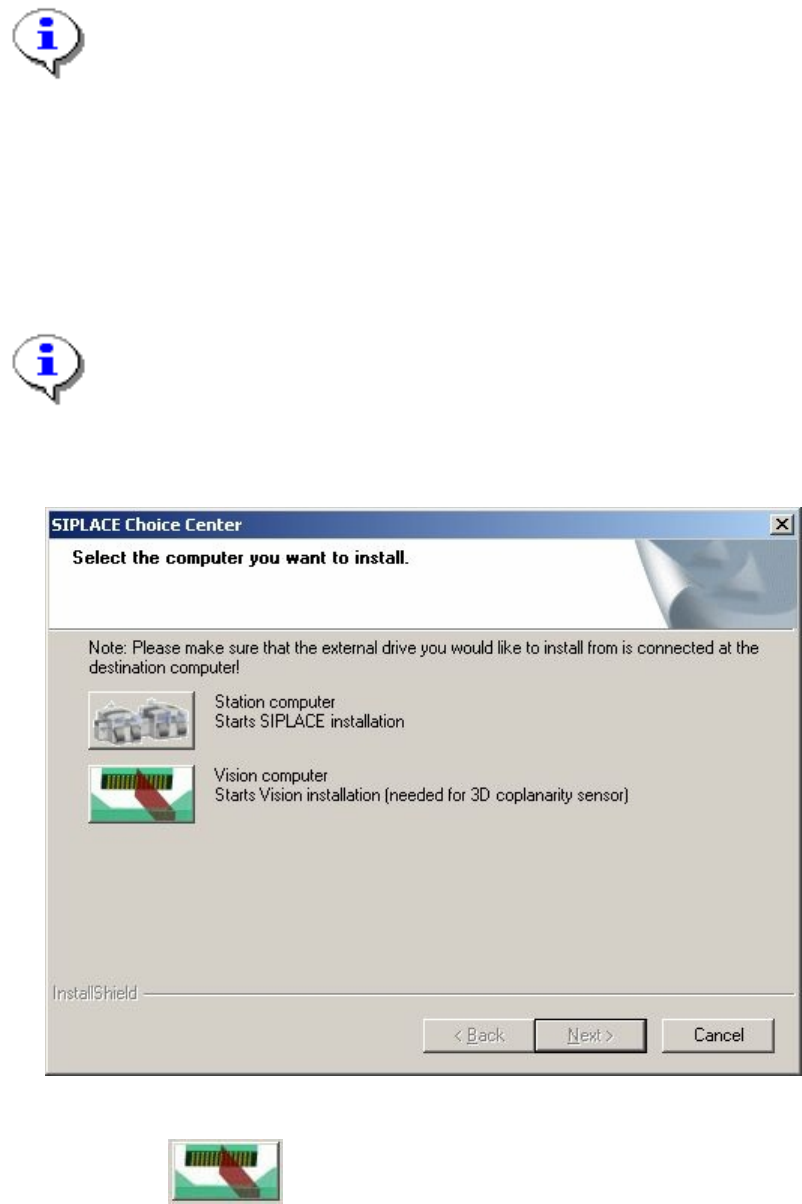
The "SIPLACE Choice Center" dialog box is opened.
Fig. 7-1: "SIPLACE Choice Center" dialog box
→ Click the "Vision computer" button.
41 of 47
Installation Manual, Station Software Version 604.01 SP1 Issue 12/2007
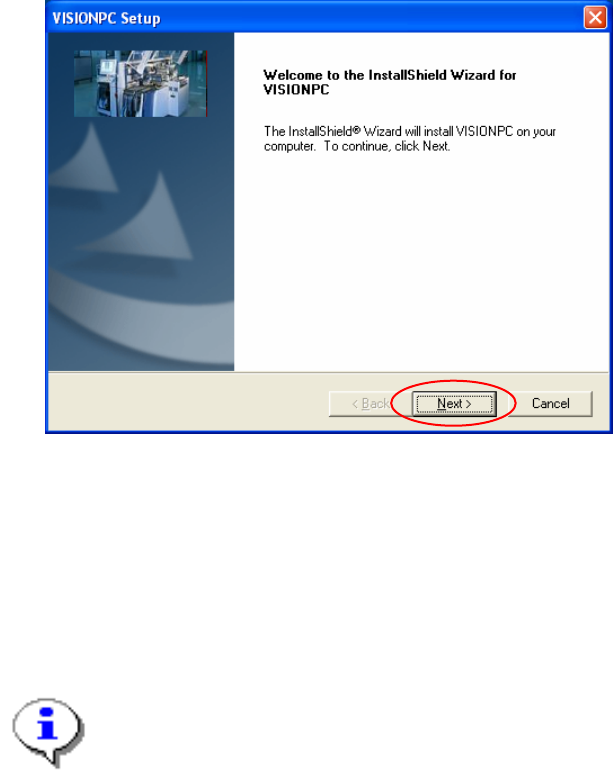
Installation of the vision computer software continues with the welcome screen.
7.1 Welcome screen
Fig. 7-2 Welcome screen
→ Click the Next button.
The necessary files are installed on the Vision computer.
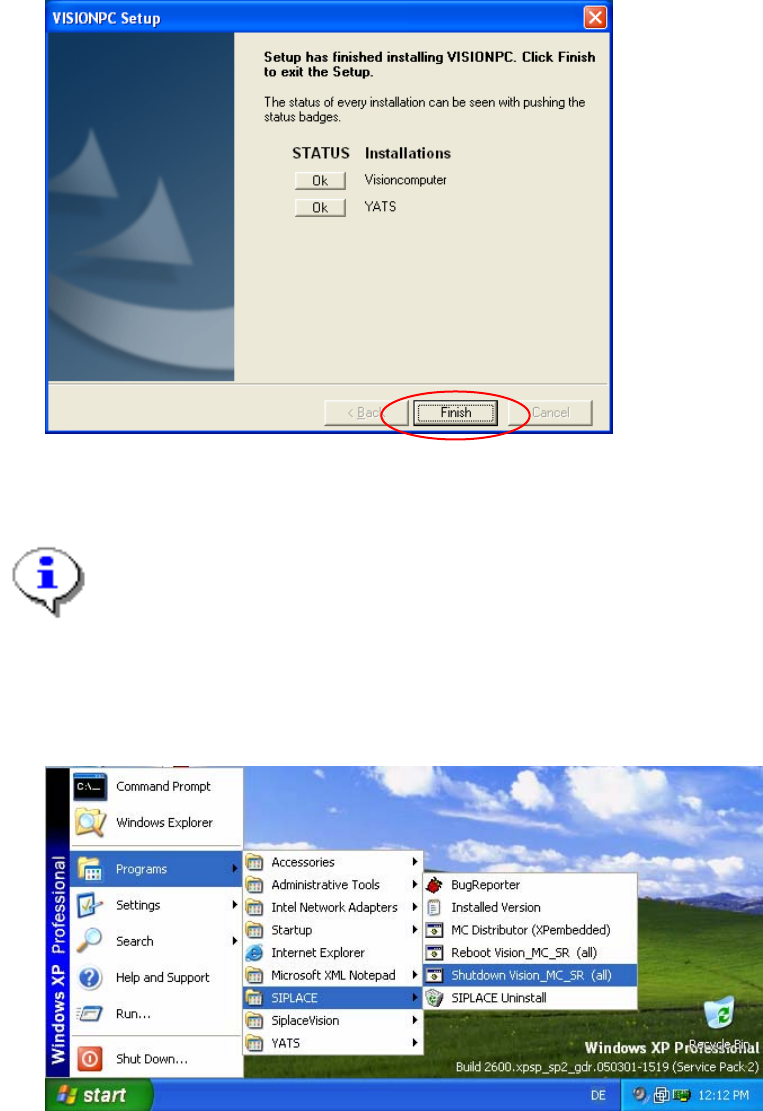
7.2 Finalizing the installation
Note:
The status only lists the programs that have just been installed.
If errors occurred during installation, the status is indicated by the Error button being
displayed next to the program name instead of the Ok button.
→ If you wish to read the log of the installation of any program, click the Ok (or Error) button next to the
name of the program. The Notepad is started and displays the appropriate file.
42 of 47
Installation Manual, Station Software Version 604.01 SP1 Issue 12/2007
Fig. 7-3: Finalizing the installation
→ Click the Finish button.
Note:
To establish the connection between the Vision computer and the machine controller after
installation has been completed, the Vision computer, machine controller and station
computer must first be run down and the machine must then be switched off completely.
→ To do this, open the Start menu and select Programs Æ SIPLACE Æ Shutdown_Vision_MC_SR
(all).
Fig. 7-4: Shutting down the station computer, machine controller and Vision computer
→ Switch the machine off when the computer systems have shut down.
→ Switch the machine back on again. This then reboots the Vision computer, the machine controller and
the station computer.
43 of 47