00196449-04_UM_FCCS_digital_DE_EN.pdf - 第78页
5 Camera Calibration at the Vision Teach Station VTS 5.3 Calibration Sequence in the SIPLACE Vision Teach Station V5.1.1 SW 78 Operating Manual / Bedienungsanleitung Camera Calibration FCCS digital Kamerakalibrierung FCC…
5 Camera Calibration at the Vision Teach Station VTS
5.1 Introduction
Operating Manual / Bedienungsanleitung Camera Calibration FCCS digital Kamerakalibrierung FCCS digital 04/2020 77
5 Camera Calibration at the Vision Teach
Station VTS
5.1 Introduction
If a camera calibration shall be performed during production, we recommend to perform it on all
available machines, but especially in the case of a central data management.
Then in most cases, illumination settings of the component shapes have to be adjusted after a
camera recalibration or adjustments will be required on uncalibrated cameras in the near future.
What applies for the cameras on the machines applies even more for a Vision Teach Station VTS,
if existing.
5.2 Prerequisites
5.2.1 Software
The functions required for a camera calibration are available in the VTS software as of the
SIPLACE Vision Teach Station V5.1.1 version.
The SIPLACE Vision Teach Station works with SIPLACE Pro V5.0 SP2 and higher (currently to
SIPLACE Pro V11.1).
5.2.1.1 Supported Windows Versions
The SIPLACE Vision Teach Station runs under Windows XP SP3, Windows Vista and Windows 7
(the respective 32-bit and 64-bit versions).
The VTS adapter is installed with SIPLACE Pro. Thus, the VTS adapter supports all Windows ver-
sions also supported by SIPLACE Pro V5.1 and higher. These are Windows XP SP3, Windows
Vista and Windows 7.
NOTICE
Supported Windows versions
ASM line software products from release R19-2 onwards will no longer support the Win-
dows 7 operating system.
This means that the computers need to be upgraded to Windows 10 or replaced, before
SIPLACE Pro 17.0 or higher or Vision Teach station software 5.7.1 or higher is installed.
NOTICE
The "Check camera soiling" function can not be performed at the Vision Teach station.
5.2.2 Hardware
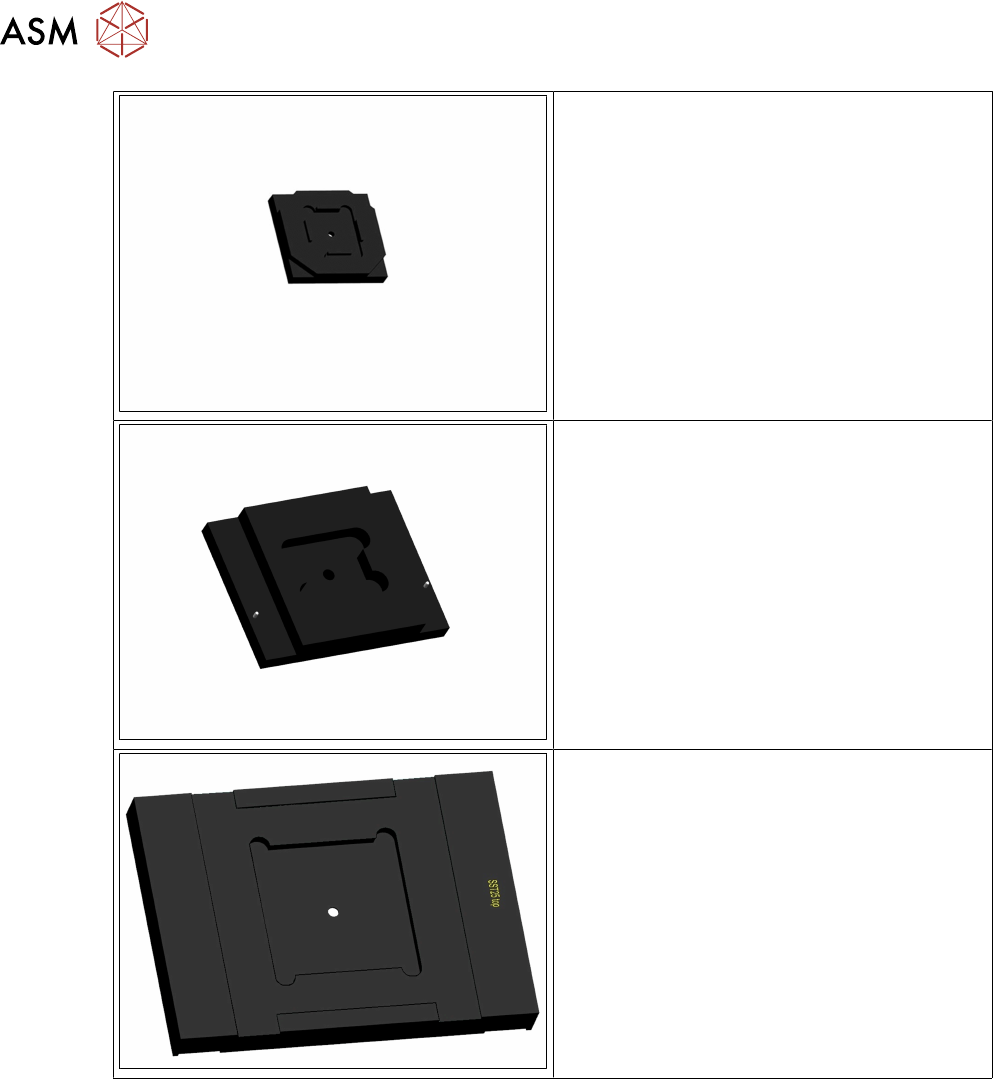
For a camera verification at the VTS, the same white standards are used as for the machines.
Adapters are required to position these white standards on the camera.
They will be positioned on the component contact surface of the respective camera.
5 Camera Calibration at the Vision Teach Station VTS
5.3 Calibration Sequence in the SIPLACE Vision Teach Station V5.1.1 SW
78 Operating Manual / Bedienungsanleitung Camera Calibration FCCS digital Kamerakalibrierung FCCS digital 04/2020
FCCS base f. VTS SST23/41 [03106796-01]
FCCS base f. VTS SST28/29/38 assembly
[03106836-01]
FCCS base f. VTS SST25/33/36 [03106789-01]
5.3 Calibration Sequence in the SIPLACE Vision Teach
Station V5.1.1 SW
●
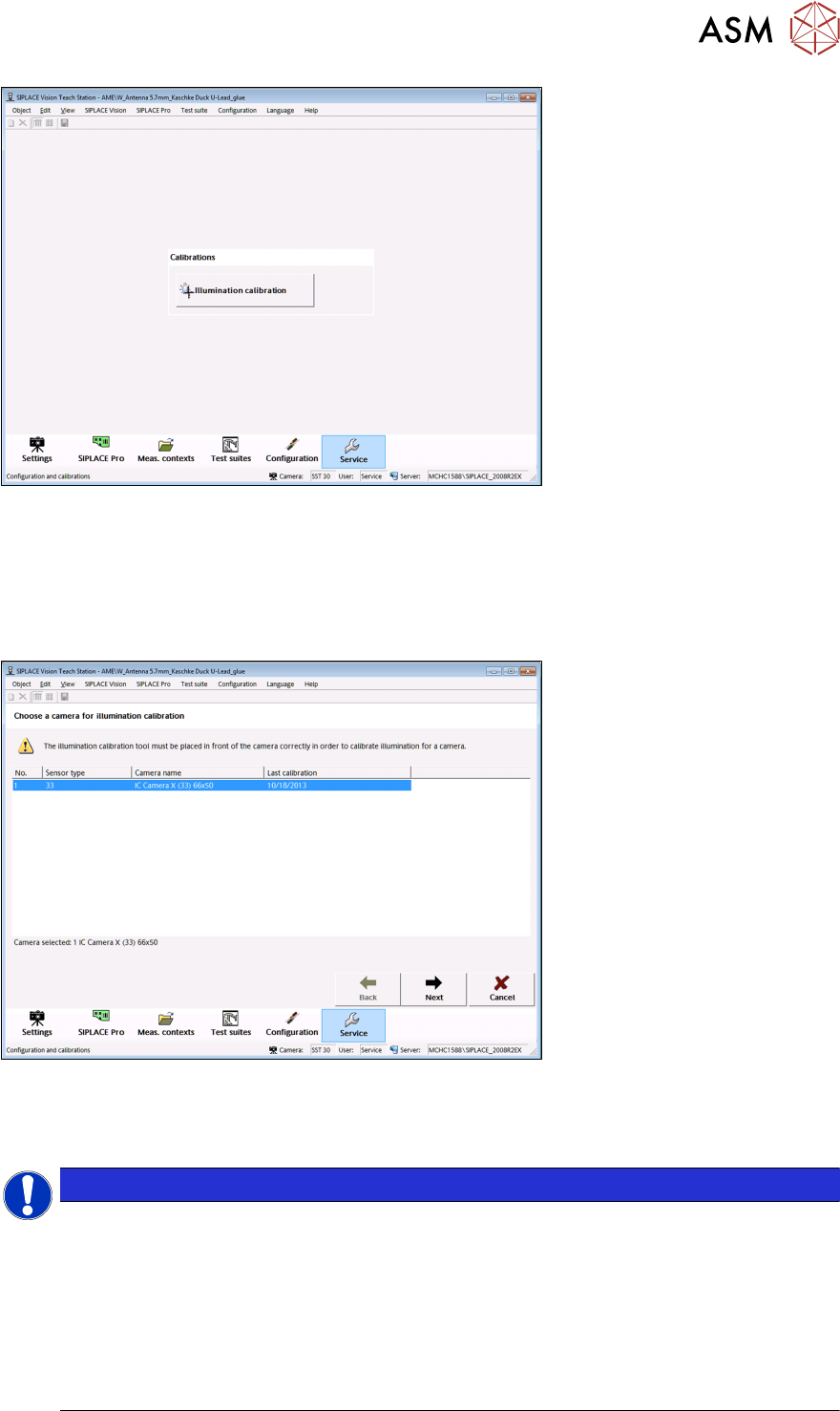
Switch over to the "Service" view.
This view corresponds to the "Service" view on the 70X Station GUI.
Only "FCCS" (Field Camera Calibration System) brightness calibration is possible in the SIPLACE
Vision Teach Station.
5 Camera Calibration at the Vision Teach Station VTS
5.3 Calibration Sequence in the SIPLACE Vision Teach Station V5.1.1 SW
Operating Manual / Bedienungsanleitung Camera Calibration FCCS digital Kamerakalibrierung FCCS digital 04/2020 79
Fig.43: "Service" view
●
After start with the "Brightness calibration" button, a wizard with several steps is started.
In the first step of the brightness calibration wizard the user can select the camera to be calibrated.
Only one camera can be calibrated at the Teach Station.
A maximum of two cameras can be selected if the Teach Station is equipped with two columns on
which cameras can be mounted.
Fig.44: Selection of camera for calibration
●
After a camera has been selected, you move on to the next view with the "Next" button.
NOTICE
Software operation
The wizard can be exited at any time with the "Cancel" button.
Similar as on the 70X Station GUI, the wizard does not lock the other views. I.e., all buttons
in the lower button bar (as "Settings", "SIPLACE Pro" etc.) are enabled and it is possible to
switch to these views. The state in the "Service" view remains.
So, if you switch back to "Service", exactly that view (of the wizard) will be displayed in
which you exited the "Service" view.