00197192-02_VD_EDM_2.1_DE_EN.pdf - 第10页
EDM V2.1 / Versio n Desc ription Ausgabe 11/2012 Edit ion 10 The f ollowing dia log box opens (the tem plates m ust have b een conf igured on the m aster bef orehand) : Figure 4-2 : Selecting applic ation template ► Sele…
EDM V2.1 / Version Description Ausgabe 11/2012 Edition
9
4 Description of the Software Components
4.1 EDM Master Service
The EDM master service is the server component of EDM. It replies to queries from EDM line
services and distributes the data in the central SIPLACE Pro database among the lines.
In return, the EDM Master Service accepts change notifications and collects them in the EDM
database. The Clearing Pool can be selectively bypassed (see the EDM Installation Manual,
section 5.3.7 Notification/Rules…).
4.2 EDM Client
The EDM Client enables user interaction on the line. It implements customer specific data
distribution. This user interface implements pull mode and forced pull mode. The push mode
workflow, on the other hand, is based on the EDM Data Transfer Manager and is described in
section 4.3.
4.2.1 Getting Data from the Master (Pull Mode)
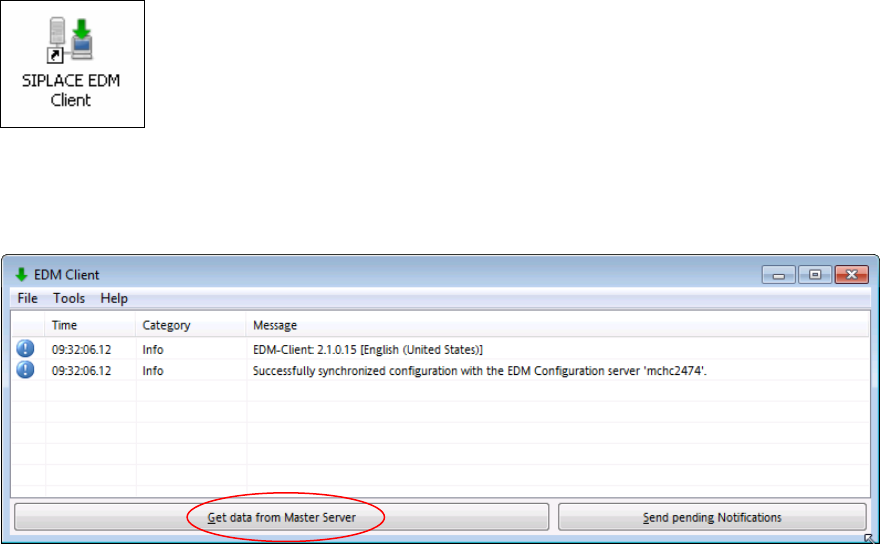
► Double click the icon on your desktop to start the EDM Client.
The EDM Client opens:
Figure 4-1: EDM Client
► Click the Get data from Master Server button.
EDM V2.1 / Version Description Ausgabe 11/2012 Edition
10
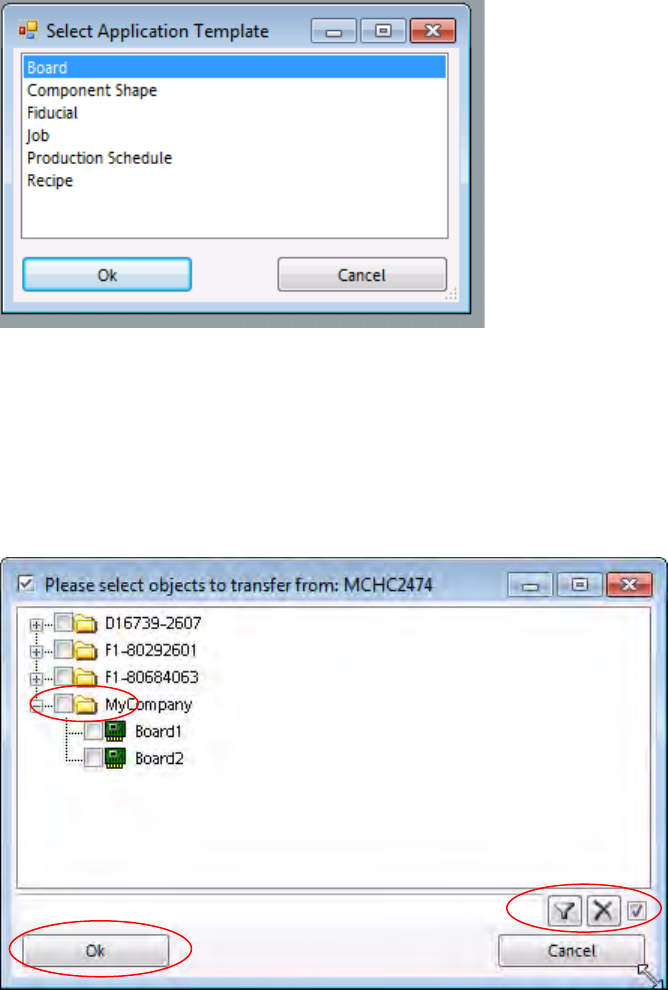
The following dialog box opens
(the templates must have been configured on the master beforehand):
Figure 4-2: Selecting application template
► Select the appropriate template from the list.
► Click OK to proceed.
Further information can be found in the EDM Installation Manual, section 5.3.6 Application
templates.
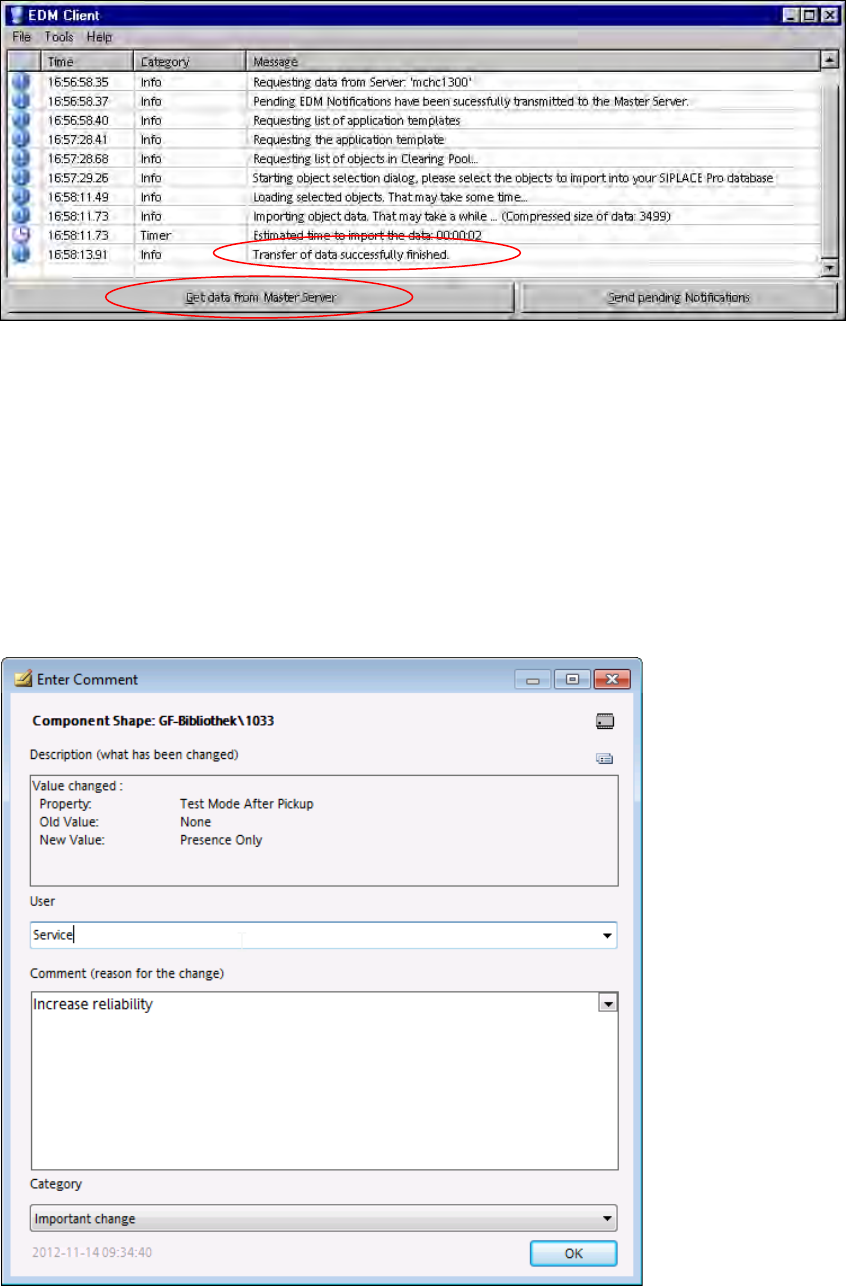
The following dialog box opens:
Figure 4-3: Selecting objects
► Select the object you require by checking the check box for the object.
► The filter bar at the bottom of the selection window and the context menu of the selection
window (click the right-hand mouse button) support you when selecting the objects you wish to
pull.
► Confirm your selection by clicking OK.
EDM V2.1 / Version Description Ausgabe 11/2012 Edition
11
The message dialog box returns to the foreground and the selected objects are transferred:
Figure 4-4: Data transfer completed
A processing bar is displayed during the data transfer and the buttons are disabled.
When the data transfer has been completed successfully, the message Transfer of data
successfully finished appears and the Get data from Master Server button is enabled
again.
If the data transfer failed, a corresponding error message is displayed.
4.2.1.1 Comment Dialog Box
The comment dialog box opens if you make changes in SIPLACE Pro on the Line Server (e.g. if
you change the component shape).
Figure 4-5: Comment dialog box