00197192-02_VD_EDM_2.1_DE_EN.pdf - 第23页
EDM V2.1 / Versio n Desc ription Ausgabe 11/2012 Edit ion 23 The m aster version is dis played o n the lef t side and t he c lient vers ion on th e right side a nd the assigned S I PLAC E Pro l ines are high lighted . T …
EDM V2.1 / Version Description Ausgabe 11/2012 Edition
22
The content of the display range at the bottom (7) depends on the selected tab (8).
Messages
Displays the state messages of the current session.
Info
Displays the content of the description for the change notification that is selected above.
SPI Notifications
Displays the change notification that is selected above in the "old" Format.
4.4.1 Handling Changed Line Vision Data
The selective acceptance of changed line Vision data for assigned SIPLACE Pro lines has been
optimized as follows:
Notifications with changed line Vision data and a list of the assigned SIPLACE Pro lines are
transferred from the Line Server to the Clearing Pool. The list of the assigned SIPLACE Pro lines is
passed to the Extended Difference Editor (EDE) in SIPLACE Pro.
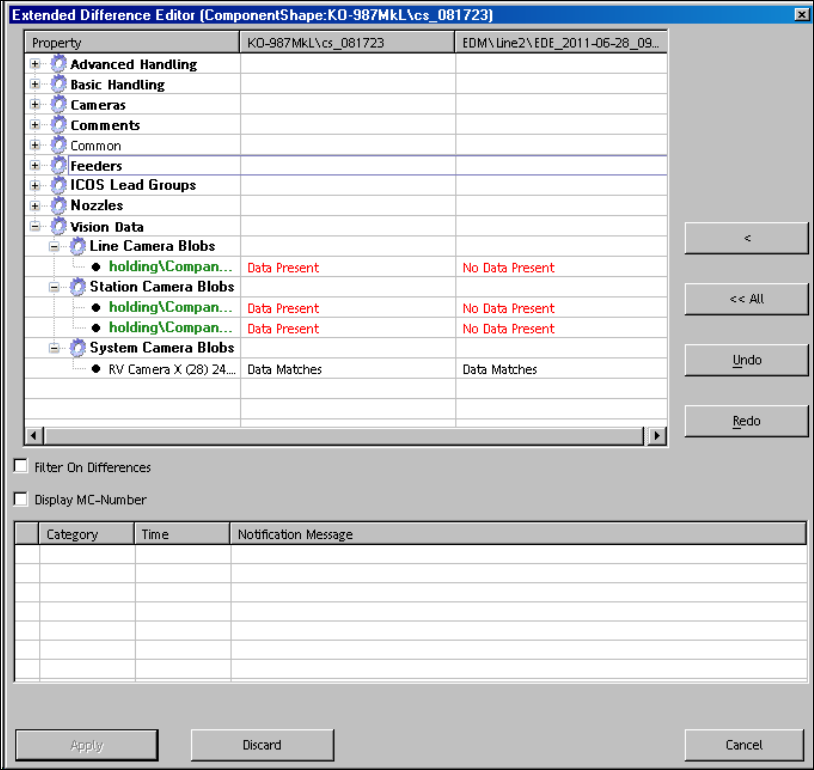
By double-clicking or clicking with the right-hand mouse button on an object and selecting the
Validate Changes… entry in the context menu, the EDE is started and displays all differences in
the line data.
Figure 4-17: Displaying differences in the line data
EDM V2.1 / Version Description Ausgabe 11/2012 Edition
23
The master version is displayed on the left side and the client version on the right side and the
assigned SIPLACE Pro lines are highlighted. The data preparation engineer accepts the changed
line Vision data for all assigned SIPLACE Pro lines by clicking the <<All button.
The differences for line data of non-assigned SIPLACE Pro lines can be accepted with the <
button.
4.4.2 Selecting Multiple Objects
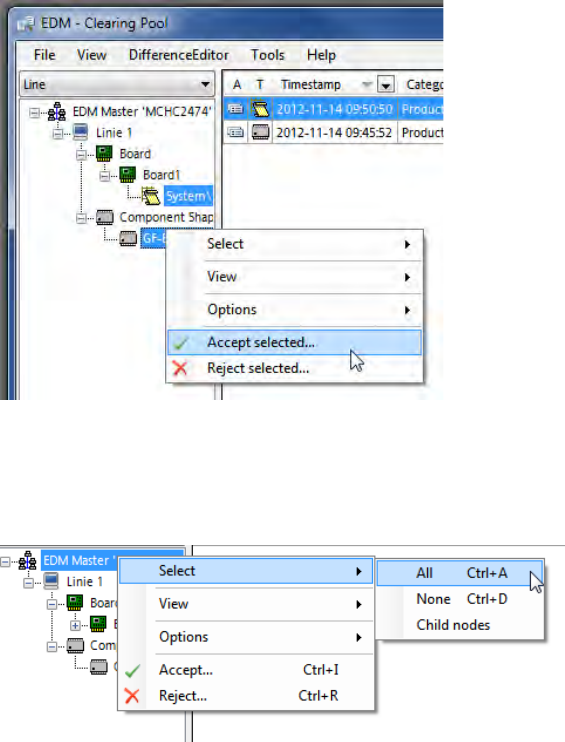
The Clearing Pool supports the selection of multiple objects to be accepted or rejected for import.
Multiple objects on the same level may be selected as follows:
► Select the first object with Left mouse click.
► Select the second object with Shift + Left mouse click.
If multiple objects from different tree nodes shall be selected, each of them has to be selected
individually with Ctrl + Left mouse click.
Figure 4-18: Manual selection of multiple objects
On a tree node, the user can select Select - All in the context menu to perform the changes for all
objects of the tree node. By selecting Select – Child nodes, the changes are only performed for
the child object of the current node.
Figure 4-19: Changing all objects
EDM V2.1 / Version Description Ausgabe 11/2012 Edition
24
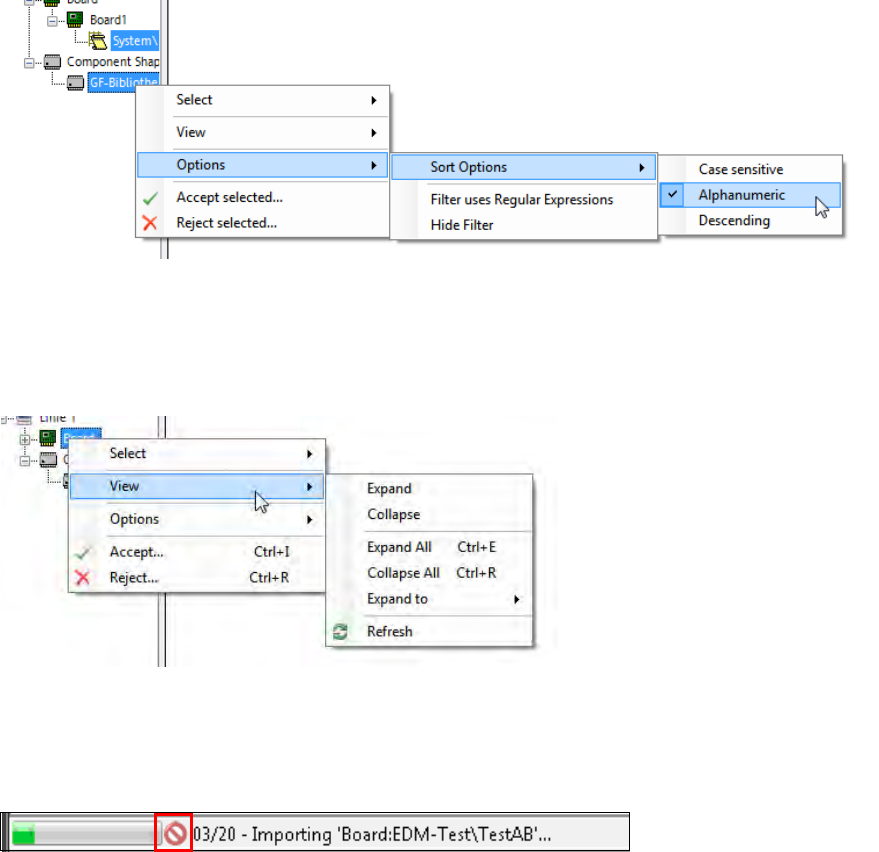
Via the Options – Sort Options menu entry the objects can be sorted Case sensitive,
Alphanumeric or Descending:
Figure 4-20: Sort Options
In the View menu entry, settings can be made for the tree structure (Expanding / Collapsing).
On a single node, the Extended Difference Editor can be displayed for the selected object in the
Show Differences menu entry:
Figure 4-21: Show Differences for a single object – Expanding / Collapsing tree view
When multiple objects are imported, a dialog is displayed, in which the import has to be confirmed.
During the import of multiple objects, the batch import progress is displayed in the status bar of the
Clearing Pool:
Figure 4-22: Batch import progress
The batch import may be canceled by pressing the red icon, after the current import has been
completed.