00196098-02_IM_SIPLACE_Explorer_2.4_DE.pdf - 第44页
3 Installation des SIPLACE Explorer Installati ons- und Konfigurationsanleitung SIPLACE Explor er 3.4 Konfiguration von Tomcat Ausgabe 08/2008 DE 44 3 Abb. 3 - 24 Factory Configuration Utility Windows Start Menü → Od er …
Installations- und Konfigurationsanleitung SIPLACE Explorer 3 Installation des SIPLACE Explorer
Ausgabe 08/2008 DE 3.3 SIPLACE Explorer starten
43
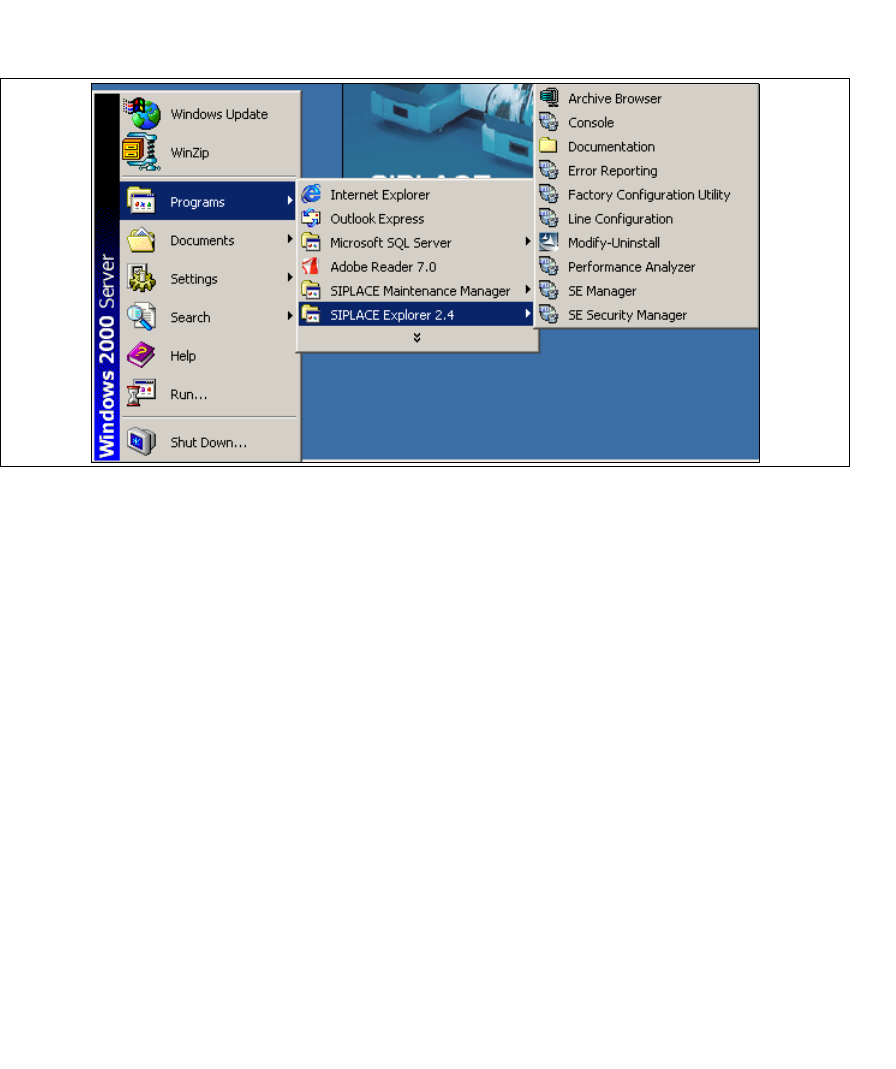
Sie können die weiteren Applikationen und Tools auch über das Windows-Menü Programme
→ SIPLACE Explorer 2.4 starten. 3
3
Abb. 3 - 23 RTE Windows Start Menü
Sie haben folgende Auswahlmöglichkeiten: 3
– Archive Browser
–Console
– Documentation
– Error Reporting
– Factory Configuration Utility
– Line Configuration
– Modify-Uninstall
– Performance Analyser
– SE Manager
– SE Security Manager
→ SIPLACE Explorer V.2.4 Factory Configuration Utility
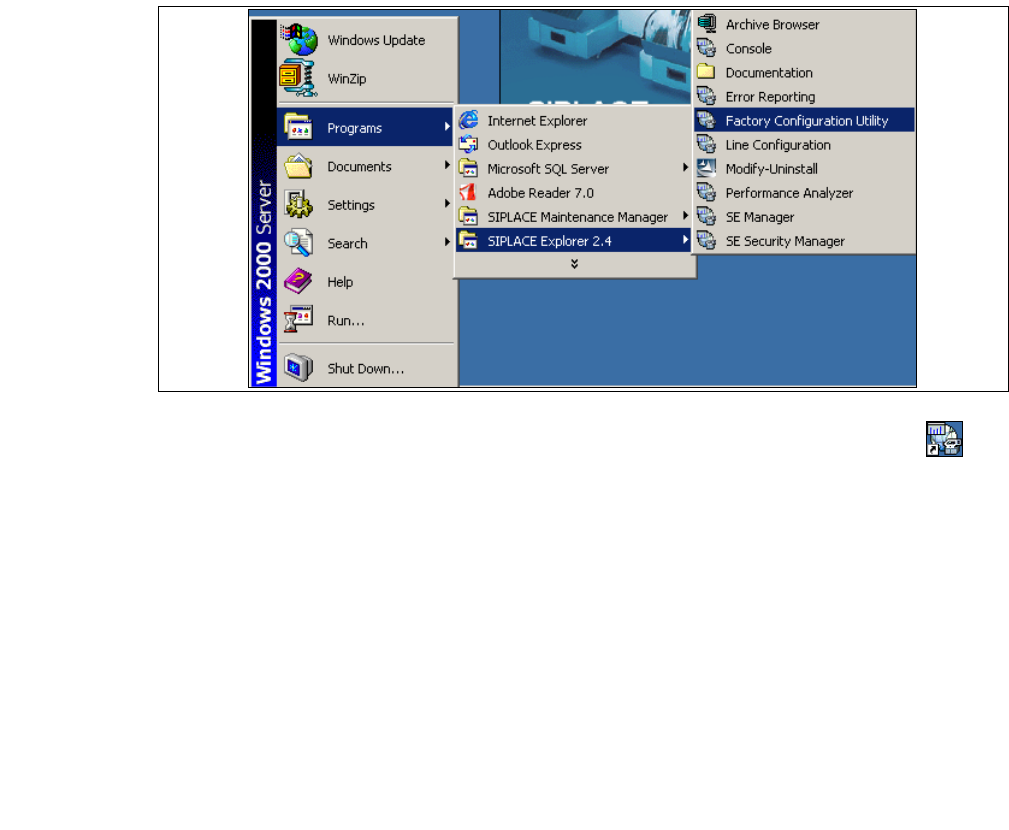
Starten Sie Factory Configuration Utility über das Windows-Menü Programme → SIPLACE
Explorer 2.4 → Factory Configuration Utility. 3
3 Installation des SIPLACE Explorer Installations- und Konfigurationsanleitung SIPLACE Explorer
3.4 Konfiguration von Tomcat Ausgabe 08/2008 DE
44
3
Abb. 3 - 24 Factory Configuration Utility Windows Start Menü
→ Oder klicken Sie auf Ihrem Desktop auf das Symbol Factory Configuration Utility .
3.4 Konfiguration von Tomcat
3.4.1 Verwendung von Windows Vista
Haben Sie als Betriebssystem Windows Vista installiert, ist für die Berichts-Generierung und die
Anzeige der Berichte in MS Excel ein Workaround nötig. 3
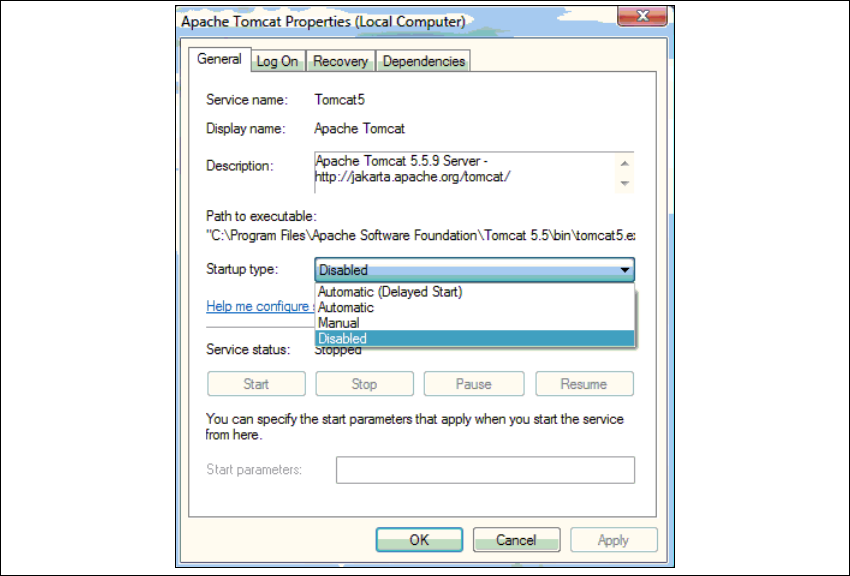
→ Deaktivieren Sie den Apache Tomcat Dienst. Wählen Sie dazu im Windows-Menü Control
Panel → Services.
→ Wählen Sie Apache Tomcat aus und wählen Sie aus dem Kontextmenü der rechten
Maustaste Properties.
→ Das Dialogfenster Apache Tomcat Properties öffnet sich:
Installations- und Konfigurationsanleitung SIPLACE Explorer 3 Installation des SIPLACE Explorer
Ausgabe 08/2008 DE 3.4 Konfiguration von Tomcat
45
3
Abb. 3 - 25 Apache Tomcat
→ Wählen Sie unter Startup type die Option Disabled. Schließen Sie das Dialogfenster mit OK.
→ Starten Sie den Rechner neu.
→ Nachdem Neustart und der Anmeldung sind die folgenden zwei Windows-Konsolen-Fenster
auf dem Desktop sichtbar. Diese dürfen Sie nicht schließen.