00195467-01_Installation Manual Setup Center 2.2.pdf - 第58页
SIPLACE Setup Center 2.2 Installation Manual 5.3.2 Forced Setup Verification The Activation-CD contains the activation of the forced setup verification and th e component level indicator. The following settings can be co…
Installation Manual SIPLACE Setup Center 2.2
Step 6
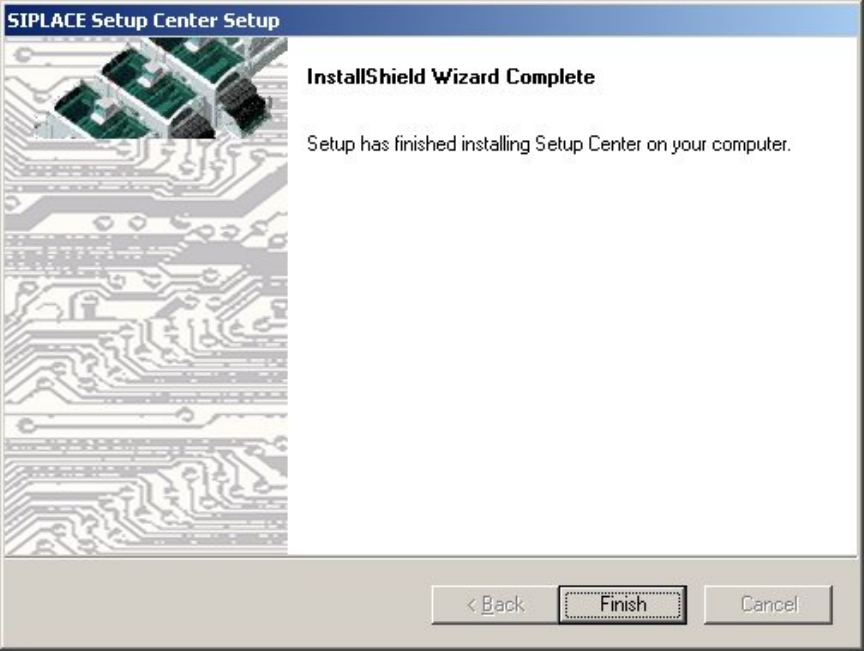
The installation routine starts.
The "Setup Complete" window appears if the installation has been completed successfully.
Figure 5-24 "InstallShield Wizard Complete" dialog box
Click Finish
57 of 90
-

SIPLACE Setup Center 2.2 Installation Manual
5.3.2 Forced Setup Verification
The Activation-CD contains the activation of the forced setup verification and the component level
indicator.
The following settings can be configured during the installation:
• Configuration of the Splice detection (If not X-machine)
• Deactivation of Fill Level Control for “empty running tracks”
• Deactivation of transition area at packaging changeover
• Activation of locked tracks without scanning
• Setup verification system (only for 408 station-software)
• Traceability data creation
• Manual input of the PCB barcode
Note:
Traceability settings can only be changed, if the Tractability Option at the station is
installed
5.3.2.1 Installing Forced Setup Verification and CLI
You must log in as administrator at the station computer to install the forced setup verification
option.
Insert the CD. The installation starts automatically.
The dialog boxes shown below will be displayed during the installation procedure.
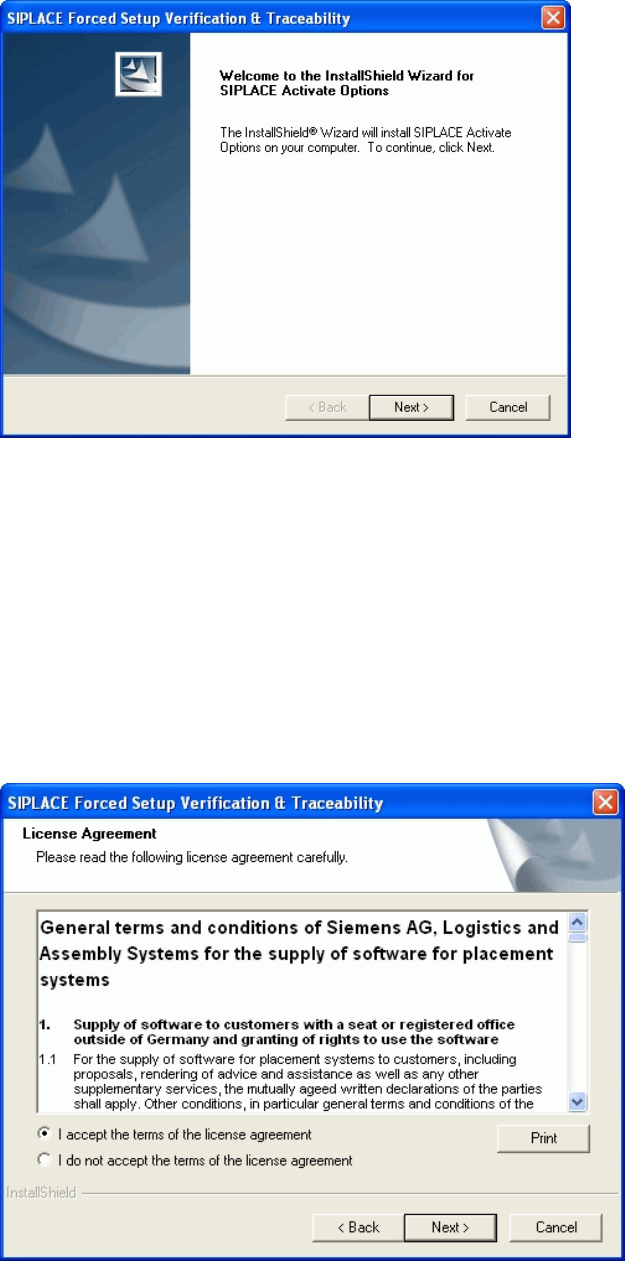
Step 1 Welcom dialog
Log on as administrator to the station PC
Place the Activation CD in your CD-ROM drive.
The Start screen appears.
58 of 90
Installation Manual SIPLACE Setup Center 2.2
Step 2 Licence dialog
Read the license agreement. If you agree with the conditions, click I accept ..., otherwise click
on I do not accept.... If you select I do not accept ..., the installation procedure will be termi-
nated.
Click on Next, to continue the installation procedure.
59 of 90
-