manual-biron-500-precision-soldering-tool-jbc-0034642_ID-251816_EN.pdf - 第10页
T ool O N MENU 28174 24 W 1 0 0 % 18 W 1 0 0 % 12 W 1 0 0 % 6 W 1 0 0 % 0 W 1 0 0 % 1 0 seconds/div V1.2 CH ARGE 45 0 º C 35 0 º C 25 0 º C 15 0 º C 50 ºC JBC 210 34 8ºC 5 , 7 W 8 0 % 350ºC T ool O N MENU 2 4 W 1 00 % 1 …
Tool
ON
MENU
28174
24 W
100%
18 W
100%
12 W
100%
6 W
100%
0 W
100%
10 seconds/div
V1.2
CHARGE
450 ºC
350 ºC
250 ºC
150 ºC
50 ºC
JBC
210
348ºC
5,7 W
80%
350ºC
Tool
ON
MENU
24 W
100%
18 W
100%
12 W
100%
6 W
100%
0 W
100%
10 seconds/div
V1.2
WORK
450 ºC
350 ºC
250 ºC
150 ºC
50 ºC
80%
JBC
210
350ºC
Tool
ON
MENU
24 W
100%
18 W
100%
12 W
100%
6 W
100%
0 W
100%
10 seconds/div
V1.2
CHARGE
450 ºC
350 ºC
250 ºC
150 ºC
50 ºC
JBC
210
348ºC
5,7 W
80%
350ºC
JBC#1
JBC#1
MENU
Tool1
2822
Tool ID
Hibernation delay
Temperature units
00:30
Maximum Temperature
400ºC
Sleep mode
Sleep temperature
150ºC
Working
Low battery
Power OFF
Charging
No cartridge
Tool Status
ºC
ºF
JBC
210
Lock Parameters
Locked
Unlocked
Return to Work
Tool1
Tool ID
28714
Hardware
Software
0028283
X886787
Update File
File
Hardware
Software
Select your Firmware
-
-
Update
MENU
JBC
210
Return to Work
JBC#1
2822
Work
Settings
Counters
Update
Documents
Light Theme
Dark Theme
Disconnect
JBC#1
Update
Tool
ON
MENU
JBC#1
24 W
100%
18 W
100%
12 W
100%
6 W
100%
0 W
100%
10 seconds/div
V1.2
WORK
450 ºC
350 ºC
250 ºC
150 ºC
50 ºC
80%
JBC
210
350ºC
Tool1
Tool1
Tool1
Tool
ON
MENU
24 W
18 W
12 W
6 W
0 W
10 seconds/div
V1.2
CHARGE
450 ºC
350 ºC
250 ºC
150 ºC
50 ºC
JBC
210
80%
350ºC
JBC#1
348ºC
6 W
10
10
B·IRON 100
B·IRON 500
Safety Cap
Safe Tool Transportation
Thanks to the tool’s safety cap, B·IRON tools
can be carried around safely, even with the
cartridge inserted.
When the cap is placed onto the tool, it goes
into Hibernation Mode immediately and the
cartridge tip cools down to room temperature.
Note: The purpose of the cap is to allow safe
transport, not storage.
Safety Cap Holder
While the tool is in use, the safety cap can be
stored on the cap holder located on the back of
the charging base.
There is space for two caps.
Cap Holder
Tool Reactivation
Once the tool has automatically shut off, place it back in the charging holder (8) to reactivate it (see
diagram on previous page).
Manual Tool Shut-Off
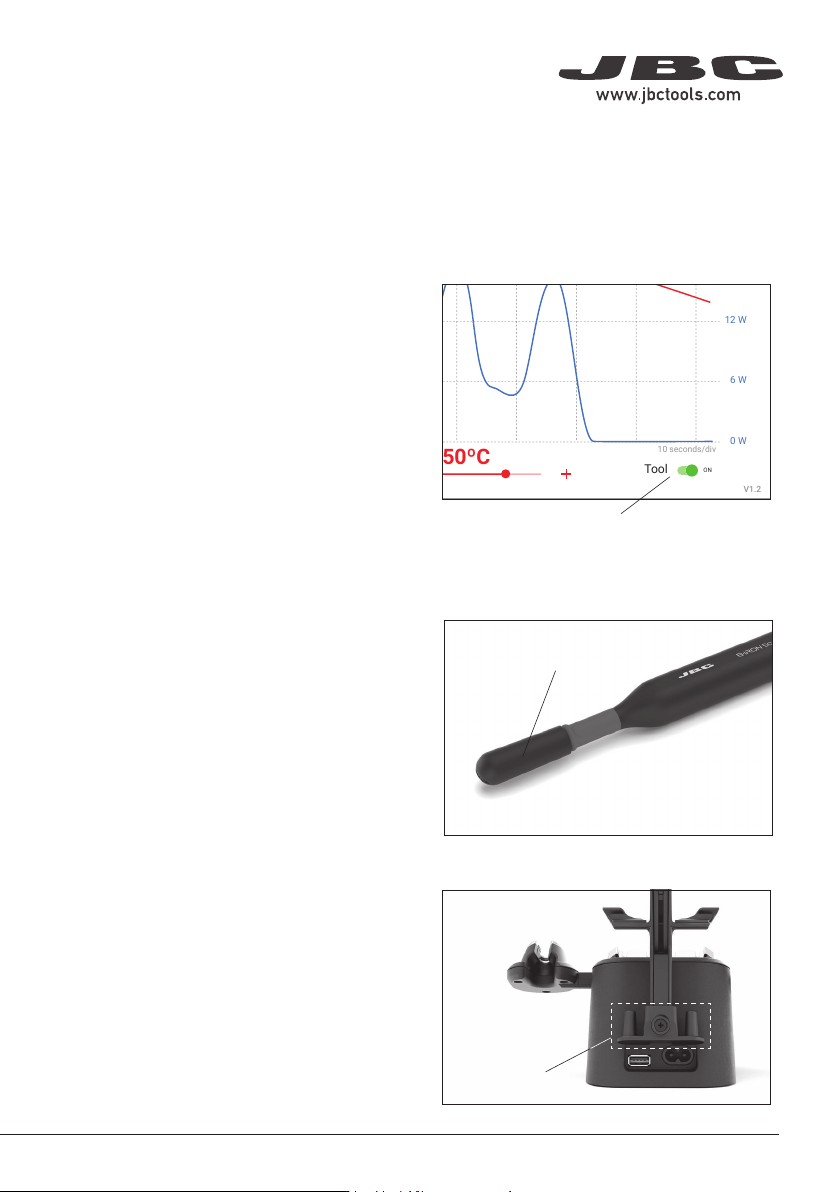
Besides the “automatic shut-off” feature, the
tool can also be manually switched off by
tapping the tool power button on the display.
When it is switched off, the cartridge cools
down to room temperature.
Note: To switch the tool back on, tap the same
button on the display.
Tool Status and Tip Temperature (continuation)
Tool On/Off Button
Safety Cap
9
40 mm
50 mm
60 mm
80 mm
100 mm
130 mm
130 mm
para manuales - color gris
200 mm
300 mm
Tool
ON
MENU
28174
24 W 100%
18 W 100%
12 W 100%
6 W 100%
0 W 100%
10 seconds/div
V1.2
CHARGE
450 ºC
350 ºC
250 ºC
150 ºC
50 ºC
JBC
210
348ºC
5,7 W
80%
350ºC
Tool
ON
MENU
24 W
100%
18 W
100%
12 W
100%
6 W
100%
0 W
100%
10 seconds/div
V1.2
WORK
450 ºC
350 ºC
250 ºC
150 ºC
50 ºC
80%
JBC
210
350ºC
Tool
ON
MENU
24 W 100%
18 W 100%
12 W 100%
6 W 100%
0 W 100%
10 seconds/div
V1.2
CHARGE
450 ºC
350 ºC
250 ºC
150 ºC
50 ºC
JBC
210
348ºC
5,7 W
80%
350ºC
JBC#1
Tool
ON
MENU
24 W
100%
18 W
100%
12 W
100%
6 W
100%
0 W
100%
10 seconds/div
V1.2
CHARGE
450 ºC
350 ºC
250 ºC
150 ºC
50 ºC
JBC
210
80%
350ºC
JBC#1
Tool1
Tool ID
28714
Hardware
Software
0028283
X886787
Update File
File
Hardware
Software
Select your Firmware
-
-
Update
MENU
JBC
210
Return to Work
JBC#1
B·IRON 100 B·IRON 500
User’s Manual User’s Manual
Documents
MENU
JBC#1
JBC
210
Return to Work
2822
Work
Settings
Counters
Update
Documents
Light Theme
Dark Theme
Disconnect
Tool
ON
MENU
28174
24 W 100%
18 W 100%
12 W 100%
6 W 100%
0 W 100%
10 seconds/div
V1.2
CHARGE
450 ºC
350 ºC
250 ºC
150 ºC
50 ºC
JBC
210
348ºC
5,7 W
80%
350ºC
Work
Settings
Counters
Update
Documents
Light Theme
Dark Theme
Disconnect
JBC#1
348ºC
6 W
Work
JBC#1
MENU
Tool1
2822
Tool ID
Hibernation delay (seconds)
00:30
Sleep mode
Sleep temperature
150ºC
Minimum Temperature
100ºC
Maximum Temperature
400ºC
Working
Low battery
Power OFF
Charging
No cartridge
Tool Status
Temperature units
ºC ºF
JBC
210
Lock Parameters
Locked Unlocked
Work
JBC#1
MENU
Tool1
2822
Tool ID
Hibernation delay (seconds)
10
Sleep mode
Sleep temperature
150ºC
Minimum Temperature
100ºC
Maximum Temperature
400ºC
Working
Low battery
Power OFF
Charging
No cartridge
Tool Status
Temperature units
ºC
ºF
JBC
210
Lock Parameters
Locked
Unlocked
Work
JBC#1
MENU
Tool1
2822
Tool ID
Hibernation delay (seconds)
00:30
Sleep mode
Sleep temperature
150ºC
Minimum Temperature
100ºC
Maximum Temperature
400ºC
Working
Low battery
Power OFF
Charging
No cartridge
Tool Status
Temperature units
ºC
ºF
JBC
210
Lock Parameters
Locked
Unlocked
Work
Enter PIN
OK
MENU
450 ºC
350 ºC
250 ºC
150 ºC
50 ºC
80%
Work
Settings
Counters
Update
Locate Tool
Documents
Light Theme
Dark Theme
Disconnect
MENU
450 ºC
350 ºC
250 ºC
150 ºC
50 ºC
JBC
80%
350ºC
Devices
Documents
Light Theme
Dark Theme
Work
Counters
PDS
JBC’s display (android)
Other android devices iOS devices
Copy the unzipped files on the device used with B·IRON:
Folder: Folder: Path:
\Internal shared
storage\Android\data\
es.infinitysource.jbc_
soldering.JBCBiron\files
\Internal shared storage\
Android\data\com.
jbctools.jbcbiron\files
Files > On my iPad > JBC
B.iron
Tool firmware updates are not executed automatically; they must
be carried out by the user.
On the display you are using with B·IRON, and with the latest app
version installed, access the B·IRON app:
Select he tool you want to update. Then in the main menu select
“update”.
Note: At least one tool must be connected to see the expanded
menu options.
Executing the Tool Firmware Update File
Display without Internet connection:
Download the firmware update file to another device with an Internet connection from JBC’s website:
https://www.jbctools.com/jbcsoftware.html and unzip the downloaded file.
Then do as described in the table.
Main menu
with expanded
menu options
Downloading the Tool Firmware Update File
Display with Internet connection:
Download the firmware update file to the display used with B·IRON from https://www.jbctools.com/
jbcsoftware.html. Go to the internal folder and unzip the downloaded file.
Then copy the downloaded program to the internal storage of the display used with B·IRON. Access
the internal storage of the display and run the downloaded program. Once the program is completed,
the app will be updated to the latest version.
Note: For JBC displays, swipe down to open the internal storage folder.
App Versions
App Update
Make sure that the required app version is installed on the display (tablet or smartphone):
- Handles require app versions 1.6 or higher.
- Tweezers require app versions 1.7 or higher.
App Installation
On JBC’s portable display (Android), the
B·IRON app is already installed.
On the user’s smartphone or tablet
(Android / iOS), go to the App Store/Play Store
and search for “JBC B.IRON” on the search
bar. Note: Internet connection is required to
download the app.
Alternatively, scan these QR codes to
access the B·IRON app page directly:
Display with Internet connection (Android / iOS)
Update the app via Google Play (Android) or the App Store (iOS).
Display without Internet connection (Android)
Download JBC’s installer program to another device with an Internet connection from
JBC’s website: https://www.jbctools.com/jbcsoftware.html
JBC Software
No installation or initial download are required for newly purchased JBC products. Both JBC
display and tools come with its current software/firmware installed and updated, and are ready
to use.
Note:
App: If a third-party display (tablet or smartphone) is used, the B·IRON app must be downloaded from
JBC’s web page and installed on the device.
Firmware: The tool’s firmware is not automatically updated and the updates must be carried out manually
by the user. To do so, follow the instructions on the next page.
10
Tool
ON
MENU
28174
24 W
100%
18 W
100%
12 W
100%
6 W
100%
0 W
100%
10 seconds/div
V1.2
CHARGE
450 ºC
350 ºC
250 ºC
150 ºC
50 ºC
JBC
210
348ºC
5,7 W
80%
350ºC
Tool
ON
MENU
24 W
100%
18 W
100%
12 W
100%
6 W
100%
0 W
100%
10 seconds/div
V1.2
WORK
450 ºC
350 ºC
250 ºC
150 ºC
50 ºC
80%
JBC
210
350ºC
Tool
ON
MENU
24 W
100%
18 W
100%
12 W
100%
6 W
100%
0 W
100%
10 seconds/div
V1.2
CHARGE
450 ºC
350 ºC
250 ºC
150 ºC
50 ºC
JBC
210
348ºC
5,7 W
80%
350ºC
JBC#1
Tool
ON
MENU
24 W
100%
18 W
100%
12 W
100%
6 W
100%
0 W
100%
10 seconds/div
V1.2
CHARGE
450 ºC
350 ºC
250 ºC
150 ºC
50 ºC
JBC
210
80%
350ºC
JBC#1
Tool1
Tool ID
28714
Hardware
Software
0028283
X886787
Update File
File
Hardware
Software
Select your Firmware
-
-
Update
MENU
JBC
210
Return to Work
JBC#1
B·IRON 100
B·IRON 500
User’s Manual
User’s Manual
Documents
MENU
JBC#1
JBC
210
Return to Work
2822
Work
Settings
Counters
Update
Documents
Light Theme
Dark Theme
Disconnect
Tool
ON
MENU
28174
24 W
100%
18 W
100%
12 W
100%
6 W
100%
0 W
100%
10 seconds/div
V1.2
CHARGE
450 ºC
350 ºC
250 ºC
150 ºC
50 ºC
JBC
210
348ºC
5,7 W
80%
350ºC
Work
Settings
Counters
Update
Documents
Light Theme
Dark Theme
Disconnect
JBC#1
348ºC
6 W
Work
JBC#1
MENU
Tool1
2822
Tool ID
Hibernation delay (seconds)
00:30
Sleep mode
Sleep temperature
150ºC
Minimum Temperature
100ºC
Maximum Temperature
400ºC
Working
Low battery
Power OFF
Charging
No cartridge
Tool Status
Temperature units
ºC
ºF
JBC
210
Lock Parameters
Locked
Unlocked
Work
JBC#1
MENU
Tool1
2822
Tool ID
Hibernation delay (seconds)
10
Sleep mode
Sleep temperature
150ºC
Minimum Temperature
100ºC
Maximum Temperature
400ºC
Working
Low battery
Power OFF
Charging
No cartridge
Tool Status
Temperature units
ºC
ºF
JBC
210
Lock Parameters
Locked
Unlocked
Work
JBC#1
MENU
Tool1
2822
Tool ID
Hibernation delay (seconds)
00:30
Sleep mode
Sleep temperature
150ºC
Minimum Temperature
100ºC
Maximum Temperature
400ºC
Working
Low battery
Power OFF
Charging
No cartridge
Tool Status
Temperature units
ºC
ºF
JBC
210
Lock Parameters
Locked
Unlocked
Work
Enter PIN
OK
MENU
450 ºC
350 ºC
250 ºC
150 ºC
50 ºC
80%
Work
Settings
Counters
Update
Locate Tool
Documents
Light Theme
Dark Theme
Disconnect
MENU
450 ºC
350 ºC
250 ºC
150 ºC
50 ºC
JBC
80%
350ºC
Devices
Documents
Light Theme
Dark Theme
Work
Counters
PDS
JBC’s display (android)
Other android devices iOS devices
Copy the unzipped files on the device used with B·IRON:
Folder: Folder: Path:
\Internal shared
storage\Android\data\
es.infinitysource.jbc_
soldering.JBCBiron\files
\Internal shared storage\
Android\data\com.
jbctools.jbcbiron\files
Files > On my iPad > JBC
B.iron
Tool firmware updates are not executed automatically; they must
be carried out by the user.
On the display you are using with B·IRON, and with the latest app
version installed, access the B·IRON app:
Select he tool you want to update. Then in the main menu select
“update”.
Note: At least one tool must be connected to see the expanded
menu options.
Executing the Tool Firmware Update File
Display without Internet connection:
Download the firmware update file to another device with an Internet connection from JBC’s website:
https://www.jbctools.com/jbcsoftware.html and unzip the downloaded file.
Then do as described in the table.
Main menu
with expanded
menu options
Downloading the Tool Firmware Update File
Display with Internet connection:
Download the firmware update file to the display used with B·IRON from https://www.jbctools.com/
jbcsoftware.html. Go to the internal folder and unzip the downloaded file.
Then copy the downloaded program to the internal storage of the display used with B·IRON. Access
the internal storage of the display and run the downloaded program. Once the program is completed,
the app will be updated to the latest version.
Note: For JBC displays, swipe down to open the internal storage folder.
App Versions
App Update
Make sure that the required app version is installed on the display (tablet or smartphone):
- Handles require app versions 1.6 or higher.
- Tweezers require app versions 1.7 or higher.
App Installation
On JBC’s portable display (Android), the
B·IRON app is already installed.
On the user’s smartphone or tablet
(Android / iOS), go to the App Store/Play Store
and search for “JBC B.IRON” on the search
bar. Note: Internet connection is required to
download the app.
Alternatively, scan these QR codes to
access the B·IRON app page directly:
Display with Internet connection (Android / iOS)
Update the app via Google Play (Android) or the App Store (iOS).
Display without Internet connection (Android)
Download JBC’s installer program to another device with an Internet connection from
JBC’s website: https://www.jbctools.com/jbcsoftware.html
JBC Software
No installation or initial download are required for newly purchased JBC products. Both JBC
display and tools come with its current software/firmware installed and updated, and are ready
to use.
Note:
App: If a third-party display (tablet or smartphone) is used, the B·IRON app must be downloaded from
JBC’s web page and installed on the device.
Firmware: The tool’s firmware is not automatically updated and the updates must be carried out manually
by the user. To do so, follow the instructions on the next page.
11
40 mm
50 mm
60 mm
80 mm
100 mm
130 mm
130 mm
para manuales - color gris
200 mm
300 mm