manual-biron-500-precision-soldering-tool-jbc-0034642_ID-251816_EN.pdf - 第7页
T ool O N MENU 28174 2 4 W 1 00 % 1 8 W 1 00 % 1 2 W 1 00 % 6 W 1 00 % 0 W 1 00 % 10 seconds/div V1.2 CH ARGE 4 50 º C 3 50 º C 2 50 º C 1 50 º C 5 0 ºC JBC 210 3 48 º C 5 ,7 W 80 % 350ºC T ool O N MENU 2 4 W 1 00 % 1 8 …
Tool Selection
Tool
ON
MENU
28174
24 W
100%
18 W
100%
12 W
100%
6 W
100%
0 W
100%
10 seconds/div
V1.2
CHARGE
450 ºC
350 ºC
250 ºC
150 ºC
50 ºC
JBC
210
348ºC
5,7 W
80%
350ºC
Tool
ON
MENU
24 W
100%
18 W
100%
12 W
100%
6 W
100%
0 W
100%
10 seconds/div
V1.2
WORK
450 ºC
350 ºC
250 ºC
150 ºC
50 ºC
80%
JBC
210
350ºC
Tool
ON
MENU
24 W
100%
18 W
100%
12 W
100%
6 W
100%
0 W
100%
10 seconds/div
V1.2
CHARGE
450 ºC
350 ºC
250 ºC
150 ºC
50 ºC
JBC
210
348ºC
5,7 W
80%
350ºC
JBC#1
Tool
ON
MENU
24 W
100%
18 W
100%
12 W
100%
6 W
100%
0 W
100%
10 seconds/div
V1.2
CHARGE
450 ºC
350 ºC
250 ºC
150 ºC
50 ºC
JBC
210
80%
350ºC
JBC#1
Tool1
Tool ID
28714
Hardware
Software
0028283
X886787
Update File
File
Hardware
Software
Select your Firmware
-
-
Update
MENU
JBC
210
Return to Work
JBC#1
B·IRON 100
B·IRON 500
User’s Manual
User’s Manual
Documents
MENU
JBC#1
JBC
210
Return to Work
2822
Work
Settings
Counters
Update
Documents
Light Theme
Dark Theme
Disconnect
Tool
ON
MENU
28174
24 W
100%
18 W
100%
12 W
100%
6 W
100%
0 W
100%
10 seconds/div
V1.2
CHARGE
450 ºC
350 ºC
250 ºC
150 ºC
50 ºC
JBC
210
348ºC
5,7 W
80%
350ºC
Work
Settings
Counters
Update
Documents
Light Theme
Dark Theme
Disconnect
JBC#1
348ºC
6 W
Work
JBC#1
MENU
Tool1
2822
Tool ID
Hibernation delay (seconds)
00:30
Sleep mode
Sleep temperature
150ºC
Minimum Temperature
100ºC
Maximum Temperature
400ºC
Working
Low battery
Power OFF
Charging
No cartridge
Tool Status
Temperature units
ºC
ºF
JBC
210
Lock Parameters
Locked
Unlocked
Work
JBC#1
MENU
Tool1
2822
Tool ID
Hibernation delay (seconds)
10
Sleep mode
Sleep temperature
150ºC
Minimum Temperature
100ºC
Maximum Temperature
400ºC
Working
Low battery
Power OFF
Charging
No cartridge
Tool Status
Temperature units
ºC
ºF
JBC
210
Lock Parameters
Locked
Unlocked
Work
JBC#1
MENU
Tool1
2822
Tool ID
Hibernation delay (seconds)
00:30
Sleep mode
Sleep temperature
150ºC
Minimum Temperature
100ºC
Maximum Temperature
400ºC
Working
Low battery
Power OFF
Charging
No cartridge
Tool Status
Temperature units
ºC
ºF
JBC
210
Lock Parameters
Locked
Unlocked
Work
Enter PIN
OK
MENU
450 ºC
350 ºC
250 ºC
150 ºC
50 ºC
80%
Work
Settings
Counters
Update
Locate Tool
Documents
Light Theme
Dark Theme
Disconnect
MENU
450 ºC
350 ºC
250 ºC
150 ºC
50 ºC
JBC
80%
350ºC
Devices
Documents
Light Theme
Dark Theme
Work
Counters
8
7
9
6
10
11
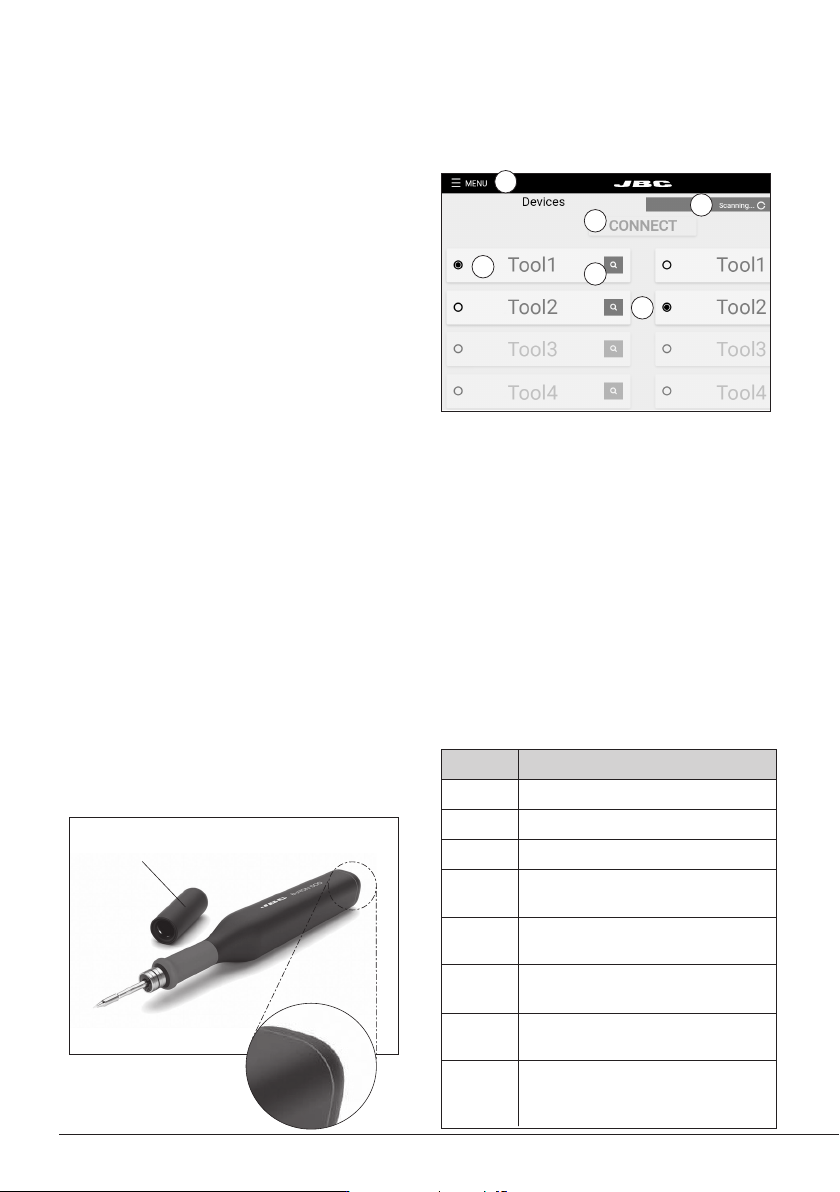
Status Lightband
Safety Cap
Status Lightband Detail
Color Tool Status
Green More than 50% charged
Orange Between 20% and 50% charged
Red Less than 20% charged
Green
blinking
Charging
(more than 50% charged)
Orange
blinking
Charging
(between 20% and 50% charged)
Red
blinking
Charging
(less than 20% charged)
No
color
Safety cap on the handle
and/or power off
Blue
blinking
Locate Tool function activated
Make sure that the charging base is connected to
the mains.
Note: Tools supplied with a station are already
connected to the station.
Scanning another tool (this process can take a while):
Place the tool in the charging holder to activate it.
The status light band color indicates the charge level
(see table below).
If the scanning process does not run automatically,
tap “scan” (6) on the display while the tool remains
in the charging holder. When the tool is shown in
the device list on the display, select it (11) and tap
“connect” (7). Now the tool is ready for soldering.
The status lightband on the tool indicates its
status (see table on the right).
Tool search function:
When in doubt of which tool corresponds to the tool’s name, use the tool search function. Tap on the
magnifying glass symbol (8) next to the tool’s name. The light band on the corresponding tool blinks in
blue for fi ve seconds to identify it.
Working with two tools (works also for charging bases with only one charging holder):
It is possible to connect up to two tools at the same time. If a tool is already connected, fi rst disconnect
it from the device by selecting “Menu” (9) and tapping on “Disconnect”.
Place the second tool in the charging holder and scan it (6). The second tool is also shown in the device
list on the display (10). To work with two tools, select one from the left-hand column (11) and the other
one from the right-hand column (10). Then tap on “connect” (7).
Tool Connection
Device List
6
Tool
ON
MENU
28174
24 W
100%
18 W
100%
12 W
100%
6 W
100%
0 W
100%
10 seconds/div
V1.2
CHARGE
450 ºC
350 ºC
250 ºC
150 ºC
50 ºC
JBC
210
348ºC
5,7 W
80%
350ºC
Tool
ON
MENU
24 W
100%
18 W
100%
12 W
100%
6 W
100%
0 W
100%
10 seconds/div
V1.2
WORK
450 ºC
350 ºC
250 ºC
150 ºC
50 ºC
80%
JBC
210
350ºC
Tool
ON
MENU
24 W
100%
18 W
100%
12 W
100%
6 W
100%
0 W
100%
10 seconds/div
V1.2
CHARGE
450 ºC
350 ºC
250 ºC
150 ºC
50 ºC
JBC
210
348ºC
5,7 W
80%
350ºC
JBC#1
JBC#1
MENU
Tool1
2822
Tool ID
Hibernation delay
Temperature units
00:30
Maximum Temperature
400ºC
Sleep mode
Sleep temperature
150ºC
Working
Low battery
Power OFF
Charging
No cartridge
Tool Status
ºC
ºF
JBC
210
Lock Parameters
Locked
Unlocked
Return to Work
Tool1
Tool ID
28714
Hardware
Software
0028283
X886787
Update File
File
Hardware
Software
Select your Firmware
-
-
Update
MENU
JBC
210
Return to Work
JBC#1
2822
Work
Settings
Counters
Update
Documents
Light Theme
Dark Theme
Disconnect
JBC#1
Update
Tool
ON
MENU
JBC#1
24 W
100%
18 W
100%
12 W
100%
6 W
100%
0 W
100%
10 seconds/div
V1.2
WORK
450 ºC
350 ºC
250 ºC
150 ºC
50 ºC
80%
JBC
210
350ºC
Tool1
Tool1
Tool1
Tool
ON
MENU
24 W
18 W
12 W
6 W
0 W
10 seconds/div
V1.2
CHARGE
450 ºC
350 ºC
250 ºC
150 ºC
50 ºC
JBC
210
80%
350ºC
JBC#1
348ºC
6 W
10
10
B·IRON 100
B·IRON 500
3
Operation
Thanks to the intelligent heat management, the
cartridge tip recovers temperature extremely
quickly.
This allows reducing the tip temperature when
the device is not in use, resulting in a longer tip
lifespan.
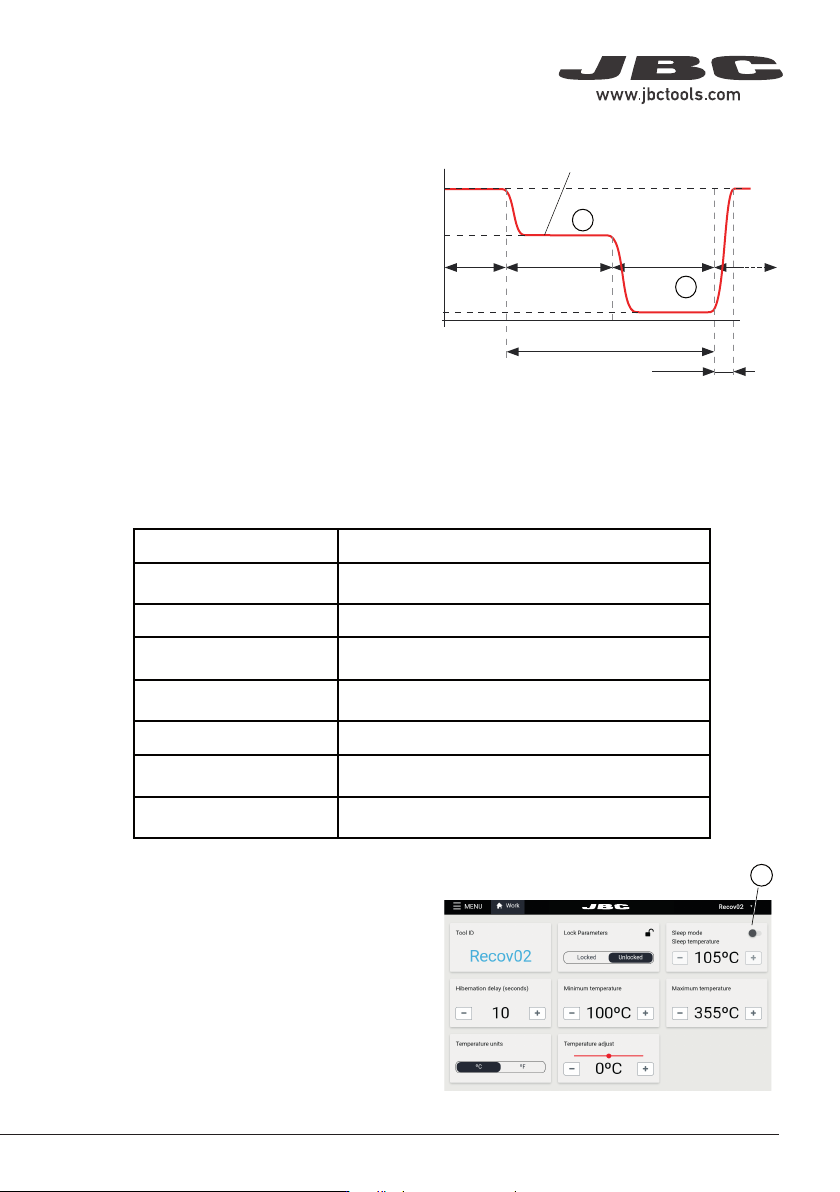
When the tool enters Sleep (1) or Hibernation(2)
Modes, the tip temperature lowers automatically
below the solder-melting-point temperature.
Sleep Mode can be activated/deactivated (3).
If it is activated and the tool is placed in the
charging holder, in addition to charging, the tip
temperature cools down to sleep temperature.
Sleep and Charging
Tool Status and Tip Temperature
The tool can go into a number of statuses under different circumstances (see the diagram on the next
page)
. Depending on the status, the cartridge tip reaches different temperatures:
Tool Status Tip Temperature
Sleep and charging
Cools down to the set Sleep temperature.
Selectable between 70°C and 150°C.
Hibernation and charging
Cools down to room temperature.
Working
Heats up to the set work temperature.
Resting without cap
Cools down to room temperature
(after 5 min of being completely still).
Tool with cap on
Cools down to room temperature.
Hibernation
Cools down to room temperature.
Shut off
Remains at room temperature (tool is shut off).
Hibernation and Charging
If Sleep Mode is not activated and the tool
is placed in the charging holder, besides
charging, it goes into Hibernation and the tip
temperature cools down to room temperature.
1
Work
Tool in charging holder
Heating
Work
temp.
Work
Tip Temperature
Time
Temp.
(selectable time)
Hibernation
Sleep
temp.
Sleep
Room
temp.
0
2
Tool
ON
MENU
28174
24 W
100%
18 W
100%
12 W
100%
6 W
100%
0 W
100%
10 seconds/div
V1.2
CHARGE
450 ºC
350 ºC
250 ºC
150 ºC
50 ºC
JBC
210
348ºC
5,7 W
80%
350ºC
Tool
ON
MENU
24 W
100%
18 W
100%
12 W
100%
6 W
100%
0 W
100%
10 seconds/div
V1.2
WORK
450 ºC
350 ºC
250 ºC
150 ºC
50 ºC
80%
JBC
210
350ºC
Tool
ON
MENU
24 W
100%
18 W
100%
12 W
100%
6 W
100%
0 W
100%
10 seconds/div
V1.2
CHARGE
450 ºC
350 ºC
250 ºC
150 ºC
50 ºC
JBC
210
348ºC
5,7 W
80%
350ºC
JBC#1
Tool
ON
MENU
24 W
100%
18 W
100%
12 W
100%
6 W
100%
0 W
100%
10 seconds/div
V1.2
CHARGE
450 ºC
350 ºC
250 ºC
150 ºC
50 ºC
JBC
210
80%
350ºC
JBC#1
Tool1
Tool ID
28714
Hardware
Software
0028283
X886787
Update File
File
Hardware
Software
Select your Firmware
-
-
Update
MENU
JBC
210
Return to Work
JBC#1
B·IRON 100
B·IRON 500
User’s Manual
User’s Manual
Documents
MENU
JBC#1
JBC
210
Return to Work
2822
Work
Settings
Counters
Update
Documents
Light Theme
Dark Theme
Disconnect
Tool
ON
MENU
28174
24 W
100%
18 W
100%
12 W
100%
6 W
100%
0 W
100%
10 seconds/div
V1.2
CHARGE
450 ºC
350 ºC
250 ºC
150 ºC
50 ºC
JBC
210
348ºC
5,7 W
80%
350ºC
Work
Settings
Counters
Update
Documents
Light Theme
Dark Theme
Disconnect
JBC#1
348ºC
6 W
Work
JBC#1
MENU
Tool1
2822
Tool ID
Hibernation delay (seconds)
00:30
Sleep mode
Sleep temperature
150ºC
Minimum Temperature
100ºC
Maximum Temperature
400ºC
Working
Low battery
Power OFF
Charging
No cartridge
Tool Status
Temperature units
ºC
ºF
JBC
210
Lock Parameters
Locked
Unlocked
Work
JBC#1
MENU
Tool1
2822
Tool ID
Hibernation delay (seconds)
10
Sleep mode
Sleep temperature
150ºC
Minimum Temperature
100ºC
Maximum Temperature
400ºC
Working
Low battery
Power OFF
Charging
No cartridge
Tool Status
Temperature units
ºC
ºF
JBC
210
Lock Parameters
Locked
Unlocked
Work
JBC#1
MENU
Tool1
2822
Tool ID
Hibernation delay (seconds)
00:30
Sleep mode
Sleep temperature
150ºC
Minimum Temperature
100ºC
Maximum Temperature
400ºC
Working
Low battery
Power OFF
Charging
No cartridge
Tool Status
Temperature units
ºC
ºF
JBC
210
Lock Parameters
Locked
Unlocked
Work
Enter PIN
OK
MENU
450 ºC
350 ºC
250 ºC
150 ºC
50 ºC
80%
Work
Settings
Counters
Update
Locate Tool
Documents
Light Theme
Dark Theme
Disconnect
MENU
450 ºC
350 ºC
250 ºC
150 ºC
50 ºC
JBC
80%
350ºC
Devices
Documents
Light Theme
Dark Theme
Work
Counters
8
7
9
6
10
11
Status Lightband
Safety Cap
Status Lightband Detail
Color Tool Status
Green More than 50% charged
Orange Between 20% and 50% charged
Red Less than 20% charged
Green
blinking
Charging
(more than 50% charged)
Orange
blinking
Charging
(between 20% and 50% charged)
Red
blinking
Charging
(less than 20% charged)
No
color
Safety cap on the handle
and/or power off
Blue
blinking
Locate Tool function activated
Make sure that the charging base is connected to
the mains.
Note: Tools supplied with a station are already
connected to the station.
Scanning another tool
(this process can take a while):
Place the tool in the charging holder to activate it.
The status light band color indicates the charge level
(see table below).
If the scanning process does not run automatically,
tap “scan” (6) on the display while the tool remains
in the charging holder. When the tool is shown in
the device list on the display, select it (11) and tap
“connect” (7). Now the tool is ready for soldering.
The status lightband on the tool indicates its
status (see table on the right).
Tool search function:
When in doubt of which tool corresponds to the tool’s name, use the tool search function. Tap on the
magnifying glass symbol (8) next to the tool’s name. The light band on the corresponding tool blinks in
blue for fi ve seconds to identify it.
Working with two tools (works also for charging bases with only one charging holder):
It is possible to connect up to two tools at the same time. If a tool is already connected, fi rst disconnect
it from the device by selecting “Menu” (9) and tapping on “Disconnect”.
Place the second tool in the charging holder and scan it (6). The second tool is also shown in the device
list on the display (10). To work with two tools, select one from the left-hand column (11) and the other
one from the right-hand column (10). Then tap on “connect” (7).
Tool Connection
Device List
7
40 mm
50 mm
60 mm
80 mm
100 mm
130 mm
130 mm
para manuales - color gris
200 mm
300 mm

3
1
2
4
5
6
7
8
Hibernation
The tool goes into Hibernation Mode in two different cases:
a) After working, when the tool is laid down (4) and is resting between 5 and 10 seconds (time is
adjustable).
b) After working, when placing the cap on the tool (5).
Note: Before the tool enters Hibernation Mode, it can be picked up to work with it and the cartridge
tip heats up to work temperature.
Auto Shut-off
The tool shuts off automatically in two different cases:
a) When the tool (without the tool cap) is laid down and remains completely still in Hibernation Mode
for 5 minutes (6).
b) When the tool (with the tool cap on) remains completely still in Hibernation Mode for 60 minutes (7).
Work
When the tool is taken out of the charging holder while in Sleep (1) or Hibernation (2) Modes, the
cartridge tip heats up to the set work temperature and the tool is ready to use (3).
Tool Status and Tip Temperature (continuation)
tool in
CHARGER
SLEEP
& charging
HIBERNATION
& charging
WORK
SHUT OFF
HIBERNATION
HIBERNATION
Sleep OFF
after 5’
tool is picked up
Sleep ON
tool to charger
after 5’
after 60’
to activate it
down between 5”...10”
tool cap placed on
tool laid
tool to charger
8