00900085-04_IG_ASMProcessEngine_2.0-R18-1_EN.pdf - 第29页
6 Upgrade to ProcessEngine 2.0 6.1 Renaming the SiplaceProcessExpert Database Installation Guide ASM ProcessEngine 2.0 (Pre-Placement) (R18-1) 10/2018 29 ► Overwrite SIPLACEProcessExpert with ProcessEngine and press Ente…
6 Upgrade to ProcessEngine 2.0
6.1 Renaming the SiplaceProcessExpert Database
28 Installation Guide ASM ProcessEngine 2.0 (Pre-Placement) (R18-1) 10/2018
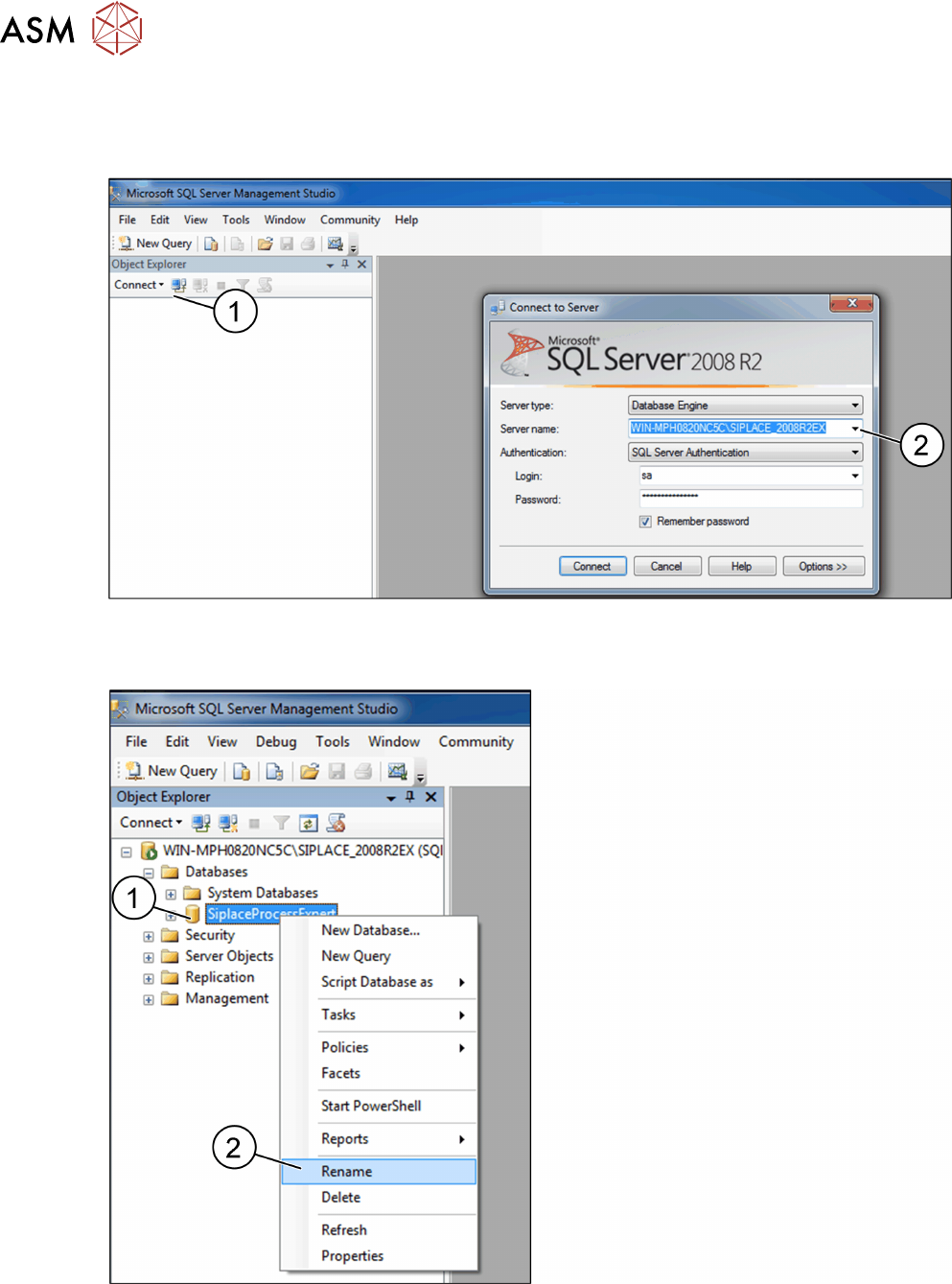
The Microsoft SQL Server Management Studio opens.
► In the Object Explorer, click Connect (1).
The Connect to Server dialog box opens.
► From the Server name: list, Select the SQL server on which the ProcessExpert database is
installed (WIN-MP0820NC5C\SIPLACE_2008R2EX in this example) (2).
► The WIN-MP0820NC5C\SIPLACE_2008R2EX database is displayed in the Object Explorer.
► Expand the Databases folder.
► Right-click the SIPLACEProcessExpert database icon (1).
► From the context menu, choose Rename (2).
The database name is editable.
6 Upgrade to ProcessEngine 2.0
6.1 Renaming the SiplaceProcessExpert Database
Installation Guide ASM ProcessEngine 2.0 (Pre-Placement) (R18-1) 10/2018 29
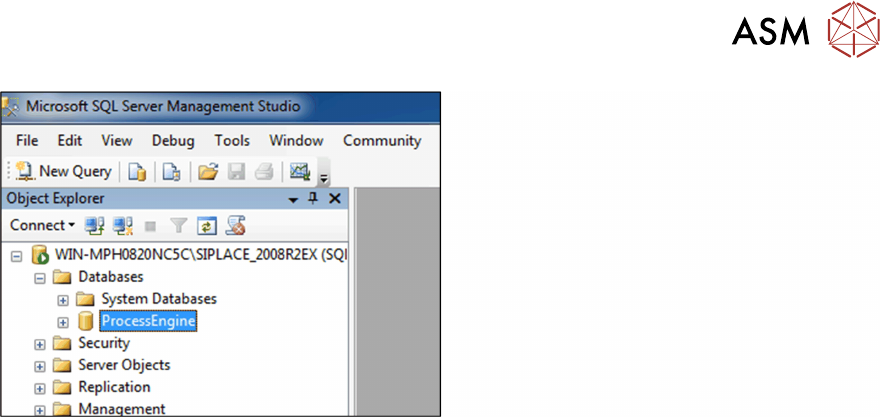
► Overwrite SIPLACEProcessExpert with ProcessEngine and press Enter.
ProcessEngine is the new database name.
► Close the Microsoft SQL Server Management Studio.

6 Upgrade to ProcessEngine 2.0
6.1 Renaming the SiplaceProcessExpert Database
30 Installation Guide ASM ProcessEngine 2.0 (Pre-Placement) (R18-1) 10/2018