VI User Manual.pdf - 第310页
Production 11 - 10 Vision 2007 4.10 User Manual Re v 01 11.2 Dual product (Vi-580 option) This option allows to test 2 different bo ards in Production mode. These boards must ha ve the same width. Using a physical mark i…
Production
Vision 2007 4.10 User Manual Rev 01 11 - 9
11.1.6 Skip component during production
To manually skip (not inspect) components directly from the production screen.
It can be password protected. The production password may be asked to access the list of
the available components to skip.
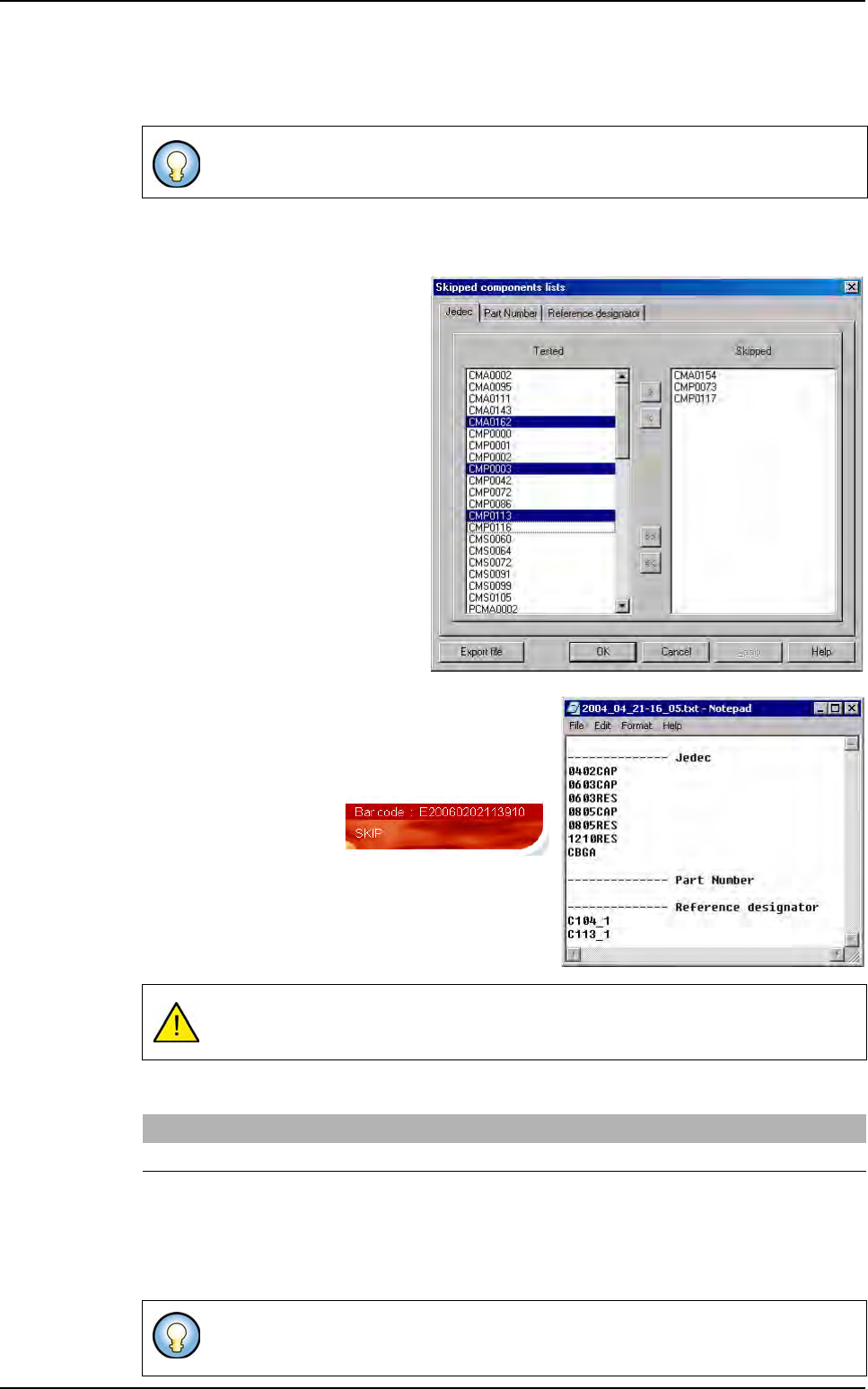
Ctrl+S during production displays
the list of Jedec, Part Number and
Reference Designator of the .tst file
that can be skipped.
The button
Export File
allows to save the list of the
skipped components in a text file (in VIT/Data folder).
The name of the exported file contains date and hour
information.
When components are
skipped, a SKIP mes-
sage is visible on produc-
tion screen.
Skip components can be
stored in the supervisor
database with the status
error:
NOT INSPECTED
.
A key in DefaultValue.ini file enable or not this transfer.
If the value = 1, then for each panel the skip components will be saved into the database and
the user will have the feedback of the production. This can increase the cycle time according
to the number of skip components.
If the value = 0, nothing is saved. No feedback possible.
It is accessible from the production screen with the keyboard shortcut CTRL+S.
They are not displayed on the repair station.They are saved in the Tested_Objects table,
and can be seen with the supervisor software in the anomaly view.
[Production]
Transfer Skip component information = 1
Next time you will start the same inspection program in production, the skip component
remain skipped
Production mode
Production
11 - 10 Vision 2007 4.10 User Manual Rev 01
11.2 Dual product (Vi-580 option)
This option allows to test 2 different boards in Production mode. These boards must have the same
width. Using a physical mark in the board (hole) the system is able to recognize which board is loaded
in the AOI system and chooses automartically the good .tst file to run.
To use it, add a BiProduct key as a Dword value in the registry and set it to 1 as you can see in the
opposite picture.
In Vision 2007 main menu click on Production and select Bi-product:
1. The Active cellule window appears. Select the .tst file to load when the sensor is active.
2. Then, the Inactive cellule window appears. Select the .tst file to load when sensor is inactive.
3. After this, 2 .tst files are loaded in production and the system can automatically switch from one to
the another.
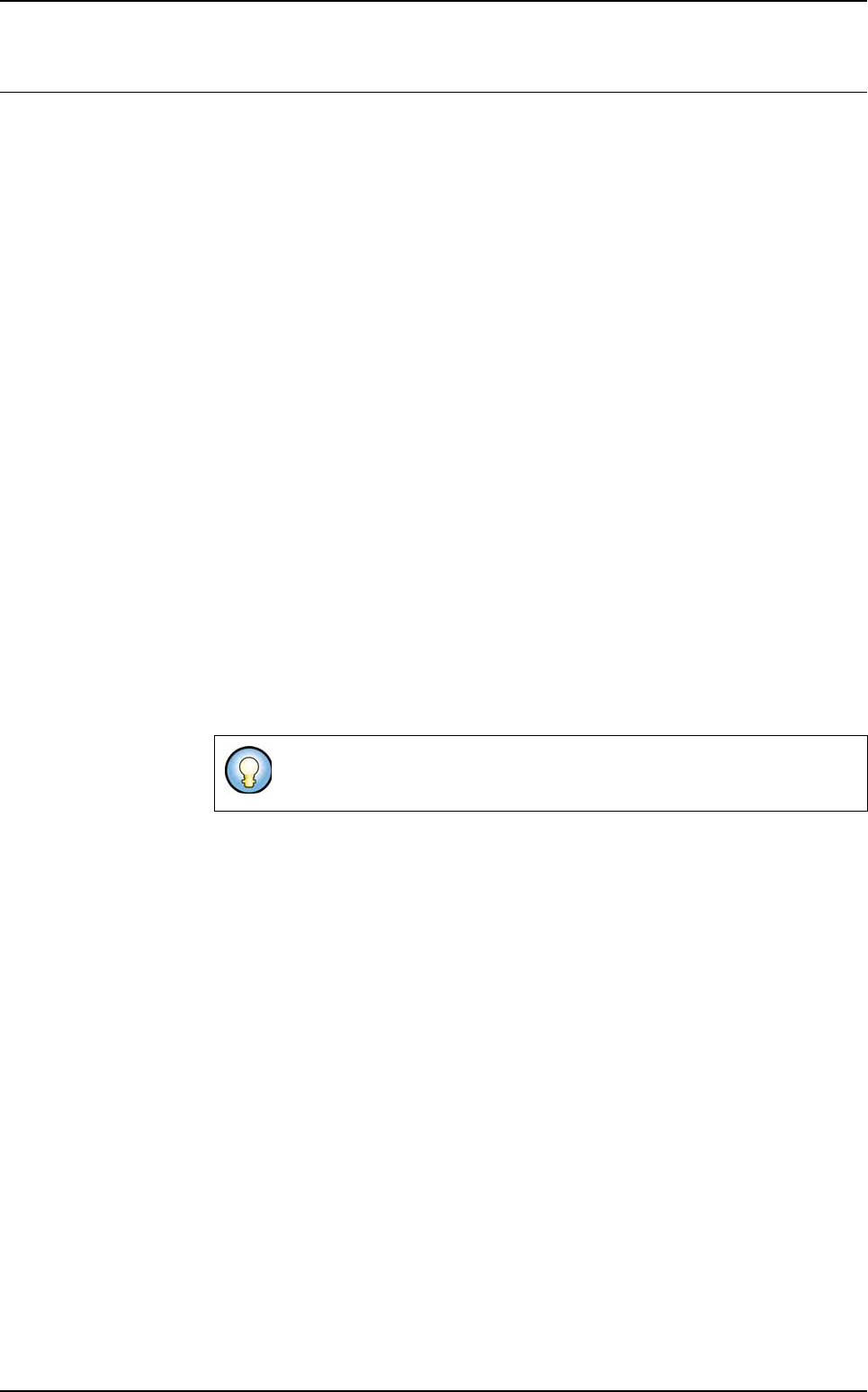
You can change the .tst file display by using Ctrl + Tab keys.
Use the F8 key to display a split view as below.
Production
Vision 2007 4.10 User Manual Rev 01 11 - 11
11.3 Embedded SPC
In order to prevent problems during production, Vision 2007 software can analyze the inspection re-
sults using an optional embedded SPC engine.
SPC is Statistical Process Control.
This SPC engine can generate, during the production, several types of warnings which will help the
operator to prevent the problems.
The analysis proposed is a short term analysis. Typically, for each followed variable, it works with 30
points which are themselves the average of 5 consecutive measures (the values 30 and 5 can be
configured). So it works with the measures concerning the last 150 inspections.
11.3.1 Installation and activation
A dongle is required for use of the SPC engine. Below, we assume that E is the CDROM
drive letter.
11.3.1.1 Installation of the SPC component and dongle
On the AOI system:
1. Log on Windows NT with the administrator rights.
2. Put the SPC dongle on the parallel port.
3. Put the Vision 2007 software installation disk into the CDROM drive.
4. Go to the directory E:\SPC.
5. Execute the tool SetupSPC.exe.
6. Restart the computer.
11.3.1.2 Activation of the embedded SPC in Vision 2007
You will have unlock the SPC Embedded VIT option key.
The presence of the DLL AVSPCControl.dll in the same directory as
Vision2007.exe is sufficient to activate the embedded SPC. This DLL is automati-
cally installed with Vision System setup.
To uninstall it, execute the tool SetupSPC.exe or go to the add/remove
program and select SPC for Vision 2007.