VI User Manual.pdf - 第87页
.TST file creation Vision 2007 4.10 User Manua l Rev 01 4 - 13 4.5 Feeder information 4.5.1 Feeder file builder This wizard guid es you through all step s to create a feeder file dir ectly from a text file by extrac t- i…
.TST file creation
4 - 12 Vision 2007 4.10 User Manual Rev 01
4.4 Solder paste (optional)
To inspect solder paste on a board, you must import the gerber information on the .tst file.
4.4.1 Gerber file importation
Import the gerber file to the .tst file to obtain the graphic representation of the solder paste pads.
In the Test file menu go to Import sub menu and select Gerber File.
4.4.2 Create zones
Placing the zones in order to incorporate the solder paste pads and test them. In the Edit menu
go to Board sub menu and select Create zones.
A gerber file can only be imported to an existing .tst file.
.TST file creation
Vision 2007 4.10 User Manual Rev 01 4 - 13
4.5 Feeder information
4.5.1 Feeder file builder
This wizard guides you through all steps to create a feeder file directly from a text file by extract-
ing relevent information.
4.5.1.1 Feeder wizard starting
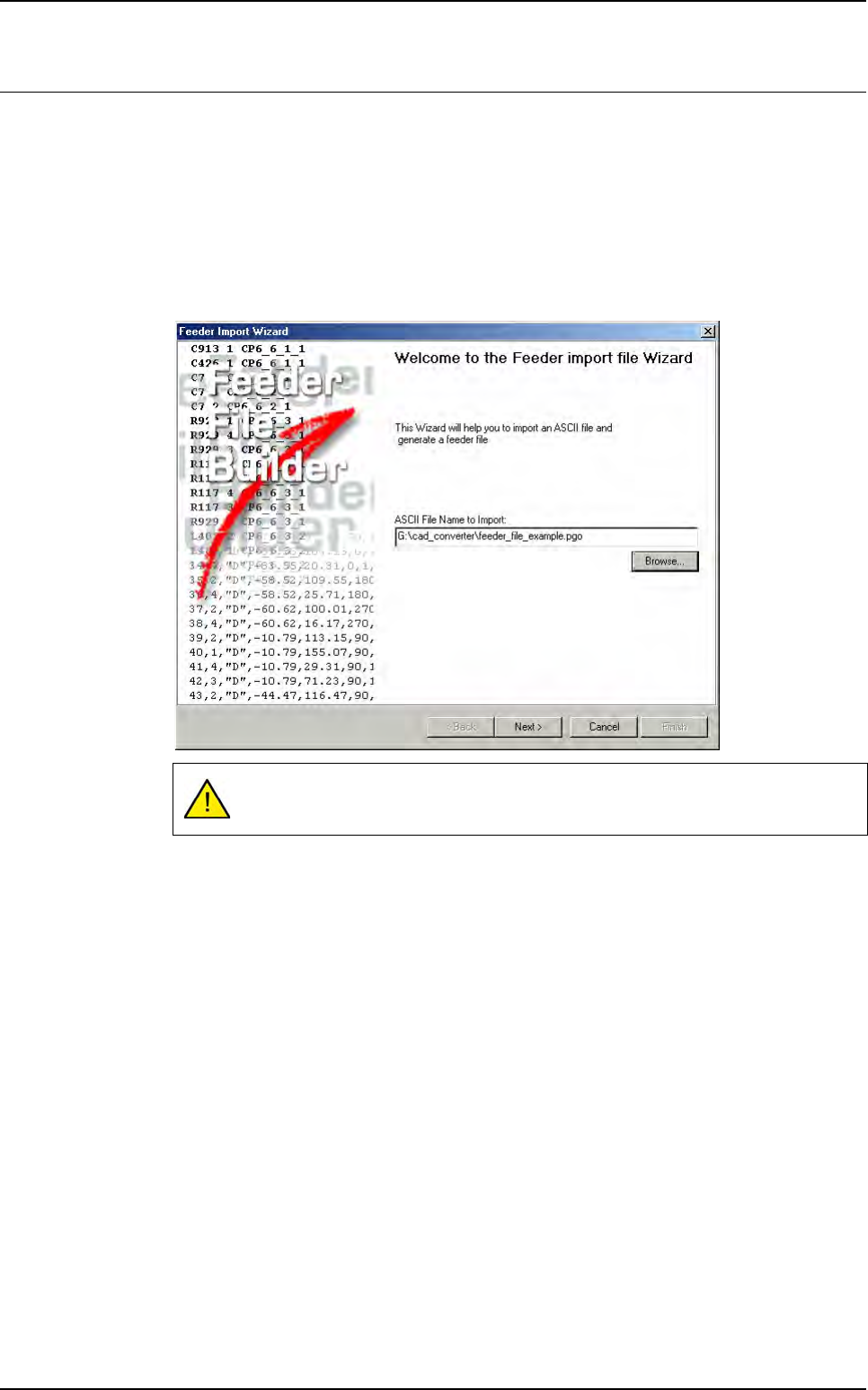
To run the feeder wizard go in Process menu and select Feeder Wizard (Ctrl+Shift+F).
The below window is displayed, enter a text file name to continue the wizard.
Click Next >.
This text file name should contain the feeder information.
.TST file creation
4 - 14 Vision 2007 4.10 User Manual Rev 01
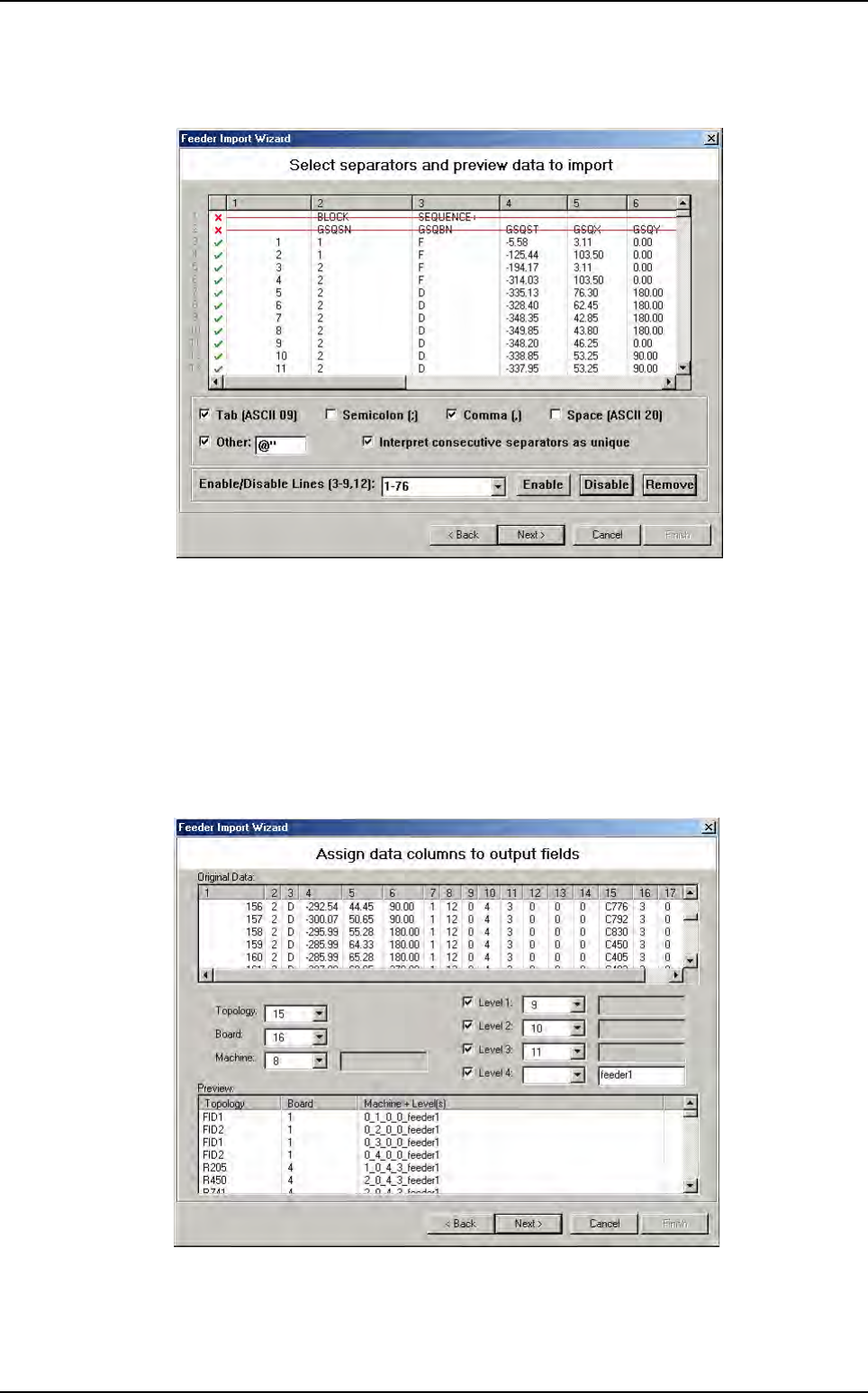
4.5.1.2 Select separators and preview data window
The below window appears.
This windows ask you to separate data in several columns.
You have to choose or enter which characters are columns separators. You can also re-
move lines if there is no feeder information in them. Just a mouse click and the line be-
come red.
When all feeder data are separated, click
Next >
.
4.5.1.3 Assign data column window
The Original Data list show the different column created when you choose the separator
characters in previous windows.
The central part ask which column contain required information (Topology, board, ma-
chine, level 1, level 2, level 3, level 4).
The Preview lists show the feeder file result.
When all important column are selected, click Next >.
Feeder information