1OM-1625-004_w.pdf - 第112页
1OM-1603 2-1 1 2. Operation Screen : Chap.2 1012-003 [2] Displayed Image Operation Buttons The following buttons change the mode for the enlargement or movement operations, for the image displayed in the [1] Recognition …
1OM-1603
2-10
2. Operation Screen : Chap.2
1012-003
2.2 Recognition Window
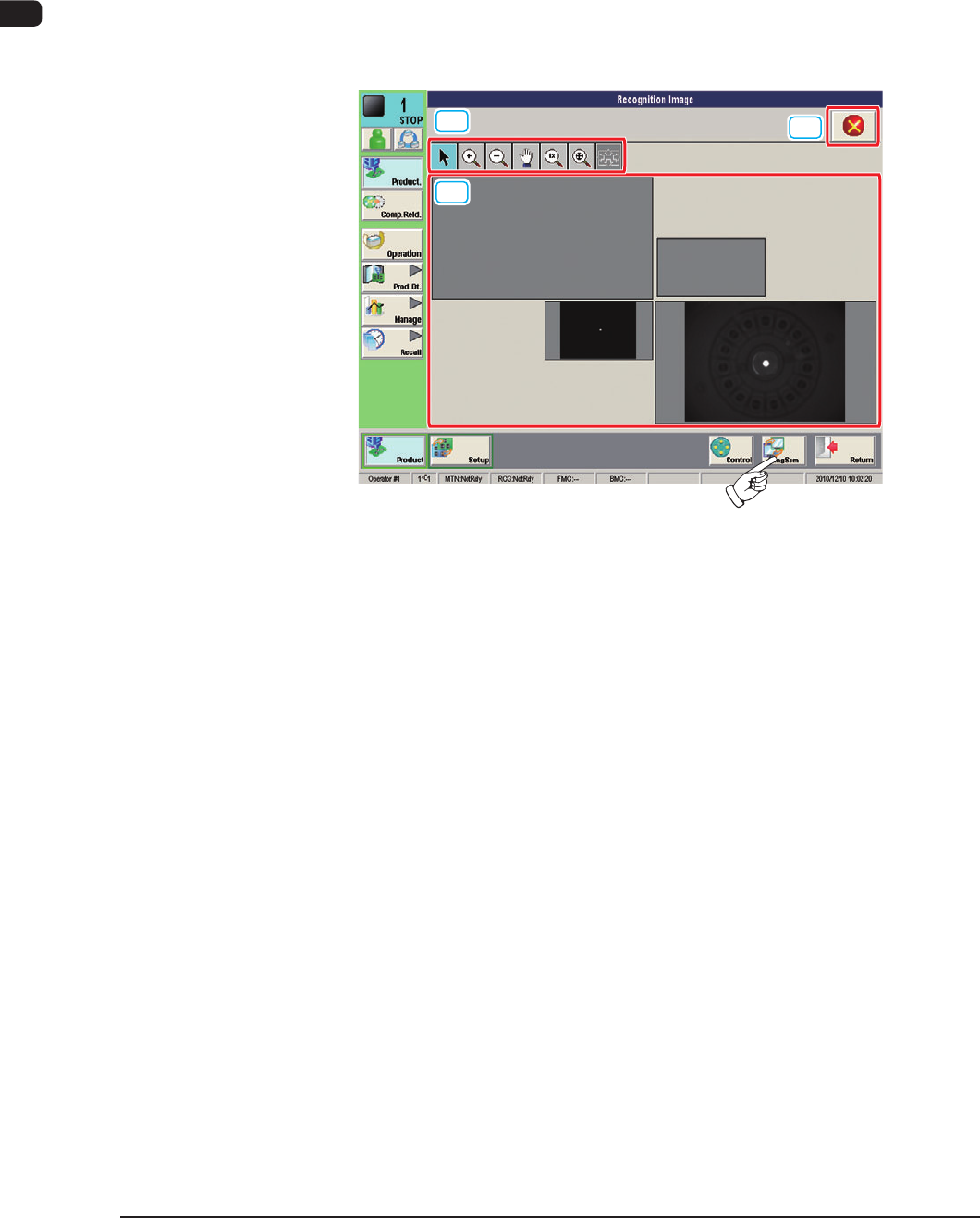
When the [ChngScrn] button is pressed on the main menu bar, the touch screen
indication is changed to "Recognition Image" window.
2.2.1 Recognition Window in Normal Operation
When the "Recognition Image" window is displayed in the "RUN" mode, the
following window appears.
[1]
[3]
[2]
F1B8
[1] Recognition Image Display Domain
The recognition images (camera images) in each block are displayed.
The multi- (2 beams simultaneously) or single (1 beam) display can be
selected.
Selecting the recognition image to be displayed, changes the recognition
image in the recognition image display domain.

1OM-1603
2-11
2. Operation Screen : Chap.2
1012-003
[2] Displayed Image Operation Buttons
The following buttons change the mode for the enlargement or movement
operations, for the image displayed in the [1] Recognition Image Display
Domain.
[
] Button :
Normal Operation Mode
[
] Button :
Image Enlargement Mode
After changing to the image enlargement mode using the
[
] button (the shape of the pointer is changed to [ ]),
when the image to be enlarged is touched, or the left button
of the mouse is clicked on the image, the image is enlarged
from the pointer position as the center.
When the image is to be enlarged with its position xed,
place the pointer on the center of the image before the
enlargement operation.
[
] Button :
Image Reduction Mode
After changing to the image reduction mode using the
[
] button (the shape of the pointer is changed to [ ])
when the image to be reduced is touched, or the left button
of the mouse is clicked on the image, the image is reduced
from the pointer position as the center.
When the image is to be reduced with its position xed,
place the pointer on the center of the image before the
reduction operation.
[
] Button :
Image Movement Mode
After changing to the image movement mode using the
[
] button (the shape of the pointer is changed to [ ]
mark), drag the image to be moved (with the left button on
the mouse pressed) to move.

1OM-1603
2-12
2. Operation Screen : Chap.2
[ ] Button :
Image Real-Size Display Mode (Captured image is
displayed in real-size).
After changing to the image real-size display mode using
the [
] button (the shape of the pointer is changed to
[
]), when the image to be displayed in real-size is
touched, or the left button of the mouse is clicked on the
image, the image is displayed in real-size from the pointer
position as the center.
When the image is to be displayed in real-size with its
position xed, place the pointer on the center of the image
before the image real-size display operation.
[
] Button :
Image Fitting Mode (the image is displayed fully using the
recognition image display domain).
After changing to the image tting mode using the [
]
button (the shape of the pointer is changed to [
]), when
the image to be t is touched, or the left button of the mouse
is clicked on the image, the image is displayed fully using
the recognition image display domain, from the pointer
position as the center.
When the image is to be displayed in the image tting mode
with its position xed, place the pointer on the center of the
image before the image tting operation.
1012-003