2.VGOS V30 application software installation_upgrade manual.pdf - 第11页
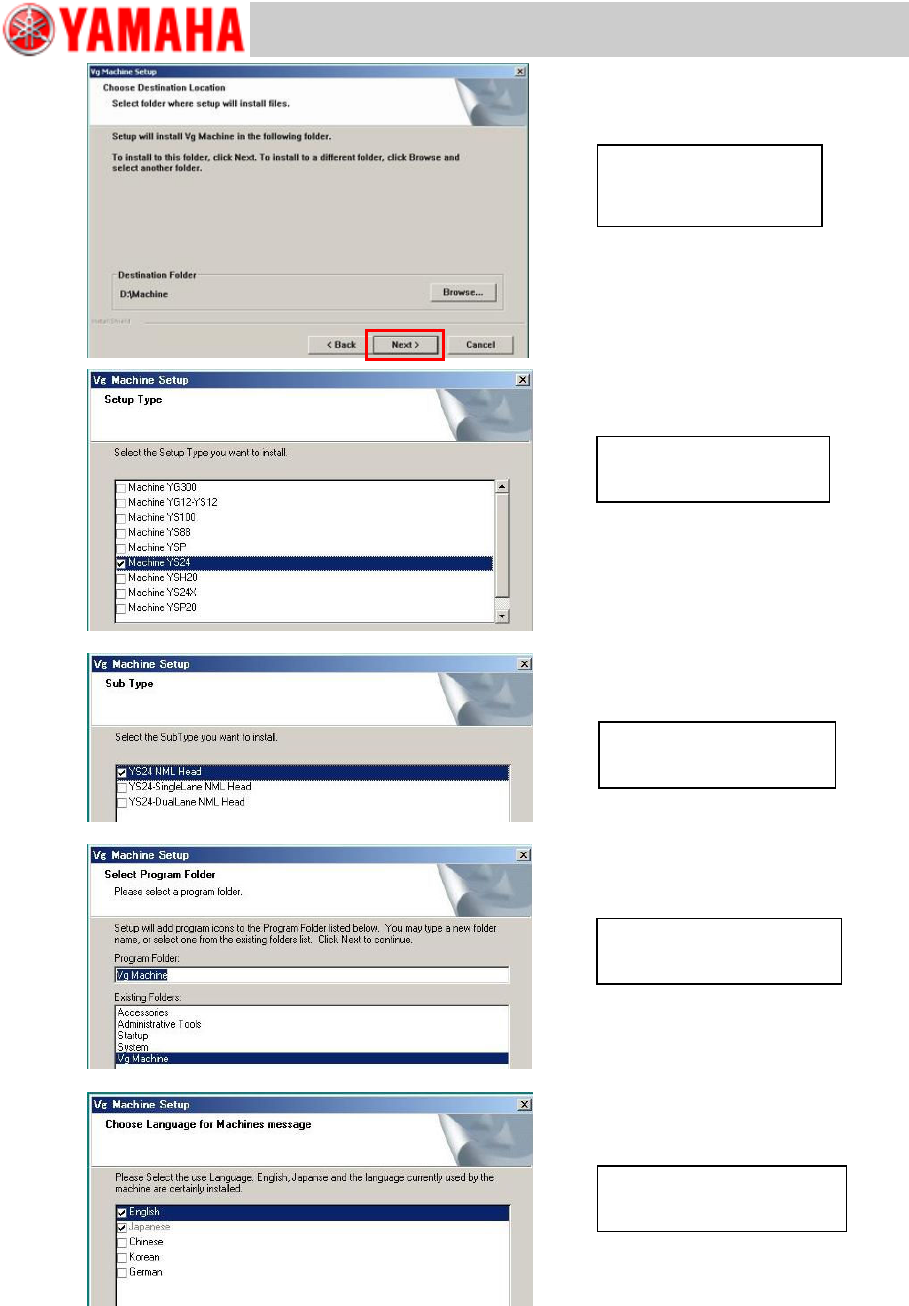
For Users Serv i ce Information SI090100 2E- 003=VGOS V3 0 applicatio n software installatio n /upgrade manua l 11/24 Select lan guage s and select [Nex t >]. Select a m achine type and select [Ne x t >]. Select a …
For Users
Service Information
SI0901002E-003=VGOS V30 application software installation/upgrade manual
10/24
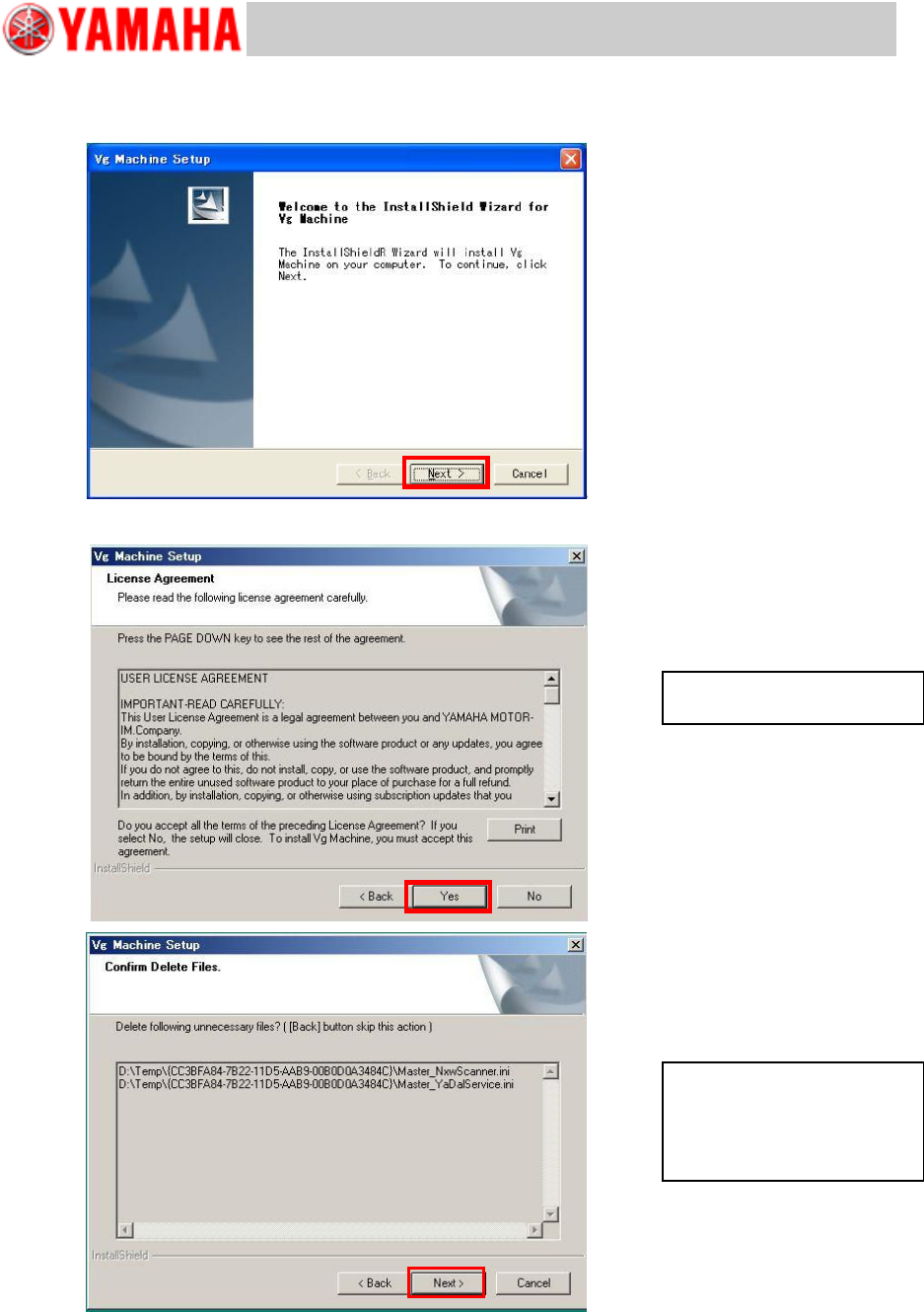
Step 7 Installation wizard starts.
When installation starts properly, the following dialog appears asking you to continue the
process. Click the [Next] button.
Step 8 Check the contents of the dialog and click the [Yes] button.
Confirm USER LICENSE
AGREEMENT and select [Yes].
If unnecessary files are found in
the “TEMP” folder, the Confirm
Delete Files window appears. If
it is OK to delete, click the [Next]
button.
For Users
Service Information
SI0901002E-003=VGOS V30 application software installation/upgrade manual
11/24
Select languages and select
[Next >].
Select a machine type and
select [Next >].
Select a sub machine model
and select [Next >].
Select a program folder and
select [Next >].
Confirm Destination Folder
(D:/Machine) and select
[Next >].
For Users
Service Information
SI0901002E-003=VGOS V30 application software installation/upgrade manual
12/24
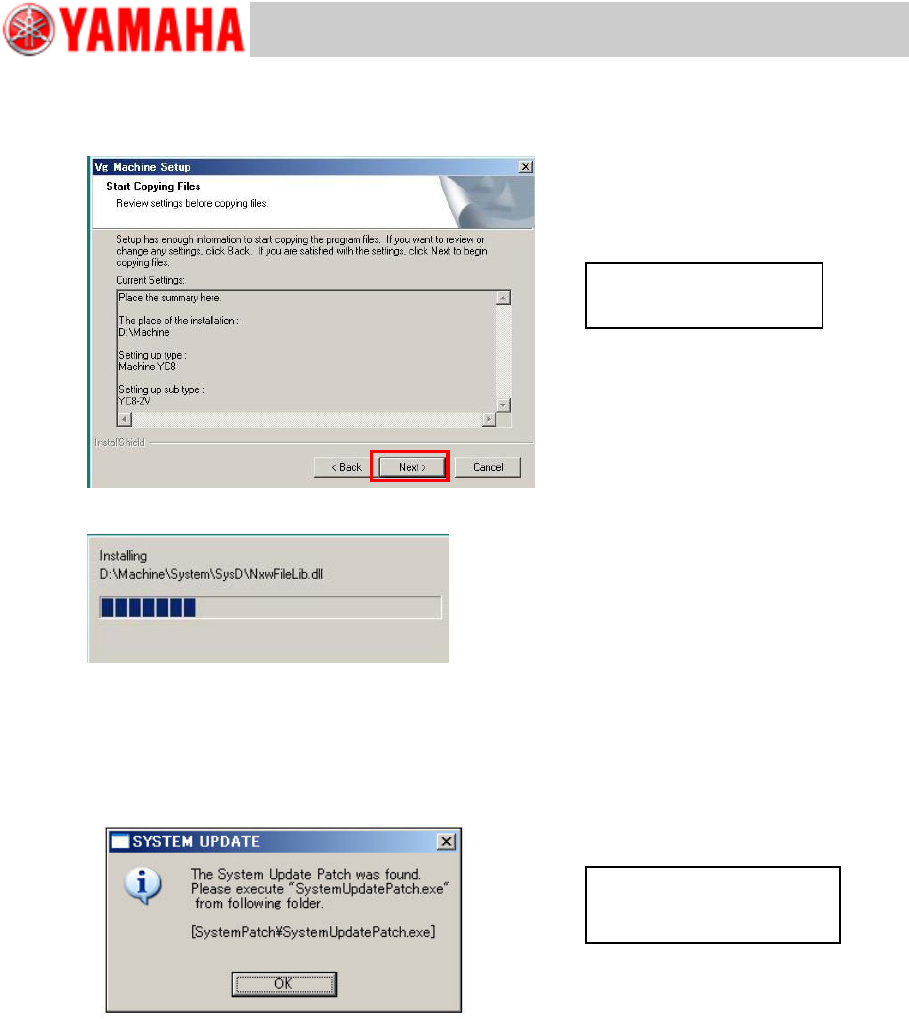
Step 9 Start installing the application.
Review all your settings and change as necessary. Then start installation by selecting [Next
>].
Step 10 If the system software needs to be updated, the below message appears.
Complete the application upgrading first. Then back up the system full back-up data and
execute “V30 System Update”.
Note
For details about the system software updating, see “5 Update the system software”.
Review settings and select
[Next >].
This message appears only
when the system software
needs updating.