2.VGOS V30 application software installation_upgrade manual.pdf - 第23页
For Users Serv i ce Information SI090100 2E- 003=VGOS V3 0 applicatio n software installatio n /upgrade manua l 23/24 Step 7 When the p atch is installed successfully, the machine automatically executes shutdown process.…
For Users
Service Information
SI0901002E-003=VGOS V30 application software installation/upgrade manual
22/24
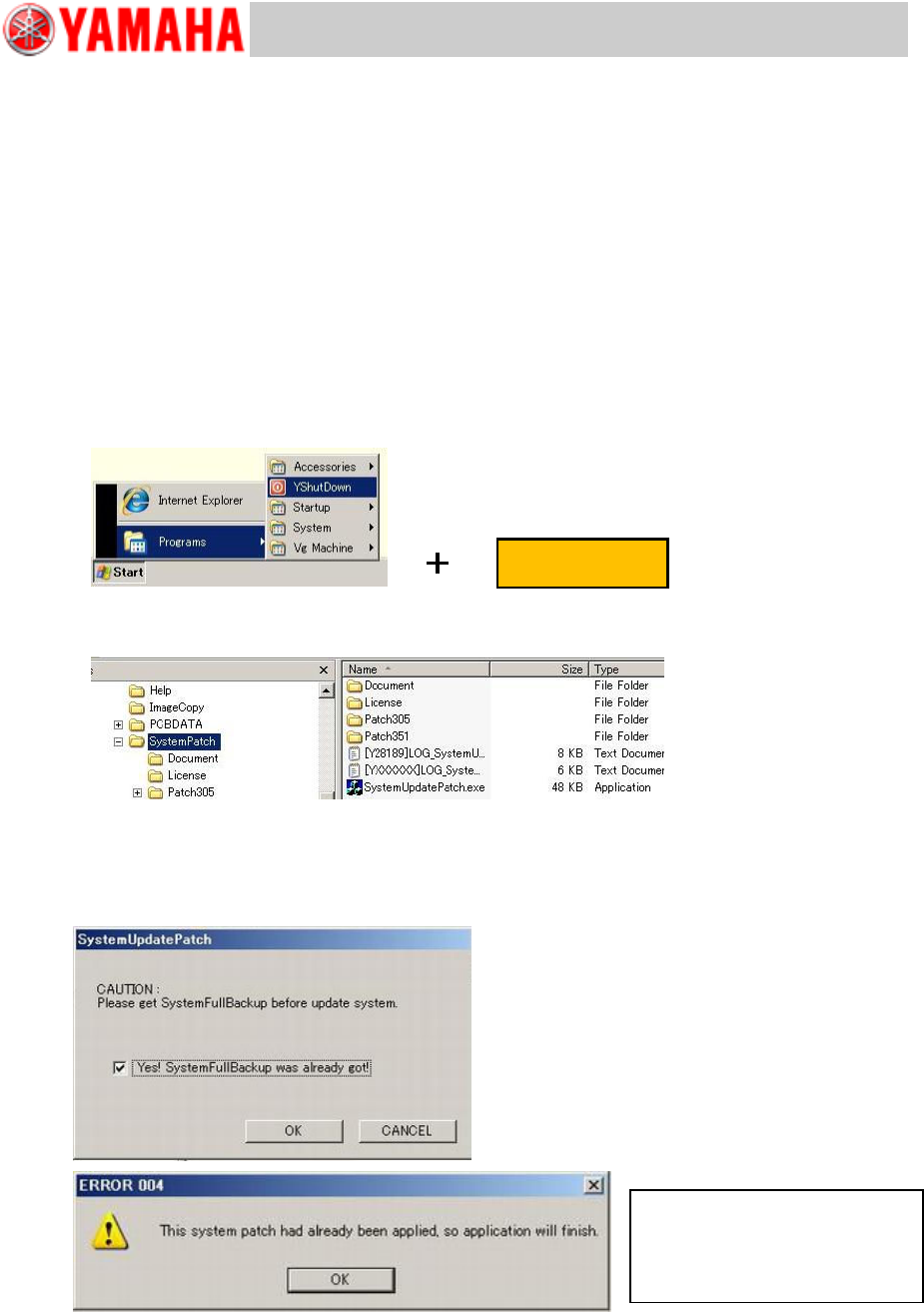
5.2.2 Execute “V30 System Update” for earlier than V3.41STD R2.000
The “V30 System Update” procedures differ depending on the machine application version.
For earlier than V3.41STD R2.000 applications, execute “SystemUpdatePatch.exe” via
Windows Explorer.
Note
Read “5.2.1 Preparation” carefully and complete preparatory tasks before performing
procedures in this section.
Step 1 Power on the machine and enter the Windows Mode.
Upon powering on the machine, the initial window appears shortly. Click the [Windows Mode]
button before Countdown expires.
Step 2 Plug the USB flash drive containing the “SystemPatch” folder into the machine.
Step 3 Start Windows Explorer.
Hold down the right Shift key and select [YShutDown].
Step 4 Execute “SystemUpdatePatch.exe” under the “SystemPatch” folder in the USB flash
drive.
Step 5 Installation the V30 patch program starts. Follow the online instructions.
Step 6 A message asking whether system full back-up has been complete appears.
If the system full back-up has been complete as described in “5.1 System full back-up”,
click the [OK] button to continue.
Right Shift key
You don’t have to install the
patch. Click the [OK] button and
the machine executes shutdown
process..
For Users
Service Information
SI0901002E-003=VGOS V30 application software installation/upgrade manual
23/24
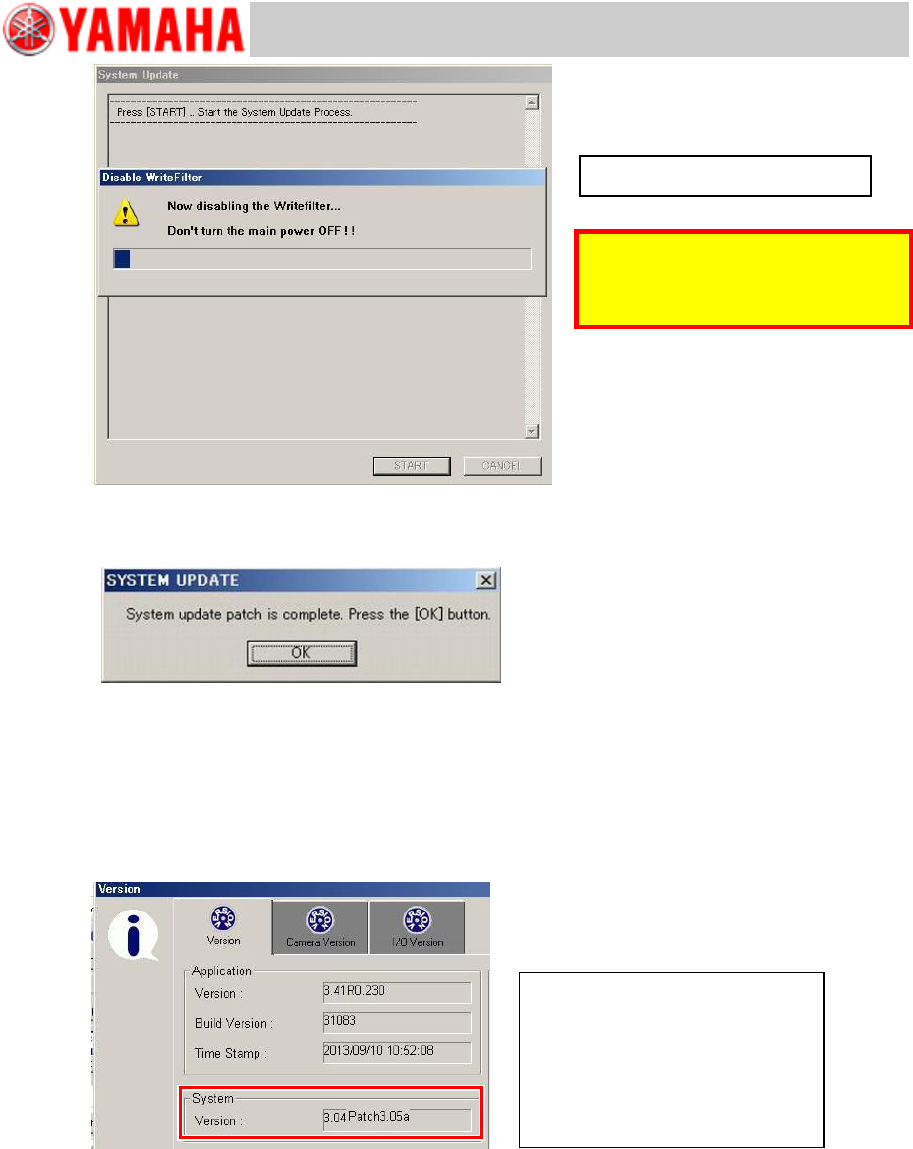
Step 7 When the patch is installed successfully, the machine automatically executes
shutdown process.
Note
If the installation of the patch fails, a notifying message appears.
Step 8 Power off the machine.
Step 9 Restart the machine. Start the machine application.
Step 10 Click the [Setup] button > [SW Version] button to open the Version window. Check the
version under [System].
Note 1
Only for machines equipped with a “KJJ-M6590-00 E.COM BOARD ASSY”.
Note 2
When installation of the patch fails, “ ’ ” is affixed at the end of the version.
Example system versions
Patch installation succeeded.
・ 3.04 Patch3.05a
・ 3.04 Patch3.05a/E (see Note 1)
Patched installation failed.
・ 3.04 Patch3.05’ (see Note 2)
Caution
The Write Filter is disabled. DO NOT
power off the machine.
Updating the system software...
For Users
Service Information
SI0901002E-003=VGOS V30 application software installation/upgrade manual
24/24
5.2.3 Execute “V30 System Update” for V3.41STD R2.000 or later
The “V30 System Update” procedures differ depending on the machine application version.
For V3.41STD R2.000 or later applications, execute “SystemUpdatePatch.exe” via the
[VersionUp] menu.
Note
Read “5.2.1 Preparation” carefully and complete preparatory tasks before performing
procedures in this section.
Step 1 Power on the machine and enter the Windows Mode.
Upon powering on the machine, the initial window appears shortly. Click the [Windows Mode]
button before Countdown expires.
Step 2 Plug the USB flash drive containing the “SystemPatch” folder into the machine.
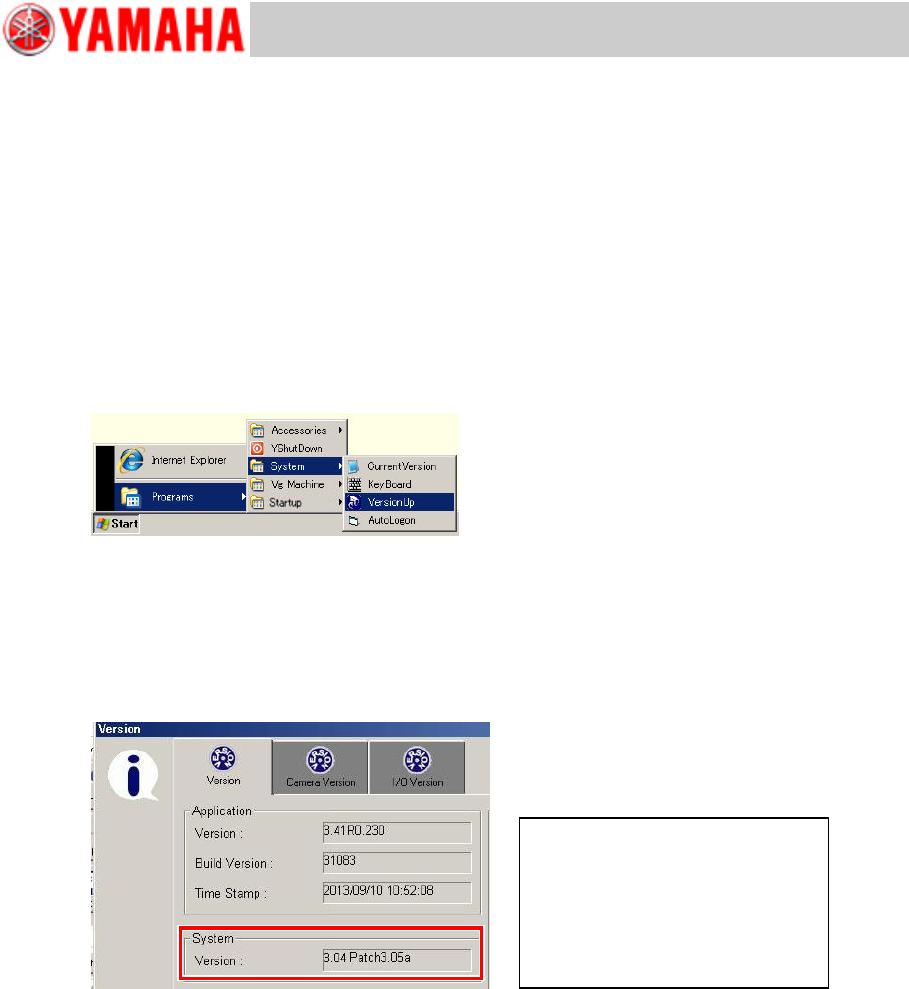
Step 3 From the Start menu, select [Programs] > [System] > [VersionUp].
Step 4 Installation the V30 patch program starts. Follow the online instructions.
Note
For details, see “5.2.2 Execute “V30 System Update” for earlier than V3.41STD R2.000”
(page 22).
Step 5 Click the [Setup] button > [SW Version] button to open the Version window. Check the
version under [System].
Note 1
Only for machines equipped with a “KJJ-M6590-00 E.COM BOARD ASSY”.
Note 2
When installation of the patch fails, “ ’ ” is affixed at the end of the version.
Example system versions
Patch installation succeeded.
・ 3.04 Patch3.05a
・ 3.04 Patch3.05a/E (see Note 1)
Patched installation failed.
・ 3.04 Patch3.05’ (see Note 2)