00197719-01_IM_Integration_SMD-Tower_EN.pdf - 第11页
© ASM 2-6 0019771 9 - 01 / Octo ber 22, 2014 2 Setup Materi al T o w er S o f tw a r e 2.1 Setti ng of Ma terial Ma nager Setup the Material M anager System Settings Paths & Backu p Edit Materi al man ager Enter all …
Prepare SMD-Tower
© ASM
1-5
00197719-01 / October 22, 2014
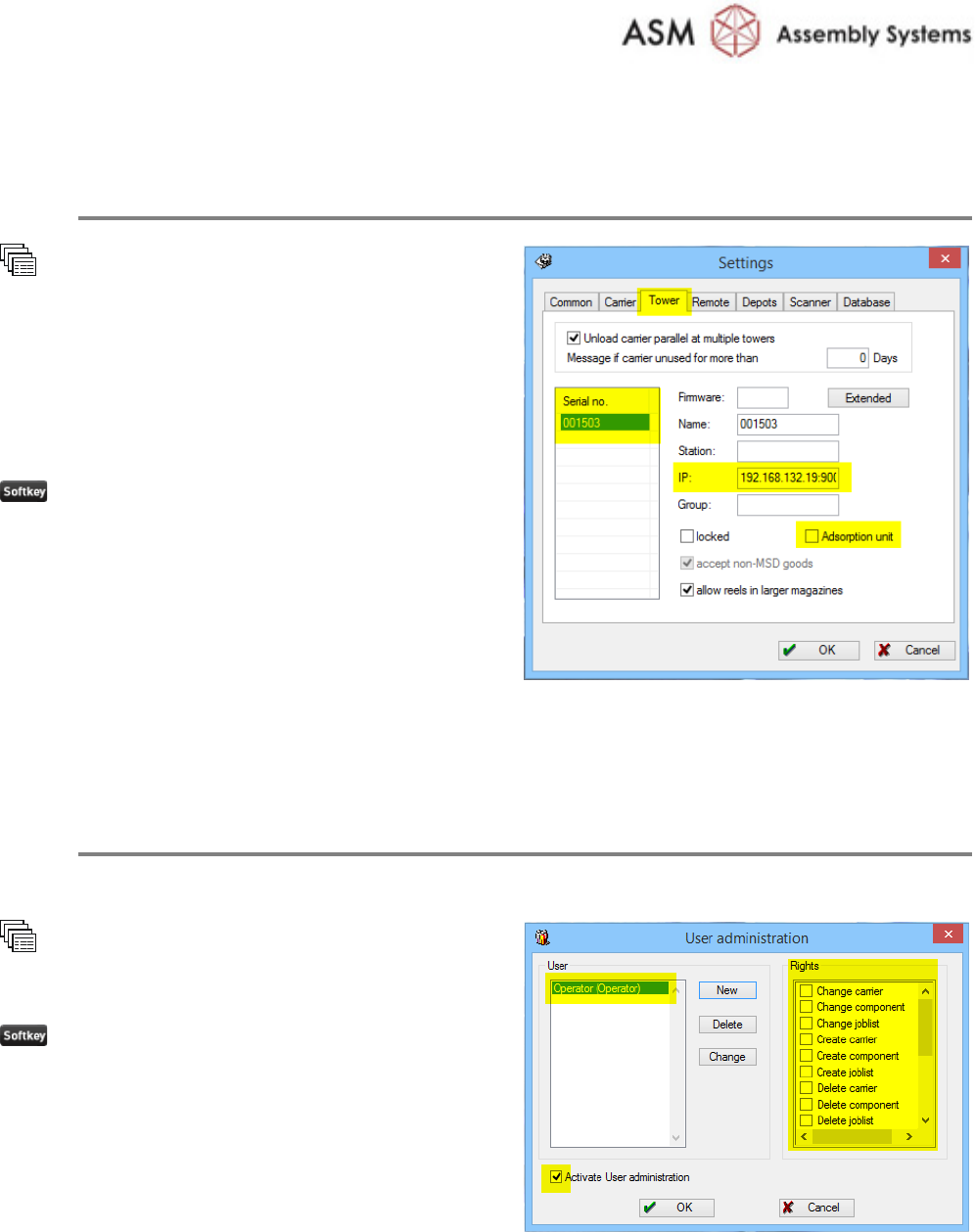
1.7 Memorizing Tower Settings
Write down the Serial Number and other settings of SMD-Tower for later use
Extras
Settings
Tower
Write down the:
· Serial no.
· IP address
· Adsorption unit present or not
OK
1.8 Setting up User Management (optional)
Restrict the User Rights to operate the SMD-Tower as Slave
Since the SMD-Tower operates as slave, it is recommended to restrict the user rights.
User
User administration
Create a user with no rights
OK
© ASM 2-6
00197719-01 / October 22, 2014
2 Setup Material Tower Software
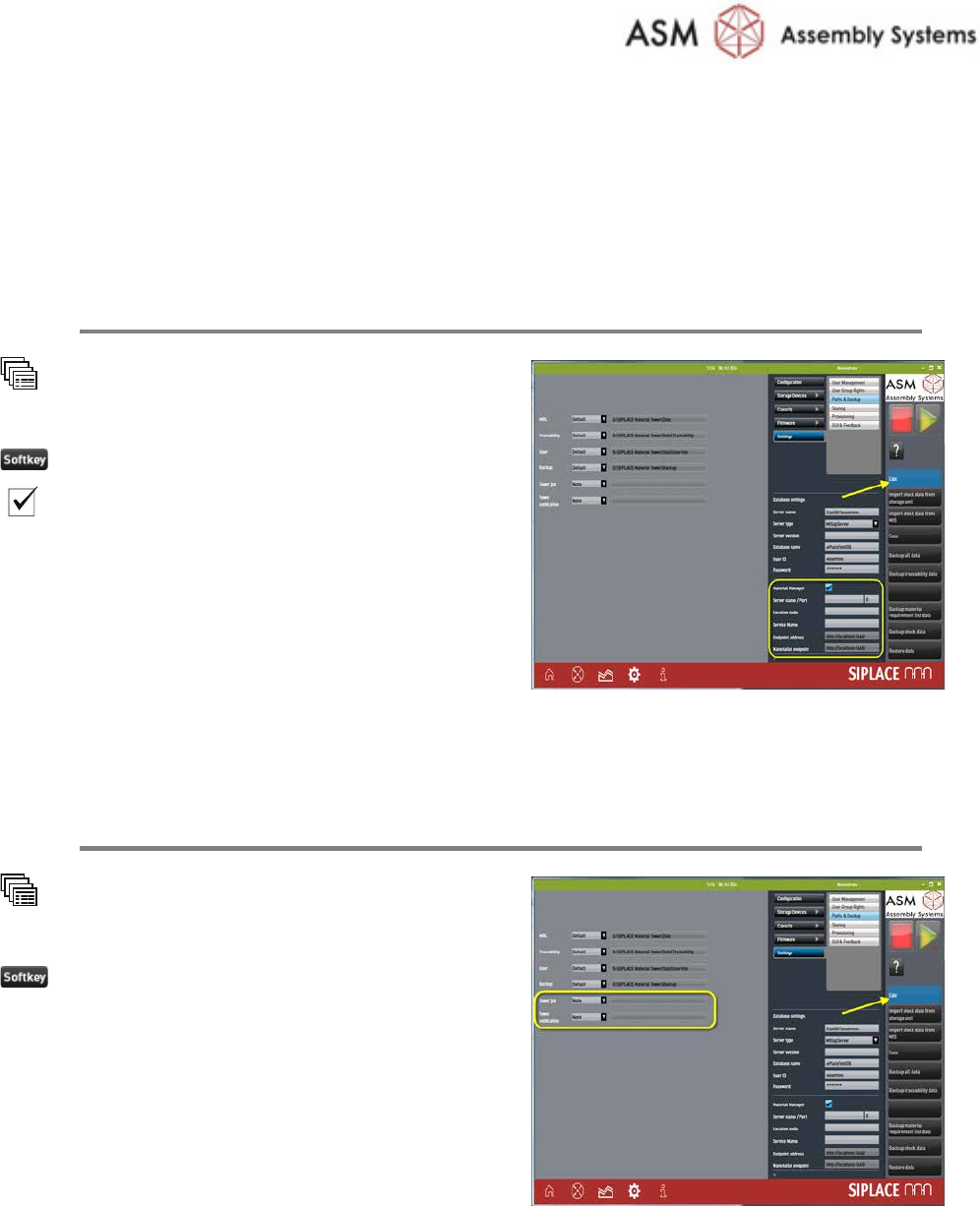
2.1 Setting of Material Manager
Setup the Material Manager
System
Settings
Paths & Backup
Edit
Material manager
Enter
all the Material Manager parameters.
Refer to the online help for further information.
2.2 Setting of Correct Paths
Set Paths for Tower Job and Tower Notification
System
Settings
Paths & Backup
Edit
Enter the
correct paths of:
· Tower job
· Tower notification
Setup Material Tower Software
© ASM
2-7
00197719-01 / October 22, 2014
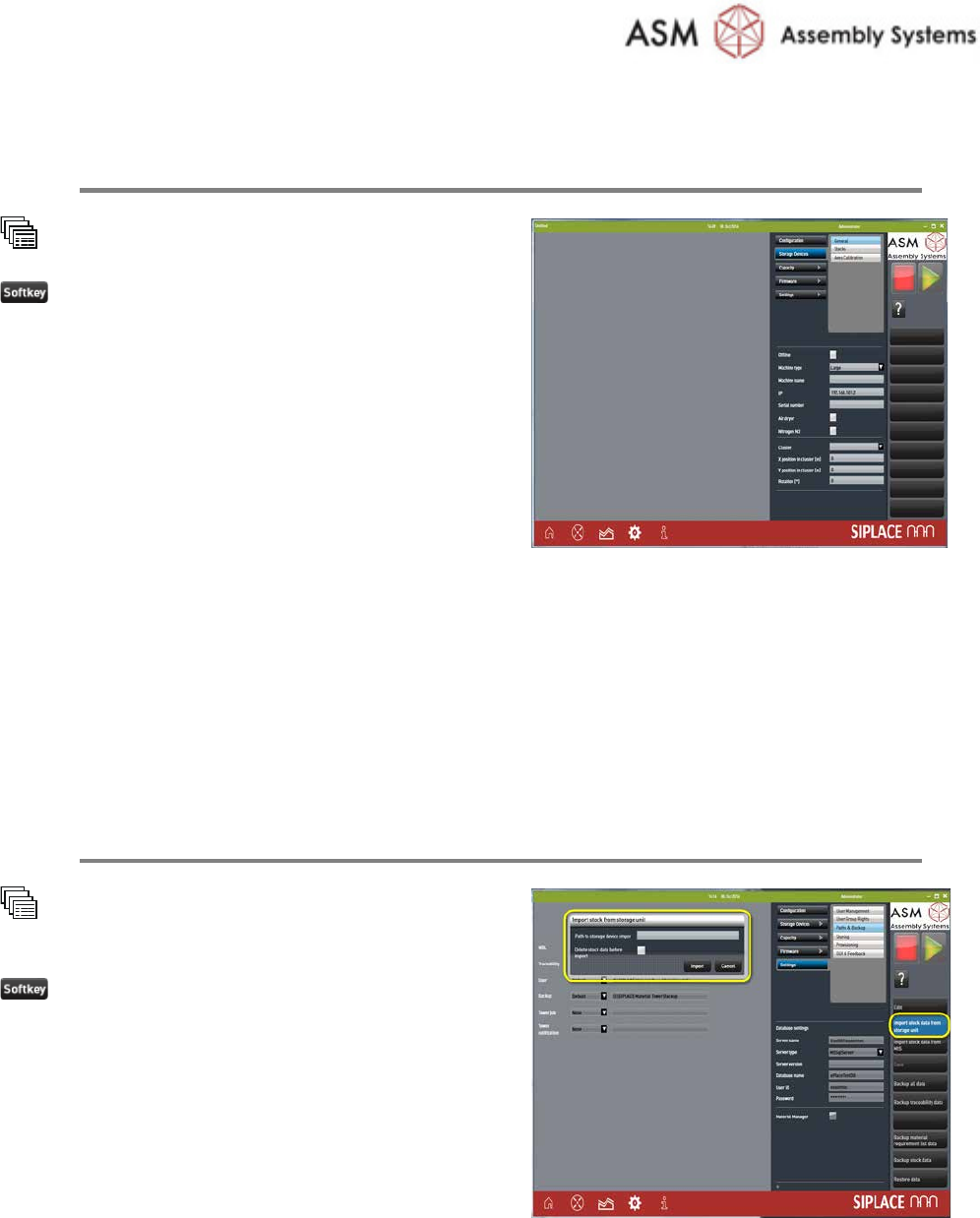
2.3 Integrating SMD-Tower
Create Storage Units in the Material Tower Software
System
Storage Units
New
Set the parameters:
· Machine type to: SMD-Tower
· IP: enter the IP address memorized during
SMD-Tower preparation (the IP has no
function, it is just for documentation).
· Serial number: enter exactly the same
number memorized during SMD-Tower
preparation
· all the other parameters
Refer to the online help for additional
information.
Repeat this step for all SMD-Towers to integrate.
2.4 Importing Data
Import the Stock Data from the SMD-Towers
System
Settings
Paths & Backup
Import stock data from storage
device
Enter the path of the
file containing the
exporte
d stock item information, done during
SMD
-Tower preparation