TK55253.FeederIDLog.pdf - 第12页
Product Engineering Division SMT Sect ion Robotics Operations Y AMAHA MOTOR CO., L TD MDOC-SOFT50281 12 /15 Fig.4.2 “Un it log Setting” screen an d “ID log setting” screen T a ble4.1 Setting i tems of ”ID log setting” sc…
Product Engineering Division
SMT Section
Robotics Operations
YAMAHA MOTOR CO., LTD
MDOC-SOFT50281
11/15
4. Setting
When using the feeder ID log, perform the following settings.
4.1 Setting in “ID log setting” screen
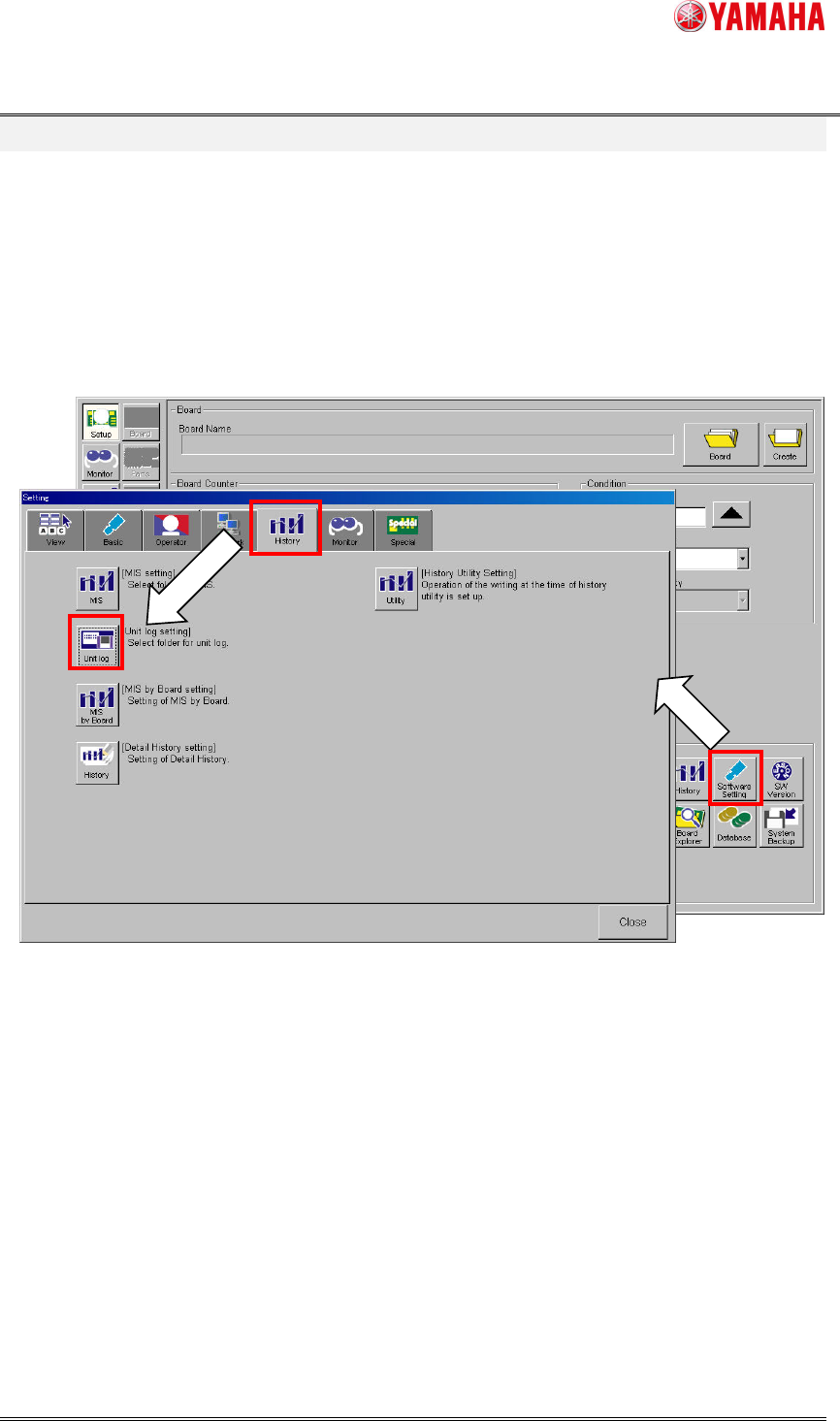
Tap [Setup]-[Software Setting]-[History]-[Unit Log]-[Log Setting] and open “ID Log Setting”
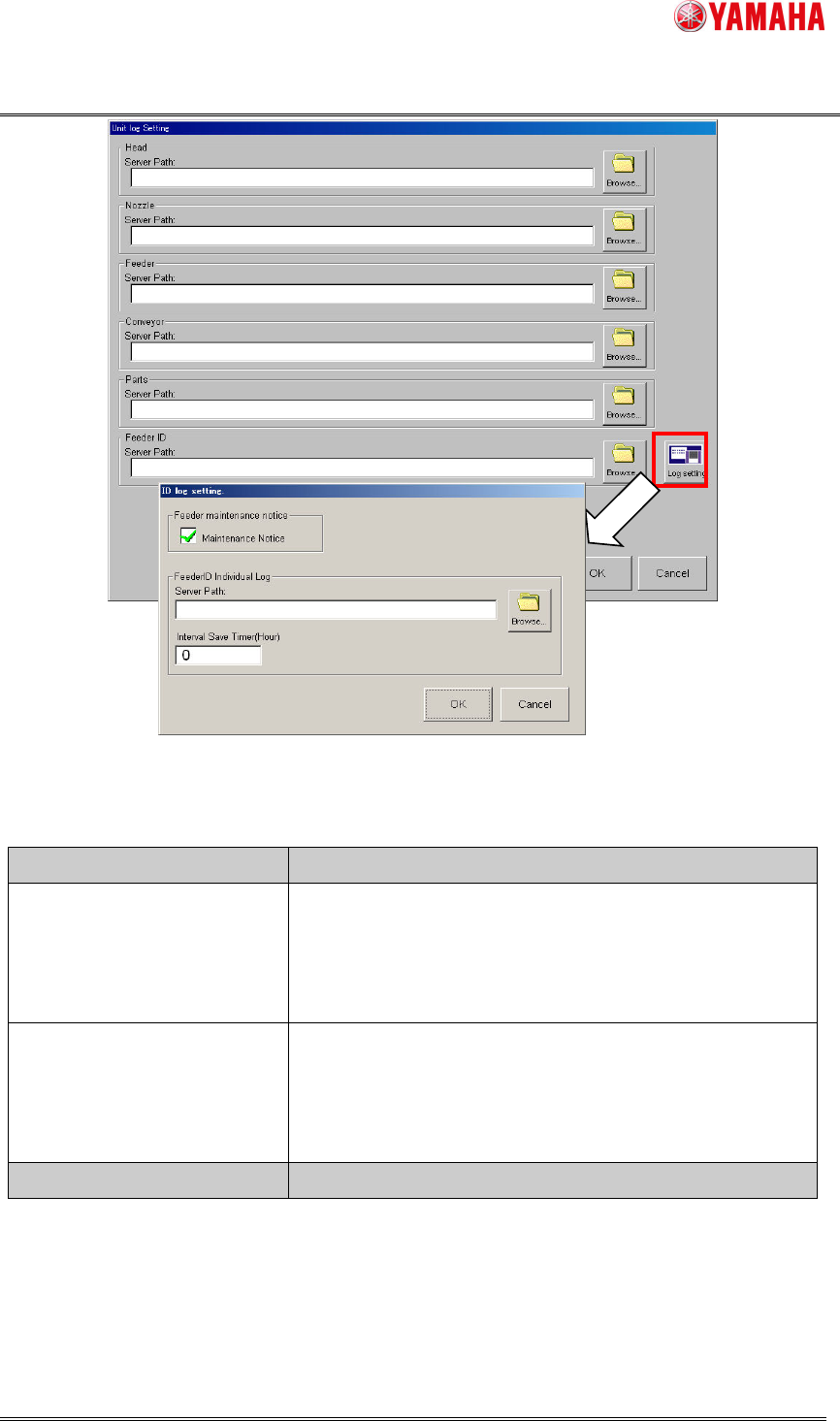
screen. Enable the maintenance notice function and set the feeder ID individual log file path
to “Server Path”.
Fig.4.1 “History” tab of “Software Setting” screen
Product Engineering Division
SMT Section
Robotics Operations
YAMAHA MOTOR CO., LTD
MDOC-SOFT50281
12/15
Fig.4.2 “Unit log Setting” screen and “ID log setting” screen
Table4.1 Setting items of ”ID log setting” screen
Item name Explanation
Maintenance Notice
checkbox
If checked, the maintenance notice function becomes
effective.
When the first installation, this check is attached by the
default.
Server Path Set output path of the feeder ID individual log file.
By tapping “Browse” button and opening “Browse Folder”
screen, you can specify the folder path.
When empty, the feeder ID log function becomes invalid.
Item name Explanation
Product Engineering Division
SMT Section
Robotics Operations
YAMAHA MOTOR CO., LTD
MDOC-SOFT50281
13/15
Interval Save Time (Hour) Set the interval time that outputs the feeder ID individual
log file per hour. When "0" is set, interval save is not
performed.
When reaching the interval save time during
auto-running, file is output after stopping auto-running.
When changing this value and tapping "OK" button, the
current interval save timer is reset and the interval save
timer is restarted with new interval time.
4.2 Setting in “Unit log” screen
Close [ID log setting] screen and return to [Unit Log Setting] screen.
When outputting the feeder ID daily log file, set output path of the feeder ID daily log file to
“Server Path” in the “Feeder ID” field. By tapping [Browse] button and opening [Browse
Folder] screen, you can specify the folder path.
When “Server Path” is empty, the feeder ID daily log file is not output.
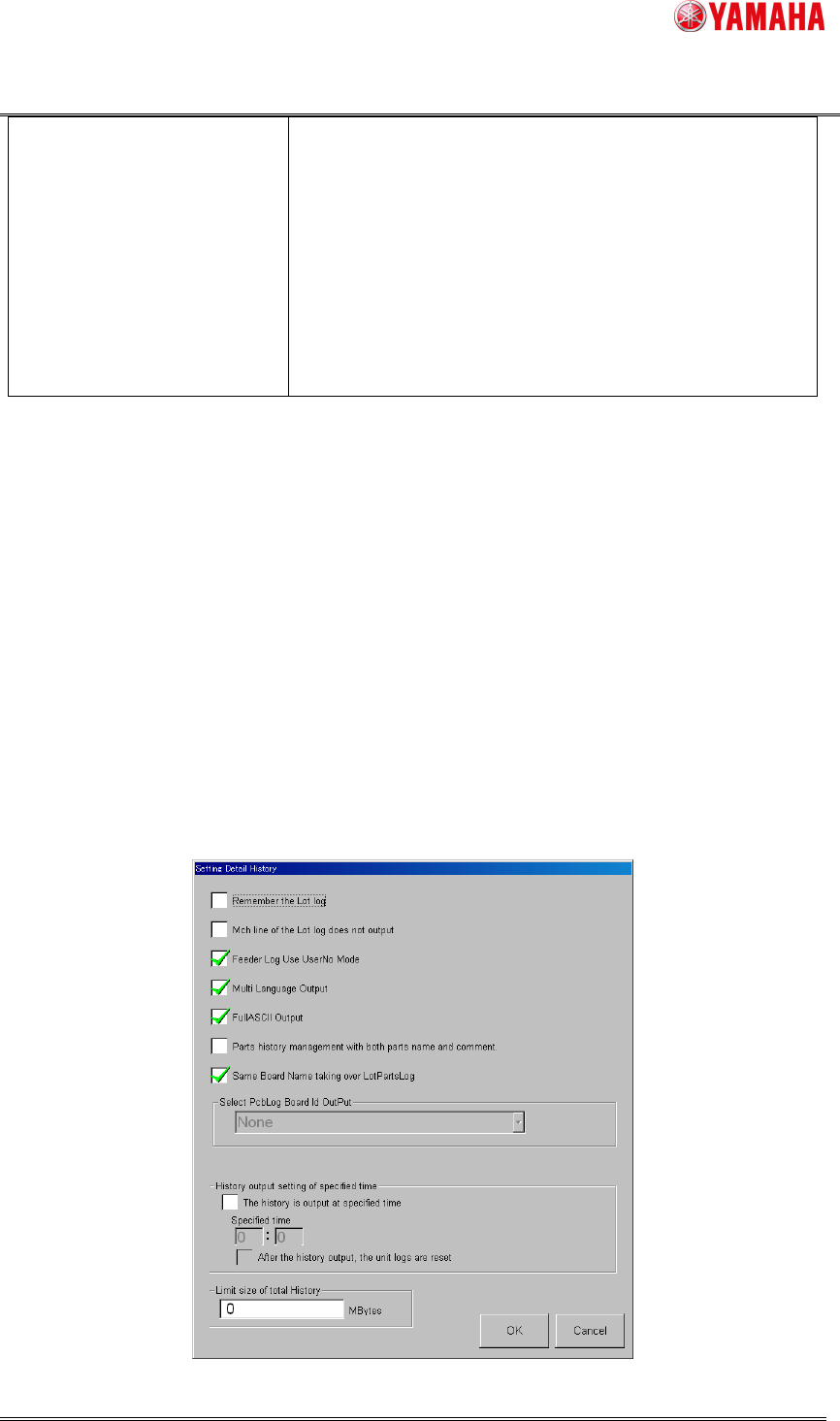
4.3 Setting in “Setting Detail History” screen
Tap [Setup]-[Software Setting]-[History]–[Unit log] button and open [Setting Detail History]
screen. If needed, perform the setting related to history. (This setting also influences
histories other than feeder)