TK26620.Feeder ID Log Function Specification.pdf - 第4页
SMT Software Engineering Group IM Operations YAMAHA M OTOR CO., LTD. MDOC-SOFT50281 4/13 Column nam e Content s V ision Error Counter Number of vision err or of the p art s on the feeder is disp layed. V ision Error % Ra…
SMT Software Engineering Group
IM Operations YAMAHA MOTOR CO., LTD.
MDOC-SOFT50281
3/13
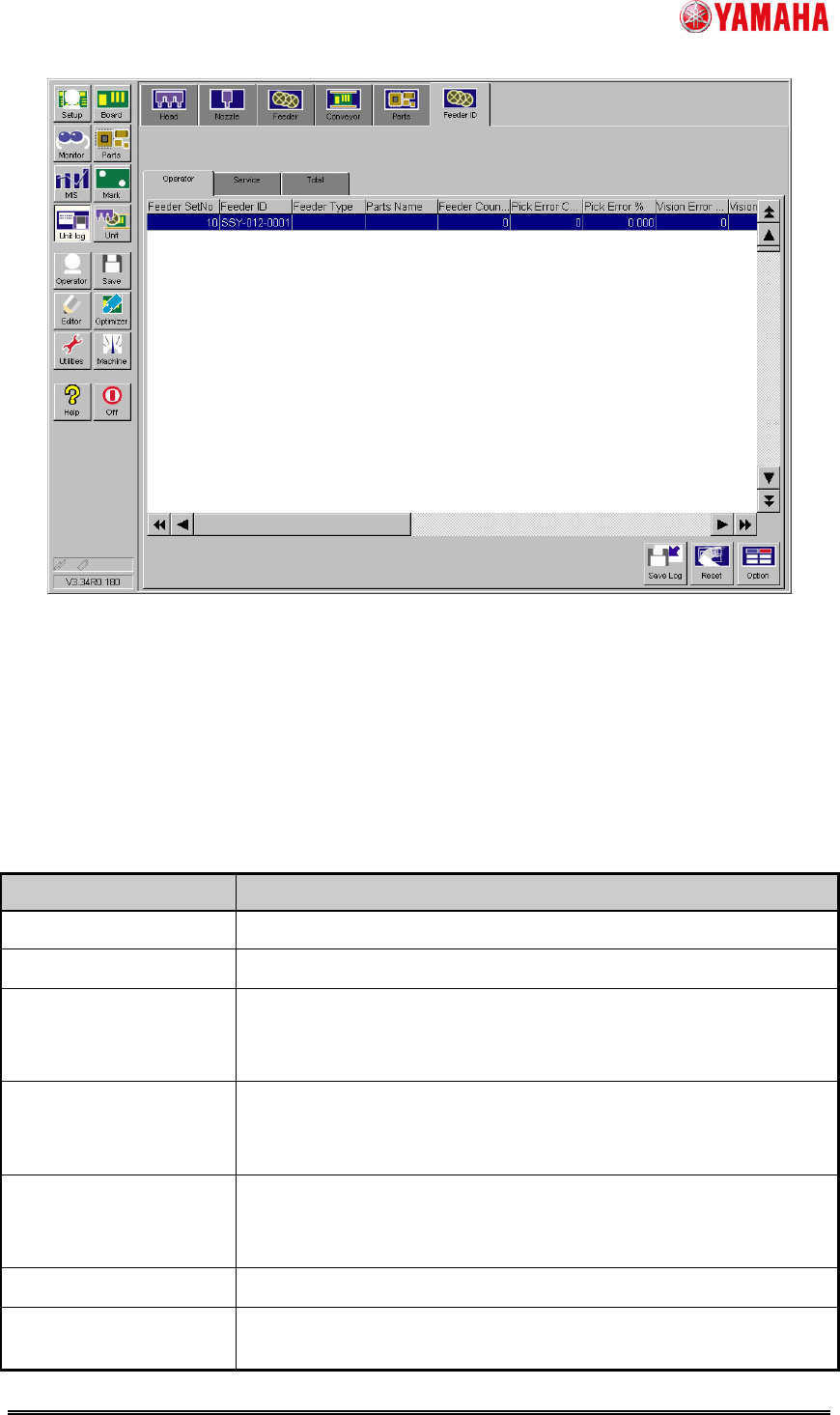
Fig.3.1 Feeder ID log
screen
3.1.1 Display items
The display items of feeder ID log screen are as follows.
When feeder is attached or machine is turned on, the last saved data is displayed. If the
last saved data does not exist, the initial value is displayed.
Table3.1 Display items of feeder ID log screen
Column name Contents
Feeder SetNo Set position number of attached feeder is displayed.
Feeder ID Feeder ID is displayed.
Feeder Type Feeder type specified by parts data is displayed.
In the case of the feeder unused by board data, the last feeder
type is displayed.
Parts Name Parts name attached to the feeder is displayed.
In the case of the parts unused by board data, the last parts name
is displayed.
Feeder Counter Number of times of feeder drive (number of shots) is displayed.
This count is used as the standard when calculating various error
ratios.
Pick Error Counter Number of pick error of the parts on the feeder is displayed.
Pick Error % Ratio of “Pick Error Counter” / “Feeder Counter” is displayed.
SMT Software Engineering Group
IM Operations YAMAHA MOTOR CO., LTD.
MDOC-SOFT50281
4/13
Column name Contents
Vision Error Counter Number of vision error of the parts on the feeder is displayed.
Vision Error % Ratio of “Vision Error Counter” / “Feeder Counter” is displayed.
No Parts Error Counter Number of no-parts error of the parts on the feeder is displayed.
No Parts Error % Ratio of "No Parts Error Counter" / "Feeder Counter" is displayed.
Nozzle Error Counter Number of nozzle error of the parts on the feeder is displayed.
Nozzle Error % Ratio of "Nozzle Error Counter" / "Feeder Counter" is displayed.
Date
Date when the feeder was used first is displayed.
Last Update Date Date when the feeder was used last is displayed.
Specifically, this is the time when either of "Feeder Counter", "Pick
Error Counter", "Vision Error Counter", "No Parts Error Counter,”
or "Nozzle Error Counter" is counted last.
Stroke Length / Feed
Time
Distance of the tape sent by the feeder (unit: mm) is displayed.
In case of a multi stick feeder, feeding time (unit: sec) is
displayed.
Smart Exist Count
Number of feeder attachment times is displayed.
After Adjust Drive Cnt Number of times of feeder drive after adjusting by SS Tune-Up
Station is displayed. (This value cannot be initialized)
Cumulated Drive Cnt Number of times of past feeder drive is displayed. (This value
cannot be initialized)
Feeder MACS Correct
X
Feeder MACS Correction value X is displayed.
When “FEEDER MACS CORRECTION VALUE ERROR” occurs,
the error value is displayed. (This value cannot be initialized)
Feeder MACS Correct
Y
Feeder MACS Correction value Y is displayed.
When “FEEDER MACS CORRECTION VALUE ERROR” occurs,
the error value is displayed. (This value cannot be initialized)
* Depending on timing of refresh screen, updated value might not be reflected to the screen
immediately.
3.1.2 “Save Log” button
By the following procedure, you can save the feeder ID log data displayed on the screen,
into any location such as an USB memory or network drive.
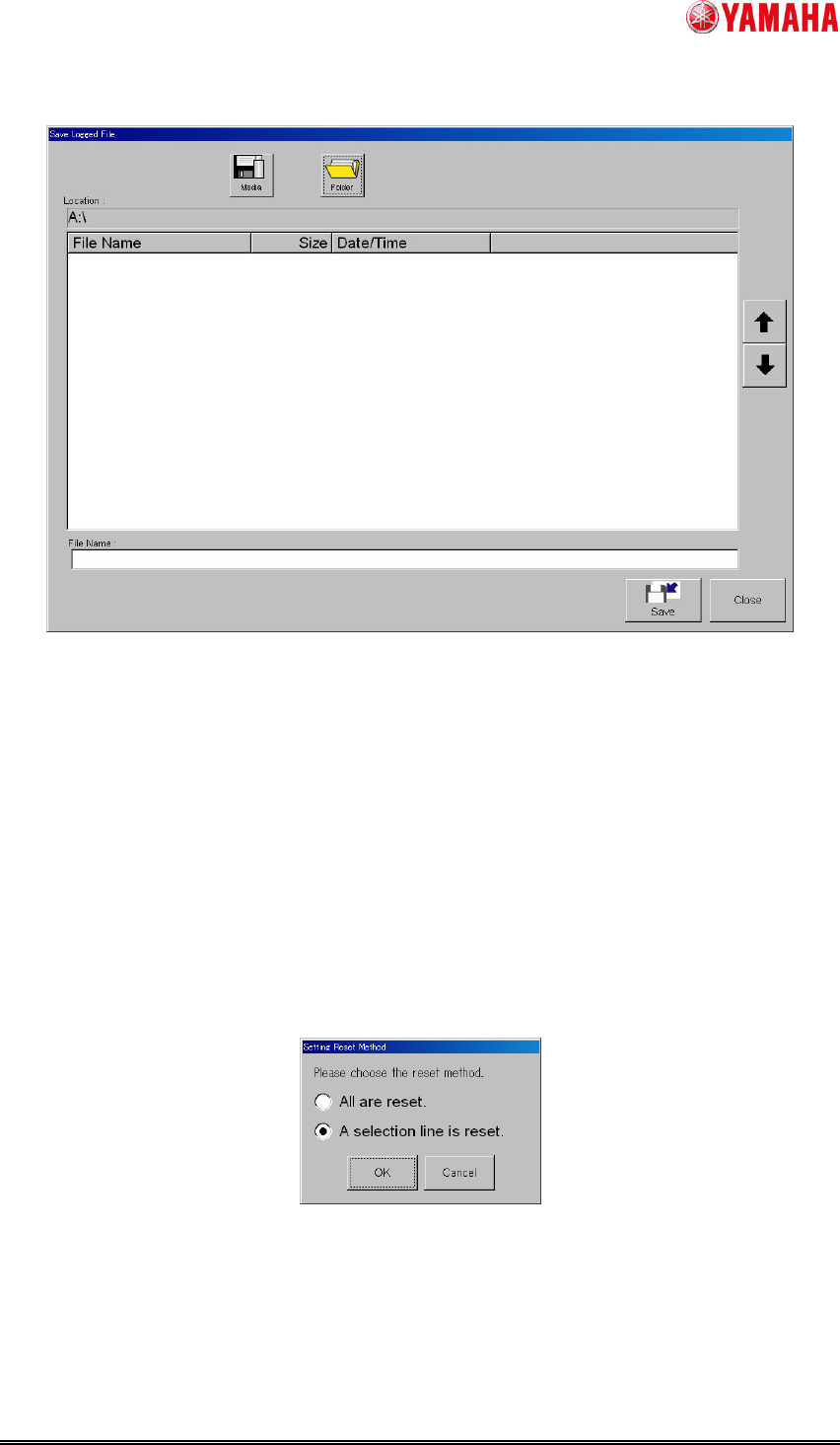
1. Tap the [Save Log] button to open the "Save Logged File" dialog box.
2. Tap the [Media] and [Folder] buttons, and set the location to save the log data.
3. Name the file and tap the [Save] button. The file of the log data will be saved in the
specified location. A file extension (.csv) will be automatically assigned to each file.
SMT Software Engineering Group
IM Operations YAMAHA MOTOR CO., LTD.
MDOC-SOFT50281
5/13
Fig.3.2 “Save Logged File” screen
* You can also save the feeder ID log data to a file at the "History utility" screen displayed by
tapping the [Setup] - [History] button.
3.1.3 “Reset” button
Through the following procedure, you can clear the feeder ID log data on the [Operator] or
[Service] tab.
1. Tap the [Reset] button to open the [Setting Reset Method] dialog box. Select the reset
method, and tap the [OK] button.
2. When a conformation dialog box displayed, tap the [Yes] button.
Fig.3.3 “Setting Reset Method” screen
3.1.4 “Option”
button
Tap the [Option] button to open the [Setting Grid View] screen that allows you to show or
hide each log data item. Check the items you want to display, and uncheck the items you do
not want to display.