TT5064_UserDefinition_MachineSetup_ManualRev1.pdf - 第5页
SMT Software En gineering Group IMOperations YAMAHAMOTORCO.,LTD. MD OC-SOFT50064 5/12 4.2 Setup w ork of “User Defi nition ” 4.2.1 Setup work of necessary item W hen a necessary item exists, t he…
SMT Software Engineering Group
IMOperationsYAMAHAMOTORCO.,LTD.
MDOC-SOFT50064
4/12
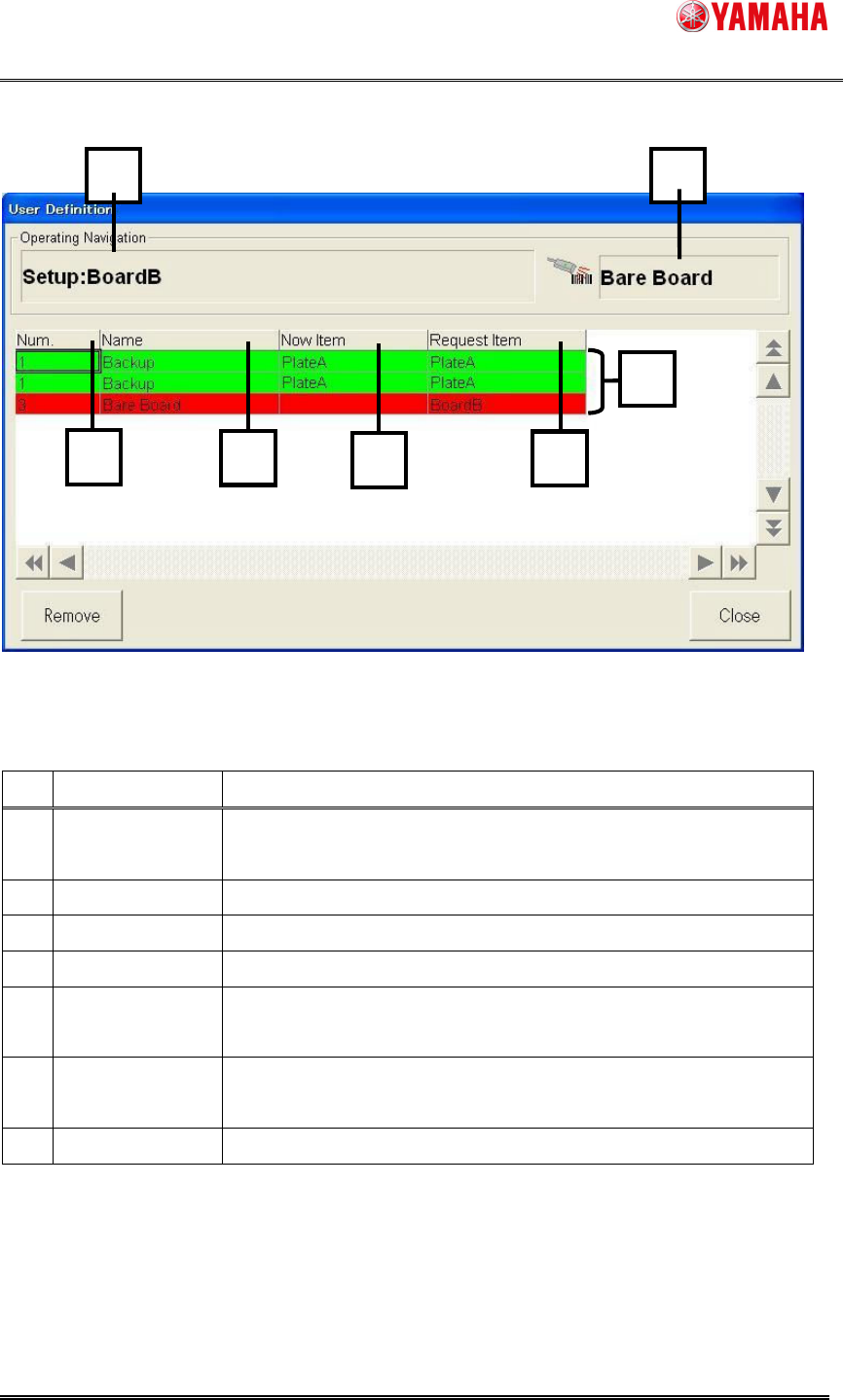
Figure4.1.2 User definition information dialog display item
No.
Item name Explanation
1
Operating
Navigation
Requested operation is displayed.
2 Scanning Object
"User Definition _ Name" to be scanned is displayed.
3 Num. "User Definition _ Number" set by "ID Editor" is displayed.
4 Name "User Definition _ Name" set by "ID Editor" is displayed.
5 Now Item
"Item Name" that has been setup is displayed in the machine
now.
6 Request Item
"Item Name" requested to be setup with the board is displayed
now.
7 Setup Situation "Setup OK" displays "Green" and "Setup NG" displays "Red".
1
11
1
2
22
2
3
33
3
6
66
6
5
55
5
4
44
4
7
77
7
SMT Software Engineering Group
IMOperationsYAMAHAMOTORCO.,LTD.
MDOC-SOFT50064
5/12
4.2 Setup work of “User Definition”
4.2.1 Setup work of necessary item
When a necessary item exists, the item is setup, and the barcode of the item is scanned
with the barcode reader.
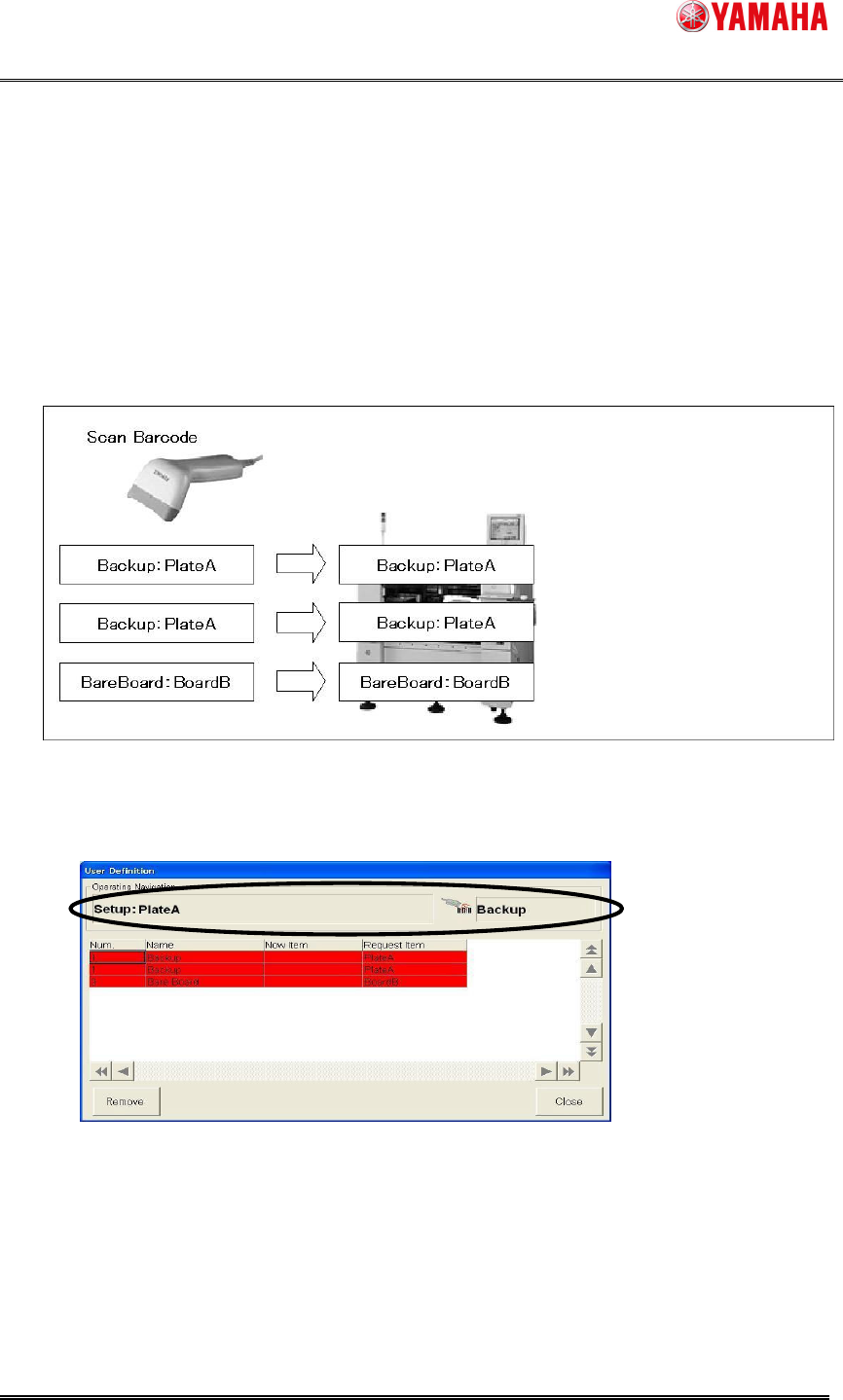
Ex.1: When you setup the following. ( In the machine for Twin push-up )
It is two as for item "PlateA" of “User Definition _ name” "Backup".
It is one as for item "BoardB" of “User Definition _ name” "Bare Board".
Step1. Two "PlateA" of "Backup" is setup.
1. Check the content displayed in the [User Definition] dialog.
2. Setup two "PlateA" according to the content.
SMT Software Engineering Group
IMOperationsYAMAHAMOTORCO.,LTD.
MDOC-SOFT50064
6/12
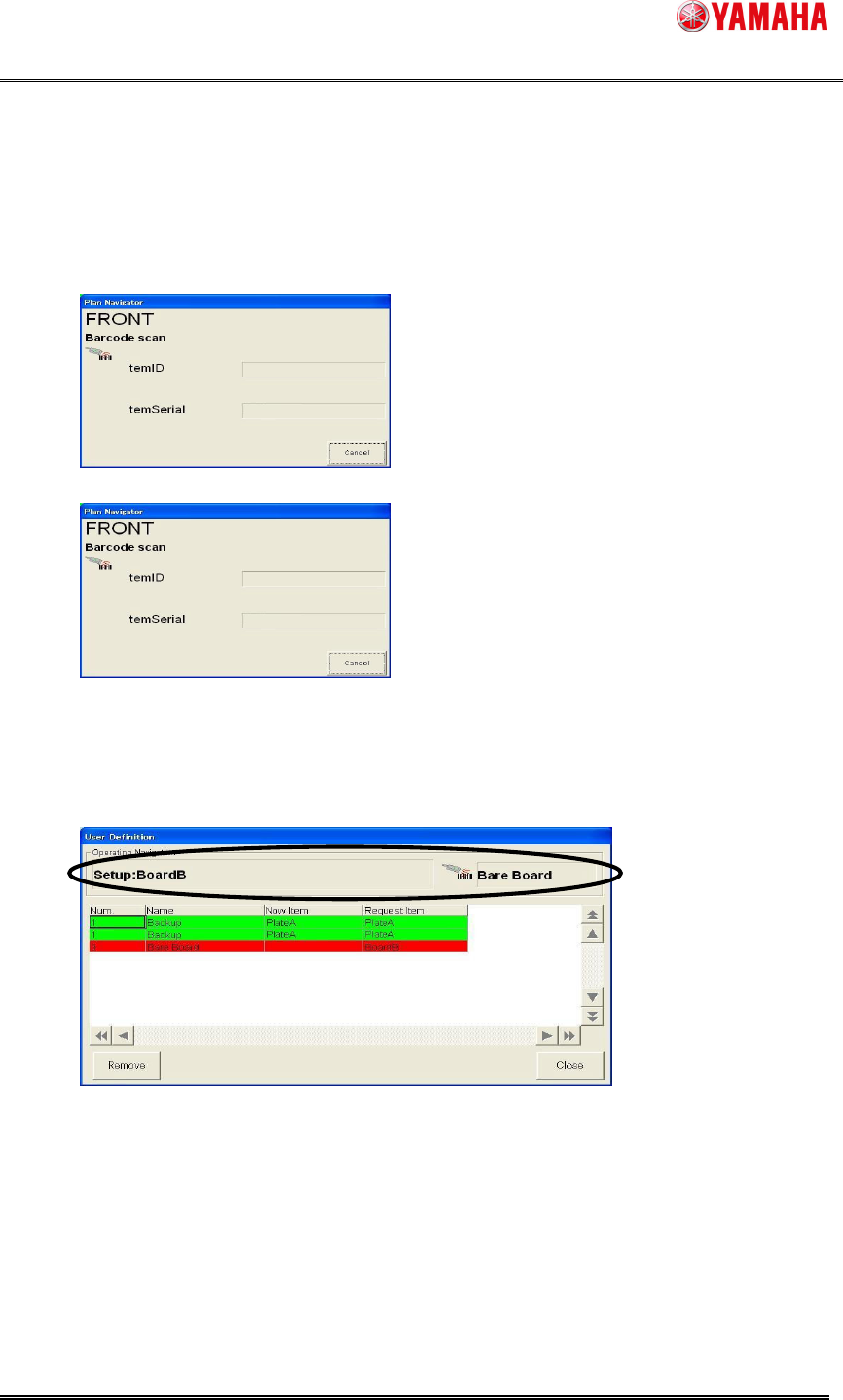
Step2. Scan the barcode of "PlateA"* with the barcode reader.
*Append the barcode that means "PlateA" beforehand.
*The scan is continuously needed when the same two or more “User Definition _
name” are registered.
1. Scan the first piece of “PlateA” when work is completed.
2. Scan the second piece of “PlateA”.
3. Setup of "Backup" is completed.
Step3. One "BoardB" of "Bare Board" is setup.
1. Check the content displayed in the [User Definition] dialog.
2. Setup one "BoardB" according to the content.